Pushing a project to Git is one of the most essential skills in modern software development. Whether you're working solo or on a team, understanding how to properly initialize, commit, and push code ensures your work is safe, traceable, and collaborative. Yet many developers—especially beginners—hesitate at this stage, fearing they might overwrite changes, break the repository, or lose their work entirely.
This guide walks through the entire process from start to finish, using clear, reliable methods that instill confidence. You’ll learn not just the commands, but the reasoning behind them, so every action feels intentional and secure.
1. Initialize Your Local Repository
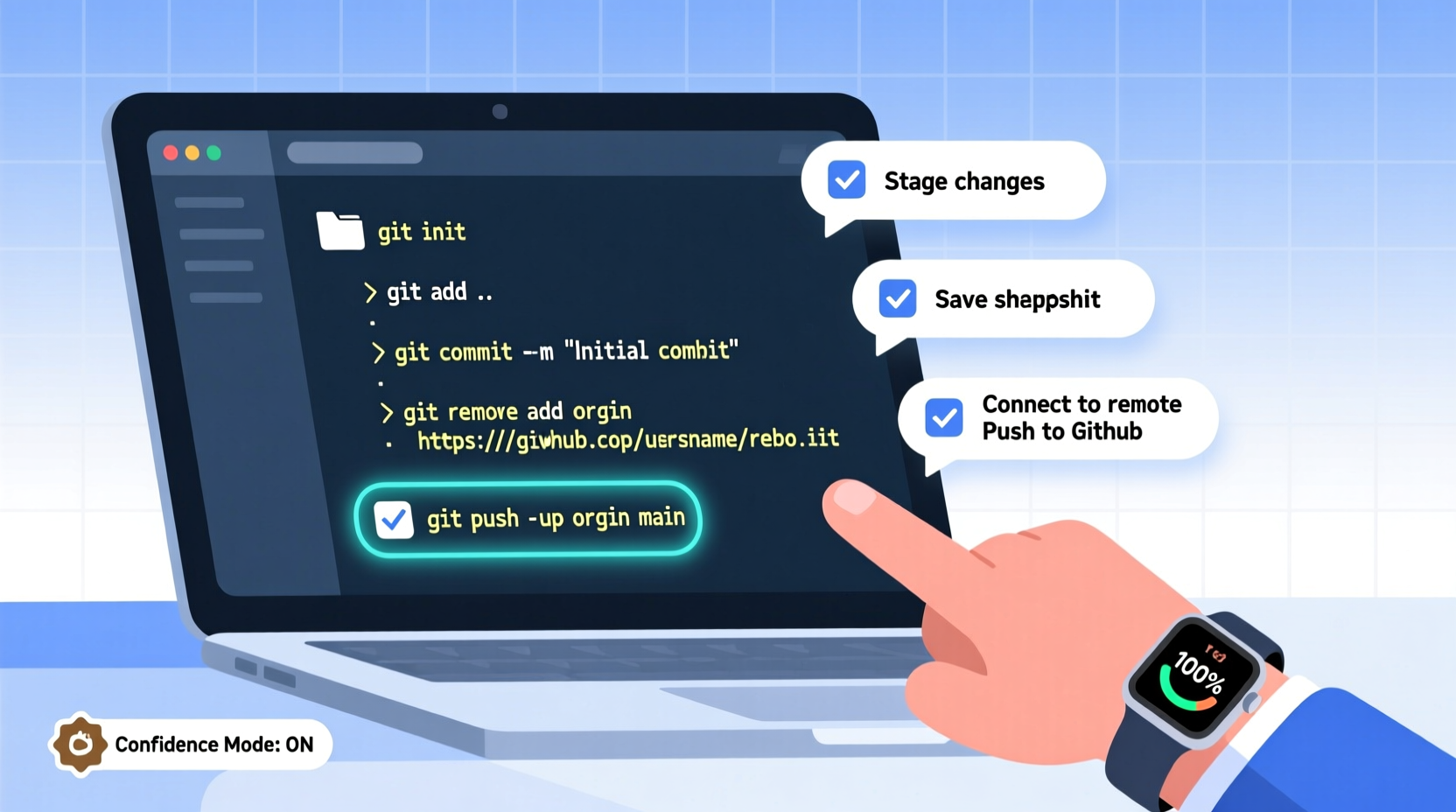
Before you can push anything, you need a local Git repository. This is where Git begins tracking changes in your project folder. Navigate to your project directory in the terminal and run:
git initThis creates a hidden .git folder that stores all version history. At this point, nothing is tracked yet—you’ve only initialized the system.
pwd before running
git init to avoid initializing in the wrong location.
Next, tell Git which files to track. Use:
git add .This stages all files in the directory. For more control, specify individual files:
git add index.html styles/main.css2. Make Your First Commit
A commit is a saved state of your project. Think of it as a checkpoint. To create one, use:
git commit -m \"Initial commit\"The message should be descriptive but concise. Instead of “fixed stuff,” write “Add login form validation” or “Refactor user authentication module.” Good messages make future debugging easier.
“Writing meaningful commit messages is like leaving breadcrumbs for your future self.” — Linus Torvalds, Creator of Git
If you forget to add files or realize you missed something immediately after committing, you can amend the last commit:
git add forgotten-file.js
git commit --amend --no-edit
The --no-edit flag keeps the original message. Omit it if you want to change the message too.
3. Connect to a Remote Repository
Your local repository exists only on your machine. To share it, you need a remote host—most commonly GitHub, GitLab, or Bitbucket.
Create a new repository on your platform of choice. **Do not** initialize it with a README, .gitignore, or license if you’re pushing an existing project. Copy the remote repository URL (HTTPS or SSH).
Link your local repo to the remote:
git remote add origin https://github.com/yourusername/your-project.gitTo verify the connection:
git remote -vThis lists all remotes. You should see both fetch and push URLs for “origin.”
4. Push to Remote: The Final Step
You’re ready to push. But here’s where many get tripped up: modern repositories default to main as the primary branch, not master. Ensure your local branch name matches.
If your default branch is main, set it explicitly:
git branch -M mainNow push and set the upstream branch:
git push -u origin mainThe -u flag links your local branch to the remote one, so future pushes require only git push.
If you encounter errors like “remote contains work you do not have locally,” it usually means the remote has a commit (like a README) that your local repo lacks. You’ll need to pull first:
git pull --set-upstream origin mainThen resolve any merge conflicts before pushing again.
5. Best Practices for Confident Version Control
Pushing code isn’t just about typing commands—it’s about building habits that protect your work and simplify collaboration.
Use a .gitignore File
Not everything belongs in version control. Exclude logs, dependencies, environment files, and build artifacts. Create a .gitignore file at your project root:
node_modules/
*.log
.env
dist/
__pycache__/
Popular templates are available at github.com/github/gitignore.
Commit Often, Push Regularly
Frequent commits reduce risk. If something breaks, you can revert to a known-good state quickly. Pushing regularly ensures your backups are up to date—even if your laptop fails.
Tip: Commit when you complete a logical unit of work—adding a feature, fixing a bug, or refactoring a function.Verify Before You Push
Always check what’s about to be pushed:
git statusThis shows uncommitted changes. Run:
git log --oneline -5To preview recent commits. Confirm you’re on the right branch with:
git branch| Action | Command | Purpose |
|---|---|---|
| Check status | git status |
See staged, modified, and untracked files |
| Preview commits | git log --oneline |
Review recent commit history |
| Confirm branch | git branch |
Ensure you're on the correct branch |
| Test connection | git remote -v |
Verify remote URL is set |
Real Example: Recovering from a Failed Push
Sophie, a junior developer, tried to push her first project but got this error:
! [rejected] main -> main (fetch first)
error: failed to push some refs to 'https://github.com/sophie/project-x'
She hadn’t pulled the remote changes first. Her team had added a shared configuration file. Here’s how she resolved it:
- Ran
git pull origin mainto fetch the latest changes. - Resolved a minor conflict in
config.jsonby choosing the correct API endpoint. - Staged the resolved file with
git add config.json. - Completed the merge with
git commit. - Finally ran
git push origin main—success.
This experience taught her the importance of pulling before pushing when others are working on the same repository.
Frequently Asked Questions
What if I accidentally push sensitive data?
If you push secrets like API keys, rotate them immediately. Then remove the file from history using git filter-branch or BFG Repo-Cleaner. Never rely on deletion in a later commit—history remains accessible.
Can I push to multiple remotes?
Yes. Use git remote add to add additional remotes (e.g., backup on GitLab). Then push to each individually: git push origin main, then git push backup main.
Why use SSH over HTTPS?
SSH is more secure and convenient once set up. It uses key-based authentication, eliminating repeated username/password entry. However, HTTPS is simpler for beginners and works behind most firewalls.
Final Checklist: Push with Confidence
- ✅ Initialized repo with
git init - ✅ Added necessary files with
git add - ✅ Made a meaningful initial commit
- ✅ Created and linked remote repository
- ✅ Set correct default branch (
mainormaster) - ✅ Verified remote connection with
git remote -v - ✅ Pulled first if remote has changes
- ✅ Used
git push -u origin mainfor the initial push
Conclusion
Pushing your project to Git doesn’t have to be intimidating. With a clear sequence of steps and a few defensive habits, you can manage your codebase with precision and peace of mind. Every developer, no matter their level, benefits from disciplined version control. Now that you understand the full flow—from initialization to remote sync—you’re equipped to contribute reliably to any project.
🚀 Ready to go? Open your terminal, navigate to your project, and rungit init today. Your future self will thank you.