
Internet Explorer, though largely replaced by Microsoft Edge, remains in use across certain business environments and legacy systems. Over time, the browser accumulates temporary files, cookies, and cached data that can slow down performance, cause display issues on websites, or compromise privacy. Regularly clearing the cache ensures smoother browsing and resolves many common technical glitches. This guide provides a detailed, practical approach to deleting browser cache in Internet Explorer with precision and confidence.
Why Clearing Cache Matters
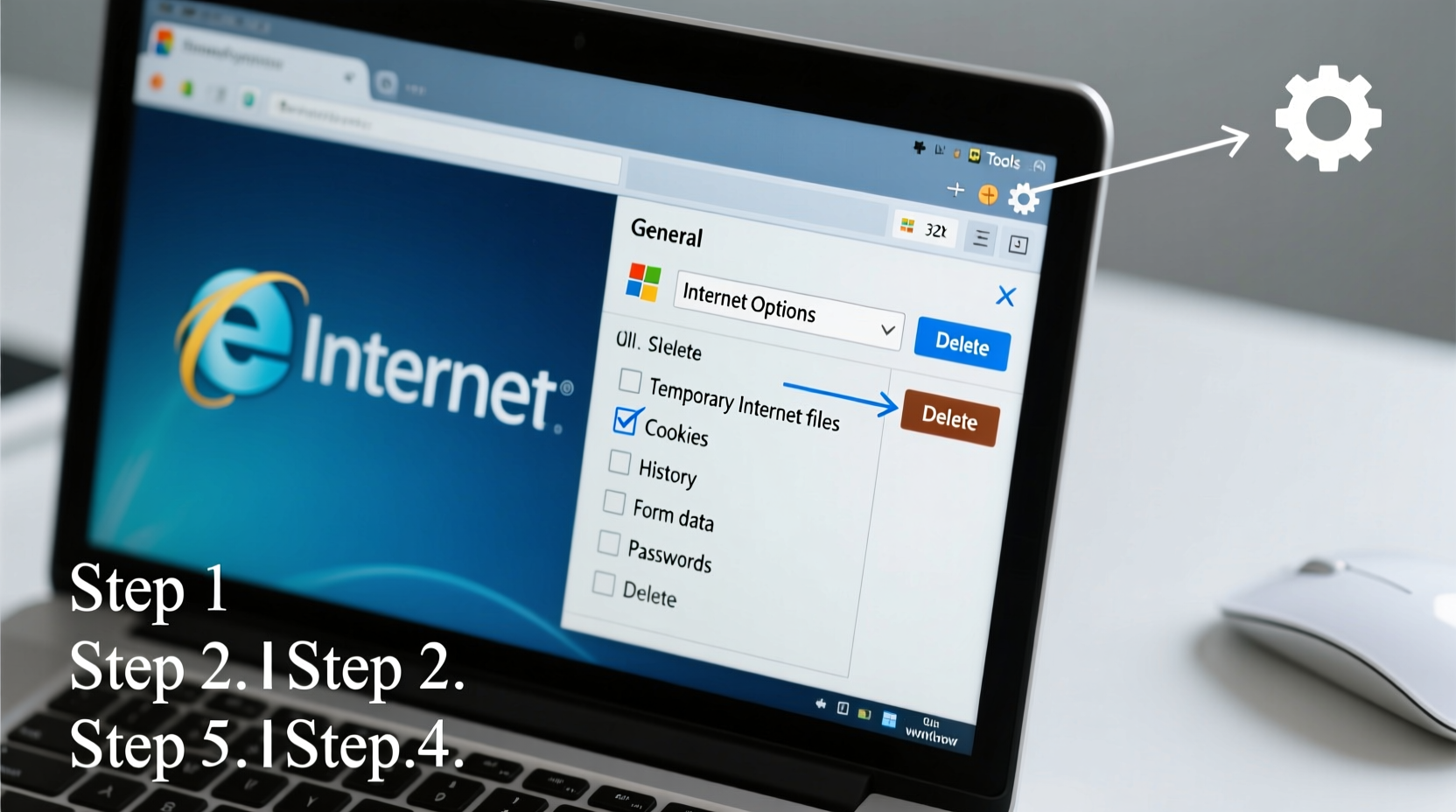
The browser cache stores copies of web pages, images, scripts, and other resources to speed up loading times on repeat visits. While this improves efficiency initially, outdated or corrupted cached data can lead to problems such as:
- Web pages failing to load correctly
- Old versions of sites appearing instead of updated content
- Forms not submitting properly
- Security risks from retained session data
Clearing the cache removes these stored elements, forcing the browser to fetch fresh content directly from the web server. This is especially important when troubleshooting website access issues, logging into secure portals, or ensuring compliance with data hygiene standards.
Tip: If you're experiencing login loops or broken layouts on internal company sites, clearing the cache often resolves the issue within minutes.Step-by-Step Guide to Delete Browser Cache in Internet Explorer
Follow these steps carefully to remove cached data from Internet Explorer. The process applies to all supported versions of Windows running IE11 (the final version).
- Open Internet Explorer – Launch the browser from your desktop, taskbar, or Start menu.
- Access the Tools Menu – Click the gear icon (⚙️) in the top-right corner labeled “Tools,” or press Alt to reveal the menu bar and select Tools > Safety > Delete browsing history.
- Open the Delete Browsing History Window – A pop-up window titled “Delete Browsing History” will appear with several checkboxes.
- Select Data to Remove – Ensure the following options are checked:
- Temporary Internet Files and website files
- Cookies and website data
- History
- Download history
- Form data
- Passwords
- ActiveX Filtering and Tracking Protection data
Note: Only uncheck items if you wish to retain specific data (e.g., saved passwords).
- Delete the Data – Click the Delete button at the bottom of the window. Wait for the process to complete—this may take several seconds depending on the amount of stored data.
- Confirm Completion – Once finished, the window will close automatically. You can now restart Internet Explorer for a clean session.
Alternative Method Using Internet Options
For users managing multiple aspects of browser settings, accessing cache deletion through Control Panel offers greater control.
- Navigate to Control Panel > Network and Internet > Internet Options.
- Under the General tab, locate the “Browsing history” section.
- Click Delete… to open the same dialog box used previously.
- Select desired categories and confirm with Delete.
This method is particularly useful for IT administrators configuring default settings across enterprise machines.
Checklist: Preparing for Cache Deletion
Before clearing your cache, ensure you’re prepared for potential side effects like lost logins or reset preferences. Use this checklist to proceed safely:
Checklist:- ✅ Note down any critical login credentials you may lose
- ✅ Close unnecessary tabs to avoid data loss
- ✅ Confirm you’re not in the middle of an online transaction
- ✅ Disable any third-party toolbars that might interfere
- ✅ Consider creating a system restore point (for enterprise use)
Do’s and Don’ts When Clearing Cache
| Do’s | Don’ts |
|---|---|
| Do clear cache monthly for optimal performance | Don’t clear cache during active sessions (e.g., banking, forms) |
| Do verify site functionality after deletion | Don’t assume all data is permanently erased—some traces remain |
| Do use “InPrivate Browsing” for sensitive tasks without saving data | Don’t rely solely on cache deletion for security—combine with antivirus scans |
| Do document changes made for audit purposes (in corporate settings) | Don’t disable caching entirely—it harms performance |
Real-World Example: Resolving a Login Issue
A mid-sized accounting firm reported that employees could no longer log into their cloud-based payroll portal using Internet Explorer. The page would refresh endlessly after entering credentials. Initial troubleshooting ruled out network issues and password resets.
The IT team suspected stale authentication tokens stored in the cache. They issued instructions to all affected users to clear their browsing data, specifically targeting cookies and temporary files. Within 15 minutes of executing the cleanup, 95% of users regained access. The remaining cases required only a browser restart.
This case illustrates how cached data, while designed to improve experience, can inadvertently block essential functions when outdated.
Expert Insight on Browser Maintenance
“Many support tickets related to website errors stem from local cache corruption rather than server-side failures. A simple cache purge should be the first line of defense in any troubleshooting protocol.” — Daniel Reeves, Senior Systems Administrator at TechGuard Solutions
Frequently Asked Questions
Will clearing the cache delete my saved passwords?
Yes, unless you uncheck the “Passwords” option in the Delete Browsing History window. If you rely on saved logins, either record them beforehand or skip that category during deletion.
How often should I clear the cache in Internet Explorer?
For general users, once every four to six weeks is sufficient. In high-security or shared environments (e.g., libraries, kiosks), it should be done after each session or weekly at minimum.
Is it safe to delete Temporary Internet Files?
Yes. These files are meant to be disposable. Deleting them does not harm your system or personal files. However, websites may load slightly slower on the next visit as they rebuild the cache.
Advanced Tip: Automate Cache Cleanup via Script
For power users or administrators managing multiple machines, automation reduces manual effort. The following command-line script clears Internet Explorer’s cache using built-in Windows tools:
RunDll32.exe InetCpl.cpl,ClearMyTracksByProcess 8
This command targets only temporary files. To include cookies and history, adjust the number:
8= Temporary Internet Files1= History16= Form data2= Cookies255= All data (except saved passwords)32= Saved passwords
Scripts can be deployed via Group Policy in domain environments to enforce regular maintenance across workstations.
Conclusion: Take Control of Your Browser Experience
Maintaining a clean browsing environment isn't just about fixing errors—it's about taking ownership of your digital workspace. Clearing the cache in Internet Explorer is a small action with significant impact: faster load times, improved security, and fewer frustrating technical hiccups. Whether you're resolving a persistent login loop or simply practicing good digital hygiene, the steps outlined here empower you to act decisively and effectively.
💬 Ready to optimize your browsing? Open Internet Explorer today and perform a quick cache cleanup. Share your experience or ask questions in the comments—your insight could help others navigate similar challenges!