
Social media is fast-paced, and even a small typo or incorrect detail in a Facebook post can draw unwanted attention. You go to correct it—only to find the “Edit” option missing. Frustrating? Absolutely. But before you delete and repost, understand that this limitation usually has a logical cause. Whether it’s a technical glitch, privacy setting, or platform restriction, most issues preventing post edits are fixable. This guide breaks down exactly why you might not be able to edit a Facebook post and provides practical solutions across devices.
Why Can’t You Edit Your Facebook Post?
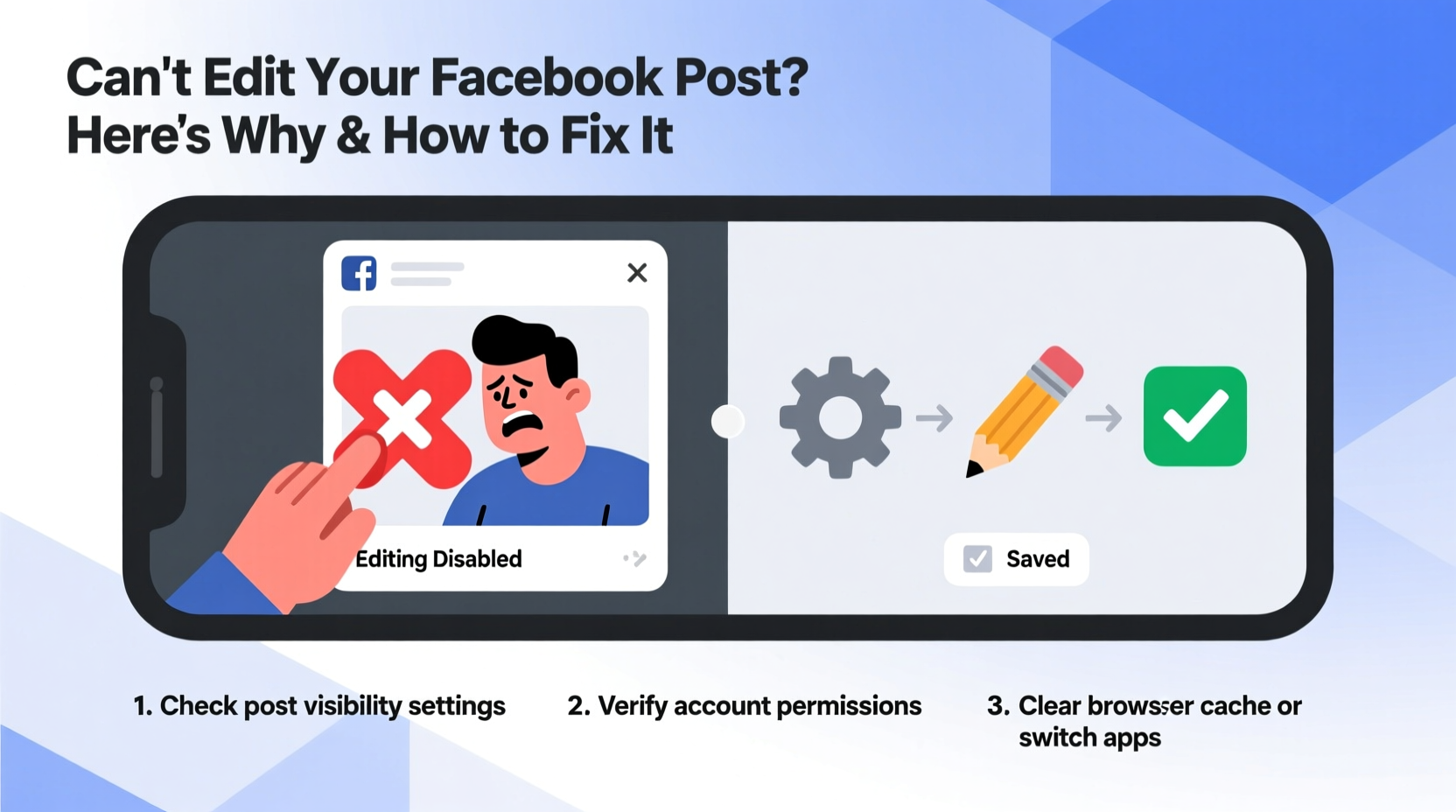
Facebook allows users to edit their own posts under normal conditions. However, several factors can disable the edit function. The most common culprits include:
- You’re not logged into the correct account
- The post was made from a business page, but you’re using a personal profile
- The post is part of a group with restricted editing permissions
- It was shared by someone else or appears in a public feed without ownership
- A technical issue with the Facebook app or browser cache
- The post contains content flagged for review or moderation
Understanding which scenario applies to your case is the first step toward restoring edit access.
Tip: Always double-check that you're viewing the post from the same account that created it. Switching between personal and business profiles is a frequent cause of missing edit options.Step-by-Step: How to Regain Access to Edit Your Post
If you’re unable to edit a post, follow this structured troubleshooting process to identify and resolve the issue.
- Verify Account Ownership: Ensure you’re logged into the exact account (personal profile or Page) that published the post. If you manage multiple accounts, switch profiles via the dropdown arrow at the top right of Facebook.
- Check Post Location: Is the post on your Timeline, a Group, or a Page? Editing rules vary:
- Your personal timeline: Full edit rights unless deleted or archived.
- Facebook Group: Only admins or moderators may allow members to edit posts after publishing.
- Business Page: Only admins, editors, or people assigned specific roles can edit posts.
- Look for the Edit Button: On desktop, hover over the top-right corner of the post. A pencil icon should appear. On mobile, tap the three dots (⋯) next to “Like” and “Comment.” If no “Edit” option appears, continue troubleshooting.
- Clear App Cache or Browser Data: Corrupted data can hide interface elements. For mobile apps, go to Settings > Apps > Facebook > Storage > Clear Cache. In browsers, clear cookies and cached images for facebook.com.
- Update the Facebook App: An outdated app version may lack updated UI features. Visit your device’s app store and install any pending updates.
- Try a Different Device or Browser: Sometimes, one platform fails while another works. Test editing the post from a computer if you’re on mobile, or vice versa.
Real Example: Lost Edit Rights in a Community Group
Linda runs a local gardening group on Facebook. She posted a typo-ridden event announcement and tried to edit it—but found no edit option. After checking, she realized the group’s settings were configured so only moderators could edit member posts after 10 minutes. Since Linda was just a regular member, she had to request changes through a moderator. Once promoted to admin, she gained full editing control. This highlights how group-level permissions override individual user rights.
“Editing restrictions in groups exist to maintain consistency and reduce spam. Admins should communicate these rules clearly to avoid confusion.” — Jamal Peterson, Social Media Manager at ConnectLocal
Common Scenarios That Block Post Edits
Not all posts behave the same way on Facebook. Below is a breakdown of situations where editing may be disabled—and what you can do about it.
| Scenario | Can You Edit? | Solution |
|---|---|---|
| Post made on a Facebook Page | Only if you have admin/editor access | Confirm your role in Page Settings > Page Roles |
| Post shared in a closed group | Depends on group rules | Contact admin or check group info section |
| Post contains reported content | No, during review period | Wait for resolution or appeal if wrongly flagged |
| You’re using a third-party scheduling tool | Limited editing after posting | Edit directly on Facebook, not via external platforms |
| Post was boosted or advertised | Text cannot be edited once live | Create a new ad with corrected copy |
Pro Tips for Avoiding Future Editing Issues
Prevention is better than troubleshooting. Implement these habits to minimize future headaches when managing Facebook content.
Tip: Always proofread posts in a notes app before publishing. Use spell-check and read aloud to catch awkward phrasing.- Draft posts first: Use Facebook’s built-in scheduler or a tool like Meta Business Suite to write, review, and schedule posts hours in advance.
- Assign clear Page roles: If managing a business or community Page, ensure team members have appropriate permissions (Admin, Editor, Moderator).
- Bookmark frequently used Pages: Reduce login errors by saving direct links to your managed Pages.
- Monitor group rules: Before posting in any group, review the description or pinned posts for editing policies.
FAQ: Common Questions About Editing Facebook Posts
Can I edit a Facebook post after 24 hours?
Yes, in most cases. There is no time limit on editing personal posts, Page posts, or approved group content. As long as you retain ownership and permissions, you can edit text at any time—even years later. Note: Engagement metrics (likes, shares) remain unchanged.
Why does my edit disappear after saving?
This typically happens due to a failed connection or app crash. Confirm the edit saved by refreshing the page. If changes don’t appear, reapply them and check your internet connection. Also, ensure you’re not accidentally drafting an edit without clicking “Save Changes.”
Can I edit a comment on someone else’s post?
Yes. You can always edit your own comments on any post—whether it’s on your timeline, a friend’s update, or a public Page. Simply tap the three dots on your comment and select “Edit.”
Final Checklist: Regain Control Over Your Posts
Before republishing or assuming you’ve lost control, run through this quick checklist:
- ✅ Am I logged into the correct Facebook account?
- ✅ Did I create the post personally, or was it shared by someone else?
- ✅ Is the post on my Profile, a Page, or in a Group?
- ✅ Do I have admin or editor rights (for Pages/Groups)?
- ✅ Have I cleared the app cache or tried a different browser?
- ✅ Is the post under review or restricted by Facebook?
- ✅ Have I checked for app updates?
Conclusion
Being unable to edit a Facebook post doesn’t mean the error is permanent—it usually signals a solvable mismatch in access, location, or technology. By methodically verifying ownership, reviewing permissions, and applying simple fixes like clearing cache or switching devices, you can restore editing capabilities in minutes. Don’t let minor glitches disrupt your social media presence. Take control today: revisit your recent posts, confirm your roles, and set up systems to prevent future hiccups.
💬 Experienced a strange editing issue on Facebook? Share your story in the comments—your solution might help someone else regain control of their post!