Email remains one of the most critical digital tools we use daily—for communication, account recovery, online shopping, and work. But with its importance comes risk. A compromised email can lead to identity theft, financial loss, and unauthorized access to other accounts. Logging in may seem simple, but doing it securely requires attention to detail, good habits, and awareness of evolving threats. This guide walks you through a reliable, step-by-step process to access your email safely across platforms while protecting your personal information.
1. Prepare Your Device for a Secure Login
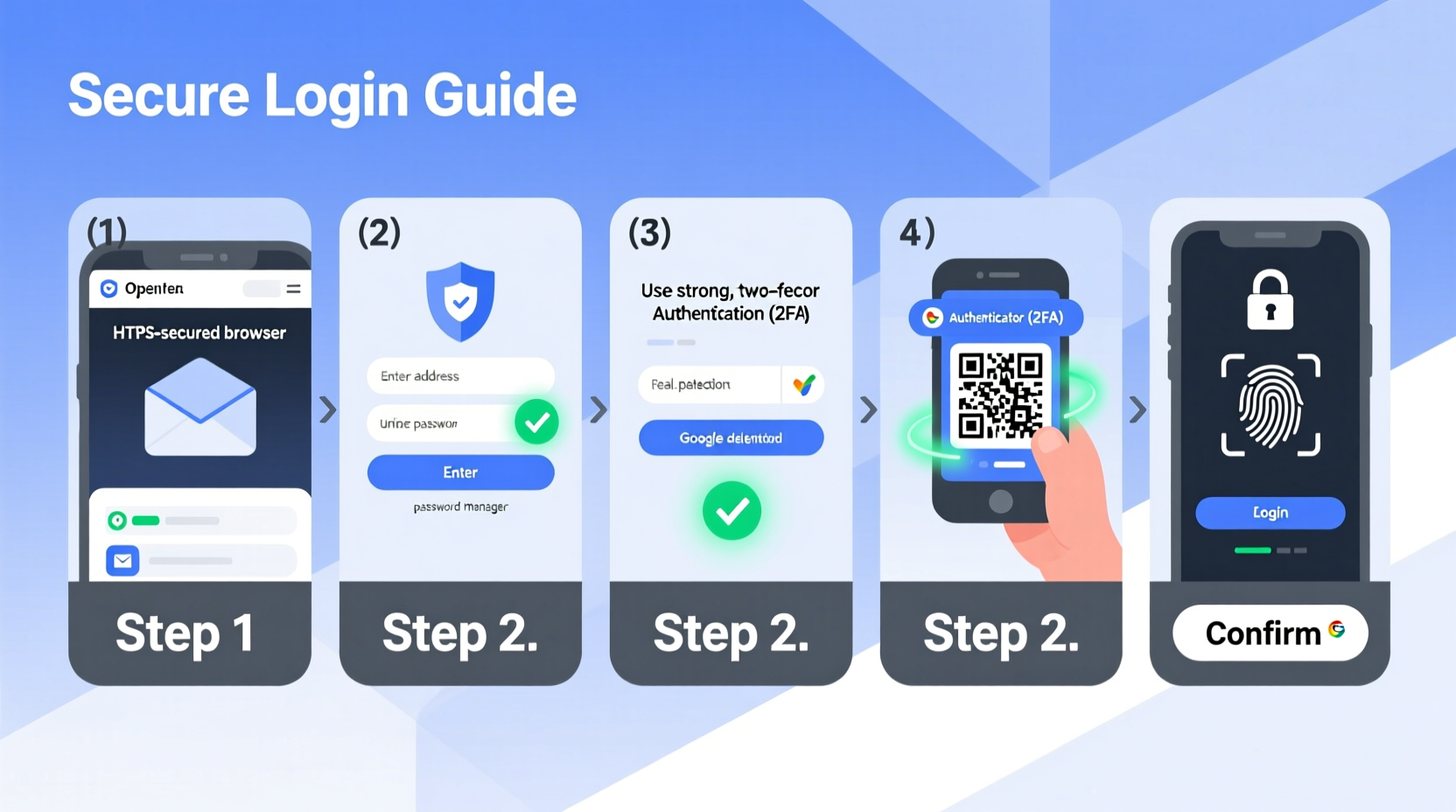
Before entering your credentials, ensure the device you're using is trustworthy and protected. Public computers, shared devices, or unsecured networks increase the risk of interception or malware exposure.
- Use trusted devices: Prefer your personal smartphone, tablet, or computer that you control and maintain.
- Check for updates: Make sure your operating system and browser are up to date to patch known security flaws.
- Avoid public Wi-Fi: If you must use a public network, connect through a reputable virtual private network (VPN) to encrypt traffic.
- Close unnecessary apps: Reduce background processes that could be logging keystrokes or accessing clipboard data.
2. Navigate to the Official Email Provider Website
Phishing attacks often begin with fake login pages disguised as legitimate services. To avoid this, always access your email provider directly through verified channels.
- Type the official URL directly into your browser’s address bar (e.g.,
mail.google.com,outlook.live.com). - Verify the website uses HTTPS (look for the padlock icon next to the URL).
- Avoid clicking login links from emails—even if they appear to come from your provider.
- Bookmark your email login page for future quick and safe access.
Scammers create domains like “g00gle-mail.com” or “secure-outlook-login.net” to mimic real sites. Double-check spelling and domain names carefully.
Common Email Provider URLs
| Service | Official Login URL | Notes |
|---|---|---|
| Gmail / Google Workspace | https://mail.google.com |
Redirects from google.com/accounts if signed out |
| Outlook / Hotmail / Live | https://outlook.live.com |
Microsoft accounts only; avoid third-party Outlook clones |
| Yahoo Mail | https://mail.yahoo.com |
Ensure site has valid SSL certificate |
| ProtonMail | https://mail.proton.me |
End-to-end encrypted service; ideal for privacy-conscious users |
3. Enter Credentials Safely
Once on the correct login page, proceed with entering your information—but do so mindfully.
- Username: Usually your full email address (e.g., user@example.com). Avoid guessing variations on unfamiliar screens.
- Password: Use a strong, unique password not reused across accounts.
- On-screen keyboards: Some banks and providers offer them to prevent keyloggers—but don’t rely on them unless necessary.
- Autofill caution: Browser password managers are convenient but can be exploited if your device is compromised.
“Over 80% of account breaches involve stolen or weak passwords.” — Cybersecurity Report, National Institute of Standards and Technology (NIST)Tip: Consider typing your password into a plain text editor first, then copying it to avoid auto-fill traps on spoofed pages.
4. Complete Two-Factor Authentication (2FA)
After entering your password, most secure email services prompt for a second verification factor. This dramatically reduces the chance of unauthorized access—even if your password is compromised.
Common 2FA methods include:
- Authenticator apps: Google Authenticator, Microsoft Authenticator, or Authy generate time-based codes.
- SMS codes: Less secure due to SIM-swapping risks, but better than nothing.
- Security keys: Physical USB or NFC devices (e.g., YubiKey) offer the highest protection.
- Push notifications: Approve login attempts via a mobile app (e.g., Duo Mobile).
Recommended 2FA Setup Checklist
✅ Do:- Enable 2FA on all major email accounts.
- Use an authenticator app instead of SMS when possible.
- Store backup codes in a secure offline location (not in email!).
- Register multiple 2FA methods for redundancy.
- Share verification codes with anyone.
- Use the same 2FA method across all accounts.
- Ignore prompts to re-authenticate after device changes.
5. Recognize and Respond to Suspicious Activity
Even with precautions, unusual login attempts happen. Knowing what to look for helps you act quickly.
After signing in, review recent activity. Most providers display a “Last account activity” section showing:
- IP addresses used to access your account
- Geographic locations
- Device types and browsers
- Timestamps of recent logins
If you see an unfamiliar location or device:
- Click “Secure your account” or similar option.
- Sign out all other sessions remotely.
- Change your password immediately.
- Revoke access to any unknown apps connected to your email.
- Run a malware scan on your primary devices.
Real Example: Recovering from a Suspicious Login
Sarah noticed a login from Moscow while she was vacationing in Portugal. She didn’t panic—she had 2FA enabled. The attacker failed the second step. Still, she acted: she reviewed her account settings, removed a suspicious app linked to her calendar, changed her password, and updated her recovery phone number. Her quick response prevented further damage.
Frequently Asked Questions
What should I do if I forget my password?
Use the provider’s “Forgot password” link. You’ll typically verify identity through a recovery email, phone number, or security questions. Ensure these recovery options are current and secure.
Can I stay logged in safely?
Yes, on personal devices you control. However, enable automatic logout after periods of inactivity. Avoid staying logged in on browsers used by others or on mobile apps without screen lock protection.
Is it safe to log in through third-party apps like Apple Mail or Thunderbird?
Yes, if the app supports modern authentication (OAuth 2.0). Avoid apps requiring you to store passwords in plaintext. Use app-specific passwords or token-based access when available.
Final Steps: Maintain Long-Term Account Security
Signing in securely isn’t a one-time task—it’s part of ongoing digital hygiene. Protect your email as the gateway it is to your online life.
- Update passwords every 6–12 months, especially after potential exposure.
- Review connected apps and permissions quarterly.
- Monitor for phishing attempts mimicking your provider.
- Back up important emails and contacts regularly.
“Your email is the master key to your digital identity. Guard it more closely than your front door.” — Kevin Mitnick, Former Hacker & Security Consultant
Conclusion: Take Control of Your Digital Access
Logging into your email may take just seconds, but doing it securely shapes the safety of your entire online presence. By following these steps—verifying websites, using strong credentials, enabling two-factor authentication, and monitoring activity—you build a resilient defense against growing cyber threats. Don’t wait for a breach to act. Apply these practices today across all your email accounts, whether personal, professional, or secondary. Small habits create lasting protection.
💬 Start now: Open your email settings, verify your recovery options, and turn on 2FA if you haven’t already. Share this guide with someone who needs safer login habits!