If you’ve just moved into a new home, inherited an existing TV setup, or simply lost track of your subscription details, figuring out who your TV provider is can feel like solving a mystery. Without access to bills or login information, it’s easy to get stuck. But identifying your provider doesn’t have to be time-consuming or frustrating. With the right approach, you can uncover the answer in under 15 minutes using simple tools and observations. This guide walks you through proven methods—whether you’re dealing with cable, satellite, streaming, or fiber-based services.
Why Knowing Your TV Provider Matters
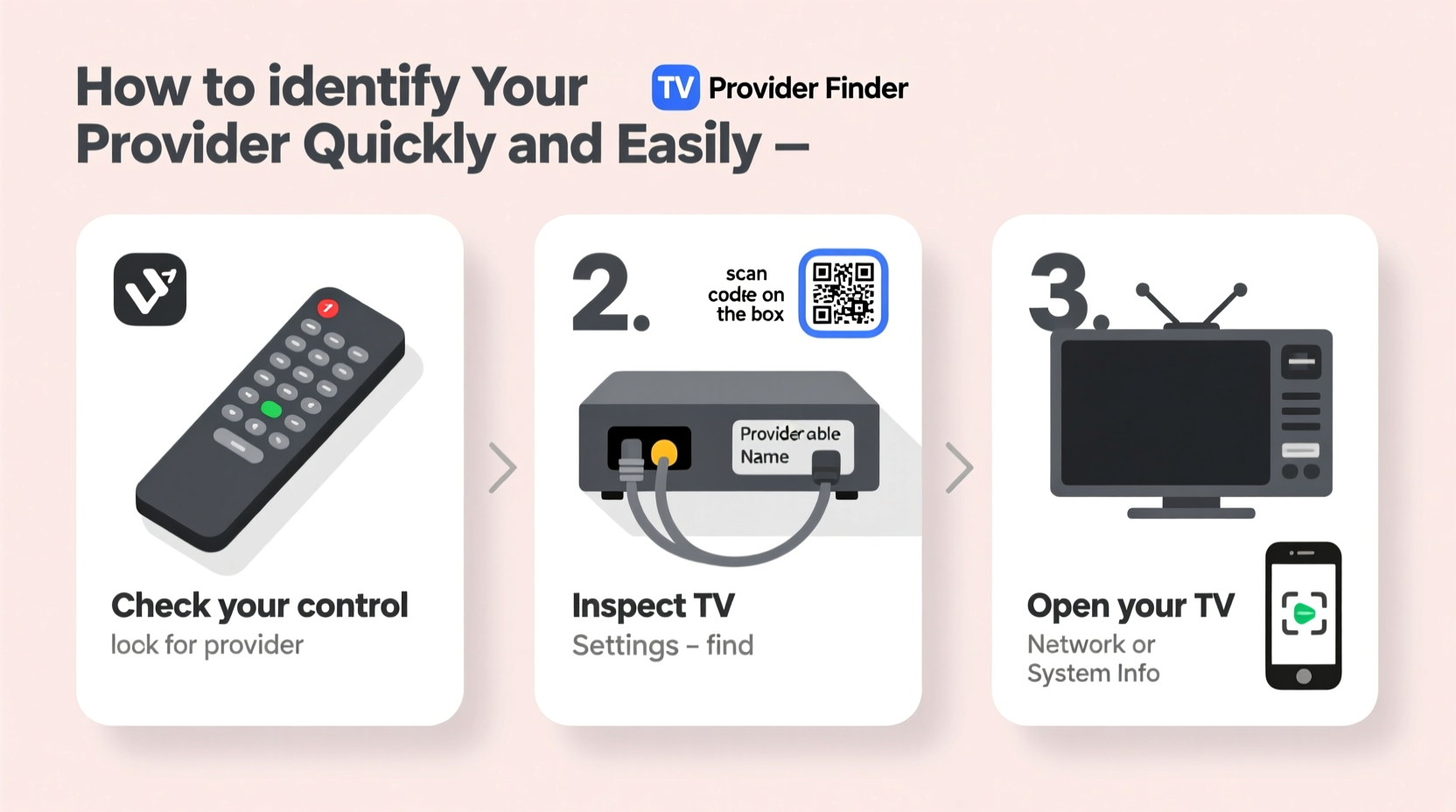
Your TV provider determines what channels you receive, how you access on-demand content, and where to go for technical support. It also affects your billing cycle, contract terms, and upgrade options. Misidentifying your provider can lead to wasted time contacting the wrong company or even accidentally canceling service. Whether you're troubleshooting reception issues, switching plans, or preparing to bundle internet and TV, confirming your provider accurately is the first critical step.
“Knowing your exact provider helps avoid service confusion and ensures faster resolution when calling customer support.” — Linda Ruiz, Consumer Broadband Advocate
Step-by-Step: How to Identify Your TV Provider
Follow this structured process to determine your TV provider efficiently. Each step builds on the previous one, increasing accuracy and reducing guesswork.
- Inspect Your Equipment: Look at the set-top box, DVR, or streaming device connected to your TV. Most providers brand their hardware prominently.
- Check for Labels and Logos: Examine the front, back, and sides of the device for manufacturer names or service logos (e.g., Xfinity, Spectrum, DirecTV).
- Review Remote Controls: Many remotes feature the provider’s logo or are customized for specific platforms like FiOS or DISH Network.
- Examine Wiring and External Units: Satellite dishes usually indicate DISH or DIRECTV; coaxial cables from the wall often point to cable providers.
- Access the On-Screen Menu: Turn on your TV and navigate to the home screen or settings. The interface often displays the provider's branding.
- Review Past Bills or Emails: Search your email for recent invoices, renewal notices, or activation confirmations from TV or internet companies.
- Contact Your Internet Provider: If you have bundled service, your internet company may also be your TV provider.
- Call Customer Support with Device Info: Use model numbers from your equipment to verify ownership with suspected providers.
Using Visual Clues to Narrow Down Options
Physical inspection remains one of the fastest ways to identify your provider. Below is a comparison table of common TV service devices and their distinguishing features.
| Provider | Typical Set-Top Box Branding | Remote Control Features | External Hardware |
|---|---|---|---|
| Xfinity (Comcast) | Black box with “Xfinity” logo, often labeled \"Powered by Comcast\" | Silver remote with voice button and Xfinity Home app integration | Coaxial cable from wall; sometimes includes Wi-Fi gateway combo unit |
| Spectrum | White or black box with “Spectrum” or “Charter Communications” label | Simple design, often with red OK button and DVR controls | Wall-mounted coax line; no dish required |
| DIRECTV | Black Genie or HR44 box with red “DIRECTV” lettering | Ergonomic remote with slide-out numeric keypad | Roof or side-of-house satellite dish with dual cabling |
| DISH Network | Hopper or Wally receiver with orange “DISH” logo | Voice-enabled remotes with colorful buttons | Distinctive wing-shaped satellite dish mounted externally |
| Verizon Fios | FiOS-branded Motorola or Samsung box with blue accent | Compact remote with FiOS TV app shortcut | Fiber-optic terminal inside home; no traditional coax |
| Streaming (Roku, Fire TV) | No provider-specific box—uses third-party streaming stick or smart TV app | Generic or branded by Roku/Amazon | No external wiring beyond HDMI and power |
What If There’s No Obvious Label?
Sometimes, especially in rental units or secondhand setups, equipment may lack clear branding. In these cases, focus on functionality. Power on the device and observe the startup screen. A boot-up animation featuring a logo or splash screen—like the Xfinity swirl or the DIRECTV satellite orbit—can be decisive. Navigate to the main menu: if you see options like “On Demand,” “Guide,” or “Settings,” look for subtle footer text or help sections that mention the provider name.
If the system requires a PIN or login, avoid guessing. Instead, locate the model number (usually on the back) and search it online. For example, typing “Arris RNG200N” into Google will reveal it’s commonly used by Spectrum. Similarly, “Cisco DCT3416” is associated with older Comcast installations.
Mini Case Study: Identifying Service in a New Rental Apartment
Sophia moved into a furnished apartment and found a fully wired entertainment center but no documentation. She began by turning on the TV and noticed a black box labeled “Motorola” with a blinking light. No obvious logo stood out. Using the remote, she accessed the main menu and saw a program guide titled “FiOS TV.” A quick web search confirmed Verizon Fios was the provider. She then checked her lease and discovered the previous tenant had left behind active service. After calling Fios with the account number visible in the settings menu, she transferred the account into her name—avoiding unnecessary installation fees.
Troubleshooting Common Identification Challenges
- Bundled Services Confusion: Many users assume their internet provider isn’t their TV provider—but they often are. Check if your modem has a built-in cable splitter or video ports.
- Third-Party Leased Equipment: Some landlords lease equipment directly from providers. Always verify ownership before making changes.
- Multiple Devices Connected: If you have both a cable box and a streaming device, distinguish between primary service (paid subscription) and supplemental apps (Netflix, Hulu).
- No Power or Signal: If the box won’t turn on, test the outlet and connections. A non-responsive device may mean service has been disconnected.
Checklist: Confirm Your TV Provider in Under 10 Minutes
Use this quick-reference checklist to streamline the identification process:
- ✅ Locate the set-top box or streaming device near your TV.
- ✅ Look for visible logos, labels, or brand names on the device.
- ✅ Examine the remote control for provider-specific markings.
- ✅ Power on the system and check the startup screen or home menu.
- ✅ Note the model and serial number from the back of the device.
- ✅ Search the model number online to identify likely providers.
- ✅ Review recent emails for billing statements or service alerts.
- ✅ Call suspected providers with device info to confirm service.
FAQ: Common Questions About Identifying TV Providers
Can I find my TV provider through my smart TV settings?
Yes, if you’re using a built-in app (like Xfinity Stream or DIRECTV App), go to Settings > Apps > Manage Apps to see which services are installed. However, this only works if the service runs natively without a physical box.
What if I’m using a streaming stick instead of cable?
In that case, you may not have a traditional TV provider. Services like YouTube TV, Hulu + Live TV, or Sling TV act as virtual MVPDs (multichannel video programming distributors). Check your subscription list in your Google, Apple, or Amazon account to identify your live TV streaming provider.
Is it possible to have more than one TV provider?
Rarely, but yes. Some households maintain a satellite connection for sports while using a separate streaming service for movies. More commonly, people confuse bundled internet-TV services with standalone subscriptions. Focus on the primary source delivering live broadcast channels.
Take Action Now to Regain Control of Your Service
Identifying your TV provider is more than just a technical task—it’s about reclaiming control over your home entertainment experience. Whether you’re looking to upgrade, cancel, or troubleshoot, knowing exactly who supplies your service saves time, reduces frustration, and empowers smarter decisions. Don’t let outdated equipment or missing paperwork stand in your way. Use the steps outlined here to clarify your setup today. Once identified, consider documenting your provider, account number, and contact details in a secure place for future reference.
💬 Found your provider using these tips? Share your experience or ask questions in the comments—help others solve their TV mysteries too!