
Streaming entertainment should be smooth, not stalling every few minutes. If your smart TV keeps buffering—spinning wheels, frozen screens, or sudden quality drops—it’s more than frustrating; it breaks the immersion of your favorite shows and movies. While it might seem like a device issue, the real culprit is often your home network. The good news: most buffering problems stem from fixable network conditions, not hardware failure. Understanding how your smart TV connects to the internet and what impacts that connection empowers you to make simple, effective changes. This guide walks through the root causes of constant buffering and delivers practical, step-by-step solutions anyone can implement—no technical degree required.
Understanding Why Smart TVs Buffer
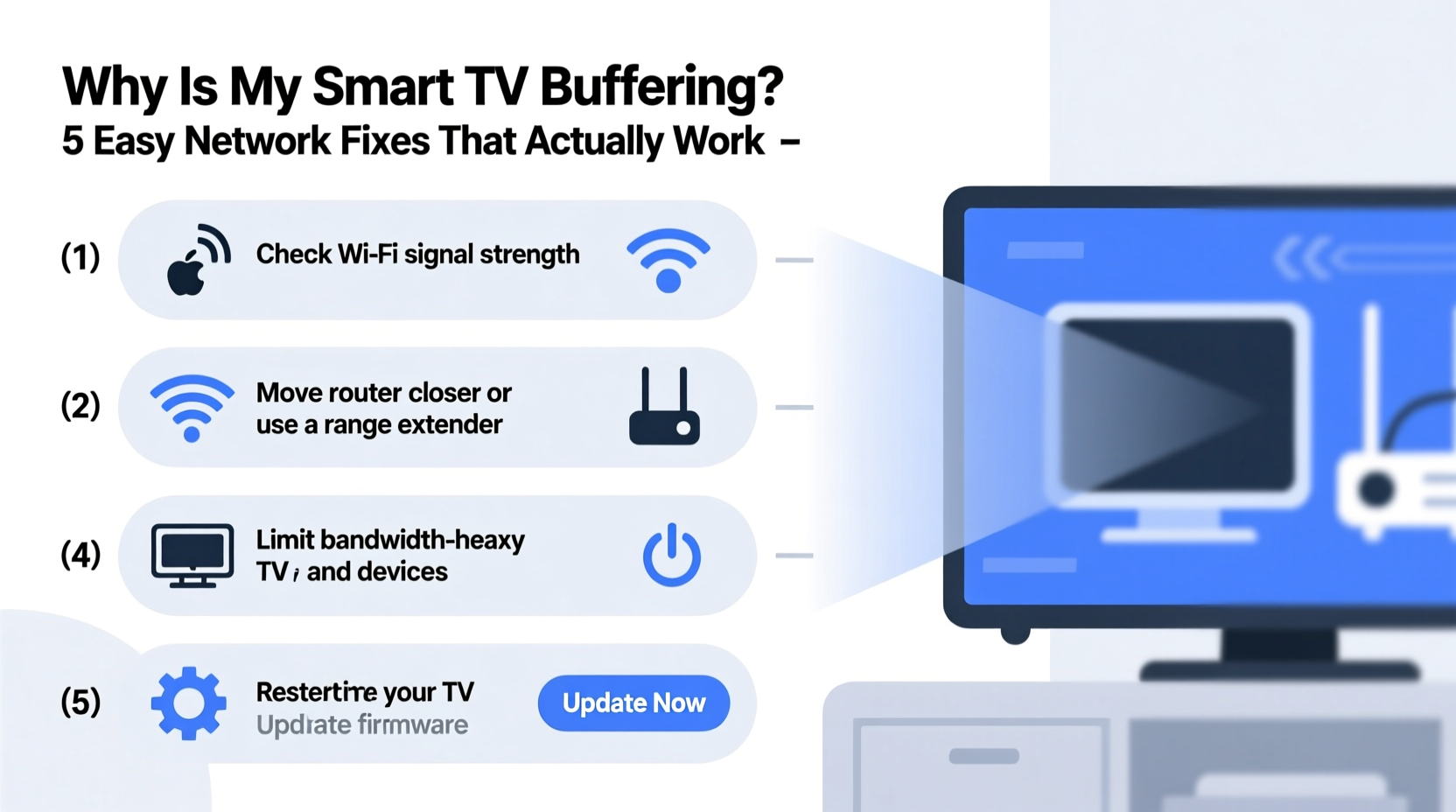
Buffering occurs when your smart TV can’t download video data fast enough to keep up with playback. Streaming services like Netflix, Hulu, or Disney+ require a steady flow of data. When that flow slows or stops, the player pauses to “buffer” more content before continuing. While occasional hiccups are normal during peak hours, constant buffering signals an underlying issue.
The most common causes include:
- Insufficient bandwidth: Your internet speed doesn’t meet the demands of HD or 4K streaming.
- Wi-Fi interference: Walls, appliances, or neighboring networks disrupt your signal.
- Router congestion: Too many devices using the network simultaneously.
- Outdated firmware: Your router or TV may lack performance or security updates.
- Distance from the router: Weak signal strength due to physical separation.
Before assuming your ISP is at fault, test whether the problem lies within your control. Most buffering issues originate inside the home network environment, making them solvable with the right adjustments.
Tip: Restart both your smart TV and router every few days to clear temporary glitches and refresh connections.Step-by-Step Guide to Fix Smart TV Buffering
Follow this structured approach to identify and resolve the cause of persistent buffering. Each step builds on the last, increasing in effectiveness.
- Check your current internet speed. Use a speed test tool (like Speedtest.net) on a device connected near your TV. For HD streaming, you need at least 5 Mbps; for 4K, aim for 25 Mbps or higher. If results are below these thresholds, contact your ISP or consider upgrading your plan.
- Restart your router and smart TV. Power cycle both devices by unplugging them for 30 seconds, then plugging them back in. This clears cached data and resets network handshakes.
- Move closer to the router or reduce obstacles. If your TV is far from the router or separated by thick walls, signal strength drops significantly. Try repositioning either device if possible.
- Switch from Wi-Fi to Ethernet. A wired connection is more stable and faster than wireless. Connect your smart TV directly to the router using an Ethernet cable for the best performance.
- Change your Wi-Fi frequency band. Modern routers support both 2.4 GHz and 5 GHz bands. The 2.4 GHz band travels farther but is slower and more crowded. The 5 GHz band is faster and less congested but has shorter range. If your TV supports it, connect to the 5 GHz network for smoother streaming.
- Limit connected devices. Pause downloads, gaming, or cloud backups on other devices while streaming. Multiple high-bandwidth activities strain your network.
- Update your router’s firmware. Log into your router’s admin panel (usually via 192.168.1.1 or 192.168.0.1) and check for updates. Outdated firmware can cause compatibility and performance issues.
- Reboot during peak usage times. If buffering worsens in evenings, reboot your router before starting a movie. This can temporarily improve throughput during network congestion.
Do’s and Don’ts: Optimizing Your Home Network
| Do | Don’t |
|---|---|
| Use a wired Ethernet connection when possible | Rely solely on Wi-Fi in large or multi-floor homes |
| Place your router centrally and elevated | Hide your router in a cabinet or basement corner |
| Upgrade to a mesh Wi-Fi system for larger homes | Assume one router covers every room equally |
| Set Quality of Service (QoS) rules to prioritize your TV | Allow automatic updates to run during movie time |
| Regularly update firmware on all network devices | Ignore router security or use default login credentials |
Expert Insight: What Network Engineers Recommend
“Most smart TV buffering isn’t a TV problem—it’s a network visibility issue. Users don’t realize how much background traffic affects performance. Prioritizing streaming devices through QoS settings and using dual-band routers wisely can eliminate 80% of complaints.” — David Lin, Senior Network Engineer at Broadband Solutions Group
Quality of Service (QoS) is a router feature that lets you assign priority to specific devices or applications. By setting your smart TV as a high-priority device, you ensure it gets the bandwidth it needs even when others are online. Access QoS settings through your router’s dashboard under “Traffic Control” or “Bandwidth Management.” Not all routers support QoS, but mid-tier models and mesh systems typically do.
Real Example: How One Household Fixed Constant Buffering
The Patel family in Austin, Texas, struggled with their Samsung smart TV buffering during nightly Netflix sessions. Their internet plan was 100 Mbps, so they assumed speed wasn’t the issue. After testing, they found actual speeds near the TV were only 12 Mbps on Wi-Fi. They followed these steps:
- Connected the TV directly via Ethernet—buffering stopped immediately.
- Upgraded to a mesh Wi-Fi system (TP-Link Deco) to cover dead zones.
- Enabled QoS to prioritize the living room device.
- Scheduled large downloads for late-night hours.
Within a week, streaming was flawless—even during family movie nights with multiple phones and tablets online. The key wasn’t spending more on internet but optimizing what they already had.
Tips Box: Quick Wins to Reduce Buffering Today
Tip 1: Lower the stream quality temporarily in your app settings (e.g., switch from 4K to 1080p) to reduce data demand.Tip 2: Close unused apps on your smart TV—they may still use background data.
Tip 3: Position your router away from microwaves, cordless phones, and metal objects that interfere with Wi-Fi signals.
Tip 4: Assign a static IP to your TV to prevent connection drops caused by DHCP lease expiration.
Frequently Asked Questions
Can a slow DNS server cause my smart TV to buffer?
Yes. DNS (Domain Name System) servers translate website names into IP addresses. Slow or unreliable DNS can delay the start of streams or cause intermittent stalls. Switching to a faster public DNS like Google DNS (8.8.8.8 and 8.8.4.4) or Cloudflare (1.1.1.1) can improve responsiveness. You can change DNS settings in your router or directly on the smart TV’s network configuration.
Does my smart TV need its own internet speed test?
Absolutely. Speed tests on your phone or laptop don’t reflect what your TV experiences. Perform a test directly on the smart TV using built-in tools (available on some LG, Samsung, or Roku TVs) or install a browser app if supported. This gives an accurate picture of real-world performance at the point of use.
Will a Wi-Fi extender solve my buffering problem?
It depends. Basic Wi-Fi extenders can double the distance but often halve the speed because they rebroadcast the same signal. For better results, use a mesh Wi-Fi system with dedicated backhaul channels or a powerline adapter that uses electrical wiring to extend the network. These provide more reliable coverage for streaming.
Checklist: Eliminate Smart TV Buffering in 7 Steps
Use this checklist to systematically address and resolve buffering issues:
- ✅ Run a speed test on or near your smart TV
- ✅ Restart your router and TV
- ✅ Connect via Ethernet cable (if possible)
- ✅ Switch to the 5 GHz Wi-Fi band
- ✅ Limit active devices during streaming
- ✅ Update router and TV firmware
- ✅ Enable QoS and prioritize your TV
Complete these steps in order. Many users see improvement after just the first three actions.
Conclusion: Take Control of Your Streaming Experience
Constant buffering doesn’t have to be part of your smart TV experience. With a clear understanding of how your network functions and a few strategic tweaks, you can achieve smooth, uninterrupted streaming every time. The solutions aren’t complicated or costly—just consistent and intentional. Whether it’s switching to Ethernet, adjusting router settings, or simply relocating your equipment, small changes yield big results. Don’t accept subpar performance when better viewing is within reach.
💬 Have a buffering fix that worked for you? Share your experience in the comments and help others enjoy lag-free streaming!