
Proper document formatting is essential for readability, professionalism, and academic integrity. One of the most commonly overlooked yet critical formatting tools in Google Docs is the hanging indent. Used primarily in bibliographies and reference lists—especially under styles like APA, MLA, or Chicago—a hanging indent improves visual clarity by aligning the first line of each citation to the left margin while indenting all subsequent lines. Despite its importance, many users struggle to apply it correctly. This guide breaks down every method to create hanging indents efficiently, troubleshoot common issues, and integrate them seamlessly into your workflow.
What Is a Hanging Indent and Why It Matters
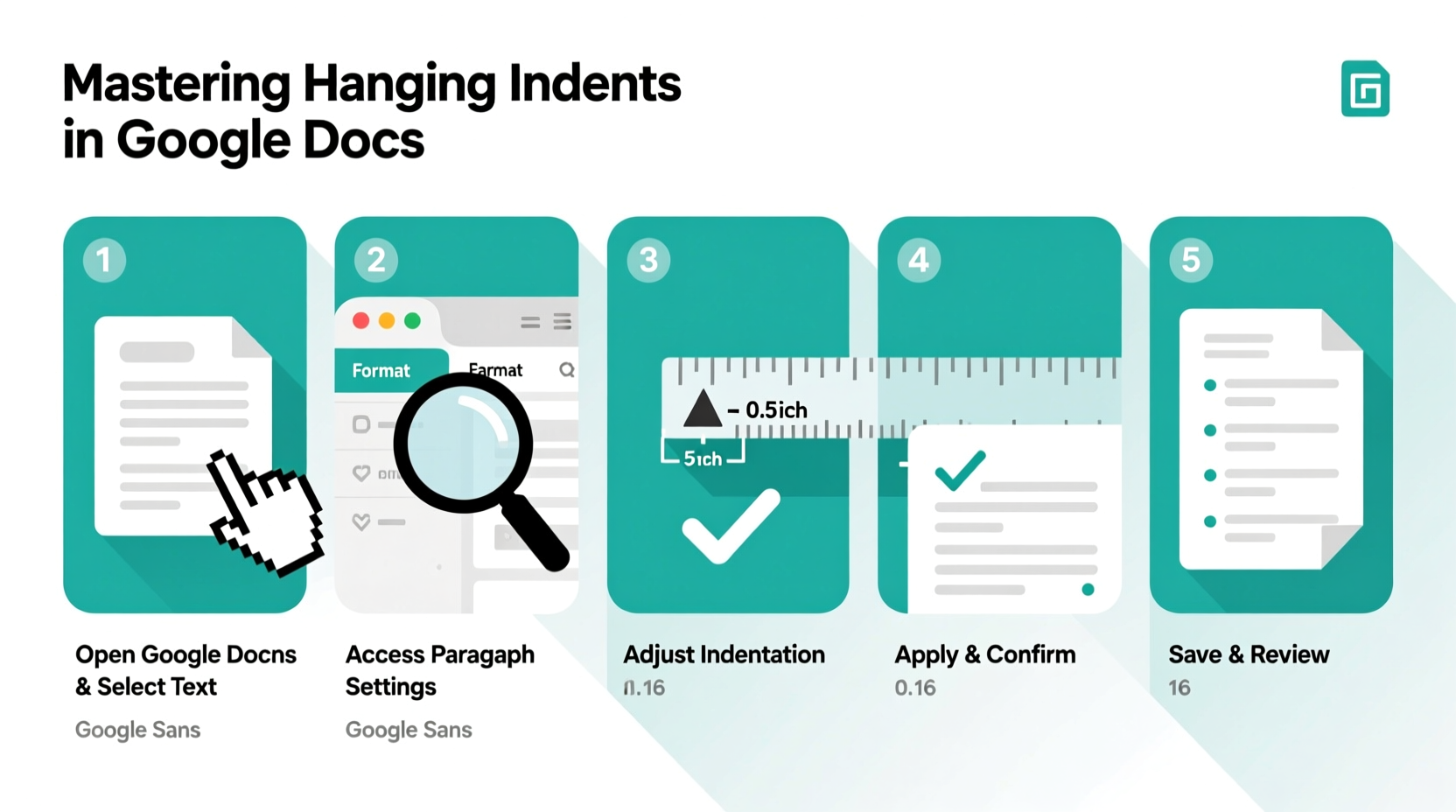
A hanging indent, also known as a \"second-line indent,\" is a paragraph formatting style where the first line starts at the left margin, and all following lines are indented inward. Unlike a standard paragraph indent (which only indents the first line), the hanging indent reverses this logic. This format allows readers to quickly scan entries in a list, particularly when multiple sources are cited.
In academic writing, style guides such as the Publication Manual of the American Psychological Association (7th ed.) explicitly require hanging indents for reference lists. Failure to apply them can result in point deductions or perceived lack of attention to detail—even if the content is strong.
“Consistent use of hanging indents signals professionalism and adherence to scholarly standards.” — Dr. Rebecca Tran, Academic Writing Consultant
Step-by-Step: Creating a Hanging Indent Using the Ruler Tool
The most intuitive way to create a hanging indent in Google Docs is through the built-in ruler interface. Follow these steps precisely:
- Open your Google Docs file and ensure the ruler is visible. If not, go to View > Show ruler.
- Select the paragraph(s) you want to format. To apply to multiple citations, highlight the entire reference list.
- On the horizontal ruler at the top, locate two markers: the inverted triangle at the top (controls first-line indent) and the rectangle below (controls whole-paragraph indent).
- Click and drag the top triangle (first-line indent) to the 0.0 mark if it isn’t already there.
- Drag the bottom rectangle (whole-paragraph indent) to the 0.5-inch mark. As you do, all lines except the first will shift right, creating the hanging effect.
- Release the mouse. The selected text now has a proper hanging indent.
Using the Paragraph Settings Panel for Precision
For greater control—especially when working with strict formatting requirements—use the Paragraph Options panel. This method ensures accuracy down to the decimal point.
Steps to Apply via Format Menu:
- Select the text requiring a hanging indent.
- Navigate to Format > Align & indent > Indentation options.
- In the pop-up window, locate the “Special indent” dropdown menu.
- Select Hanging from the list.
- Set the value to 0.5 in (standard for APA and MLA). You can adjust this based on specific guidelines.
- Click “Apply.”
This method is especially useful when sharing documents across teams or submitting work that must meet exact institutional standards. It eliminates guesswork associated with dragging rulers manually.
Keyboard Shortcut Workaround (Indirect Method)
Google Docs does not have a direct keyboard shortcut for applying a hanging indent. However, you can streamline the process using a combination of selection and menu navigation:
- Select your citation block with Ctrl + Shift + Down Arrow (or Cmd equivalents on Mac).
- Press Alt + O to open the Format menu.
- Press I, then D to navigate to Indentation options.
- Use arrow keys to set “Hanging” and confirm with Enter.
While not a single-key solution, mastering this sequence saves time over repeated mouse navigation.
Common Mistakes and How to Avoid Them
Even experienced users make errors when formatting hanging indents. Below is a comparison of correct practices versus frequent pitfalls.
| Do’s | Don’ts |
|---|---|
| Use the Paragraph settings panel for consistent 0.5-inch indents. | Manually insert spaces or tabs to simulate indentation. |
| Highlight entire citations before applying formatting. | Apply indents line-by-line instead of as a block. |
| Check both print preview and screen view for alignment accuracy. | Assume the indent looks correct without zooming out. |
| Save templates with pre-formatted hanging indents for reuse. | Recreate indents from scratch every time. |
Real-World Example: Formatting an APA Reference List
Sophia, a graduate student in psychology, was preparing her thesis literature review. Her professor emphasized strict APA 7th edition compliance, including properly formatted references. Initially, Sophia tried using spaces to align her sources, but the formatting collapsed when she shared the document with her advisor.
After discovering the hanging indent tool, she selected all 47 references, opened Format > Indentation options, and applied a 0.5-inch hanging indent in seconds. The transformation was immediate: her reference list looked clean, uniform, and publication-ready. Her advisor noted the improvement during feedback, commenting, “This level of formatting shows academic rigor.”
Sophia later saved the document as a template, ensuring future papers would maintain the same standard without rework.
Creating a Reusable Template with Hanging Indents
To save time on future projects, turn your properly formatted document into a reusable template:
- Create a new Google Doc and format one citation with a hanging indent using the Paragraph settings method.
- Adjust font (typically Times New Roman, 12 pt), spacing (double-spaced), and margins (1 inch on all sides) as needed.
- Go to File > Save as template (if available in your workspace) or save it in a designated folder titled “Academic Templates.”
- Name it something clear like “APA_Hanging_Indent_Template.”
- When starting a new paper, open this file instead of a blank doc.
Teams using Google Workspace can even share this template across departments, ensuring consistency in research submissions.
Frequently Asked Questions
Can I apply hanging indents to bulleted or numbered lists?
Yes, but with caution. When applying hanging indents to lists, ensure the bullet or number remains aligned with the first line. Adjust the “Before text” and “Hanging” values in the Indentation options to fine-tune positioning. Otherwise, bullets may misalign or disappear visually.
Why does my hanging indent not show up in print or PDF export?
This usually occurs if manual spacing (like extra tabs or returns) interferes with the actual paragraph formatting. Always check your document in Print Layout view (View > Print layout) before exporting. Also, verify that no conflicting styles or add-ons are overriding the indent settings.
Does Google Docs support paragraph styles with hanging indents?
Not natively, but you can simulate this using the “Normal text” style. After setting a hanging indent, select the text, right-click, and choose “Update ‘Normal text’ to match.” All future Normal text paragraphs will inherit this format—though be cautious, as this changes default behavior system-wide.
Final Checklist: Mastering Hanging Indents
- ✅ Ensure the ruler is visible before attempting manual adjustments.
- ✅ Select all relevant paragraphs before applying any indent style.
- ✅ Use Format > Indentation options for precise, standardized results.
- ✅ Set special indent to “Hanging” and size to 0.5 inches (unless otherwise specified).
- ✅ Preview in both screen and print layout modes.
- ✅ Save a properly formatted document as a reusable template.
- ✅ Avoid spaces, tabs, or manual line breaks to simulate indentation.
Take Control of Your Document Formatting Today
Mastering hanging indents in Google Docs isn’t just about aesthetics—it’s about presenting your work with precision and credibility. Whether you're compiling a bibliography, organizing technical documentation, or preparing a manuscript, consistent formatting reflects attention to detail and respect for professional standards. Now that you understand the tools, methods, and best practices, there’s no need to rely on guesswork or inefficient hacks. Implement these strategies today, create a personal template, and transform how you approach document preparation. Your future self—and your readers—will thank you.
💬 Have a tip for faster formatting in Google Docs? Share your insight in the comments and help others streamline their workflow!