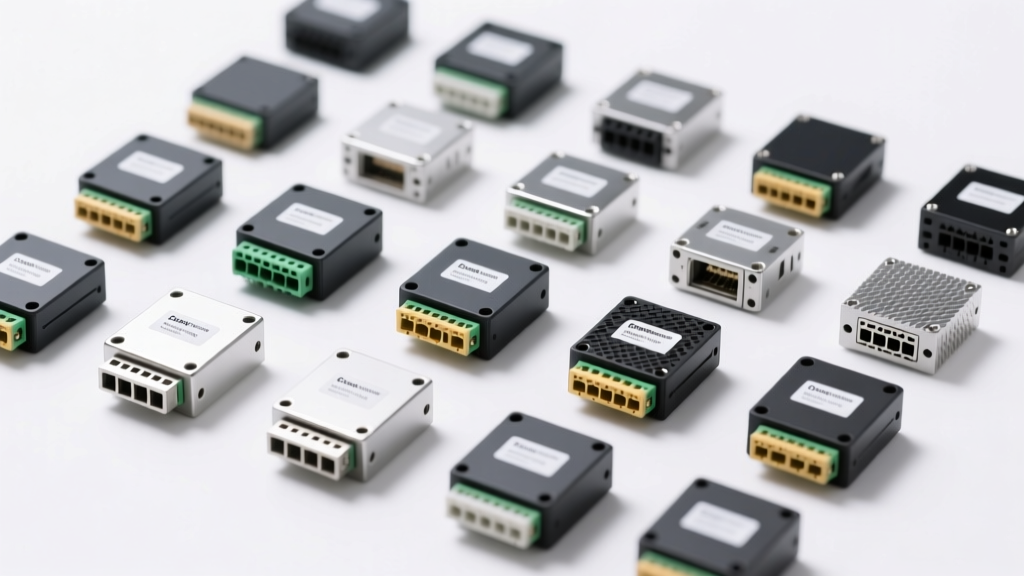
Types of Multi Hubs
A multi hub is an essential connectivity solution that expands the number of available ports on a computer or laptop, enabling users to connect multiple peripherals simultaneously. As modern devices become increasingly compact, built-in port availability has decreased—making multi hubs indispensable for professionals, gamers, and everyday users alike. These hubs come in various types, each tailored to specific use cases, performance needs, and environments.
Multi-Port Hubs
These are the most common and versatile hubs, designed to expand connectivity options on laptops and ultrabooks with limited built-in ports.
Advantages
- Supports multiple port types (USB-A, USB-C, HDMI, Ethernet, SD card readers)
- Enables simultaneous connection of various devices
- Compact and portable design
- Ideal for users with limited port availability
Limitations
- May require external power for full functionality
- Performance can vary based on data bandwidth sharing
- Lower-end models may lack robust build quality
Best for: Office workstations, remote workers, students, and home users needing expanded connectivity
KVM Hubs
KVM (Keyboard, Video, Mouse) hubs allow control of multiple computers using a single set of input and display devices, streamlining workspace efficiency.
Advantages
- Reduces clutter by minimizing peripherals
- Enables quick switching between systems with a button or keyboard shortcut
- Saves desk space and reduces hardware costs
- Supports secure environments with isolated systems
Limitations
- Higher initial cost compared to standard hubs
- Compatibility issues may arise with certain OS or hardware configurations
- Limited support for high-resolution displays in budget models
Best for: IT administrators, server rooms, developers managing multiple machines, and security-conscious professionals
Gaming Hubs
Specially engineered for gamers, these hubs prioritize low latency, durability, and enhanced peripheral support for immersive gameplay.
Advantages
- Optimized for low-latency data transfer
- Includes dedicated charging ports for controllers and accessories
- Often features RGB lighting and rugged construction
- May integrate audio enhancements or passthrough for headsets
Limitations
- Typically more expensive than standard hubs
- May include unnecessary features for non-gamers
- Larger size can reduce portability
Best for: Console and PC gamers, streaming setups, and esports environments
Docking Stations
Advanced multi hubs that offer high-power delivery, extensive port expansion, and seamless integration—especially for modern laptops using USB-C or Thunderbolt 3/4.
Advantages
- Supports high-speed data, video output (dual 4K), and fast charging
- One-cable setup for instant workspace expansion
- Compatible with modern ultrabooks and business laptops
- Professional-grade build and reliability
Limitations
- Premium pricing compared to basic hubs
- Requires compatible laptop with USB-C/Thunderbolt support
- Less portable due to size and power requirements
Best for: Business professionals, hybrid workers, creatives, and enterprise environments
| Type | Port Flexibility | Performance | Use Case | Power Delivery |
|---|---|---|---|---|
| Multi-Port Hubs | High | Good | General connectivity, home/office use | Low to Medium |
| KVM Hubs | Medium | Very Good | IT management, multi-system control | Medium |
| Gaming Hubs | Medium | Excellent | Gaming, streaming, low-latency needs | Medium to High |
| Docking Stations | Very High | Excellent | Professional workspaces, hybrid offices | High (60W–100W) |
Expert Tip: When choosing a multi hub, ensure it supports the latest USB standards (USB 3.2 or USB4) and check compatibility with your device's operating system and port capabilities—especially if using macOS, Linux, or Thunderbolt-enabled systems.
Function, Features, and Design of Multi Hubs: Enhancing Connectivity in Modern Workspaces
In today’s digital-driven environment, multi hubs have become essential tools for improving productivity, reducing cable clutter, and enabling seamless connectivity across multiple devices. Whether you're working remotely, setting up a home office, or managing a high-performance workstation, multi hubs bridge the gap between limited device ports and growing peripheral demands. These versatile accessories are engineered to expand a single output—such as a USB or Thunderbolt port—into multiple connection points, transforming how users interact with their technology ecosystem.
Core Functions of Multi Hubs
The primary function of a multi hub is to significantly expand the number of available ports on a device, particularly laptops and tablets that often come with limited connectivity options. By consolidating several input/output interfaces into one compact unit, multi hubs eliminate the need for constant plugging and unplugging of peripherals.
One of the most powerful applications is the KVM (Keyboard, Video, Mouse) hub, which allows users to control multiple computers using a single keyboard, monitor, and mouse setup—ideal for IT professionals, developers, and multi-system operators. Similarly, multi-port USB hubs enable simultaneous connections to external hard drives, printers, smartphones, and other USB-powered devices, all through one upstream port.
For mobile professionals and remote workers, this consolidation not only improves workflow efficiency but also supports minimalist, space-saving setups—making multi hubs indispensable in environments where desk space and port availability are at a premium.
Port Expansion & Device Integration
Multi hubs act as central connectivity nodes, allowing users to connect diverse devices—from storage drives and webcams to docking stations and audio interfaces. This integration streamlines workflows, especially in hybrid work environments where switching between personal and professional tools is common.
Seamless Switching & Control
Advanced multi hubs, particularly KVM models, support instant switching between connected systems with the press of a button or keyboard shortcut. This capability enhances multitasking and reduces downtime, making them ideal for developers, financial analysts, and content creators managing multiple machines.
Key Features That Define Modern Multi Hubs
| Feature | Benefit | Best For |
|---|---|---|
| Multiple Port Types | Universal compatibility with legacy and modern devices | Hybrid offices, creative professionals, students |
| USB-C Power Delivery (60W+) | Charges laptop while using peripherals | Remote workers, business travelers |
| 4K HDMI Output | Supports high-resolution external displays | Designers, video editors, presenters |
| Gigabit Ethernet | Stable, low-latency internet connection | Gamers, streamers, remote meetings |
| Compact Size & Lightweight | Easily fits in bags or pockets | Frequent travelers, mobile professionals |
Design Philosophy: Form Meets Function
The design of multi hubs reflects a balance between aesthetic appeal, durability, and practicality. Manufacturers prioritize sleek, minimalist appearances with smooth finishes—often using brushed aluminum or reinforced polycarbonate materials—that complement modern laptops and workspaces.
Port layout is carefully engineered to prevent overcrowding and ensure easy access, even when using bulky connectors. Angled or side-facing ports help reduce strain on cables and improve airflow, while LED indicators provide real-time feedback on power and data activity.
There are two main design categories:
- Portable Hubs: Small, bus-powered units ideal for on-the-go use. They typically draw power from the host device and support up to 4–6 peripherals. Perfect for lightweight laptops like MacBooks and ultrabooks.
- Docking Stations: Larger, AC-powered hubs designed for permanent setups. These offer expanded capabilities such as dual 4K display support, multiple USB ports, Ethernet, and audio jacks—effectively turning a laptop into a full desktop replacement.
Regardless of form factor, thoughtful design ensures that multi hubs remain unobtrusive yet highly functional, supporting clean, organized workspaces without sacrificing performance.
Important: When selecting a multi hub, ensure compatibility with your device’s operating system and port specifications (e.g., USB-C with DisplayPort Alt Mode or Thunderbolt support). Using an underpowered or non-compliant hub can lead to slow data transfer, charging issues, or display instability. Always opt for reputable brands with safety certifications to protect your devices from power surges and overheating.
Scenarios of Multi Hubs: Real-World Applications and Benefits
In today’s interconnected and technology-driven work environments, multi hubs have become essential tools for enhancing productivity, reducing clutter, and streamlining device management. These versatile devices allow users to connect multiple peripherals through a single port, making them indispensable across various professional and personal settings. Below is an in-depth look at the most common and impactful use cases for multi hubs, highlighting their practical advantages and specific requirements.
Office Environment
In modern office setups, employees often interact with multiple computers, monitors, keyboards, mice, and network connections. A KVM (Keyboard, Video, Mouse) hub significantly enhances workflow efficiency by enabling seamless switching between different systems without the need to manually unplug and reconnect peripherals.
- Reduces desktop clutter by consolidating multiple cables into one streamlined connection
- Improves workspace ergonomics and organization, contributing to a more professional and focused environment
- Supports dual or multi-computer configurations common in finance, engineering, and administrative roles
- Enables IT departments to maintain separate work and personal machines securely while using shared peripherals
Key benefit: Enhances operational efficiency and supports better office management systems through centralized control.
Home Office
With the rise of remote work, portable multi hubs have become a cornerstone of the home office setup. They are especially valuable for laptop users who require quick access to external monitors, full-sized keyboards, wired mice, Ethernet connections, and charging ports.
- Transforms a compact laptop into a full desktop workstation with minimal effort
- Provides stable, high-speed internet via Ethernet, crucial for video conferencing and cloud-based applications
- Supports plug-and-play functionality, allowing professionals to set up or dismantle their workspace quickly
- Often includes USB-A, USB-C, HDMI, and SD card slots for maximum compatibility
Pro tip: Choose a hub with Power Delivery (PD) to charge your laptop while using peripherals—ideal for sustained productivity.
Creative Professionals
Video editors, graphic designers, audio engineers, and photographers rely on high-performance peripherals such as external SSDs, cameras, drawing tablets, and 4K/8K displays. A high-speed multi-port hub with robust data transfer capabilities is essential for maintaining smooth workflows.
- Supports USB 3.2 Gen 2 or Thunderbolt 3/4 for rapid file transfers from cameras and external drives
- HDMI or DisplayPort outputs enable connection to dual monitors or ultra-high-resolution screens for color-accurate editing
- Built-in SD/microSD card readers allow direct import of media without additional adapters
- Daisy-chaining capability (with Thunderbolt) supports multiple high-bandwidth devices simultaneously
Critical requirement: Ensure the hub supports sufficient bandwidth to prevent bottlenecks during intensive creative tasks.
IT and Server Management
IT administrators and data center technicians frequently manage multiple servers, workstations, or virtual machines. A KVM switch (a specialized type of multi hub) allows control of numerous systems using a single keyboard, monitor, and mouse, drastically improving manageability and reducing hardware footprint.
- Enables efficient troubleshooting and maintenance across server racks without physical access to each machine
- Supports secure, isolated access to sensitive systems in compliance with network security policies
- Ideal for managing hybrid environments with both physical and virtual servers
- Some advanced KVMs offer IP-based remote access, allowing control over networks from any location
Time-saving advantage: Reduces downtime and streamlines system monitoring in enterprise-level IT infrastructures.
Travel and Mobile Workforces
Business travelers, field technicians, and digital nomads benefit greatly from compact, portable multi hubs that provide connectivity on the go. These lightweight devices ensure professionals can maintain productivity regardless of location.
- Compact design fits easily in laptop bags or travel cases without adding bulk
- Enables connection to hotel TVs, conference room projectors, or docking stations via HDMI
- Provides reliable Ethernet access in locations with poor Wi-Fi, ensuring stable connections for critical meetings
- Many models include built-in battery charging or pass-through power for extended use
On-the-go advantage: Keeps smartphones, tablets, and laptops connected, charged, and ready for presentations or remote collaboration.
Educational and Training Settings
Though not originally listed, multi hubs are increasingly used in classrooms, training labs, and presentation rooms where instructors need to switch between devices or share content seamlessly.
- Allows teachers to connect laptops, tablets, or student devices to a central display or projector
- Facilitates interactive learning with easy switching between input sources
- Supports screen mirroring and real-time collaboration tools
- Helps maintain a clean, organized setup in shared computer labs
Emerging use case: Multi hubs are becoming standard in smart classrooms and hybrid learning environments.
Expert Insight: When selecting a multi hub, always consider the specific I/O requirements of your environment. Prioritize models with durable build quality, adequate power delivery, and future-proof connectivity (e.g., USB-C, Thunderbolt). For professional settings, invest in brands known for reliability and technical support to minimize downtime and compatibility issues.
| Use Case | Recommended Hub Type | Key Features Needed | Top Applications |
|---|---|---|---|
| Office Workstation | KVM Switch or Docking Station | Dual-monitor support, USB-A/C, Ethernet, audio jack | Finance, administration, engineering |
| Remote/Home Office | Portable USB-C Hub | HDMI, Ethernet, PD charging, compact design | Virtual meetings, document editing, email |
| Creative Production | Thunderbolt Dock | 40Gbps data transfer, dual 4K output, SD card reader | Video editing, photo retouching, music production |
| IT & Server Rooms | IP-KVM Switch | Remote access, multi-user support, secure authentication | Data centers, network operations, cloud management |
| Mobile Professionals | Travel Multi Hub | Lightweight, HDMI, USB-A, pass-through charging | Presentation, field service, business travel |
Additional Considerations for Optimal Performance
- Power Delivery (PD): Ensures your laptop remains charged while using multiple peripherals—look for 60W or higher for full-power support.
- Heat Dissipation: High-performance hubs generate heat; aluminum housings or passive cooling improve longevity.
- Driver Compatibility: Most modern hubs are plug-and-play, but some advanced features may require software drivers or OS-specific updates.
- Security: In corporate environments, choose hubs with encryption or port lockdown features to prevent unauthorized device access.
- Scalability: Consider daisy-chaining or hub-to-hub connectivity for growing peripheral needs.
How to Choose the Right Multi Hub for Your Needs
Selecting the ideal multi hub (also known as a USB hub or docking station) is more than just plugging in extra ports—it’s about enhancing your productivity, ensuring seamless connectivity, and future-proofing your setup. Whether you're a mobile professional, a home office user, or managing a high-performance workstation, choosing the right multi hub requires careful consideration of several key factors. This guide will walk you through compatibility, port variety, data transfer speeds, power delivery, and design to help you make an informed decision tailored to your specific needs.
Important Note: A poorly chosen hub can lead to slow data transfers, device charging issues, or even system instability. Always verify specifications and ensure the hub meets both your current and anticipated future requirements.
1. Compatibility: Matching Your Device’s Interface
Compatibility is the foundation of any successful multi hub purchase. The hub must align with your device's port type and operating system support. Most modern laptops and smartphones use USB Type-C or Thunderbolt 3/4 ports, which offer superior bandwidth and versatility. While USB Type-A hubs are still available, they are increasingly outdated for newer devices.
- USB Type-C Hubs: Widely compatible with modern laptops, tablets, and smartphones. Look for USB 3.1 Gen 2 or higher for best performance.
- Thunderbolt 3/4 Hubs: Offer up to 40Gbps data transfer speeds, support daisy-chaining up to six devices, and enable dual 4K display output. Ideal for creative professionals and power users.
- Operating System Support: Ensure the hub works with your OS—Windows, macOS, Chrome OS, or Linux. Some advanced features (like DisplayPort Alt Mode) may not be fully supported on all platforms.
Pro Tip: Check if your device supports DisplayPort over USB-C or Power Delivery before purchasing a hub with video output or charging capabilities.
2. Port Variety: Building a Versatile Connection Hub
The true value of a multi hub lies in its ability to expand your connectivity options. A well-designed hub should eliminate the need for multiple adapters by offering a diverse range of ports tailored to your workflow.
- HDMI or DisplayPort: Essential for connecting external monitors. Look for 4K@60Hz support if you're working with high-resolution content.
- USB-A Ports (3.0 or higher): For legacy devices like keyboards, mice, flash drives, or printers.
- USB-C Ports: Useful for connecting modern peripherals or charging other devices.
- Ethernet (RJ45): Provides a stable, high-speed wired internet connection—crucial for remote work, gaming, or streaming.
- SD/microSD Card Readers: Convenient for photographers, videographers, or anyone transferring files from cameras or mobile devices.
- Audio Jack: Allows connection of headphones or external speakers without Bluetooth latency.
The more ports a hub offers, the greater its flexibility. However, balance port count with your actual usage to avoid unnecessary clutter.
3. Data Transfer Speeds: Maximizing Efficiency
When working with large files—such as video projects, high-resolution images, or database backups—data transfer speed becomes critical. A slow hub can bottleneck your workflow and reduce productivity.
- USB 3.0 (5Gbps): Suitable for general file transfers and peripheral use.
- USB 3.1 Gen 2 (10Gbps): Twice as fast as USB 3.0; ideal for SSDs and fast external drives.
- Thunderbolt 3/4 (40Gbps): The gold standard for speed, enabling rapid data transfer, eGPU support, and ultra-high-resolution displays.
Always match the hub’s speed rating with your devices. For example, using a USB 3.0 hub with a Thunderbolt SSD will severely limit performance.
4. Power Delivery (PD): Charge While You Work
One of the most valuable features in modern multi hubs is Power Delivery (PD), which allows the hub to charge your laptop or tablet while simultaneously transferring data and video signals.
- Look for hubs with 60W, 85W, or 100W PD support, depending on your device’s charging requirements (e.g., MacBook Pro, Dell XPS, or Microsoft Surface).
- Hubs with lower PD (e.g., 15–30W) may only maintain charge or charge slowly, especially under heavy usage.
- Some hubs offer pass-through charging, meaning you can plug your original charger into the hub to power both the hub and your device.
This feature is particularly beneficial for professionals who work remotely or travel frequently, eliminating the need for multiple power adapters.
5. Size, Design, and Portability
The physical design of the hub should align with your usage scenario—whether you're setting up a permanent workstation or need a portable solution.
- Compact & Portable Hubs: Lightweight, pocket-sized designs are perfect for travelers or those using ultrabooks. Often feature foldable connectors or protective cases.
- Docking Stations: Larger units with extensive port arrays, ideal for desktop replacements or dual-monitor setups. May include additional features like built-in cooling fans or network switches.
- Cable Length & Build Quality: Short cables reduce clutter; longer ones offer flexibility. Durable materials (aluminum alloy, reinforced connectors) ensure longevity.
Consider ergonomics—some hubs can block adjacent ports or cause cable strain. Choose a design that fits comfortably with your device layout.
| HUB TYPE | Ideal For | Key Features | Recommended Use Cases |
|---|---|---|---|
| USB-C 3.1 Hub (4–6 ports) | General users, students, remote workers | USB-A, HDMI, SD card, PD 60W | Home office, video calls, file transfers |
| Thunderbolt 4 Dock | Creative pros, developers, engineers | 40Gbps speed, dual 4K, eGPU support, 100W PD | Video editing, 3D rendering, multi-display setups |
| Compact Travel Hub | Frequent travelers, business commuters | Lightweight, foldable, 3–4 essential ports | Airport work, hotel stays, mobile presentations |
| USB-A Legacy Hub | Older desktops or budget setups | Multiple USB 3.0 ports, no video or PD | Peripheral expansion, basic file access |
Expert Tip: Always check user reviews and manufacturer support. Firmware updates, driver compatibility, and customer service can significantly impact long-term satisfaction. Brands like CalDigit, Anker, Belkin, and Plugable are known for reliable performance and solid build quality.
Final Recommendations
- Assess your daily workflow: Do you need multiple monitors? Fast file transfers? Wired internet?
- Prioritize hubs with Thunderbolt or USB-C PD if you use a modern laptop.
- Avoid cheap, unbranded hubs—they often lack proper power regulation and can damage devices.
- Ensure the hub has adequate ventilation to prevent overheating during prolonged use.
- Consider future needs: Will you add more devices or upgrade your laptop soon?
Choosing the right multi hub is an investment in efficiency and convenience. By carefully evaluating compatibility, port selection, speed, power delivery, and design, you can create a seamless digital workspace that enhances both productivity and mobility. When in doubt, opt for a reputable brand with clear specifications and warranty support to ensure long-term reliability.
Frequently Asked Questions About Multi Hubs and Docking Stations
Q1. Is it possible to use a multi hub with any smartphone or laptop?Yes, multi hubs can generally be used with most smartphones and laptops, but compatibility is key to ensuring optimal performance and functionality. Not all hubs work seamlessly across different devices due to variations in operating systems, port types, and power delivery standards.
- Port Compatibility: Ensure your device has a compatible port—such as USB-C, Thunderbolt, or micro-USB—matching the hub’s input connector.
- Operating System Support: Some hubs may not fully support older operating systems or specific platforms like Windows, macOS, Linux, Android, or iOS. Always check manufacturer specifications before purchasing.
- Power & Data Transfer: Devices like tablets or smartphones might limit data pass-through or charging when connected via a hub, depending on the model and firmware.
- Video Output: If you plan to connect external displays, verify that both your device and the hub support video output (e.g., HDMI or DisplayPort over USB-C).
For best results, choose a hub designed for your specific device type and always review user manuals or compatibility lists provided by the manufacturer.
Q2. How many ports does one really need in a multi hub?The ideal number of ports depends on your usage scenario, workflow demands, and the number of peripherals you regularly connect. While more ports offer greater flexibility, they also increase size and cost.
- Everyday Users: For general tasks like connecting a mouse, keyboard, flash drive, and phone charger, a 4–5 port hub (including USB-A, USB-C, HDMI, and SD card reader) is typically sufficient.
- Creative Professionals: Video editors, graphic designers, or photographers may benefit from hubs with 6+ ports, including high-speed USB 3.2 or Thunderbolt connections for fast data transfer from external drives and cameras.
- IT and Business Environments: Users managing multiple monitors, network cables, docking stations, and storage devices often require advanced hubs with Ethernet, multiple video outputs, and PD charging.
- Portability vs. Functionality: Compact 3–4 port hubs are great for travel, while desktop models with 7+ ports suit permanent workstations.
Consider your most common setup and future needs—choosing a slightly expandable hub can save money and hassle down the line.
Q3. Are multi hubs faster than docking stations?Not necessarily—speed and performance depend primarily on the underlying technology and port standards supported, not whether the device is labeled a "hub" or "docking station."
| Feature | Standard Multi Hub | Docking Station |
|---|---|---|
| Data Transfer Speed | USB 3.0/3.1: Up to 5–10 Gbps | Thunderbolt 3/4: Up to 40 Gbps |
| Video Support | Limited to one 4K display (if supported) | Supports dual 4K or single 8K displays |
| Power Delivery (PD) | Often 30–60W charging | Up to 100W+ for full laptop charging |
| Expandability | Basic peripherals (flash drives, keyboards) | Full desktop replacement with LAN, audio, multiple monitors |
| Best For | Light to moderate use, port expansion | Professional workstations, hybrid offices |
In short, a basic USB-A hub will be slower than a Thunderbolt 3 docking station. However, modern hubs with USB-C and Thunderbolt support can rival or even match docking stations in performance. Always compare technical specs rather than product categories.
Q4. What is a KVM hub?A KVM (Keyboard, Video, Mouse) hub is a specialized device that allows you to control multiple computers using a single keyboard, monitor, and mouse. It enhances productivity and saves space by eliminating the need for duplicate peripherals.
- How It Works: You connect two or more computers to the KVM hub, then switch between them with a button press, keyboard shortcut, or software interface.
- Common Use Cases:
- IT Management: Administering servers or workstations in data centers.
- Developers: Testing applications across different operating systems (Windows, macOS, Linux).
- Financial Traders: Monitoring multiple systems simultaneously without clutter.
- Home Offices: Switching between personal and work laptops efficiently.
- Types of KVMs: Available in basic 2-port models up to enterprise-grade 16+ port systems with IP remote access.
- Modern Variants: Some USB-C KVMs now support audio, Ethernet, and power delivery, making them ideal for hybrid setups.
KVM hubs are essential tools for maximizing efficiency in multi-computer environments while reducing desk clutter and hardware costs.
Q5. Do all multi hubs support charging the primary device?No, not all multi hubs can charge the connected laptop or smartphone. Only hubs with Power Delivery (PD) support are capable of providing sufficient power to recharge your device while in use.
- PD Hubs: These hubs include a dedicated power input port and can deliver 30W, 60W, or up to 100W of power—enough to charge most laptops, including ultrabooks and MacBook Air/Pro models.
- Non-PD Hubs: Often draw power from the host device and may even drain its battery faster when multiple peripherals are connected.
- Pass-Through Charging: Look for this feature in product descriptions—it indicates the hub can both power your device and run connected accessories.
- Check Wattage Requirements: High-performance laptops (e.g., gaming or workstation models) may require 100W PD; using a lower-wattage hub may result in slow charging or power loss during heavy use.
To avoid unexpected battery drain, always verify the hub’s power delivery capabilities and ensure it matches your device’s charging requirements before purchase.