Over time, dust, crumbs, skin cells, and spilled liquids accumulate beneath keyboard keys, leading to sticky keystrokes, inconsistent typing, and even long-term damage to internal components. While cleaning underneath the keys is essential for performance and hygiene, doing it incorrectly can harm sensitive electronics. The challenge lies in removing debris effectively while preserving the integrity of circuits, switches, and key mechanisms. This guide outlines proven, non-destructive techniques to deep-clean your keyboard safely—whether it’s a laptop, mechanical, or membrane model.
Why Cleaning Under Keyboard Keys Matters
A dirty keyboard isn’t just unsightly—it affects functionality and longevity. Debris trapped under keys can interfere with switch actuation, especially on mechanical keyboards where each key relies on precise movement. On laptops, accumulated grime can block airflow and contribute to overheating when vents are nearby. Moreover, studies have shown that keyboards can harbor more bacteria than a toilet seat, making regular cleaning crucial for health, particularly in shared workspaces.
Cleaning under the keys prevents premature wear, maintains tactile feedback, and ensures accurate input. However, many users resort to aggressive methods like using excessive water, inserting sharp tools, or submerging entire units—practices that risk short circuits, corrosion, or physical damage. A smarter, safer approach is necessary.
Tip: Clean your keyboard every 4–6 weeks if used daily; more often in dusty or food-prone environments.Essential Tools and Materials
The right tools make all the difference between a thorough clean and accidental damage. Avoid household items like wet wipes, paper towels (which shed), or metal objects that conduct electricity. Instead, assemble a toolkit designed for electronics care.
| Tool | Purpose | Safety Note |
|---|---|---|
| Compressed air canister | Dislodges dust and particles from crevices | Hold upright to prevent liquid propellant spray |
| Soft-bristle brush (e.g., clean toothbrush) | Gently sweeps debris from around keycaps | Use only dry; avoid pressing hard on delicate parts |
| Isopropyl alcohol (70% or higher) | Disinfects and dissolves grease without residue | Diluted properly; never pour directly onto board |
| Cotton swabs | Reaches tight spaces after loosening debris | Moisten slightly—never dripping wet |
| Plastic pry tool or spudger | Lifts keycaps safely without scratching | Never use metal screwdrivers |
| Microfiber cloth | Final wipe-down of surface and keys | Lint-free and non-abrasive |
“Electronics demand precision cleaning. One drop too much moisture can bridge contacts and fry circuitry.” — Dr. Alan Reyes, Electronics Maintenance Engineer at TechCare Labs
Step-by-Step Guide: Safe Cleaning Process
Cleaning under keyboard keys requires patience and methodical execution. Follow this sequence to minimize risk and maximize results.
- Power down and disconnect: Turn off your device completely. For desktop keyboards, unplug USB or Bluetooth connection. For laptops, shut down entirely—do not just close the lid.
- Flip and shake gently: Hold the keyboard upside down over a trash can and tap the back lightly to dislodge loose debris. Do not shake aggressively, as this may loosen internal components.
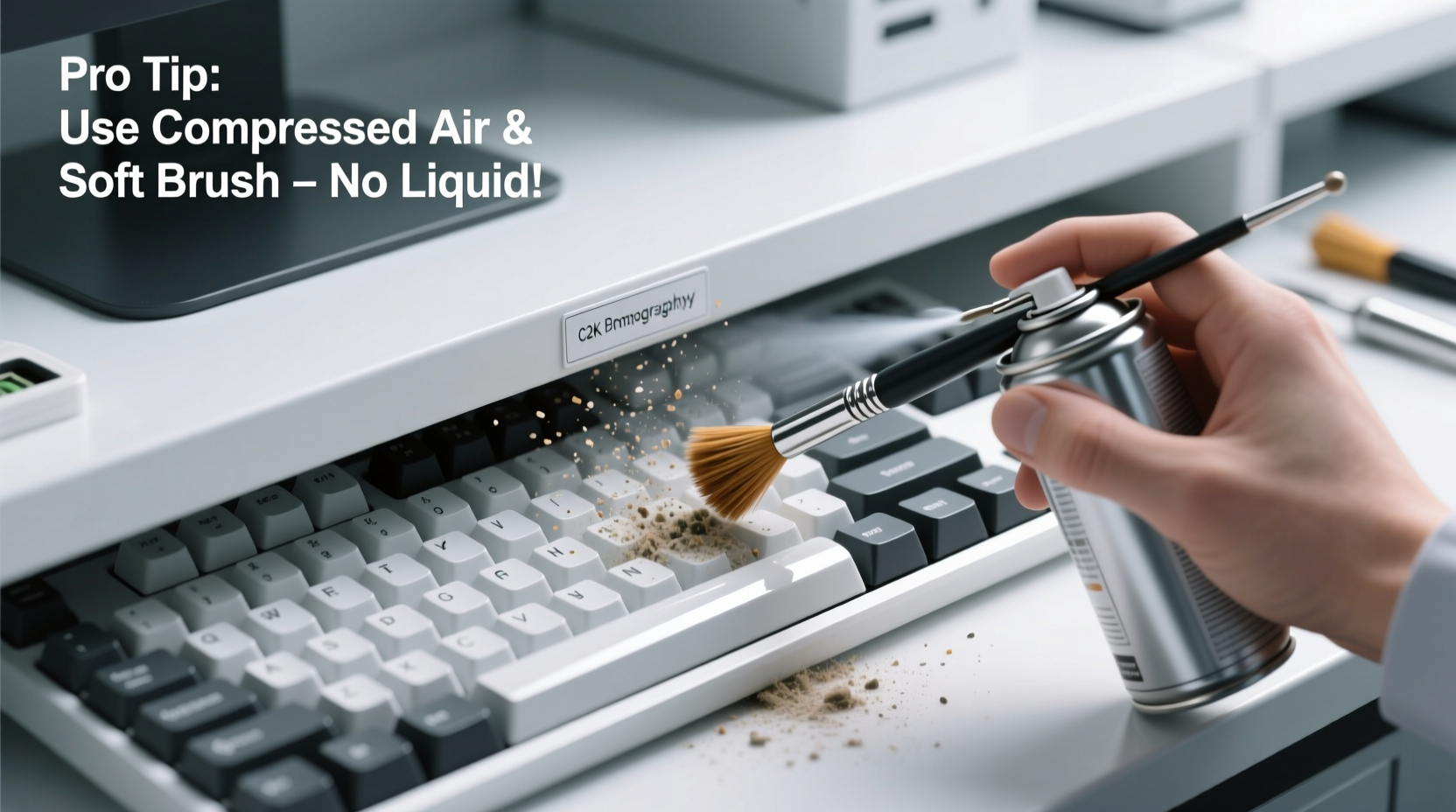
- Blast with compressed air: Use short bursts at a 45-degree angle to blow out particles trapped under keys. Move in rows from top to bottom. Keep the nozzle 1–2 inches away to avoid forcing debris deeper.
- Remove keycaps (if removable): Use a plastic keycap puller or flat spudger to lift keys carefully. Start with smaller keys like Alt or Ctrl. Mechanical keyboards typically allow full removal; most laptop keys require special clips and should only be removed by experienced users.
- Clean exposed areas: Dip a cotton swab in isopropyl alcohol, squeeze out excess, and gently wipe around switch stems or rubber domes. Replace swabs frequently as they pick up grime.
- Brush stubborn buildup: Use a dry soft-bristle brush in small circular motions to lift compacted dust. Follow with another round of compressed air.
- Sanitize keycaps: If removed, wash keycaps in warm, soapy water. Rinse and air-dry completely (minimum 4 hours) before reattaching. Never use a dishwasher or microwave to speed drying.
- Reassemble and test: Snap keycaps back into place firmly but gently. Power on the device and test each key for responsiveness.
Do’s and Don’ts of Keyboard Cleaning
To reinforce best practices, here’s a clear comparison of recommended versus risky behaviors.
| Do’s | Don’ts |
|---|---|
| Use isopropyl alcohol on swabs—not water | Pour liquids directly onto the keyboard |
| Clean in a well-lit, static-free area | Work on carpeted floors that generate static |
| Allow all parts to dry fully before reassembly | Reattach damp keycaps or power on wet hardware |
| Use a lint-free microfiber cloth for final wipe | Wipe with tissues or paper towels that leave fibers |
| Store removed keys in a labeled container | Leave keys scattered on a desk where they can be lost |
Real Example: Recovering a Coffee-Spilled Keyboard
Mark, a freelance writer, accidentally knocked over his morning coffee onto his mechanical keyboard. The keys on the right side became sticky, and some stopped registering input. Instead of replacing the $120 unit, he followed a careful recovery process.
He immediately unplugged the keyboard and drained excess liquid by holding it at an angle. After letting it sit undisturbed for 24 hours, he used compressed air to remove residual moisture. With a plastic tool, he removed affected keycaps and cleaned the switches with alcohol-dampened swabs. He brushed around the stabilizers and let it air dry another 12 hours. Upon reassembly, all keys functioned normally. Mark saved over $100 and extended his keyboard’s life by two years with proper follow-up maintenance.
This case illustrates how timely, correct intervention can rescue seemingly damaged hardware—without costly replacements.
FAQ: Common Questions About Keyboard Cleaning
Can I use hand sanitizer to clean under my keys?
No. Hand sanitizers often contain glycerin and fragrances that leave sticky residues. They may also include lower concentrations of alcohol mixed with water, increasing the risk of corrosion. Stick to pure isopropyl alcohol (70% or higher) for safe disinfection.
Are all keycaps removable?
No. Most full-size mechanical keyboards have removable keycaps, but many laptop and compact keyboards use fixed or scissor-switch mechanisms. Attempting to remove non-removable keys can break retention clips. Consult your device manual or manufacturer website before attempting removal.
How often should I deep clean under the keys?
For heavy users, a deep clean every 3–4 months is ideal. Light users can stretch this to twice a year. Surface wiping with a dry microfiber cloth should be done weekly. Increase frequency if you eat near your keyboard or live in a high-dust environment.
Checklist: Safe Keyboard Deep-Cleaning Routine
- ✅ Power off and disconnect the keyboard
- ✅ Shake out loose debris upside down
- ✅ Use compressed air in angled bursts
- ✅ Remove keycaps only if designed for it
- ✅ Clean under keys with alcohol-dampened swabs
- ✅ Brush around switches with a soft-bristle tool
- ✅ Wash and fully dry removed keycaps
- ✅ Reassemble and test all keys
- ✅ Store cleaning tools in a dedicated kit for future use
Protecting Your Investment Long-Term
Your keyboard is one of the most frequently used peripherals, yet often the least maintained. Regular cleaning not only improves typing experience but also protects your investment. High-end mechanical keyboards can last a decade or more with proper care. Even budget models benefit from basic upkeep, reducing the need for frequent replacements and minimizing e-waste.
Consider implementing a seasonal maintenance schedule: deep clean in spring and fall, with light cleanings in summer and winter. Pair this with preventive habits—using a keyboard cover when not in use, washing hands before typing, and avoiding eating at your workstation.
“A well-maintained keyboard performs better, lasts longer, and supports healthier work habits.” — Lena Patel, Ergonomic Equipment Consultant
Conclusion
Cleaning under keyboard keys doesn’t require expensive tools or technical expertise—just the right knowledge and caution. By following safe, step-by-step methods, you preserve both the mechanical integrity and electronic functionality of your device. Whether dealing with everyday dust or an accidental spill, the techniques outlined here empower you to act confidently and effectively.
💬 Ready to give your keyboard a fresh start? Gather your tools today and perform a safe deep clean. Share your experience or tips in the comments to help others maintain their gear the right way!