When it comes to streaming high-definition content at home, two devices dominate the conversation: the Apple TV 4K and the Amazon Fire TV Stick. Both deliver crisp visuals and support modern streaming standards, but they cater to different ecosystems, user preferences, and lifestyles. Choosing between them isn’t just about picture quality—it’s about integration, usability, long-term value, and how you consume media. For viewers invested in Apple’s ecosystem or seeking premium performance, the Apple TV 4K offers compelling advantages. Meanwhile, the Fire Stick remains a budget-friendly powerhouse with deep ties to Amazon’s vast content library.
This article dives into the core differences between these two popular streaming devices, focusing on real-world performance in high-definition (HD) and ultra-high-definition (UHD) environments. We’ll compare hardware, software, HDR support, app availability, voice control, gaming potential, and overall user experience to help you determine which device delivers the best value for your living room setup.
Hardware and Performance: Power vs. Practicality
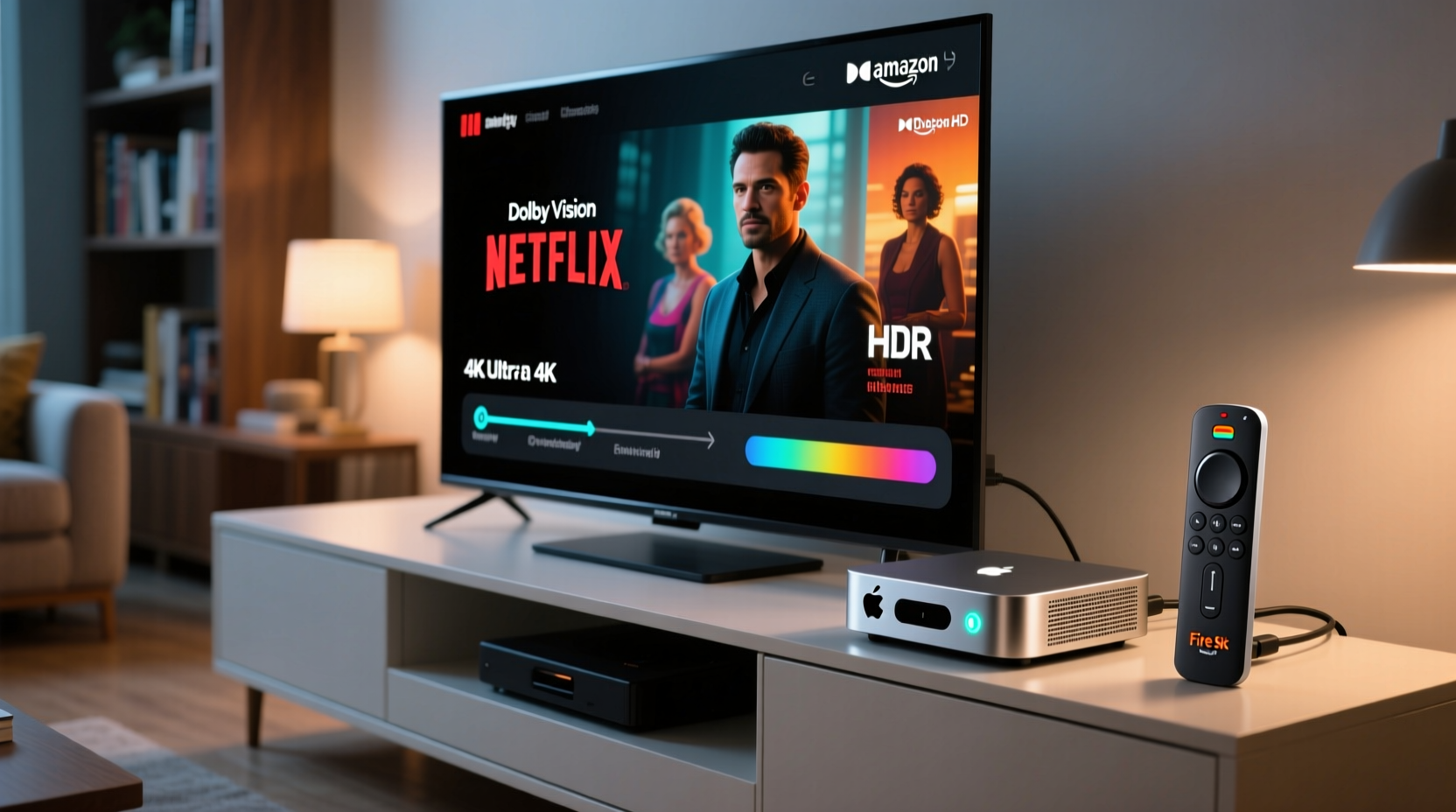
The physical capabilities of a streaming device directly impact its ability to handle high-resolution video, fast navigation, and multitasking. The Apple TV 4K (3rd generation, 2022) is built around Apple’s A15 Bionic chip—the same processor found in the iPhone 14. This gives it exceptional processing power, enabling smooth 4K HDR playback, quick app launches, and responsive menu transitions. It supports Wi-Fi 6 and Bluetooth 5.0, ensuring stable connectivity even in congested wireless environments.
In contrast, the latest Amazon Fire TV Stick 4K Max uses a custom MediaTek chipset optimized for media decoding. While not as powerful as the A15, it still handles 4K HDR content efficiently and includes Wi-Fi 6 support—making it one of the most capable budget sticks available. However, users may notice slightly longer load times when switching between apps or launching games compared to the Apple TV.
One critical distinction lies in local storage. The Apple TV 4K offers 64GB or 128GB of internal storage, allowing users to install numerous apps, download movies for offline viewing, and even play console-quality games. The Fire Stick 4K Max has only 8GB of total storage, with roughly half available to the user. This limitation can become frustrating if you frequently install large apps or games.
Tip: If you plan to use your streaming device for more than just Netflix and YouTube—such as gaming or downloading apps—prioritize models with ample storage.Video Quality and HDR Support: True 4K Experience?
Both devices support 4K resolution at up to 60 frames per second, making them suitable for modern TVs. However, their handling of dynamic range and color accuracy sets them apart.
The Apple TV 4K supports Dolby Vision, HDR10+, and HLG—all major HDR formats. More importantly, it features **Auto HDR** and **Auto Color**, technologies that automatically detect your TV model and adjust settings like brightness, contrast, and color temperature for optimal picture quality. These features require an iPhone or iPad nearby during setup but deliver noticeable improvements in image fidelity.
The Fire TV Stick 4K Max supports Dolby Vision and HDR10+, but lacks automatic calibration tools. Picture consistency depends heavily on your TV’s default settings and manual configuration. Some users report inconsistent HDR tone mapping across different apps, particularly when switching from Prime Video to Disney+.
Apple also integrates **frame rate matching**, meaning the device adjusts its output frame rate to match the source content. This reduces judder and stutter during film-based material (e.g., 24fps movies), enhancing cinematic immersion. The Fire Stick does not offer this feature, which can result in less fluid motion on certain titles.
“Frame rate matching and dynamic metadata delivery make the Apple TV 4K one of the most accurate consumer-grade streaming boxes for HDR content.” — David Chen, Senior Editor at Rtings.com
Interface and User Experience: Simplicity vs. Customization
User interface design significantly influences daily usability. The Apple TV runs **tvOS**, known for its clean, intuitive layout. The main screen organizes content by app, recently watched shows, and personalized recommendations. Apps are displayed prominently, and navigation via the Siri Remote is generally smooth, though the touch-sensitive clickpad divides opinion among users.
Amazon’s Fire OS, based on Android, presents a more cluttered home screen filled with promotional tiles, ads, and suggested content—many pointing directly to Amazon Prime Video. While functional, this approach prioritizes Amazon’s business interests over user clarity. That said, Fire OS allows deeper customization, including sideloading apps via developer mode and installing third-party launchers to streamline the experience.
Search functionality differs greatly. Apple’s universal search aggregates results across multiple platforms (Netflix, Hulu, HBO Max, etc.) and displays where you can watch a title without opening individual apps. Amazon’s search is similarly broad but often emphasizes paid rentals or purchases from its own storefront.
For families or multi-user households, Apple TV supports multiple user profiles with personalized recommendations and iCloud sync across devices. Fire Stick offers limited profile differentiation, primarily tied to Amazon accounts.
Content Access and App Ecosystem
While both devices support major streaming services—including Netflix, Hulu, Disney+, HBO Max, and YouTube—the availability of niche or region-specific apps varies.
Apple maintains strict app review policies, resulting in fewer but generally higher-quality applications. All apps must meet performance and design standards, reducing crashes and improving consistency. However, some third-party streaming apps (especially those offering pirated or gray-market content) are absent from the App Store.
Fire TV’s open Android foundation allows broader app access. Users can enable “Apps from Unknown Sources” and install APKs manually, unlocking platforms like Kodi, Cinema HD, or other community-driven media centers. This flexibility appeals to tech-savvy users but introduces security risks and potential instability.
Exclusive content access also plays a role. Apple TV+ subscribers get seamless integration, free trials, and original programming promoted front-and-center. Amazon Prime members enjoy instant access to Prime Video, Freevee, and exclusive deals on rentals. If you're deeply embedded in either ecosystem, that loyalty will influence your choice.
| Feature | Apple TV 4K | Fire TV Stick 4K Max |
|---|---|---|
| Processor | A15 Bionic | MediaTek 8696 |
| Storage | 64GB / 128GB | 8GB (approx. 4GB usable) |
| HDR Formats | Dolby Vision, HDR10+, HLG | Dolby Vision, HDR10+ |
| Wi-Fi | Wi-Fi 6 | Wi-Fi 6 |
| Automatic Calibration | Yes (Auto HDR, Auto Color) | No |
| Frame Rate Matching | Yes | No |
| Voice Assistant | Siri | Amazon Alexa |
| App Sideloading | No | Yes |
| Price (MSRP) | $129 (64GB) | $59.99 |
Gaming and Voice Control: Beyond Streaming
Streaming devices are increasingly used for casual gaming and smart home control. The Apple TV 4K shines here. Its powerful hardware supports high-end games from Apple Arcade, many of which rival mobile console experiences. Titles like *Sea of Solitude*, *Shinsekai: Into the Depths*, and *Alba: A Wildlife Adventure* run smoothly with optional controller support (Xbox, PlayStation, or MFi-certified).
The Fire Stick 4K Max also supports cloud gaming through services like NVIDIA GeForce NOW and Xbox Cloud Gaming (via browser workaround), but native game performance is limited by RAM and storage constraints. Most games available on Fire OS are lightweight or ad-supported mobile ports.
Voice assistants differ in scope. Siri on Apple TV focuses on media commands (“Play Stranger Things on Netflix”) and device controls (“Turn on subtitles”). Alexa on Fire Stick offers similar functions but extends further into smart home automation—turning off lights, checking door locks, or starting a vacuum robot—especially useful in Amazon-dominated smart homes.
Tip: Use voice remotes to quickly jump to specific scenes: say “Skip ahead 5 minutes” or “Go back to the last chapter.”Mini Case Study: Sarah’s Living Room Upgrade
Sarah, a film enthusiast with a 65-inch LG OLED TV, wanted the best possible picture quality for her movie nights. She owned an older Roku stick but noticed inconsistent HDR performance and slow loading times. After researching, she upgraded to the Apple TV 4K. During setup, her iPhone automatically calibrated the TV’s color and brightness using ambient light detection. When watching *Dune* in Dolby Vision, she noticed deeper blacks and smoother highlights compared to before. Frame rate matching eliminated motion judder during wide desert pans. Though the $129 price gave her pause, she concluded it was worth the investment for the cinematic experience.
Her neighbor, Mark, chose the Fire Stick 4K Max instead. He already had multiple Echo devices and valued Alexa’s integration. He appreciated being able to say, “Alexa, turn on the living room lights,” while watching Prime Video. Although he didn’t notice the same level of visual refinement, he was satisfied given the lower cost and ease of use.
Step-by-Step Guide: Choosing the Right Device for You
- Assess Your Ecosystem: Are you an iPhone, iPad, or Mac user? Do you subscribe to Apple Music, iCloud, or Apple Fitness+? If yes, Apple TV offers tighter integration.
- Evaluate Your TV: Do you have a high-end OLED or QLED TV with advanced HDR? If so, Apple TV’s Auto HDR and frame rate matching will maximize its potential.
- Consider Your Budget: The Fire Stick costs less than half as much as the Apple TV. If you’re on a tight budget or renting, it’s a practical entry point.
- Think About Future Use: Will you want to play games, control smart home devices, or use voice commands frequently? Each platform excels in different areas.
- Test Before Committing: Many users keep both devices plugged in via HDMI switchers. Try each for a week to see which interface and remote feel more natural.
Frequently Asked Questions
Can the Fire Stick really compete with Apple TV in 4K quality?
Yes, in terms of raw resolution and basic HDR support, the Fire Stick 4K Max delivers excellent 4K streaming. However, it lacks advanced calibration features and frame rate optimization, so the viewing experience may not be as refined on high-end displays.
Do I need an iPhone to use Apple TV effectively?
No, but having an iPhone enhances setup and unlocks features like automatic TV calibration and Handoff. You can set up and use Apple TV with just a TV and internet connection.
Which device has better longevity?
The Apple TV 4K typically receives software updates for 5–7 years and maintains performance over time due to superior hardware. Fire Sticks usually receive 3–4 years of updates and may slow down as apps grow larger.
Final Verdict: Which Is Better for High-Definition Streaming?
The answer depends on what “better” means to you. If you define it by technical excellence, ecosystem cohesion, and future-proofing, the **Apple TV 4K is the superior choice**. Its processing power, HDR precision, and intelligent calibration tools deliver a consistently polished high-definition experience, especially on premium TVs. It’s ideal for cinephiles, Apple loyalists, and users who value reliability and long-term support.
However, if your priority is affordability, smart home integration, or deep access to Amazon’s content library, the **Fire TV Stick 4K Max remains a strong contender**. At nearly half the price, it brings robust 4K streaming to the masses and offers unique flexibility through sideloading and Alexa voice control.
Ultimately, neither device fails at delivering high-definition content. But for those seeking the highest tier of picture quality, responsiveness, and ecosystem synergy, the Apple TV 4K stands above the competition—not because it’s flashy, but because it works seamlessly, predictably, and beautifully.
💬 Have you switched from Fire Stick to Apple TV—or vice versa? Share your experience and help others decide which streaming box fits their lifestyle!