Android powers over 2.5 billion devices worldwide, yet many users remain unaware of the exact version running on their phones or what it means for performance, security, and functionality. Knowing your Android version isn’t just technical trivia—it directly affects app compatibility, privacy controls, battery optimization, and access to new tools. Whether you’re troubleshooting, considering an update, or simply curious, this guide walks you through how to find your Android version, interpret its naming system, and leverage the unique capabilities of each release.
How to Identify Your Current Android Version
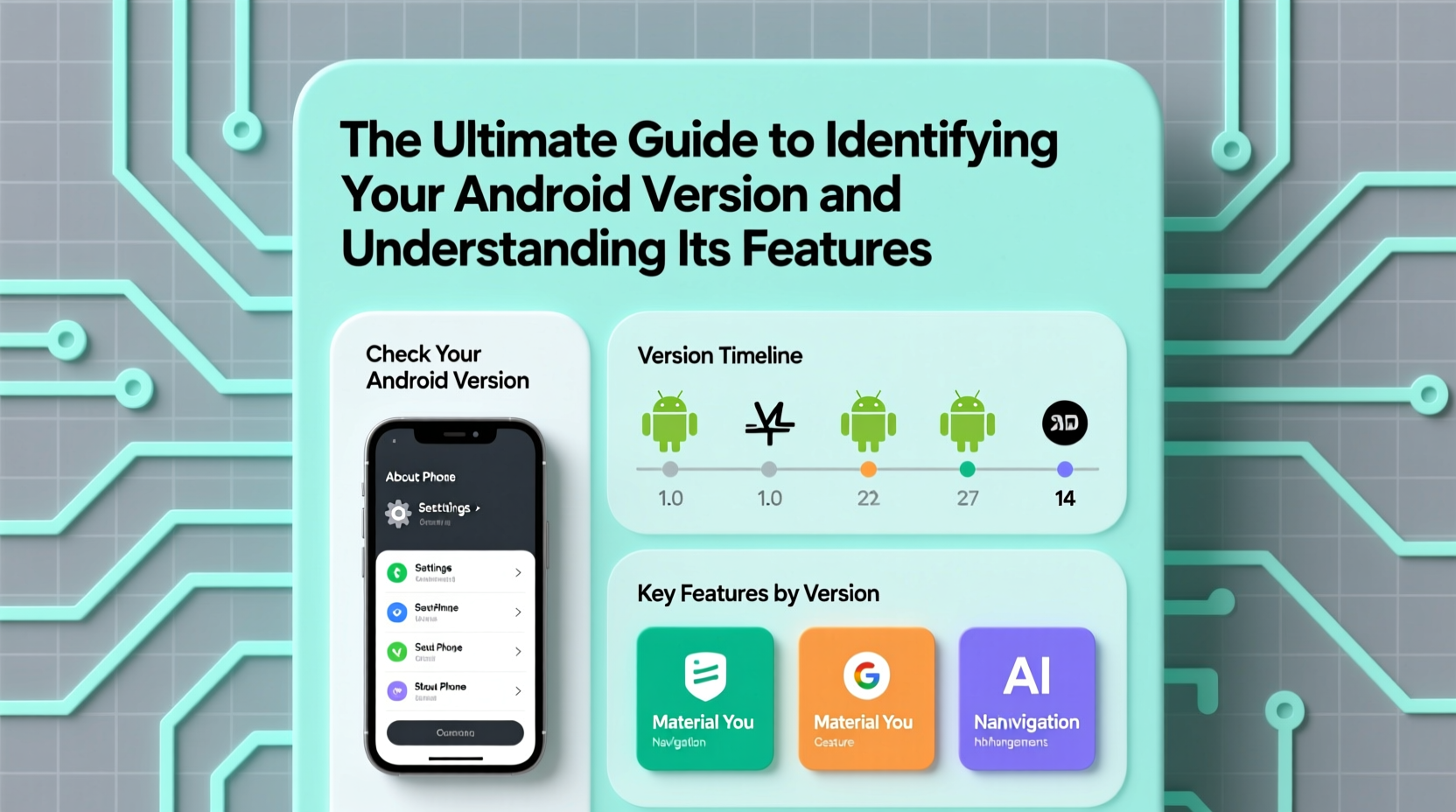
Finding your Android version is straightforward, but the path can vary slightly depending on your device manufacturer—Samsung, Google Pixel, OnePlus, Xiaomi, and others may customize the Settings menu. Despite these variations, the core steps remain consistent across most devices.
- Open the Settings app on your phone.
- Scroll down and tap on About Phone (sometimes listed under \"System\" or \"Software Information\").
- Look for entries labeled Android Version, Security Patch Level, and Build Number.
The \"Android Version\" will display a number such as 13, 14, or 15, often accompanied by a dessert-themed codename in earlier versions (e.g., Android 10 was \"Quince Tart,\" though Google retired the naming convention after Android 9). The build number indicates the specific iteration of that version, while the security patch level reveals how recently your device received critical fixes.
Tip: If you're having trouble finding the About Phone section, use the search bar in Settings and type “Android version” to jump directly to it.Understanding Android Versioning: From Pie to Android 14
Google has used a structured versioning system since Android 1.0. Initially, versions were named alphabetically after desserts (Cupcake, Donut, Eclair), creating a memorable branding strategy. This ended with Android 10, when Google shifted to numerical naming for simplicity and global inclusivity.
Each major version introduces significant changes in design, permissions, background process management, and user interface elements. For example:
- Android 10 (2019): Introduced dark mode, improved privacy controls with one-time app permissions, and gesture navigation.
- Android 11 (2020): Added chat bubbles, enhanced media controls, and more granular permission settings.
- Android 12 (2021): Debuted Material You design language, customizable color palettes, and faster touch response.
- Android 13 (2022): Improved per-app language settings, better Bluetooth LE audio support, and stricter background app limits.
- Android 14 (2023): Focused on personalization, larger font scaling (up to 200%), AI-driven photo organization, and enhanced privacy dashboards.
“Knowing your Android version helps you understand what features you can use—and which security risks you might be exposed to.” — Dr. Lena Park, Mobile Security Researcher at OpenTech Institute
Key Features by Android Version: A Comparison Table
| Android Version | Release Year | Major Features | Security Highlights |
|---|---|---|---|
| Android 10 | 2019 | Dark Mode, Gesture Navigation, Live Caption | Location access only while using app |
| Android 11 | 2020 | Chat Bubbles, One-Time Permissions, Power Menu with Smart Home | Mute mic/camera via quick settings |
| Android 12 | 2021 | Material You, Custom Color Themes, Faster Animations | Privacy Dashboard, Approximate Location Only |
| Android 13 | 2022 | Per-App Languages, Notification Sync, Better Bluetooth Audio | Adaptive Permissions, Restricted App Access in Background |
| Android 14 | 2023 | AI-Powered Photo Memories, Larger Text Support, Enhanced Lock Screen | Photo Picker Isolation, Safer Third-Party SDKs |
Why Your Android Version Matters: Real-World Implications
A real-world scenario illustrates the importance of staying updated. Maria, a freelance photographer based in Barcelona, relied on her older Android 10 phone for client meetings and editing apps. When she tried installing Adobe Lightroom’s latest beta—which required Android 11 or higher—she encountered repeated crashes and compatibility errors. After checking her Android version and realizing she was two major releases behind, she visited her carrier store and upgraded to a newer device. Not only did Lightroom work flawlessly, but she also gained access to improved file encryption and background location monitoring, giving her peace of mind when sharing geotagged images.
This case underscores a broader truth: outdated Android versions limit software access and increase vulnerability. Apps increasingly require modern APIs for performance and security. Devices stuck on Android 9 or earlier no longer receive monthly security patches from Google, making them prime targets for phishing, spyware, and data leaks.
Checklist: What to Do Once You Know Your Android Version
- ✅ Verify if your version is still supported (generally, Android versions receive updates for 2–3 years).
- ✅ Check for available system updates under Settings > System > System Update.
- ✅ Review the security patch level—anything older than 90 days may pose risks.
- ✅ Confirm app compatibility for tools you rely on daily (e.g., banking, productivity, health apps).
- ✅ Consider upgrading your device if you're on Android 10 or earlier and no updates are available.
FAQ: Common Questions About Android Versions
How often does Android release a new version?
Google typically launches a major Android version once per year, usually in August or September. These roll out first to Pixel devices, followed by partner manufacturers over the next several months.
Can I manually upgrade to a newer Android version?
Generally, no—unless you're technically experienced and willing to void your warranty. Most users must wait for official over-the-air (OTA) updates from their device manufacturer or carrier. Some third-party ROMs exist (like LineageOS), but they come with security and stability trade-offs.
What happens if my phone doesn’t get the latest Android update?
You’ll miss new features and, more critically, ongoing security patches. Manufacturers usually provide 2–4 years of support depending on the model. After that, your device becomes increasingly vulnerable and may stop working reliably with modern apps.
Staying Secure and Informed: A Final Recommendation
Your Android version is more than a number—it's a snapshot of your device’s capability, safety, and longevity. Regularly checking your version and ensuring timely updates protects your personal data and enhances your user experience. As Android evolves with AI integration, deeper privacy safeguards, and smarter automation, staying current ensures you’re not left behind.
💬 Ready to take control of your Android experience? Check your version today, review your security settings, and share this guide with someone who still thinks “Pie” is just a dessert!