
The Google Play Store is the official app marketplace for Android devices, offering millions of apps, games, books, movies, and more. While most users access it daily, many don’t fully leverage its features or understand how to use it securely and efficiently. Whether you're new to Android or looking to refine your digital habits, mastering the Play Store can save time, enhance security, and improve your overall mobile experience.
1. Setting Up Your Device for Google Play Access
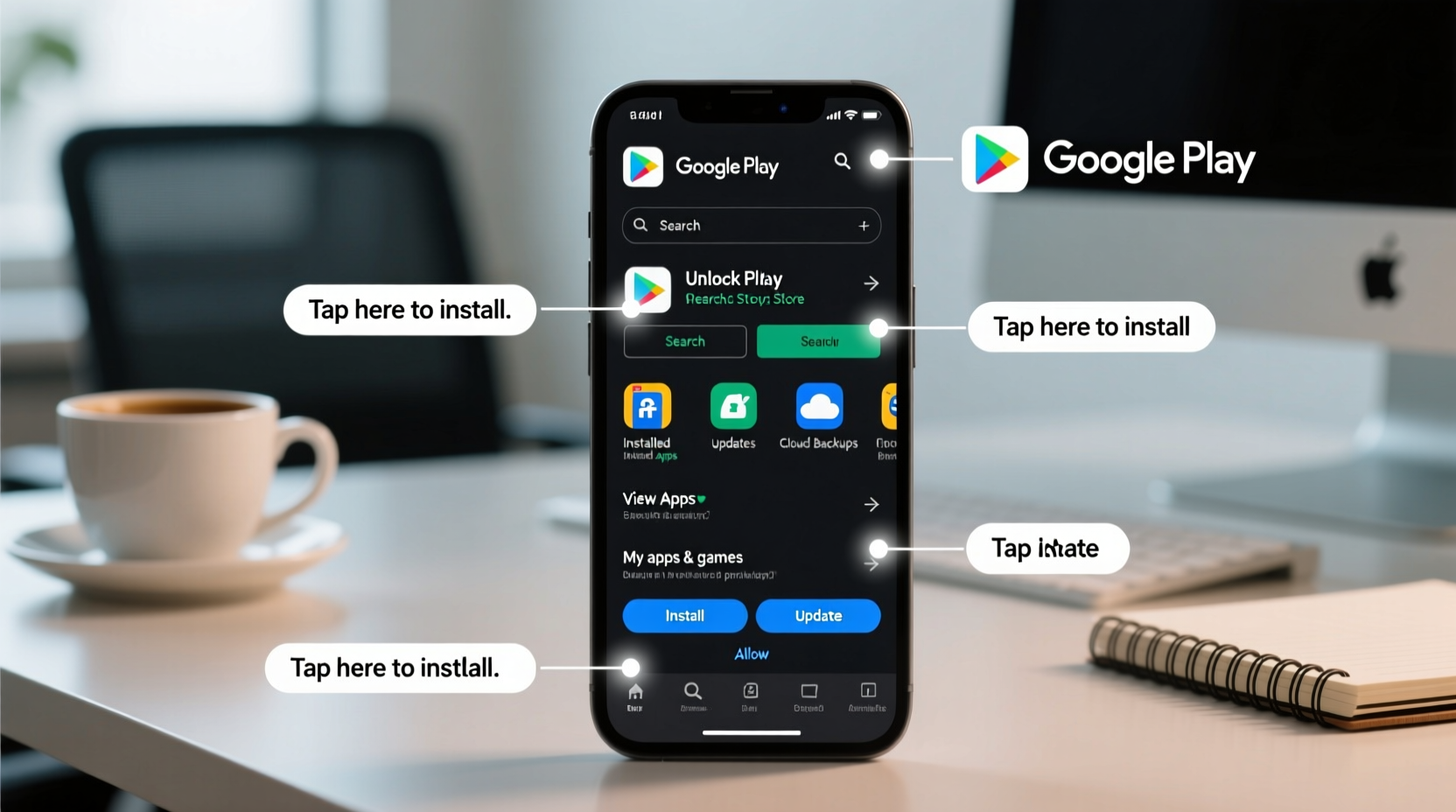
Before downloading any app, ensure your device is properly configured to access the Google Play Store. This begins with a stable internet connection and a Google account. Most Android phones come with the Play Store pre-installed, but if it's missing or malfunctioning, follow these steps:
- Verify that your device runs on Android 4.0 (Ice Cream Sandwich) or higher—the minimum required version.
- Connect to Wi-Fi or enable mobile data.
- Open the Settings app and navigate to Accounts > Add Account.
- Select Google and sign in with your existing credentials or create a new account.
- Once signed in, locate the Play Store app on your home screen or app drawer and open it.
If the Play Store fails to load, try clearing its cache: go to Settings > Apps > Google Play Store > Storage > Clear Cache. If issues persist, update Google Play Services through the same menu.
2. Navigating the Interface Efficiently
The Play Store interface is divided into several key sections accessible via the bottom navigation bar:
- Home: Personalized recommendations based on usage.
- Games: Dedicated section for gaming apps and trending titles.
- Apps: Productivity tools, social media, utilities, and lifestyle apps.
- Movies & TV: Rent or buy digital content.
- Books: E-books and audiobooks available for purchase or subscription.
- Subscriptions: Manage recurring payments for apps and services.
Use the search bar at the top to find specific apps. As you type, the store suggests popular results and shows whether an app is already installed. Tapping on an app opens its details page, which includes screenshots, user reviews, permissions required, developer information, and update history.
| Section | Purpose | Best For |
|---|---|---|
| Top Charts | Lists most downloaded and highest-rated apps | Discovering popular tools and games |
| Family | Kid-friendly apps and parental controls | Parents managing children’s screen time |
| Editor’s Choice | Curated high-quality apps selected by Google | Finding reliable, well-designed software |
| Updates | Shows pending app updates | Maintaining security and functionality |
3. Downloading and Installing Apps Safely
Downloading from the Play Store is generally safe due to Google’s vetting process, but risks remain—especially with free apps that may contain ads or request excessive permissions. Follow this checklist before installing any app:
Checklist:- ✅ Read recent user reviews (focus on 3-star and below for red flags)
- ✅ Check when the app was last updated (inactive developers = potential risk)
- ✅ Review requested permissions (e.g., does a flashlight app need your contacts?)
- ✅ Verify the developer name (look for official publishers like “Meta Platforms”)
- ✅ Confirm there are no misleading screenshots or fake ratings
To install, tap the green Install button. The app will download and automatically install. If prompted, grant necessary permissions—but consider selecting “Only while using the app” for location, microphone, or camera access.
“Over 95% of malware on Android comes from sideloaded apps, not the Play Store. But even trusted apps can misuse data—always audit permissions.” — Dr. Lena Patel, Mobile Security Researcher at CyberShield Labs
4. Managing Subscriptions and In-App Purchases
One of the most underused yet critical features of the Play Store is subscription management. Many users unknowingly pay for services they no longer use. To avoid surprise charges:
- Open the Play Store and tap your profile icon in the top-right corner.
- Select Payments & subscriptions > Subscriptions.
- Review active plans (e.g., Spotify, Adobe Creative Cloud, fitness apps).
- Tap any subscription to pause, cancel, or change billing frequency.
You can also set up purchase verification. Go to Settings > Authentication and enable Require authentication for purchases. Choose to verify every transaction or only those made with a credit card.
Mini Case Study: Avoiding Unwanted Charges
Sarah, a college student, noticed a $12.99 charge on her bank statement labeled “Google Services.” She didn’t recall buying anything. After checking her Play Store subscriptions, she found a meditation app trial she’d signed up for three months earlier. Because she hadn’t canceled before the trial ended, it had auto-renewed. She canceled immediately and received a partial refund by contacting Google Support. Since then, she reviews her subscriptions monthly and uses the “Pause” option on trials.
5. Optimizing Settings for Performance and Privacy
Customize your Play Store settings to enhance both performance and privacy:
- Auto-update apps: Found under Settings > Network preferences. Choose “Over any network” for convenience or “Over Wi-Fi only” to save data.
- Data saver: Enable to reduce background data usage when browsing the store.
- Notifications: Disable alerts for updates or recommendations if they become distracting.
- Wishlist: Save apps you’re interested in. You’ll get notified when they go on sale or receive major updates.
- Family Library: Share purchased apps and media with up to five family members without repurchasing.
Frequently Asked Questions
Why can’t I install apps from the Play Store?
This could be due to insufficient storage, an outdated OS version, regional restrictions, or a disabled Google account. Try restarting your phone, freeing up space, or checking your account status in Settings.
Can I download paid apps for free legally?
No. However, many premium apps offer free trials or lite versions. Some rotate into Google Play’s “Free App of the Week” promotion—check the homepage regularly.
How do I leave a review or report a problematic app?
Go to the app’s page, scroll down, and tap “Write a review.” To report abuse, tap the three-dot menu and select “Flag as inappropriate,” then choose the reason (e.g., malware, impersonation, deceptive behavior).
Conclusion
Mastering the Google Play Store goes beyond tapping “Install.” It involves smart navigation, vigilant security practices, and proactive management of subscriptions and permissions. By following these steps, you gain control over what enters your device and how your data is used. The Play Store is a powerful gateway to digital innovation—use it wisely, keep your system updated, and make informed choices with every download.
🚀 Ready to take full control of your Android experience? Open your Play Store today, review your subscriptions, and clean up unused apps. Share this guide with someone who still clicks \"Accept\" without reading permissions!