
Wireless charging offers convenience and a clutter-free way to power up your iPhone. But if you’ve noticed your device getting unusually hot while charging on a Qi pad or MagSafe stand, it’s not just in your head — and it’s worth paying attention to. Excessive heat during wireless charging isn’t normal and can degrade your battery, slow down performance, or even pose safety risks over time. Understanding the root causes and knowing how to fix them can help preserve your iPhone’s longevity and keep your charging experience safe and efficient.
How Wireless Charging Works (and Why Heat Is Inevitable)
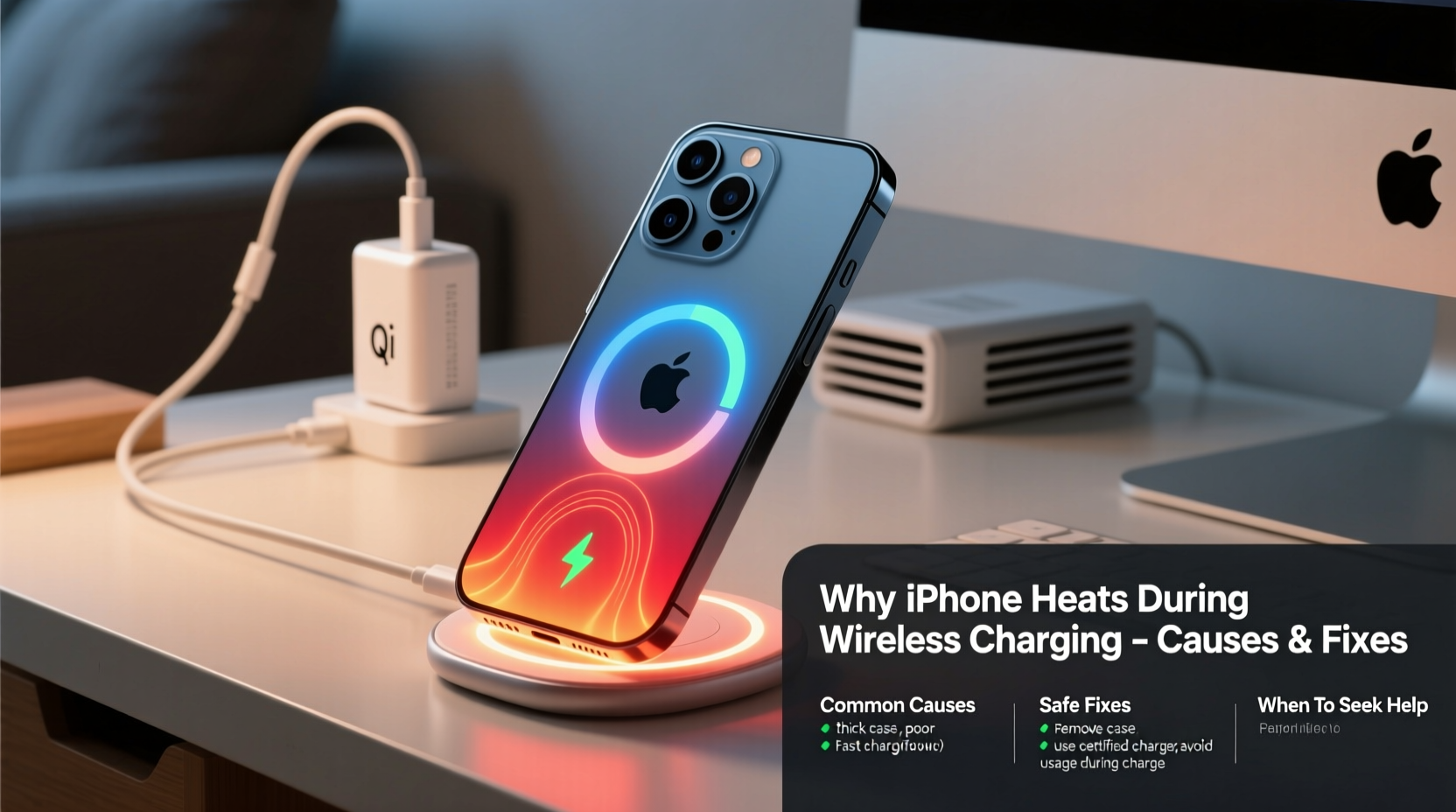
Unlike traditional wired charging, which transfers energy directly through a cable, wireless charging uses electromagnetic induction. When your iPhone is placed on a charging pad, an alternating current flows through a coil in the pad, creating a magnetic field. This field induces a current in a corresponding coil inside your iPhone, which then charges the battery.
This process is inherently less efficient than wired charging. A portion of the energy is lost as heat due to resistance in the coils and misalignment between the charger and phone. While a slight warmth is expected, excessive heat—especially enough to make the phone uncomfortable to touch—signals inefficiency or malfunction.
“Any wireless power transfer generates heat. The goal is to minimize it through proper alignment, quality hardware, and avoiding obstructions.” — Dr. Alan Zhou, Electrical Engineer & Power Systems ResearcherTip: Remove thick cases before wireless charging to reduce insulation and improve heat dissipation.
Common Causes of iPhone Overheating During Wireless Charging
Several factors contribute to your iPhone heating up more than it should. Some are environmental, others stem from hardware or software issues. Identifying the cause is the first step toward a solution.
1. Poor Alignment Between Phone and Charger
If your iPhone isn’t properly centered on the charging pad, the coils won’t align efficiently. This forces the system to work harder, increasing energy loss and generating more heat. This is especially true with non-MagSafe chargers that don’t have magnets to snap the phone into place.
2. Using Low-Quality or Non-Certified Chargers
Not all wireless chargers are created equal. Third-party chargers that lack Qi certification or use substandard components may deliver inconsistent power, leading to erratic charging behavior and excess heat. Cheap cables or adapters used to power the charging pad can also underperform or overheat themselves.
3. Charging Through Thick or Insulating Cases
Leather, silicone, or rugged cases trap heat. When combined with the natural warmth of wireless charging, this insulation prevents the iPhone from cooling effectively. Some cases—even those marketed as “MagSafe compatible”—add enough thickness to interfere with coil alignment and thermal regulation.
4. Background App Activity and Screen Usage While Charging
Using your iPhone while it's charging wirelessly increases power demand. Streaming video, playing games, or using GPS navigation forces the processor and battery to work harder, compounding heat generation. The combination of wireless charging inefficiency and high CPU load creates a thermal feedback loop.
5. High Ambient Temperatures
Charging your iPhone in direct sunlight, on a car dashboard, or near a radiator raises the starting temperature. iPhones are designed to operate between 0°C and 35°C (32°F–95°F). Exceeding this range, especially during charging, triggers thermal throttling or charging pauses—but not before adding stress to internal components.
6. Battery or Hardware Degradation
As batteries age, their internal resistance increases. An older iPhone with a worn battery may generate more heat during charging, even under ideal conditions. Physical damage, moisture exposure, or degraded internal shielding can also impair thermal management.
Proven Fixes to Prevent iPhone Overheating on Wireless Chargers
You don’t need to give up wireless charging to keep your iPhone cool. With a few adjustments, you can maintain both convenience and device health.
1. Use Apple-Certified or MFi-Rated Accessories
Invest in chargers and power adapters that carry official certifications. Look for:
- MFi (Made for iPhone/iPad) logo
- Qi2 or Qi certification
- Compatibility with your iPhone model (e.g., MagSafe for iPhone 12 and later)
Apple’s MagSafe chargers are engineered to align perfectly and regulate temperature dynamically. Third-party options from brands like Belkin, Anker, and ESR that are MFi-certified offer similar reliability.
2. Remove Your Case During Charging
Take off thick or insulated cases before placing your iPhone on the charger. If you must keep the case on, choose one specifically designed for wireless charging with minimal bulk and good ventilation.
Tip: Avoid metal-backed cases or accessories—these can interfere with charging and create dangerous heat buildup.3. Charge in a Cool, Well-Ventilated Area
Avoid charging on surfaces that retain heat, such as beds, sofas, or carpets. Instead, use a hard surface like a wooden nightstand or desk. Keep the room temperature moderate and away from direct sunlight.
4. Limit Usage While Charging
Resist the urge to scroll Instagram or watch YouTube while your phone charges wirelessly. If you must use the phone, limit intensive tasks. Better yet, enable Airplane Mode or Do Not Disturb to reduce background activity and signal searching, which also generates heat.
5. Restart or Update Your iPhone Regularly
Software bugs or memory leaks can cause apps to run in the background unnecessarily, increasing CPU load and heat. Ensure your iPhone runs the latest iOS version, and restart it weekly to clear cached processes.
6. Monitor Battery Health and Replace if Needed
An aging battery struggles to manage charge cycles efficiently. Check your battery health:
- Go to Settings > Battery > Battery Health & Charging
- Look at “Maximum Capacity” — if it’s below 80%, consider a replacement
- Check for “Service Recommended” warnings
Batteries lose capacity over time; replacing one that’s significantly degraded can dramatically reduce overheating issues.
Do’s and Don’ts: Quick Reference Table
| Do’s | Don’ts |
|---|---|
| Use MFi-certified or Apple MagSafe chargers | Use unbranded, no-name charging pads |
| Charge on a hard, flat surface | Charge on soft fabrics like pillows or couches |
| Remove thick or metal-containing cases | Leave phone in a case that traps heat |
| Keep ambient temperature moderate | Charge in direct sunlight or hot cars |
| Update iOS and restart periodically | Ignore persistent overheating warnings |
Step-by-Step: Troubleshooting iPhone Overheating on Wireless Chargers
Follow this sequence to diagnose and resolve overheating issues:
- Stop charging immediately if the phone feels excessively hot. Let it cool down before continuing.
- Remove the case and inspect for debris or metal elements.
- Center the phone precisely on the charger. For non-MagSafe pads, adjust until charging begins (check notification).
- Switch to a certified charger if you’re using an unknown brand.
- Ensure the power adapter outputs sufficient wattage (e.g., 20W USB-C for fast charging).
- Turn off the screen and avoid using the phone for 10–15 minutes while charging.
- Restart the iPhone to clear any stuck processes.
- Check Battery Health in Settings. If degraded, schedule a battery service.
- Test with wired charging — if the phone still overheats, the issue may be internal.
Real-World Example: Sarah’s Overheating iPhone 14
Sarah, a busy marketing professional, started noticing her iPhone 14 getting uncomfortably warm every night on her bedside wireless charger. She’d leave it charging overnight with her OtterBox case on, often streaming podcasts before bed.
After two months, her phone began shutting down randomly during charging. A visit to the Apple Store revealed her battery was at 78% capacity and the device frequently exceeded safe thermal thresholds.
Following technician advice, she switched to a MagSafe-certified charger, removed her case at night, and stopped using the phone after plugging in. Within a week, the overheating stopped, and her battery drain slowed significantly. She now maintains cooler charging sessions and plans to replace the battery proactively.
Frequently Asked Questions
Is it safe to leave my iPhone on a wireless charger overnight?
Yes, modern iPhones have built-in safeguards that stop charging once the battery reaches 100%. However, repeated full cycles and heat buildup can accelerate battery wear. For best results, use Optimized Battery Charging (enabled in Settings) and ensure the phone stays cool.
Can wireless charging damage my iPhone’s battery?
Excessive heat from inefficient wireless charging can degrade battery health over time. While occasional warmth is normal, consistent overheating shortens battery lifespan. Using quality chargers and minimizing heat exposure reduces this risk significantly.
Why does my iPhone charge slower when it gets hot?
iOS includes thermal management features that throttle charging speed or pause charging entirely when temperatures rise. This protects internal components but results in slower charging. Cooling the device usually resumes normal charging rates.
Final Thoughts: Protect Your iPhone with Smarter Charging Habits
Wireless charging shouldn’t come at the cost of your iPhone’s health. While some warmth is expected, persistent overheating is a warning sign. By using certified hardware, removing insulating cases, charging in cool environments, and monitoring battery condition, you can enjoy the convenience of cord-free power without compromising performance or safety.
Heat is one of the biggest enemies of lithium-ion batteries. Taking simple precautions today can extend your iPhone’s usable life by years. Don’t wait for error messages or swelling batteries—act now to optimize your charging setup.
💬 Have a tip or experience with iPhone overheating? Share your story in the comments and help others keep their devices cool and charging safely.