Smart holiday lighting has transformed the way we decorate. No longer limited to simple on-off switches, today’s RGB Christmas lights offer vibrant colors, dynamic effects, and seamless integration with smart home ecosystems. When paired with Alexa or Google Home, these lights become more than just festive décor—they turn into responsive, programmable displays you can control with your voice, schedule in advance, or sync with music. The process may seem technical at first, but with the right setup, syncing your RGB Christmas lights is straightforward and rewarding.
The key lies in understanding compatibility, using the correct hub or bridge, and configuring your smart assistant properly. Whether you’re aiming for a subtle ambiance or a full-blown light show, this guide walks through every step to ensure your holiday display works flawlessly with Alexa or Google Assistant.
Understanding Smart RGB Lights and Compatibility
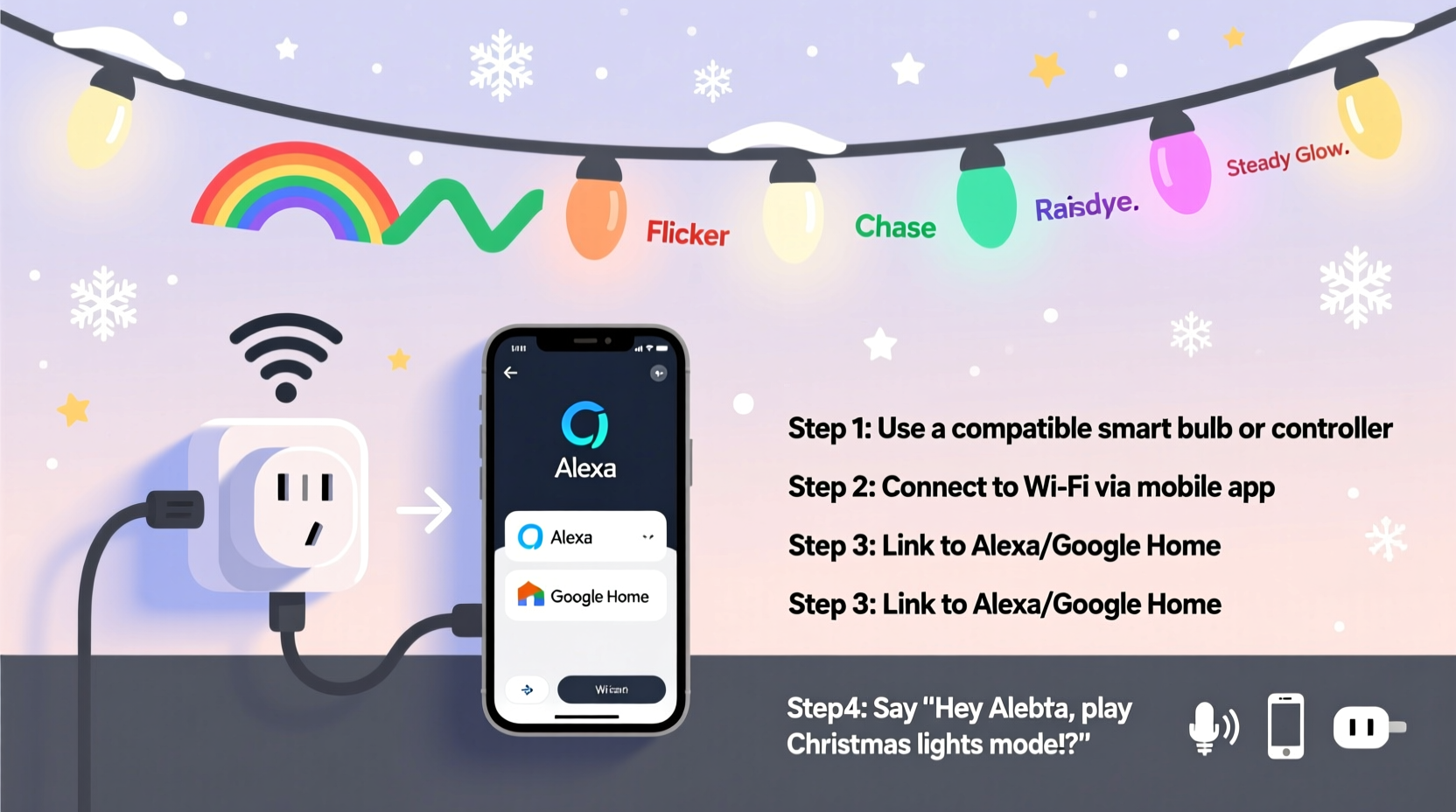
Not all RGB Christmas lights are created equal. Before attempting to sync them with Alexa or Google Home, verify that your lights are truly “smart” and compatible with one of the major voice assistants. Most modern smart lights use Wi-Fi, Bluetooth, or a dedicated hub (like Zigbee or Z-Wave) to communicate with your network.
Popular brands such as Govee, Philips Hue, LIFX, Nanoleaf, and TP-Link Kasa offer RGB strips and string lights designed specifically for smart home integration. These typically come with companion apps that allow color selection, brightness adjustment, scheduling, and scene creation—all before connecting to Alexa or Google.
Crucially, check whether your lights support either Amazon Alexa or Google Assistant directly. This information is usually listed on the product packaging or the manufacturer’s website under “Works With” logos. If your lights don’t natively support these platforms, you may need an intermediary like IFTTT (If This Then That) or a third-party automation service, which adds complexity.
Tip: Look for lights labeled “Alexa-enabled” or “Google Assistant compatible” to avoid integration issues later.Required Equipment and Setup Overview
To successfully sync your RGB Christmas lights, gather the following components:
- A set of smart RGB Christmas lights (Wi-Fi or hub-based)
- A smartphone with the manufacturer’s app installed
- A stable 2.4 GHz Wi-Fi network (most smart lights do not support 5 GHz)
- An Amazon Echo device or Google Nest speaker/display
- Amazon Alexa app or Google Home app (depending on your preferred assistant)
Once you have the hardware, follow this high-level sequence:
- Install and power on your RGB lights.
- Download the brand-specific app (e.g., Govee Home, Kasa Smart, Hue).
- Connect the lights to your Wi-Fi network via the app.
- Test basic functions—turn on/off, change colors, adjust brightness.
- Link the lighting system to Alexa or Google Assistant through skill or device linking.
- Discover devices in the assistant app and assign rooms or groups.
- Begin using voice commands or create routines.
This foundation ensures that both your lights and assistant recognize each other and operate cohesively.
Step-by-Step: Syncing with Alexa
Amazon Alexa integrates with hundreds of smart lighting brands. The process varies slightly depending on the manufacturer, but the general steps remain consistent.
1. Connect Lights to Manufacturer App
Open the app associated with your lights—such as Govee Home or TP-Link Kasa—and follow the in-app instructions to add the device. You’ll likely need to put the light into pairing mode (often by turning it on and off rapidly), then connect it to your 2.4 GHz Wi-Fi network.
2. Enable the Correct Skill in Alexa
Launch the Alexa app on your phone, tap the Devices tab, then select + > Add Device. Choose Light, then select your brand from the list (e.g., Govee, Philips, LIFX). Alexa will prompt you to enable the corresponding skill.
If your brand isn’t listed under direct device addition, go to the Skills & Games section, search for the brand name, and enable the official skill. Log in with your account credentials from the lighting app when prompted.
3. Discover Devices
After enabling the skill, return to the Alexa app and ask, “Alexa, discover devices,” or manually trigger discovery under Settings > Your Devices > Add Device > Scan for Devices. Alexa will search for any connected lights linked to your account.
4. Organize and Name Devices
Once discovered, rename your lights for easier control—e.g., “Front Porch Lights” or “Tree Lights.” Assign them to specific rooms so you can say, “Turn on the living room lights,” and Alexa knows exactly what to activate.
5. Test Voice Commands
Try commands like:
- “Alexa, turn on the Christmas tree lights.”
- “Alexa, set the porch lights to red and green.”
- “Alexa, dim the bedroom strip lights to 50%.”
- “Alexa, play a rainbow effect on the patio lights.”
If supported, you can also trigger pre-programmed scenes such as “Holiday Party” or “Candy Cane Mode.”
Tip: Use distinct names and locations to prevent confusion when controlling multiple light strips.Step-by-Step: Syncing with Google Home
Google Assistant uses a similar flow but operates within the Google Home app. Here’s how to integrate your RGB lights:
1. Set Up Lights in Brand App
As with Alexa, start by connecting your lights to Wi-Fi using their native app. Ensure they respond correctly to touch controls and color changes.
2. Open Google Home App
Tap the + icon in the top-left corner, then select Set up device. Choose Have something already set up? and sign in to your Google account if needed.
3. Link Your Lighting Service
Search for your brand (e.g., “Govee,” “Philips Hue”) and select the official integration. You’ll be redirected to log in to your lighting account. Grant Google permission to access your devices.
4. Import Devices
After authorization, Google will display all available lights. Select which ones to import and assign them to rooms (e.g., “Dining Room,” “Outdoor”). You can also group multiple lights under a single name, like “Christmas Display,” for unified control.
5. Use Voice Commands
With everything synced, test with natural language phrases:
- “Hey Google, turn the tree lights blue.”
- “Hey Google, brighten the kitchen strips.”
- “Hey Google, turn off all holiday lights.”
- “Hey Google, set the patio lights to twinkling white.”
Google often understands broader phrasing better than Alexa, so you can get away with less rigid syntax.
“Voice-controlled lighting isn’t just convenient—it enhances accessibility and creates immersive experiences families love during the holidays.” — Daniel Ruiz, Smart Home Integration Specialist
Advanced Features: Routines, Schedules, and Scenes
Once your lights are synced, take advantage of automation to elevate your setup beyond manual control.
Create Daily Schedules
Use either the Alexa or Google Home app to schedule lights to turn on at sunset and off at bedtime. For example:
- Weekdays: On at 5:00 PM, Off at 11:00 PM
- Weekends: On at 4:30 PM, Off at 1:00 AM
This ensures your display runs consistently without daily intervention.
Build Holiday-Themed Routines
In Alexa, create a routine named “Start Holiday Mode” that triggers multiple actions:
- Turns on all outdoor RGB lights
- Sets indoor strips to warm white
- Plays classic carols on your Echo device
- Adjusts thermostat to a cozy temperature
Trigger it with a single phrase: “Alexa, start holiday mode.”
Similarly, in Google Home, build a scene called “Festive Evening” that activates specific colors across different rooms and starts ambient music.
Sync Lights with Music (Where Supported)
Some brands, like Govee and Nanoleaf, offer built-in music-reactive modes. Enable this in the lighting app, then activate it via voice:
- “Alexa, tell Govee to start music mode on the living room lights.”
- “Hey Google, turn on beat mode for the party lights.”
Note: True real-time audio syncing usually requires the original app or a local controller; voice assistants act as triggers rather than processors.
Troubleshooting Common Issues
Even with careful setup, problems can arise. Here are frequent challenges and solutions:
| Issue | Possible Cause | Solution |
|---|---|---|
| Lights not discovered | Wi-Fi disconnect or outdated firmware | Reboot router, update app, retry discovery |
| Voice commands unresponsive | Incorrect device naming or location | Recheck names in app, avoid duplicates |
| Delayed response | Network congestion or cloud latency | Ensure strong signal, reduce connected devices |
| Color inaccuracies | Firmware bugs or app glitches | Restart lights, reinstall app if necessary |
| Partial group control | One light offline or out of range | Check power, re-pair individual units |
Mini Case Study: A Family’s First Smart Light Show
The Thompson family in Denver wanted to upgrade their traditional Christmas lights for the 2023 season. They purchased two 16-foot Govee RGBIC LED strips for their porch railing and a 50-light string for the front tree. After downloading the Govee Home app, they connected both to their 2.4 GHz network and tested color cycles.
Next, they enabled the Govee skill in Alexa and performed a device discovery. Both lights appeared and were renamed “Porch Strip” and “Front Tree.” They assigned them to the “Outside” room and created a routine called “Holiday Lights On” triggered at 4:45 PM daily.
On opening night, guests were impressed when the host said, “Alexa, make the porch look like candy cane lane,” and the lights instantly switched to alternating red and white pulses. The children loved shouting color requests, and the parents appreciated not having to fiddle with timers or apps.
By mid-December, they added a second routine tied to their security camera: when motion was detected near the door, the porch lights flashed gently to welcome visitors—automatically.
Checklist: Sync Your RGB Lights in Under 30 Minutes
Follow this concise checklist to complete your setup efficiently:
- ☐ Unbox and plug in your RGB Christmas lights
- ☐ Download the manufacturer’s app (e.g., Govee, Kasa, Hue)
- ☐ Connect lights to your 2.4 GHz Wi-Fi network
- ☐ Test basic functions in the app (on/off, color change)
- ☐ Open Alexa or Google Home app
- ☐ Link the lighting brand via skill or service integration
- ☐ Perform device discovery
- ☐ Rename lights and assign to rooms
- ☐ Test voice commands (“Turn on,” “Change color,” “Dim”)
- ☐ Create a schedule or routine for automatic operation
With this checklist, even first-time users can achieve full functionality in a single evening.
Frequently Asked Questions
Can I control multiple sets of RGB lights with one command?
Yes. In both Alexa and Google Home, you can group multiple lights under a single name. For example, create a group called “All Holiday Lights” and control them collectively with “Turn off all holiday lights.”
Do I need a hub for my smart Christmas lights?
It depends on the brand. Wi-Fi-enabled lights (like Govee or Kasa) connect directly to your router. Others, like Philips Hue, require a central bridge. Check your product specifications before purchase.
Why won’t Alexa discover my lights after linking the skill?
Common causes include poor Wi-Fi signal, incorrect login during skill linking, or the lights not being powered on. Try restarting the lights, ensuring the app shows them as online, and repeating the discovery process.
Conclusion: Bring Magic to Your Holidays with Voice Control
Synching your RGB Christmas lights with Alexa or Google Home transforms ordinary decorations into intelligent, interactive displays. Beyond convenience, voice control adds joy, accessibility, and precision to your holiday experience. From setting moods with a simple phrase to automating entire light shows, the technology is accessible, reliable, and increasingly intuitive.
Start small—sync one strand, master the basics, then expand. Experiment with routines, involve family members in choosing colors, and don’t hesitate to explore advanced features like music syncing or geofencing (lights turn on when you arrive home).
💬 Ready to light up the season? Share your smart lighting setup story in the comments—what worked, what didn’t, and what dazzling effect surprised you the most!