Printing should be a seamless task—whether it’s a school assignment, a business report, or a custom design for a personal project. Yet, many people face recurring issues: misaligned text, blank pages, connectivity errors, or poor print quality. The truth is, most printing problems stem from preventable oversights or simple misconfigurations. With the right knowledge, you can eliminate frustration and print anything confidently and efficiently.
Understand Your Printer Type and Capabilities
Not all printers are created equal. Choosing the right device—and understanding its strengths—is the first step toward reliable printing. The three main types are inkjet, laser, and thermal printers, each suited to different needs.
| Printer Type | Best For | Limits |
|---|---|---|
| Inkjet | Photos, color documents, home use | Slower speed, higher ink cost over time |
| Laser | Text-heavy documents, offices, high volume | Poor photo quality, larger footprint |
| Thermal | Receipts, labels, portable printing | Fades over time, limited media types |
Selecting the correct printer ensures compatibility with your intended output. For example, trying to print high-resolution artwork on a basic monochrome laser printer will yield disappointing results. Always check specifications like DPI (dots per inch), paper tray capacity, and supported media sizes before printing important jobs.
Tip: If you frequently print photos or brochures, invest in a wide-format inkjet with pigment-based inks for vibrant, long-lasting results.Prepare Your File Correctly Before Printing
A flawless print starts long before the paper enters the machine. Digital preparation is often overlooked but critical. Formatting issues, incorrect resolution, or mismatched page settings can ruin an otherwise perfect job.
- Check Document Size: Ensure your file matches the paper size. A common mistake is designing in A4 but printing on Letter, causing unexpected cropping.
- Set Resolution to 300 DPI: For images, especially photos or graphics, 300 dots per inch ensures clarity. Web images at 72 DPI will appear pixelated when printed.
- Use CMYK Color Mode: Printers use cyan, magenta, yellow, and black (CMYK). Designing in RGB (used for screens) can result in color shifts. Convert final files to CMYK when possible.
- Embed Fonts and Images: When sending PDFs, embed all fonts and high-res images to avoid substitution or blurriness.
- Preview in Print Layout: Use the “Print Preview” function in Word, Adobe, or Google Docs to catch margins, headers, or orientation issues.
Real Example: The Office Presentation Disaster
Sarah spent hours creating a client presentation in PowerPoint. She used bold colors and custom fonts, confident in her design. At the meeting, she printed handouts onsite—only to find that the fonts had changed, colors were dull, and key charts were cut off. The issue? She hadn’t embedded fonts or checked the print preview on the host computer. Her file defaulted to system fonts, and the color profile wasn’t preserved. After converting her file to a PDF with embedded assets, the next print was flawless.
Troubleshooting Common Printing Problems
Even with proper setup, issues arise. Here’s a practical guide to diagnosing and fixing the most frequent printing failures.
Problem: Printer Not Responding
This usually indicates a communication breakdown between your device and the printer.
- Restart both the printer and your computer.
- Ensure USB or Wi-Fi connection is active. Test by printing a network configuration page.
- Check if the printer is set as default in system settings.
- Update or reinstall drivers from the manufacturer’s website.
Problem: Blank Pages or Faded Output
If text appears faint or completely missing, consider ink or toner levels first.
- Run a nozzle check (inkjet) or toner density test (laser).
- Clean print heads through the maintenance menu.
- Replace cartridges if low, but avoid third-party refills—they may clog nozzles.
Problem: Paper Jams or Misfeeds
Jams waste time and damage paper. Prevention is better than cure.
- Don’t overload the paper tray; keep stacks below the maximum line.
- Use recommended paper weight and type (e.g., avoid glossy paper in non-photo trays).
- Keep paper dry and flat—humidity causes sticking.
- Inspect rollers for dust or debris monthly.
“Over 60% of printer service calls are due to user error or improper media handling—not hardware failure.” — James Lin, Senior Technician at HP Support Services
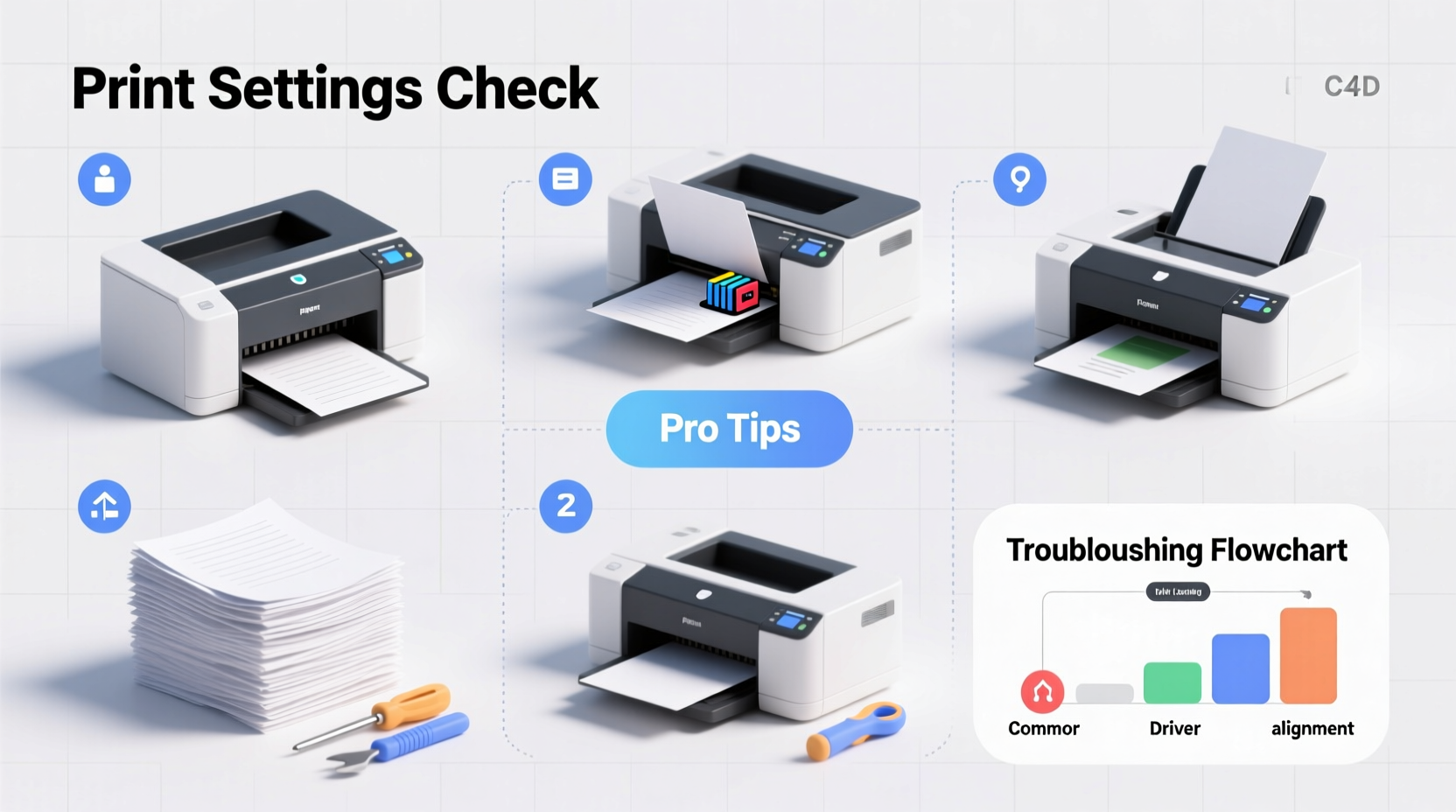
Step-by-Step Guide to Print Anything Without Errors
Follow this universal checklist to ensure smooth printing every time, regardless of document type or printer model.
- Confirm Connection: Make sure the printer is powered on and connected via USB, Wi-Fi, or network.
- Select the Right Printer: In your print dialog, verify the correct device is selected.
- Open Print Settings: Access advanced options like duplex (double-sided), color mode, and paper size.
- Choose Paper Type: Select “Glossy,” “Plain,” or “Heavy” based on your media to adjust ink/toner application.
- Preview and Adjust Margins: Use the preview pane to confirm layout fits the page.
- Print a Test Page: Start with one copy to verify alignment, color, and content.
- Proceed with Full Job: Once satisfied, print the full batch.
Frequently Asked Questions
Why does my print look different from what I see on screen?
Screens use RGB light to display colors, while printers use CMYK ink. This causes natural variation. To minimize discrepancies, calibrate your monitor and use color-managed workflows. Always do a test print before large runs.
How can I print from my phone or tablet easily?
Most modern printers support mobile printing via Apple AirPrint, Google Cloud Print, or proprietary apps (like Epson iPrint or Canon PRINT). Ensure your device and printer are on the same Wi-Fi network, then select “Share” > “Print” from your app.
What should I do if my printer says 'Offline'?
An “offline” status often means the system thinks the printer isn’t available. Check physical connections, restart the print spooler (on Windows: Services > Print Spooler > Restart), or remove and re-add the printer.
Conclusion: Take Control of Your Printing Experience
Printing doesn’t have to be a source of stress. By understanding your equipment, preparing files correctly, and knowing how to troubleshoot common issues, you gain control over every print job. Whether you're producing a single memo or a full-color portfolio, these strategies ensure consistency, quality, and efficiency. Don’t wait for problems to disrupt your workflow—apply these tips today and transform printing from a chore into a reliable part of your routine.
💬 Have a printing hack or challenge you’ve overcome? Share your experience in the comments and help others master the art of hassle-free printing!