
It’s a familiar frustration: you reach for a flash drive, connect a mouse, or plug in an external hard drive, and suddenly your laptop locks up completely. The screen freezes, the cursor stops moving, and the only solution seems to be a forced restart. This issue isn’t just inconvenient—it can lead to data loss, corrupted files, and long-term hardware concerns if left unresolved.
Laptop freezing upon USB connection is more common than many users realize. It often stems from a mix of hardware limitations, driver conflicts, power management issues, or firmware bugs. While the symptoms may seem random, the root causes are usually diagnosable—and fixable—with the right approach.
This guide breaks down the most frequent reasons behind this problem and provides a structured, actionable plan to identify and resolve it. Whether you're using Windows 10, Windows 11, or another OS, these troubleshooting steps apply across modern laptops and USB configurations.
Understanding the Root Causes
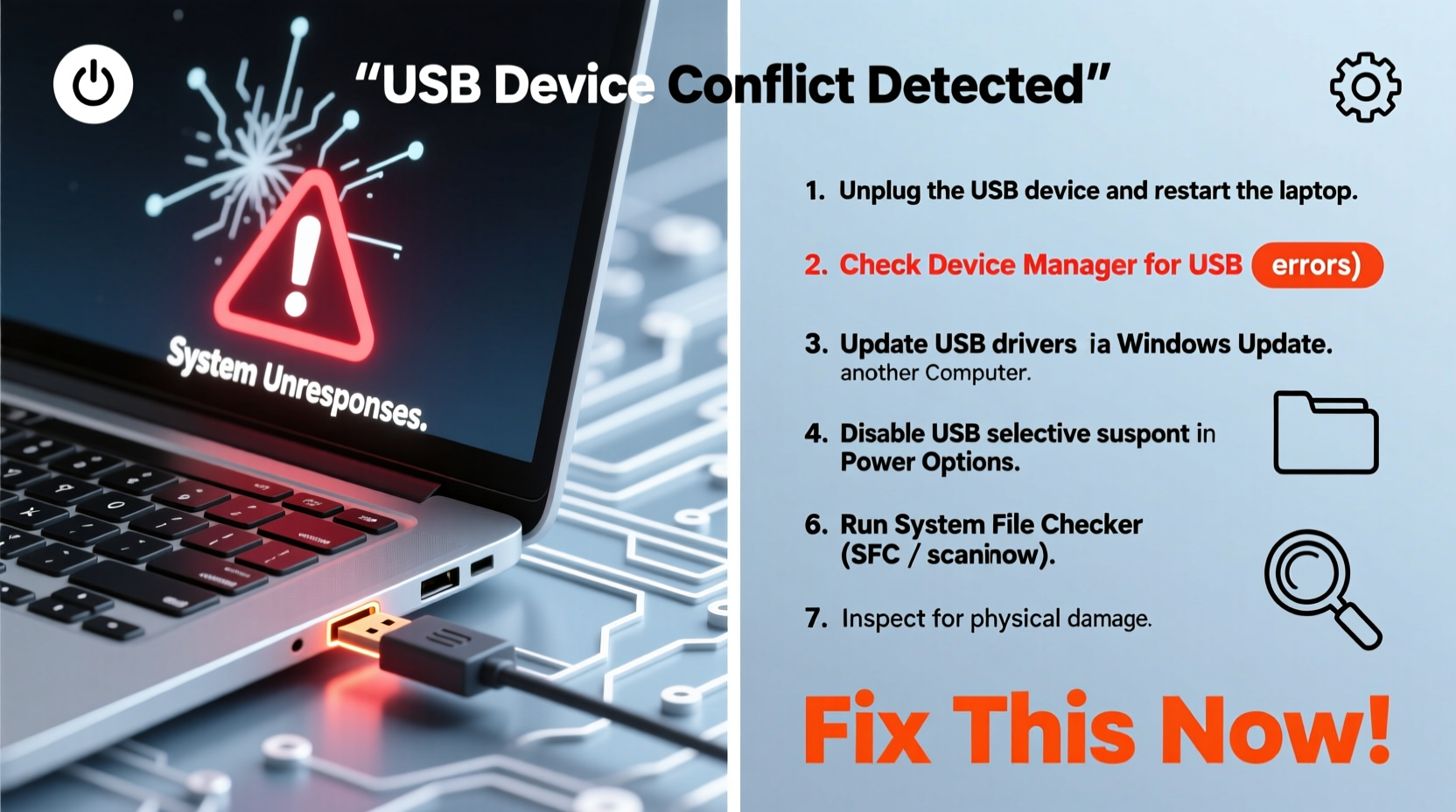
Before jumping into fixes, it's essential to understand what might be triggering the freeze. USB-related system lockups typically fall into one of five categories:
- Driver conflicts: Outdated, corrupt, or incompatible USB drivers can cause the system to hang during device enumeration.
- Power delivery issues: Some USB devices draw more power than the port can supply, especially on older or ultraportable laptops.
- Firmware or BIOS bugs: Outdated motherboard firmware may not handle hot-plugging correctly.
- Hardware faults: Damaged USB ports, cables, or internal circuitry can introduce electrical noise or short circuits.
- Operating system bugs: Windows updates sometimes introduce regressions in USB host controller management.
Because the problem spans both software and hardware layers, a comprehensive diagnostic process is required. Jumping straight to reinstalling drivers without checking power settings or hardware integrity may miss the real culprit.
Tip: Test the USB device on another computer. If the same freeze occurs, the device itself may be faulty.Step-by-Step Troubleshooting Guide
Follow this logical sequence to isolate and eliminate the cause of your laptop freezing when a USB device is connected. Start with the simplest checks and progress to deeper system-level fixes.
- Test different USB devices and ports. Plug in multiple known-working devices (e.g., a keyboard, flash drive) into various USB ports. If only one port causes freezing, the issue is likely localized to that port.
- Check for physical damage. Inspect each USB port for bent pins, debris, or signs of overheating. Use compressed air to clean out dust if necessary.
- Boot into Safe Mode and test. Restart your laptop and enter Safe Mode (hold Shift while clicking Restart > Troubleshoot > Advanced Options > Startup Settings). In Safe Mode, only essential drivers load. If the USB device works without freezing, a third-party driver or service is likely responsible.
- Update USB and chipset drivers. Open Device Manager (press Win+X and select it), expand \"Universal Serial Bus controllers,\" and update each listed driver. Right-click each entry and choose \"Update driver\" > \"Search automatically.\"
- Disable selective suspend for USB devices. Windows sometimes cuts power to USB ports to save energy, which can cause instability. Go to Control Panel > Power Options > Change plan settings > Change advanced power settings. Expand \"USB settings\" and set \"USB selective suspend setting\" to Disabled.
- Update your BIOS/UEFI firmware. Visit your laptop manufacturer’s support site, enter your model number, and download the latest BIOS update. Follow their instructions carefully—incorrect flashing can brick your system.
- Scan for malware. Some rootkits target low-level system processes, including USB handling. Run a full scan using Windows Defender or a trusted third-party antivirus.
- Perform a clean boot. This helps determine if background applications are interfering. Press Win+R, type
msconfig, go to the Services tab, check \"Hide all Microsoft services,\" then click \"Disable all.\" Restart and test the USB device.
When the Problem Persists: Advanced Diagnostics
If the freeze continues despite the above steps, consider deeper diagnostics:
- Use the Event Viewer to check for critical errors at the time of the freeze. Look under Windows Logs > System for entries from \"kernel-power,\" \"Kernel-PnP,\" or \"USBHUB.\" These logs can pinpoint whether the failure occurred during device detection or power negotiation.
- Run sfc /scannow in Command Prompt (as Administrator) to repair corrupted system files that might affect USB functionality.
- Check the Device Manager for any devices showing a yellow exclamation mark, even if unrelated to USB—these can indicate broader driver instability.
“Many USB freezing issues stem from outdated host controller drivers or aggressive power-saving features. Disabling USB selective suspend resolves nearly 30% of reported cases.” — Rajiv Mehta, Senior Systems Engineer at Dell Technical Support
Common Mistakes That Make the Problem Worse
While trying to fix the issue, users often unintentionally exacerbate it. Avoid these common pitfalls:
| Mistake | Why It’s Harmful | Better Alternative |
|---|---|---|
| Forcefully restarting every time | Increases risk of file system corruption and registry damage | Wait 2–3 minutes; if no response, then restart |
| Using third-party driver updaters | Often install incorrect or malicious drivers | Download drivers directly from manufacturer websites |
| Ignoring BIOS updates | Old firmware lacks fixes for USB enumeration bugs | Regularly check for official BIOS updates |
| Plugging in high-power devices without external power | Can overload USB bus, causing voltage drops | Use powered USB hubs for external drives or webcams |
Real-World Case Study: Resolving a Persistent Freeze Issue
A freelance video editor using a Lenovo ThinkPad T480 reported that her laptop would freeze within seconds of connecting her external SSD. The drive worked fine on other machines, ruling out device failure. She had already tried different USB-C cables and ports without success.
Initial troubleshooting revealed that the freeze occurred only when connecting via USB 3.0 ports. Safe Mode testing showed no issues, suggesting a software conflict. A clean boot eliminated the problem, pointing to a background application.
After disabling non-Microsoft services one by one, the culprit was identified: a legacy cloud backup tool that monitored device connections. Uninstalling the software resolved the freezing immediately. Additionally, updating the Intel USB 3.0 eXtensible Host Controller driver prevented future conflicts.
This case highlights how third-party software—not just drivers or hardware—can interfere with USB operations. It also underscores the importance of systematic elimination rather than guesswork.
Preventive Measures and Best Practices
Once the immediate issue is resolved, adopt these habits to prevent recurrence:
Tip: Always safely eject USB devices before unplugging them to avoid file system errors and driver hangs.- Keep your operating system updated. Microsoft regularly releases patches for USB-related bugs. Enable automatic updates to stay protected.
- Use high-quality USB cables and devices. Poorly shielded or counterfeit cables can introduce electrical interference.
- Avoid daisy-chaining unpowered USB hubs. This increases load on the host controller and raises the chance of instability.
- Monitor system temperatures. Overheating can worsen USB performance issues. Use tools like HWMonitor to check CPU and motherboard temps.
- Periodically clear USB device history. Windows stores records of connected devices. To reset this, open Device Manager, view hidden devices (via View > Show hidden devices), and uninstall any grayed-out USB entries.
Checklist: Quick Actions to Prevent USB Freezing
- ☑ Test USB devices on another computer
- ☑ Clean USB ports with compressed air
- ☑ Disable USB selective suspend in Power Options
- ☑ Update USB, chipset, and BIOS firmware
- ☑ Run
sfc /scannowto repair system files - ☑ Perform a clean boot to isolate software conflicts
- ☑ Use powered hubs for high-draw devices
- ☑ Uninstall unused or outdated USB-related software
Frequently Asked Questions
Can a virus cause my laptop to freeze when I plug in a USB?
Yes. Some malware is designed to activate when removable media is connected. This includes autorun viruses and rootkits that hijack USB stack processes. Running a full antivirus scan in Safe Mode can detect and remove such threats.
Why does only one USB port cause freezing?
If only one port triggers the freeze, it may be physically damaged or have a loose internal connection. Alternatively, the port could be associated with a specific USB controller that has a driver issue. Try updating the driver for that particular controller in Device Manager.
Will resetting Windows fix the USB freezing problem?
Resetting Windows (via Settings > Recovery > Reset this PC) can resolve deep software conflicts, especially if the issue began after a recent update or software installation. However, it should be a last resort after exhausting targeted troubleshooting. Back up your data first.
Conclusion: Take Control of Your Laptop’s Stability
A laptop freezing when you plug in a USB device is not something you should simply accept. While occasional glitches happen, recurring freezes point to a solvable underlying issue—whether it’s a misconfigured power setting, outdated firmware, or conflicting software. By methodically working through driver updates, power settings, and system diagnostics, most users can restore reliable USB functionality.
The key is consistency: don’t skip basic checks like port inspection or Safe Mode testing in favor of quick fixes. Real solutions come from understanding the interaction between hardware, drivers, and the operating system. Once resolved, implement preventive habits to keep your laptop running smoothly for years.
💬 Have you fixed a stubborn USB freeze? Share your experience in the comments below—your insight could help someone else get back to work faster.