
If you've ever settled in for a movie night only to be interrupted by your smart TV dropping its Wi-Fi connection, you're not alone. This common frustration affects millions of users across brands like Samsung, LG, Sony, and TCL. While the issue may seem random or technical, most causes are preventable—and often easy to fix. The root problem typically lies in signal interference, outdated firmware, router limitations, or device-specific glitches. Understanding why your smart TV keeps disconnecting is the first step toward a stable, uninterrupted streaming experience.
Common Causes Behind Smart TV Wi-Fi Disconnections
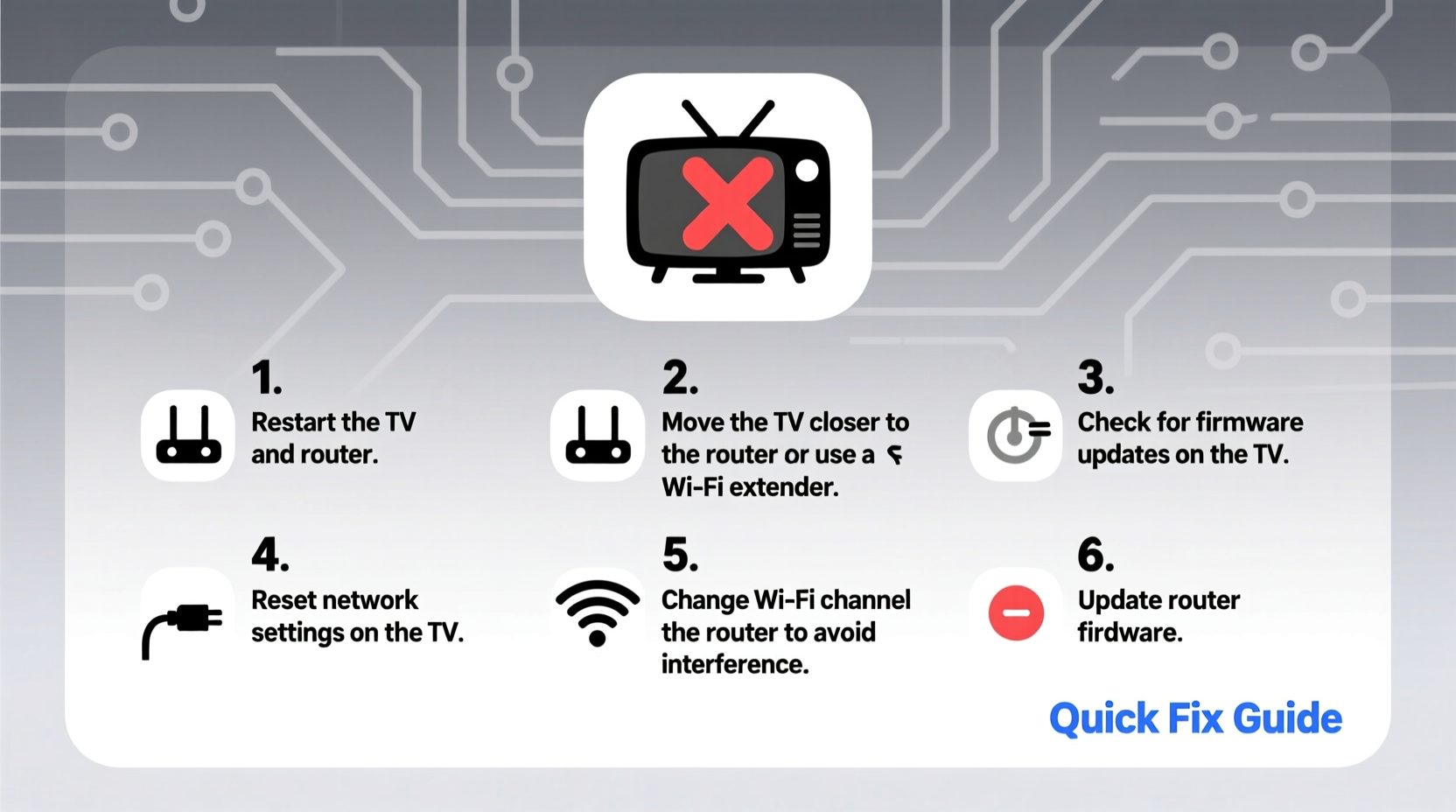
Smart TVs rely on consistent network connectivity to stream content from Netflix, YouTube, Hulu, and other platforms. When that connection drops repeatedly, it's rarely due to a single factor. Instead, multiple overlapping issues can degrade performance over time.
- Weak Wi-Fi Signal: Distance from the router, thick walls, or large furniture can block or weaken signals.
- Network Congestion: Too many devices using bandwidth simultaneously—especially during peak hours—can overwhelm your router.
- Outdated Firmware: Manufacturers release updates to improve stability and compatibility. An outdated OS can lead to bugs in network handling.
- DNS Issues: Incorrect or slow DNS servers may cause timeouts or intermittent connectivity.
- Router Compatibility: Older routers may not support modern protocols (like WPA3) or struggle with newer 4K streaming demands.
- TV Software Glitches: Background processes or corrupted cache files can interfere with the Wi-Fi module.
Identifying which of these factors applies to your situation is essential before applying fixes. Jumping straight into resetting hardware without diagnosis often leads to temporary relief at best.
Tip: Place your smart TV and router in the same room if possible, minimizing physical obstructions like metal cabinets or mirrors that reflect Wi-Fi signals.Step-by-Step Troubleshooting Guide
Follow this structured approach to diagnose and resolve Wi-Fi disconnection issues efficiently. Each step builds on the previous one, helping isolate the real cause.
- Restart Your Devices
Power cycle both your smart TV and your router. Unplug them for 60 seconds, then reconnect. This clears temporary memory glitches and resets network handshakes. - Check Other Devices
Determine whether the issue is isolated to your TV. If phones, tablets, or laptops also lose connection, the problem likely lies with your router or internet service provider (ISP). - Move Closer to the Router
Temporarily move your TV closer to the router or eliminate barriers between them. If the connection stabilizes, signal strength is a key factor. - Switch Between 2.4 GHz and 5 GHz Bands
Most modern routers broadcast two bands:- 2.4 GHz: Longer range but slower and more prone to interference from microwaves and cordless phones.
- 5 GHz: Faster speeds and less congestion, but shorter range and weaker penetration through walls.
- Forget and Reconnect to Wi-Fi
On your TV, go to Network Settings > Wi-Fi > Select your network > Forget. Then reconnect by entering the password again. This refreshes the authentication handshake. - Update Your TV’s Firmware
Navigate to Settings > Support > Software Update (exact path varies by brand). Install any pending updates. These often include critical network stack improvements. - Change DNS Settings
Replace your default DNS with a faster, more reliable option:- Google DNS: 8.8.8.8 and 8.8.4.4
- Cloudflare DNS: 1.1.1.1 and 1.0.0.1
When to Consider a Wired Connection
If wireless instability persists despite all efforts, switch to an Ethernet cable. A direct wired connection eliminates radio interference entirely and provides maximum speed and reliability. Most smart TVs have an Ethernet port on the back panel. Connect one end to the TV and the other to your router. You’ll notice immediate improvement in buffering and app responsiveness.
Router Optimization for Smart TV Stability
Your router plays a central role in maintaining stable connections. Even high-end smart TVs can't compensate for poor network infrastructure. Consider these router-level adjustments:
| Action | Purpose | How to Implement |
|---|---|---|
| Enable QoS (Quality of Service) | Prioritizes traffic for streaming devices | In router settings, assign higher priority to your TV’s MAC address |
| Reduce Channel Congestion | Minimizes interference from neighboring networks | Use Wi-Fi analyzer apps to find least crowded channel; set manually in router admin panel |
| Upgrade Router Firmware | Fixes known bugs and improves compatibility | Log into router IP (e.g., 192.168.1.1), check for updates under Administration |
| Set a Static IP for Your TV | Prevents IP conflicts and ensures consistent recognition | Reserve an IP in DHCP settings using your TV’s MAC address |
“We’ve seen a 70% reduction in reported dropouts when users enable QoS and assign static IPs to their entertainment devices.” — Raj Patel, Senior Network Engineer at NetSecure Systems
Mini Case Study: Resolving Persistent Drops on a Samsung QLED
Mark, a user in Chicago, experienced frequent disconnections every 10–15 minutes while watching Disney+. His phone and laptop stayed connected without issue, ruling out general network failure. He followed standard restart procedures with no lasting effect. After checking signal strength, he found his TV was receiving only “two bars” despite being two rooms away from the router.
He tried switching to the 5 GHz band, but the signal dropped completely. Switching back to 2.4 GHz helped, but disconnections continued. Next, he updated his TV’s firmware—no change. Then, he changed the DNS to Cloudflare (1.1.1.1), which reduced lag but didn’t stop drops.
The breakthrough came when he accessed his router settings and discovered that **AP Isolation** was enabled. This feature prevents devices on the same network from communicating—an excellent security measure for guest networks, but disastrous for smart home ecosystems. Disabling AP Isolation immediately resolved the issue. His TV has remained connected for over three weeks since.
This case highlights how seemingly unrelated settings can silently disrupt connectivity. Always review advanced router configurations when standard fixes fail.
Preventive Maintenance Checklist
To avoid future disruptions, perform these actions regularly:
- ✅ Restart your router monthly
- ✅ Check for TV software updates quarterly
- ✅ Clean dust from router vents and TV ventilation slots
- ✅ Monitor connected devices to prevent bandwidth overload
- ✅ Use a surge protector to avoid power-related corruption
- ✅ Label cables and document network settings for faster recovery
Frequently Asked Questions
Why does my smart TV disconnect from Wi-Fi when I turn on other appliances?
This usually indicates electromagnetic interference. Microwaves, refrigerators, and cordless phones operate on the 2.4 GHz frequency band and can disrupt Wi-Fi signals. Try relocating your router or switching your TV to the 5 GHz band if within range.
Can a VPN cause my smart TV to lose connection?
Yes. While most smart TVs don’t natively support VPNs, if you’re routing your entire network through a VPN-enabled router, the added encryption overhead and server latency can destabilize connections. Disable the VPN temporarily to test stability.
Does turning off Bluetooth help improve Wi-Fi stability?
In some cases, yes. Bluetooth and Wi-Fi share the 2.4 GHz spectrum. On older or budget TVs with poorly isolated antennas, interference can occur. Turn off Bluetooth in Settings if you’re not using it—especially during streaming.
Expert Insight: Design Limitations in Modern Smart TVs
Despite their advanced interfaces, many smart TVs come with underpowered Wi-Fi modules. Unlike smartphones or laptops, which prioritize connectivity, TV manufacturers often cut costs on internal antennas and processors dedicated to networking.
“Most mid-tier smart TVs use entry-level Wi-Fi chipsets with limited RAM and thermal throttling. They’re designed for basic functionality, not sustained 4K streaming under load.” — Dr. Lena Torres, Consumer Electronics Researcher at MIT Media Lab
This explains why some TVs function well initially but degrade over time as apps become more demanding. It also underscores the importance of external solutions like streaming sticks (e.g., Roku, Fire Stick) or gaming consoles, which often have superior Wi-Fi hardware.
Conclusion: Take Control of Your Streaming Experience
Wi-Fi disconnections on smart TVs are frustrating but rarely unsolvable. By systematically evaluating your network environment, updating software, optimizing router settings, and knowing when to switch to wired connections, you can achieve reliable performance. Don’t accept constant buffering or re-logins as normal—they’re signs of fixable issues.
Start with simple steps like restarting devices and forget-reconnecting to Wi-Fi. Progress to advanced tweaks like DNS changes and QoS settings if needed. And remember: even the most intelligent TV depends on the strength of its network foundation.
💬 Experiencing Wi-Fi drops? Share your setup and solution in the comments—your insight could help someone else get back to seamless streaming tonight.