In today’s digital landscape, video is one of the most powerful mediums for communication, education, marketing, and entertainment. Whether you're creating tutorials, vlogs, presentations, or product demos, the quality of your video directly influences how your audience perceives your message. Fortunately, you don’t need a Hollywood budget to produce professional-grade footage. With the right tools, techniques, and attention to detail, you can record high-quality videos directly from your computer—no studio required.
Choose the Right Recording Software
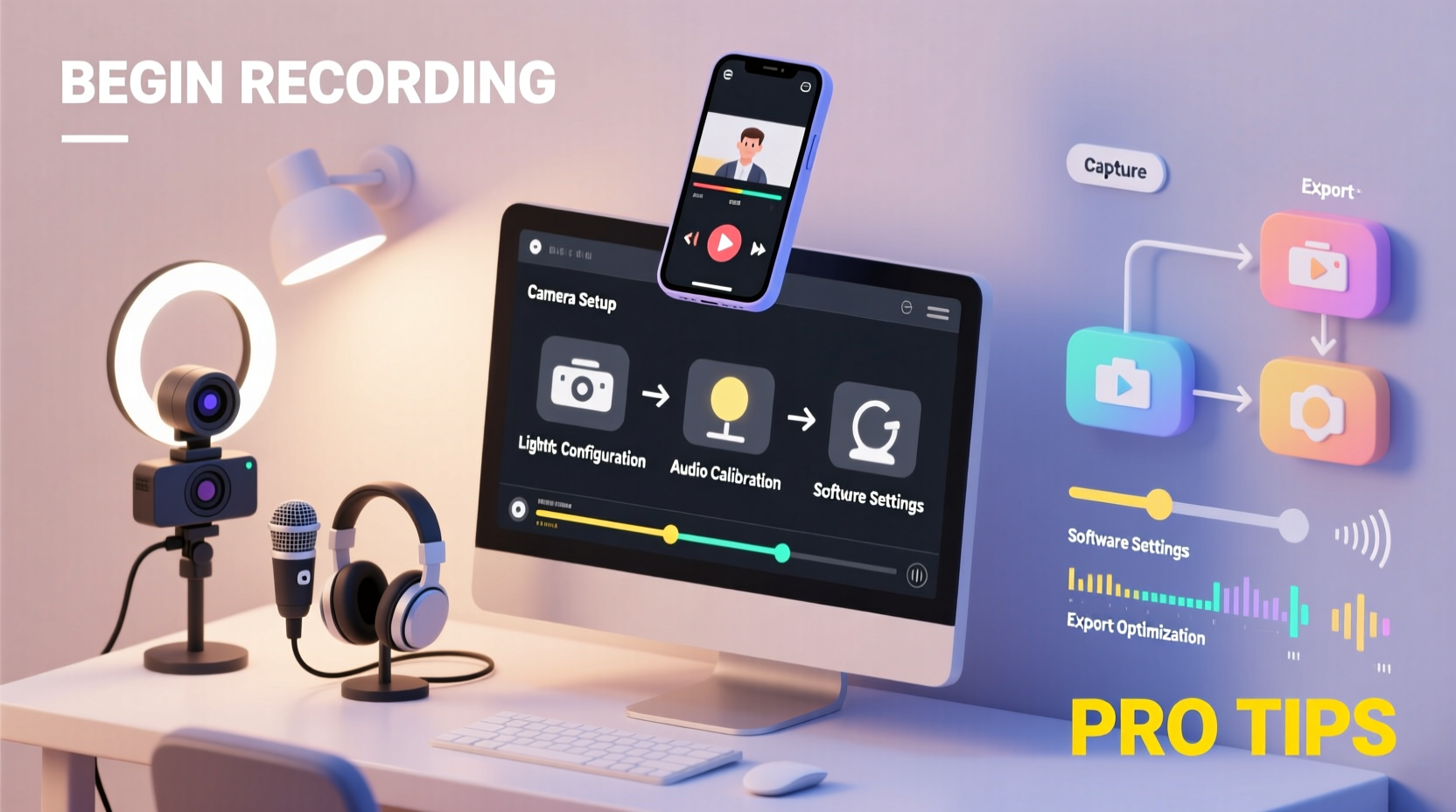
The foundation of any successful video recording starts with reliable software. Your choice depends on your needs: screen capture, webcam recording, or both. Here are the top options:
- OBS Studio – Free, open-source, and incredibly powerful. Ideal for streamers and creators who want full control over scenes, sources, and audio mixing.
- Camtasia – Paid software with built-in editing features. Perfect for educators and professionals producing polished tutorials.
- ScreenFlow (Mac) – A favorite among Mac users for its intuitive interface and strong post-production capabilities.
- Windows Game Bar – Built into Windows 10/11, suitable for quick recordings but limited in customization.
- Bandicam or Movavi – Mid-tier paid tools offering ease of use and decent output quality.
Optimize Your Hardware Setup
Your computer's hardware plays a crucial role in video quality and performance. Even the best software will struggle with inadequate specs.
CPU and RAM
Video encoding is processor-intensive. For smooth 1080p recording, aim for at least an Intel i5 or AMD Ryzen 5 processor with 8GB of RAM. For 4K or multi-source setups (e.g., screen + webcam + microphone), 16GB RAM and a more powerful CPU are recommended.
Storage
Uncompressed video files are large. One minute of 1080p video can take up 100–300MB depending on bitrate. Use an SSD for faster write speeds and ensure you have ample free space—ideally 20+ GB reserved for recording sessions.
Webcam Quality
Most built-in laptop webcams max out at 720p and perform poorly in low light. For professional results, invest in an external HD webcam like the Logitech C920 or C922, which offer true 1080p resolution, autofocus, and better dynamic range.
“Don’t underestimate the impact of a good camera. Viewers form judgments within seconds, and poor video quality breaks trust.” — Sarah Lin, Video Production Consultant
Lighting: The Secret to Professional-Looking Video
No amount of software correction can fix badly lit footage. Proper lighting enhances clarity, color accuracy, and overall professionalism.
Natural vs. Artificial Light
Natural daylight is ideal—soft, diffused, and flattering. Position yourself facing a window, but avoid direct sunlight, which creates harsh shadows. When natural light isn’t available, use artificial lighting strategically.
Three-Point Lighting Setup
This industry-standard method uses three lights:
- Key Light – Primary source, placed in front and slightly to one side.
- Fill Light – Opposite the key, reduces shadows.
- Back Light (Rim Light) – Behind you, separates you from the background.
Budget-friendly alternatives include ring lights or softbox lamps. Place lights at eye level and use diffusers to soften intensity.
Tip: Avoid overhead lighting or backlighting from windows behind you—it causes silhouetting and loss of facial detail.Audio: Why Sound Quality Matters More Than You Think
Poor audio is the fastest way to lose viewer engagement. Viewers may tolerate mediocre video, but bad sound drives them away.
Use an External Microphone
Internal microphones pick up ambient noise, keyboard clicks, and echo. Upgrade to a USB condenser mic like the Blue Yeti or Audio-Technica AT2020 for crisp, clear voice capture.
Record in a Quiet Environment
Close windows, silence notifications, and choose a room with soft furnishings to reduce echo. If possible, use a closet filled with clothes as a makeshift vocal booth.
Monitor Audio Levels
Set input levels so your voice peaks around -6dB to -3dB. This prevents clipping while maintaining clarity. Most recording software includes audio meters for real-time feedback.
| Microphone Type | Best For | Placement Tip |
|---|---|---|
| USB Condenser | Studio-style recordings | 6–12 inches from mouth, angled slightly off-axis |
| Lavalier (Lapel Mic) | Talking while moving | Clip near collar, avoid fabric rubbing |
| Dynamic Mic | Noisy environments | Close proximity, ideal for loud voices |
Step-by-Step Guide to Recording Your First High-Quality Video
Follow this proven workflow to ensure consistent, professional results every time:
- Prepare Your Environment – Tidy your background, adjust lighting, and eliminate distractions.
- Test Equipment – Confirm camera feed, audio levels, and internet connection (if streaming).
- Set Up Recording Software – Configure resolution (1080p minimum), frame rate (30fps standard, 60fps for motion), and audio sources.
- Do a Test Run – Record a 30-second clip, play it back, and check for issues like echo, flickering lights, or focus problems.
- Record in Segments – Break long content into shorter takes to minimize mistakes and editing time.
- Save and Back Up Immediately – Store files on multiple drives or cloud storage to prevent data loss.
Real Example: How a Freelancer Improved Client Videos
Jamal, a freelance instructional designer, initially used his laptop’s built-in camera and microphone to record course videos. Clients complained about muffled audio and pixelated visuals. After reading about production basics, he invested $150 in a Logitech C920 webcam and a Blue Snowball mic. He rearranged his home office to face a north-facing window for consistent lighting and used a bedsheet as a backdrop to reduce clutter.
The difference was immediate. His next client praised the “studio-quality” presentation, and Jamal secured two new contracts within a month. Small upgrades, when applied correctly, had a major professional impact.
Common Mistakes and How to Avoid Them
Even experienced creators make errors that degrade video quality. Be mindful of these pitfalls:
- Ignoring Bitrate Settings – Too low, and your video looks compressed; too high, and files become unmanageable. For 1080p, use 8–12 Mbps for a balance of quality and size.
- Overusing Effects – Fancy transitions or filters can distract. Keep effects subtle and purposeful.
- Recording in Low Light – Grainy, dark footage undermines credibility. Invest in lighting early.
- Not Framing the Shot Correctly – Position your eyes in the upper third of the frame. Leave space above your head and avoid being too close or too far.
Frequently Asked Questions
Can I record high-quality video on a budget?
Absolutely. Start with free software like OBS Studio, use natural lighting, and leverage your smartphone as a webcam via apps like DroidCam. Many creators produce excellent content with under $100 in equipment.
Should I record in 4K?
Only if you have the hardware to support it and a clear need. 4K files are significantly larger and require more processing power. For most online content, 1080p at 30fps delivers excellent quality without the overhead.
How do I reduce background noise in my recordings?
Use a directional microphone, record in a quiet space, and apply noise suppression in post-production. Tools like Krisp (for real-time cleanup) or Audacity (free audio editor) can remove hums and background chatter effectively.
Final Checklist Before Hitting Record
Run through this checklist every time to ensure optimal output:
- ✅ Camera focused and properly framed
- ✅ Audio levels set and monitored
- ✅ Lighting even and shadow-free
- ✅ Background clean and non-distracting
- ✅ Software settings confirmed (resolution, frame rate, audio input)
- ✅ Computer plugged in and notifications disabled
- ✅ Backup drive connected or cloud sync active
Conclusion
Recording high-quality video on your computer is no longer reserved for professionals with expensive gear. With thoughtful preparation, the right tools, and attention to fundamentals like lighting, audio, and framing, anyone can produce compelling, professional-looking content. The key is consistency and continuous improvement. Each recording session is an opportunity to refine your technique and deliver greater value to your audience.
🚀 Start today—record a short test clip using these principles, review it critically, and make one improvement for next time. Your future audience is waiting.