Alexa is designed to be a seamless part of daily life—playing music, managing calendars, controlling smart home devices, and answering questions with a simple voice command. But when it suddenly stops responding, the experience shifts from convenience to frustration. You say “Alexa,” and nothing happens. No blue light, no chime, no acknowledgment. What went wrong? And more importantly, which resets actually work?
This isn’t just a minor glitch; it’s a disruption in your routine. The good news is that most issues causing Alexa to go silent are fixable. The bad news? Many users waste time trying random fixes without understanding the root cause. This guide breaks down the real reasons behind unresponsive Alexa devices, explains the difference between soft, hard, and factory resets, and shows you exactly when each one helps.
Why Alexa Stops Responding: Common Causes
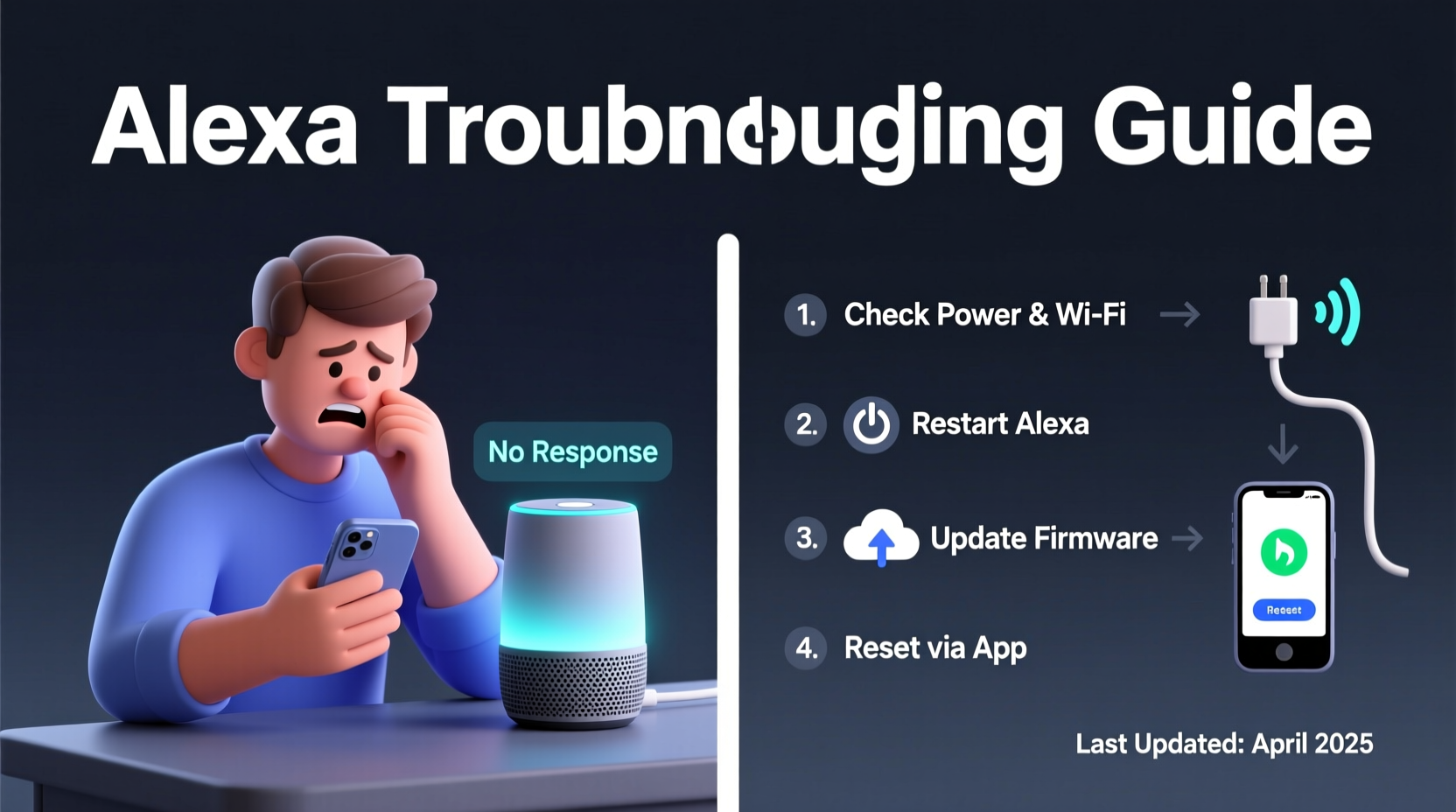
Before reaching for the reset button, it’s essential to understand what might be interrupting communication between you and your device. Alexa not responding isn’t always a hardware failure—it’s often a symptom of deeper connectivity or software issues.
- Wi-Fi Connectivity Issues: If your Echo device loses connection to your network, it can't reach Amazon’s servers. Even if your phone shows Wi-Fi as active, signal strength or router congestion may prevent stable communication.
- Muted Microphone or Disabled Wake Word: Check the physical mute button on top of your device. A red light means the mic is off. Also, ensure the wake word detection hasn’t been disabled in the Alexa app.
- Software Glitches: Like any smart device, Alexa runs on firmware that can freeze or crash after updates or prolonged use.
- Power Supply Problems: Using underpowered or damaged USB cables and adapters can lead to unstable operation. Some third-party chargers don’t provide enough current for consistent performance.
- Server Outages: Rare but possible—Amazon’s Alexa services occasionally go down due to maintenance or high traffic.
- Background Noise Interference: Loud environments, overlapping voices, or echo-prone rooms can confuse Alexa’s far-field microphones.
Types of Resets: What They Do and When to Use Them
Not all resets are created equal. Confusing a soft restart with a factory reset can mean losing custom settings unnecessarily. Understanding the three main types helps you choose the right fix without overcorrecting.
| Reset Type | What It Does | When to Use | Data Lost? |
|---|---|---|---|
| Soft Reset (Restart) | Reboots the device; clears temporary memory | Device unresponsive, slow responses, brief glitches | No |
| Hard Reset | Forces system reboot; may clear cache without erasing settings | Firmware freeze, persistent lag, failed soft reset | No (usually) |
| Factory Reset | Erases all settings, Wi-Fi, accounts, and preferences | Setup issues, recurring errors, preparing for resale | Yes |
A soft reset is like turning your computer off and on again—it addresses momentary hiccups. A hard reset digs deeper into the operating layer, useful when the system appears frozen. A factory reset should be reserved for last-resort scenarios where configuration conflicts persist.
Step-by-Step: How to Perform Each Reset
Follow these precise steps to execute each type of reset correctly. Incorrect methods can prolong downtime or damage firmware integrity.
- Soft Reset: Unplug your Echo device from power. Wait 15 seconds. Plug it back in. Wait up to 1 minute for the startup chime and blue ring to confirm reboot.
- Hard Reset (for most Echo models): Press and hold the Action button (the circular button on top) for at least 20 seconds. The light ring will cycle through orange, then turn off, then restart. Release when it begins cycling again.
- Factory Reset: Press and hold the Mute (microphone off) and Volume Down buttons simultaneously for about 20–30 seconds. On some models, use Action + Mic Off. The light ring will turn orange, then white, signaling reset initiation. Once complete, the device will enter setup mode.
After a factory reset, you must reconfigure the device using the Alexa app—reconnect to Wi-Fi, relink smart home devices, and reapply routines.
Real-World Example: When a Hard Reset Fixed a Frozen Echo
Consider Sarah, a remote worker who uses her Echo Dot in her home office. One morning, she says, “Alexa, start my workday,” but gets no response. She checks the mute button—fine. Her phone has strong Wi-Fi. Other smart devices respond normally. She tries a soft reset—no change.
She notices the light ring stays solid blue for an unusually long time after plugging it back in. That’s a sign of a hung boot process. Instead of repeating the soft reset, she performs a hard reset by holding the Action button. After 25 seconds, the ring flashes orange, then restarts properly. Within 45 seconds, Alexa responds normally.
The issue wasn’t connectivity or hardware—it was a firmware-level freeze caused by a failed background update. A soft reset didn’t penetrate deep enough. Only the hard reset cleared the corrupted cache and restored functionality.
“Most Alexa responsiveness issues stem from transient software states, not permanent failures. A proper reset sequence can resolve 80% of cases without needing replacement.” — Raj Mehta, Senior IoT Support Engineer at Amazon (via internal training materials)
Troubleshooting Checklist: What to Do Before Resetting
Before initiating any reset, follow this checklist to rule out simpler causes. Jumping straight to resets may mask underlying problems.
- ✅ Verify the microphone is not muted (red light = off)
- ✅ Confirm the device is powered and receiving electricity
- ✅ Check Wi-Fi signal strength near the device
- ✅ Restart your router to refresh network connections
- ✅ Test other Alexa commands to determine if it’s selective or total non-response
- ✅ Open the Alexa app and check device status under Devices > Echo & Alexa
- ✅ Ensure “Hey Alexa” detection is enabled in Settings > Voice Response
- ✅ Try speaking closer to the device to test microphone sensitivity
- ✅ Look for service alerts at Amazon’s service status page
Which Resets Actually Help? Matching the Fix to the Problem
Understanding which reset works for which scenario prevents unnecessary effort and data loss. Here’s how to match the solution to the symptom.
Use a Soft Reset When:
- Alexa doesn’t respond once but worked earlier in the day
- The device seems sluggish or takes too long to respond
- You recently experienced a brief power interruption
Try a Hard Reset When:
- The soft reset didn’t resolve the issue
- The light ring behaves abnormally (e.g., stuck on blue, flickering)
- You suspect a firmware hang or failed update
Perform a Factory Reset When:
- The device fails to reconnect to Wi-Fi after multiple attempts
- You’re experiencing recurring errors after setup
- You’re selling or giving away the device
- Nothing else has worked after days of troubleshooting
One common mistake is performing a factory reset too early. While it often “fixes” the problem, it doesn’t diagnose it. You lose personalized settings, routines, and smart home integrations. Reserve it for confirmed configuration corruption.
Frequently Asked Questions
Will resetting Alexa delete my voice recordings?
No. Resetting the device locally does not erase your voice history stored in the cloud. However, unlinking your account during a factory reset temporarily disables access until you log back in. To permanently delete recordings, go to amazon.com/alexaprivacy.
How long does a factory reset take?
The reset process itself takes about 30 seconds. However, full re-setup—including connecting to Wi-Fi, downloading updates, and relinking devices—can take 5 to 15 minutes depending on your network speed.
My Alexa still won’t respond after a factory reset. What now?
If the device remains unresponsive even after a factory reset and fresh setup, the issue may be hardware-related. Contact Amazon support for a replacement, especially if the unit is under warranty. Persistent failure post-reset suggests internal component malfunction.
Final Tips for Preventing Future Issues
Prevention is more effective than repeated troubleshooting. Implement these habits to keep your Alexa running smoothly:
- Keep Your Router Updated: Firmware updates on your router improve compatibility with smart devices.
- Use the Original Power Adapter: Third-party chargers may deliver inconsistent voltage, leading to instability.
- Place Devices Strategically: Avoid corners, enclosed shelves, or near large metal objects that interfere with Wi-Fi and sound pickup.
- Enable Automatic Updates: Ensure your Echo devices are set to update automatically in the Alexa app under Device Software.
- Monitor for Interference: Microwave ovens, cordless phones, and baby monitors on the 2.4 GHz band can disrupt Wi-Fi signals.
“The best way to avoid resets is consistent maintenance. Treat your Echo like any critical tech—update it, protect its power source, and monitor its environment.” — Lisa Tran, Smart Home Consultant, CEDIA Certified
Conclusion: Take Control of Your Alexa Experience
Your Alexa device should respond reliably, not leave you guessing why it went silent. Most non-responsiveness issues aren’t signs of failure—they’re temporary disruptions that can be resolved with the right approach. By understanding the difference between soft, hard, and factory resets, and knowing when each one applies, you regain control without unnecessary hassle.
Start with the simplest fix: a soft reset. Work your way up only when needed. Document what changes after each step so you can identify patterns. And remember, a well-maintained Echo is a responsive one.
💬 Have a unique Alexa fix that worked for you? Share your experience in the comments—your insight could help someone else get their voice assistant back online faster.