Losing an iPhone can be stressful—whether it's misplaced at home, left behind in a café, or stolen. Fortunately, Apple has equipped its devices with robust tools to help users locate their phones quickly and precisely. With the right setup and knowledge, you can pinpoint your iPhone’s location in seconds, even if it’s offline or turned off. This guide walks through every method available today, from native Apple features to advanced tracking strategies, ensuring you never lose track of your device.
How Find My iPhone Works: The Foundation
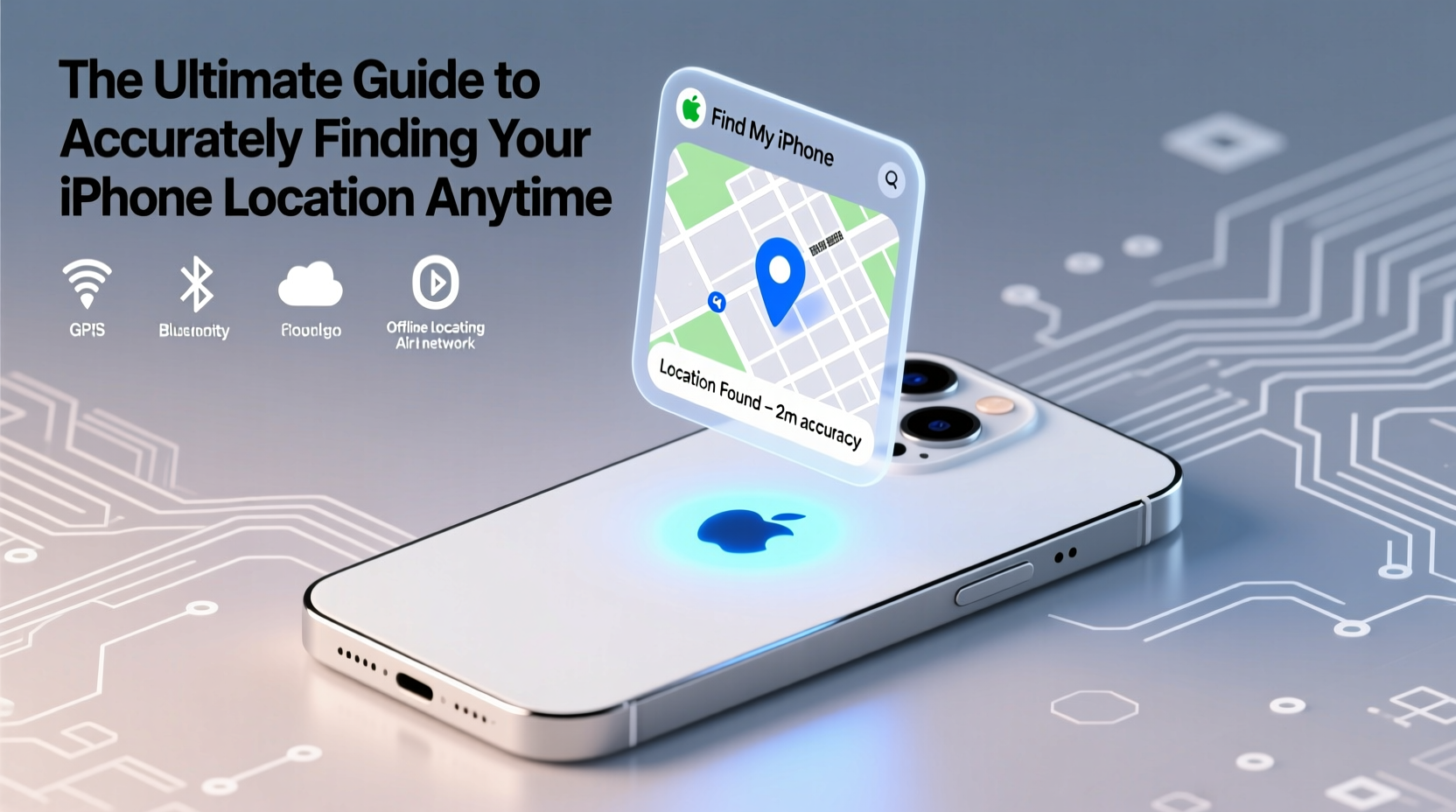
At the core of Apple’s location tracking is the “Find My” network, a secure, end-to-end encrypted system that uses Bluetooth, Wi-Fi, and cellular signals to determine your iPhone’s position. When enabled, your iPhone continuously shares its location with your iCloud account. This data is accessible across all your Apple devices, allowing seamless tracking via iPhone, iPad, Mac, or even a web browser.
The service doesn’t just show a static map pin—it provides real-time updates, plays a sound, locks the device remotely, or erases data if recovery seems unlikely. What makes it powerful is its integration with other Apple devices: even if your iPhone is offline, nearby Apple gadgets can detect its Bluetooth signal and relay its location anonymously to your account.
“Apple’s Find My network leverages over a billion active devices worldwide to help locate lost items—even when they’re out of direct network range.” — David Chen, Senior iOS Security Analyst
Step-by-Step: How to Locate Your iPhone in Real Time
If you suspect your iPhone is nearby but out of sight, follow this sequence to recover it efficiently:
- Use Another Apple Device: Open the “Find” app on your iPad or Mac. Tap “Devices,” then select your iPhone.
- Check Its Location: View the live position on the map. Accuracy depends on GPS, Wi-Fi triangulation, and recent movement.
- Play a Sound: Even if silenced, your iPhone will ring at maximum volume for two minutes—ideal for locating it under couch cushions or in another room.
- Enable Lost Mode: If the phone is missing in public, activate Lost Mode to lock it with a passcode and display a custom message (e.g., “Reward if found – call 555-1234”).
- Erase Remotely (Last Resort): If theft is confirmed and recovery seems impossible, erase all data to protect your privacy.
What If Your iPhone Is Offline or Turned Off?
One of the most common concerns is whether you can find an iPhone that’s powered down or disconnected. Thanks to Apple’s advancements, the answer is often yes—under certain conditions.
iOS 15 introduced Offline Finding, which allows your iPhone to broadcast a Bluetooth signal even when powered off (provided it has battery reserve). As long as the device hasn’t been reset or had its battery fully drained, any nearby Apple device can detect this signal and report its last known location to your iCloud account.
This feature works only if:
- “Find My” was enabled before the device went offline.
- The iPhone has not been factory reset.
- It still has minimal battery power (typically below 10% but not dead).
Additionally, if someone tries to reactivate your iPhone after erasing it, they’ll need your Apple ID and password—a strong deterrent against unauthorized use.
Alternative Tracking Methods Beyond Find My
While Apple’s native solution is comprehensive, third-party tools can offer additional layers of monitoring, especially for parents or businesses managing multiple devices.
| Tool | Purpose | Pros | Limitations |
|---|---|---|---|
| Google Find My Device (via app) | Cross-platform tracking if logged into Google | Works without iCloud access; logs search history | Less accurate than Find My; limited iOS integration |
| Life360 (Family Plan) | Real-time family location sharing | Geofencing alerts, driving reports, crash detection | Requires constant opt-in; drains battery faster |
| Prey Anti-Theft | Remote camera snapshots, IP logging | Takes photos of thief, logs network info | Free version limited; requires pre-installation |
These tools should complement—not replace—Apple’s Find My system. They are best used proactively, installed and tested before any incident occurs.
Mini Case Study: Recovering a Stolen iPhone in Chicago
In early 2023, Sarah M., a graphic designer in Chicago, had her iPhone stolen from her bag at a downtown train station. She immediately logged into iCloud.com from her MacBook and opened Find My. The phone appeared near the station, moving slowly southward.
Sarah activated Lost Mode and called her number—no answer. Within 20 minutes, the signal paused near a convenience store. She shared the precise location with local police, who recovered the device within an hour. The thief had disabled Wi-Fi but couldn’t stop the Bluetooth-based offline tracking.
Sarah credited the fast recovery to three factors: enabling Find My ahead of time, keeping her software updated, and acting quickly within the first critical hour.
Tip: After recovering a lost iPhone, change your passwords and enable two-factor authentication to ensure no data was compromised.Essential Setup Checklist Before You Lose Your Phone
Tracking only works if you’ve prepared in advance. Use this checklist to ensure you're ready:
- ✅ Enable “Find My iPhone” in Settings > [Your Name] > Find My > Find My iPhone
- ✅ Turn on “Send Last Location” so your phone reports its position before the battery dies
- ✅ Set up Face ID or a strong passcode to prevent unauthorized access
- ✅ Keep your iOS updated to access the latest security and tracking features
- ✅ Test the “Play Sound” function monthly to confirm functionality
- ✅ Share your location with one trusted contact for emergency access
Frequently Asked Questions
Can someone disable Find My iPhone remotely?
No—one of Apple’s strongest security features is Activation Lock. Even if someone erases your iPhone, they cannot reactivate it without your Apple ID and password. This deters theft and ensures continued tracking capability.
Why does my iPhone show an inaccurate location?
Inaccuracy usually stems from weak GPS signals (indoors), disabled location services, or outdated software. Ensure Location Services are set to “While Using” for Find My, and restart your device if positioning lags.
Can I track my iPhone if the SIM card is removed?
Yes. Find My relies on Wi-Fi and Bluetooth, not cellular data. As long as the phone connects to a Wi-Fi network or is near another Apple device, it can still report its location.
Maximizing Accuracy: Pro Tips for Reliable Tracking
To get the most precise results when locating your iPhone, consider these expert-backed practices:
- Keep Wi-Fi On: Even if not connected, Wi-Fi helps triangulate position more accurately than GPS alone.
- Avoid Airplane Mode: This disables all wireless signals, making tracking impossible until disabled.
- Use Precision Finding (iPhone 11 and later): If you have an iPhone with U1 chip, you’ll get directional arrows and distance readouts when near your device—like radar for your phone.
- Monitor Battery Health: A failing battery may shut down unexpectedly, cutting off location reporting before reaching zero.
“The first 60 minutes after losing a phone are the most critical. Those who act fast have a recovery rate above 70%.” — Tech Safety Report, Consumer Reports 2023
Conclusion
Finding your iPhone isn’t a matter of luck—it’s about preparation and knowing how to use the tools at your disposal. From activating Find My to leveraging offline Bluetooth networks and third-party safeguards, modern technology gives you unprecedented control over your device’s whereabouts. Whether it’s buried in your home or taken miles away, accurate location tracking is within reach—if you’ve set it up correctly.
🚀 Don’t wait until it’s too late. Open your iPhone settings now, verify Find My is enabled, and run a quick test. That five-minute check could save you hours of stress later.