The Samsung Galaxy S8, released in 2017, remains a favorite among Android users for its sleek design, vibrant Infinity Display, and powerful performance. Whether you've just unboxed your device or are switching from another brand, getting familiar with its features is key to making the most of your experience. This guide walks you through setup, navigation, customization, and essential functions—designed specifically for first-time Galaxy S8 owners.
1. Unboxing and Initial Setup
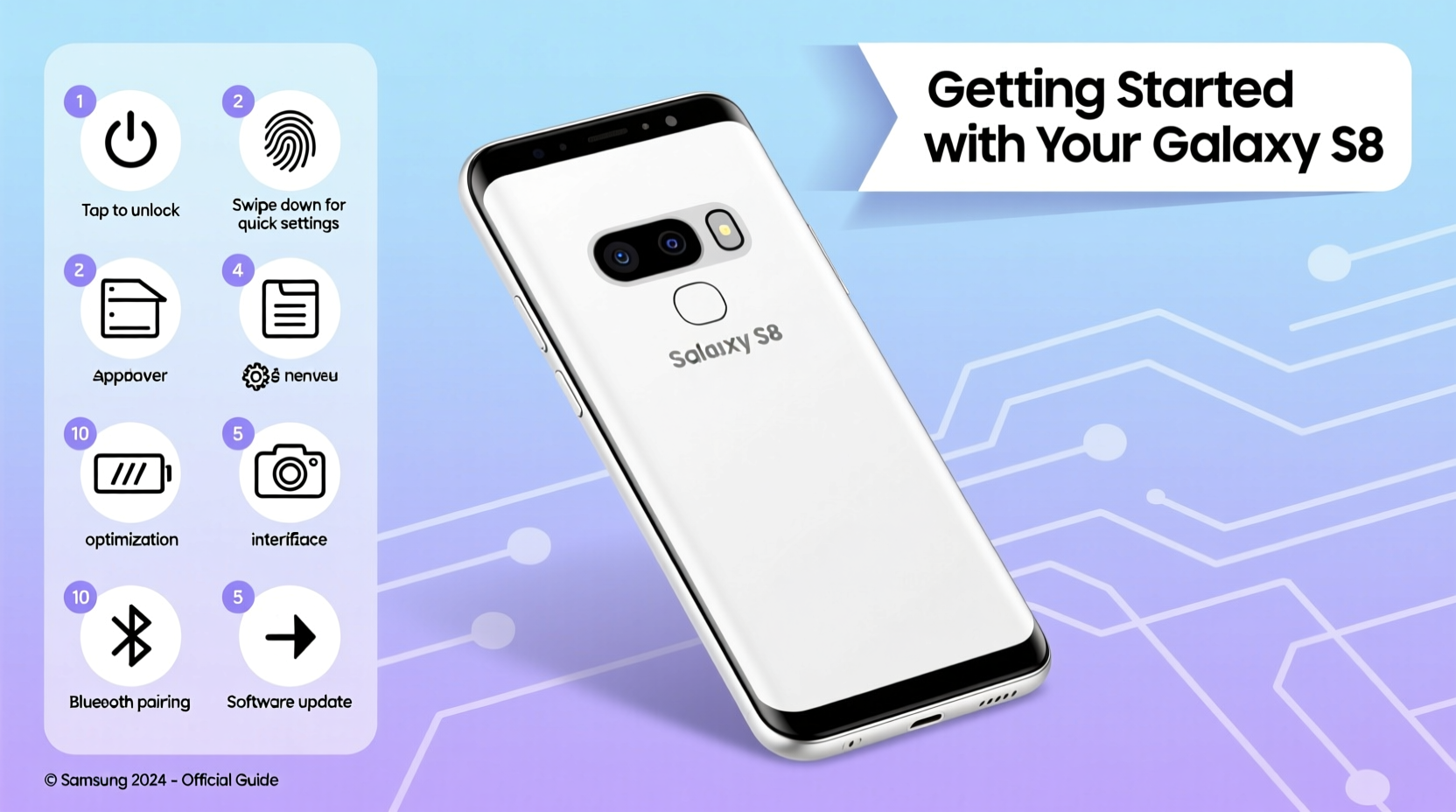
When you open the Galaxy S8 box, you’ll find the phone, charger, USB-C cable, SIM ejector tool, and user manual. Begin by inserting your SIM card and turning on the device. The initial setup wizard will guide you through several steps:
- Select your preferred language.
- Connect to a Wi-Fi network.
- Sign in with your Google account or create one if needed.
- Restore apps and data from a backup (optional).
- Set up Samsung Account for cloud services like Find My Mobile and Smart Switch.
- Configure biometric security: fingerprint, iris, or facial recognition.
Taking a few extra minutes to sign in to your accounts ensures seamless access to email, contacts, calendars, and app downloads from the Google Play Store.
2. Understanding the Interface and Navigation
The Galaxy S8 runs on Samsung’s One UI (originally TouchWiz/Experience), layered over Android. Its edge-to-edge 5.8-inch display removes the physical home button, replacing it with on-screen navigation.
Navigation buttons appear at the bottom of the screen:
- Back: Returns to the previous screen.
- Home: Takes you to the home screen when tapped.
- Recent Apps: Shows open apps for multitasking.
You can customize the layout or switch to gesture-based navigation via Settings > Display > Navigation Bar. For easier one-handed use, enable “Edge panels” and “Easy Reach” under Settings > Advanced Features.
“Modern Android phones like the S8 prioritize gesture efficiency. Learning the basics early reduces frustration later.” — David Kim, Mobile UX Consultant
3. Essential Settings Every Beginner Should Adjust
Out-of-the-box settings may not suit everyone. Personalizing your device improves usability and battery life.
Brightness and Battery Optimization
Go to Settings > Display and adjust brightness manually or enable adaptive brightness. Under Battery and Device Care, set power-saving modes to activate automatically when battery drops below 15%.
Security and Lock Screen
The Galaxy S8 supports multiple unlock methods:
- Fingerprint: Fast and reliable; set up via Settings > Biometrics and Security > Fingerprint.
- Iris Scan: Secure but sensitive to lighting; works best in dim environments.
- Facial Recognition: Convenient but less secure than other options.
Combine fingerprint with a PIN or pattern for added protection.
Sound and Notifications
Customize ringtone, notification sounds, and vibration intensity under Settings > Sounds and Vibration. Use “Do Not Disturb” mode during meetings or sleep hours.
| Setting | Recommended Action | Why It Matters |
|---|---|---|
| Auto-Rotate Screen | Enable | Improves viewing in landscape mode for videos and games |
| App Permissions | Review regularly | Prevents apps from accessing camera, mic, or location unnecessarily |
| Backup & Restore | Turn on auto-backup | Saves app data, Wi-Fi passwords, and settings to Google servers |
| Location Services | Set to “Battery Saving” mode | Uses Wi-Fi and Bluetooth instead of GPS to save power |
4. Getting the Most from Key Features
The Galaxy S8 introduced several innovations that remain useful today.
Bixby: Your Voice Assistant
Bixby is Samsung’s AI assistant, accessible via the dedicated Bixby button on the left side. Press once to launch Bixby Voice, twice for Bixby Vision (camera-powered search). While some users disable the button via third-party apps, Bixby can control smart home devices, set reminders, and send texts hands-free.
DeX Mode (With Optional Dock)
Though the S8 doesn’t support wireless DeX, connecting to a DeX Station transforms your phone into a desktop-like interface when linked to a monitor. Ideal for light productivity tasks—spreadsheets, emails, web browsing—with mouse and keyboard support.
Water Resistance and Care
The Galaxy S8 has an IP68 rating, meaning it can survive immersion in up to 1.5 meters of water for 30 minutes. However, this does not cover saltwater, steam, or prolonged exposure. Always dry the charging port before plugging in.
Tip: Avoid charging immediately after the phone gets wet. Let it air-dry for at least 30 minutes to prevent damage.5. Real-World Example: Maria Learns Her New Galaxy S8
Maria, a retired teacher new to smartphones, received a Galaxy S8 from her son. At first, she struggled with the lack of a home button and was overwhelmed by notifications. Over two weeks, she followed a simple routine:
- She disabled non-essential app notifications one by one.
- Learned to use voice typing in messages by holding the microphone icon on the keyboard.
- Used Google Photos to back up family pictures automatically.
- Enabled magnification gestures to zoom in on small text.
Within a month, Maria was video-calling her grandchildren, checking weather updates, and even using Samsung Pay at her local pharmacy. Her confidence grew by focusing on one feature at a time.
Beginner’s Quick Start Checklist
- ✅ Insert SIM card and power on the device
- ✅ Connect to Wi-Fi and sign in to Google
- ✅ Set up fingerprint or PIN lock
- ✅ Install essential apps (messaging, email, maps)
- ✅ Customize display brightness and font size
- ✅ Enable automatic backups
- ✅ Explore accessibility settings for larger text or screen reader
- ✅ Test camera, speaker, and charging function
Frequently Asked Questions
How do I take a screenshot on the Galaxy S8?
Press and hold the Power button and Volume Down button simultaneously for one second. A shutter sound confirms the capture. Screenshots appear in the Gallery under \"Screenshots.\"
Why is my battery draining quickly?
Common causes include bright screen settings, background apps, and location services. Go to Settings > Battery and Device Care to see which apps consume the most power. Close unused apps and reduce screen timeout to 30 seconds.
Can I expand the storage on the Galaxy S8?
Yes. The Galaxy S8 supports microSD cards up to 400GB. Insert the card into the hybrid SIM tray (second slot). Once detected, go to Settings > Storage to choose whether apps and media save to the SD card by default.
Conclusion: Mastering Your Galaxy S8 Starts Today
The Galaxy S8 offers a rich blend of design, functionality, and connectivity that stands the test of time. By mastering basic navigation, adjusting key settings, and exploring built-in tools like Bixby and Smart Switch, you transform your phone from a piece of technology into a personal assistant, communication hub, and entertainment center. Take it step by step—each tap, swipe, and setting change builds your confidence. Don’t hesitate to revisit this guide as you explore new features.
💬 Have a tip for new Galaxy S8 users? Share your experience or ask questions in the comments—help others make the most of their device!