Bringing together whimsy and modern tech, Sanrio’s Hello Kitty Bluetooth earphones blend nostalgic charm with everyday functionality. Whether you received them as a gift or treated yourself, these compact earbuds offer more than just adorable design—they deliver crisp audio and wireless convenience. But like any Bluetooth device, the key to enjoying their full potential lies in proper pairing. Connecting them to your smartphone doesn’t have to be complicated. With clear guidance and a few smart practices, you can establish a stable connection in under a minute—regardless of whether you use an iPhone, Android, or other mobile device.
Understanding Your Hello Kitty Bluetooth Earphones
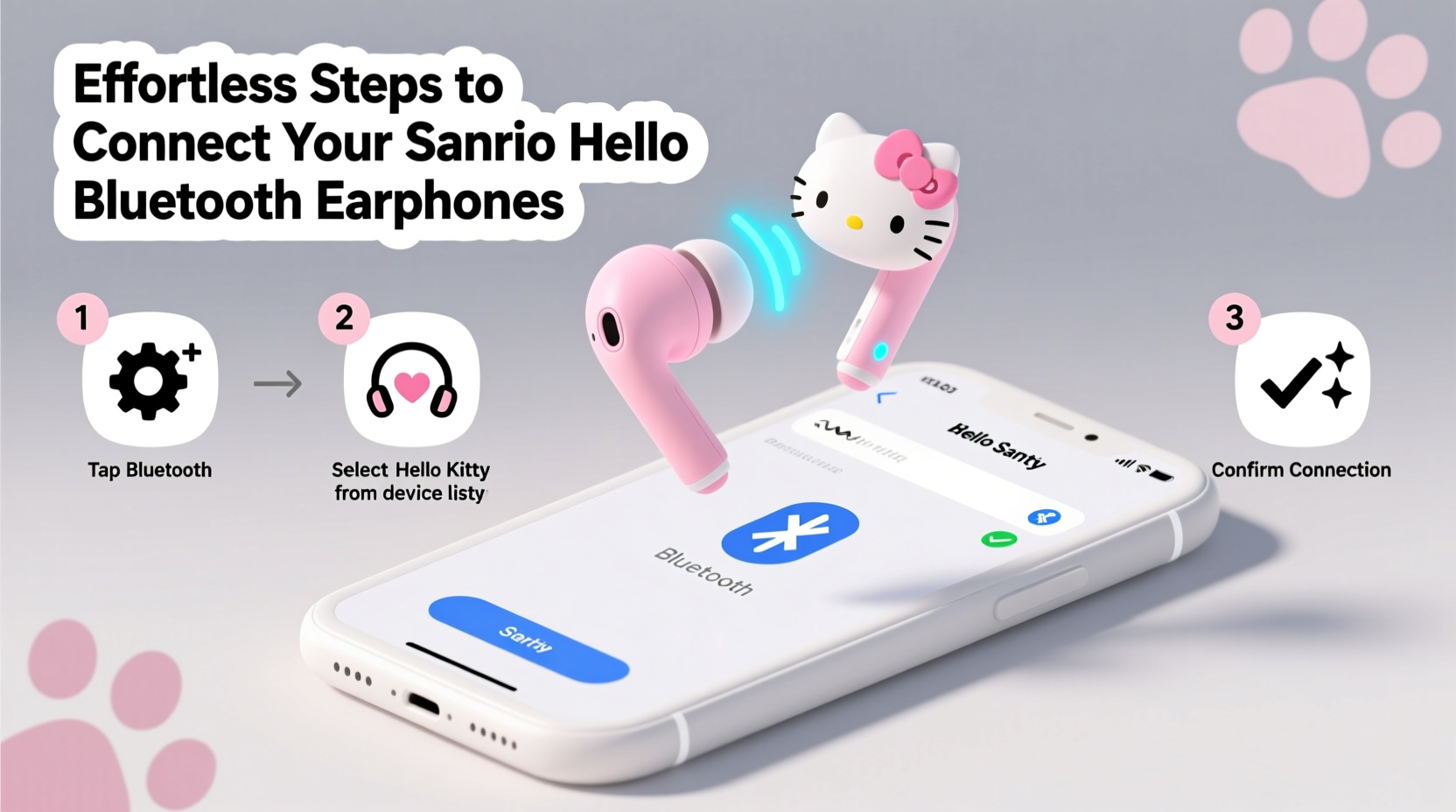
Before diving into the pairing process, it helps to understand what makes these earphones unique. Designed with fans of all ages in mind, they typically feature soft pink housings adorned with Hello Kitty’s signature bow, compact ergonomics for comfortable fit, and intuitive touch or button controls. Most models support Bluetooth 5.0 or higher, ensuring reliable range, low latency, and energy efficiency. They’re engineered for quick pairing, but like all wireless devices, they require correct setup to function seamlessly.
These earphones usually come with a charging case that not only powers the buds but also plays a role in activating pairing mode. When powered off inside the case, opening the lid often initiates a reset or readiness signal. Familiarizing yourself with these behaviors ensures smoother connections and fewer troubleshooting moments later on.
Tip: Always charge your Hello Kitty earphones fully before first use to ensure stable Bluetooth signals and accurate battery feedback.Step-by-Step Guide to Pairing with Any Smartphone
Follow this universal sequence to pair your Sanrio earphones successfully. These steps work across iOS, Android, and most modern smartphones with Bluetooth capability.
- Charge the earphones and case: Place the earbuds in the charging case and connect the case to a power source using the included USB-C or micro-USB cable. Wait until the LED indicator turns solid (usually green or white), indicating full charge.
- Power on the earphones: Open the case lid. Most models automatically power on when removed from the case. If not, press and hold the small button on the case (if present) for 3 seconds until the LED flashes blue and red.
- Enter pairing mode: With the earphones outside the case, press and hold the multifunction button on either earbud for 5–7 seconds. The LED will blink rapidly in alternating red and blue, signaling discoverable mode.
- Enable Bluetooth on your smartphone: Go to Settings > Bluetooth and toggle it on. Allow the phone to scan for nearby devices.
- Select the device: Look for a device named “Hello Kitty BT” or similar (exact name may vary by model). Tap it to initiate pairing.
- Confirm connection: Once connected, the LED on the earphones will turn solid blue. You may hear a voice prompt saying “Connected” or a chime tone.
If the connection fails, return the earphones to the case, close the lid for 10 seconds, then repeat from step 3.
Troubleshooting Common Connection Issues
Even with careful steps, occasional hiccups occur. Here are frequent problems and how to resolve them efficiently.
- Device not showing up in Bluetooth list: Ensure the earphones are in pairing mode (blinking red/blue). Restart your phone’s Bluetooth or reboot the phone if needed.
- Connection drops after pairing: This often indicates interference or low battery. Move away from Wi-Fi routers or microwaves, and recharge the earphones.
- Only one earbud connects: Remove the device from your phone’s Bluetooth list, reset the earphones by holding the button for 10 seconds until lights flash, then retry pairing.
- No sound after connecting: Check your phone’s audio output settings. Some phones default to speaker or another device even after Bluetooth connects.
| Issue | Possible Cause | Solution |
|---|---|---|
| Not discoverable | Not in pairing mode or dead battery | Recharge and hold button for 7 seconds |
| Keeps disconnecting | Signal interference or outdated firmware | Move to quieter area; check manufacturer updates |
| Audio only in one ear | Imbalanced stereo setting or sync error | Reset earphones and re-pair |
| Low volume | Phone volume too low or earbud obstruction | Increase phone volume; clean earbud mesh gently |
Best Practices for Long-Term Performance
Maintaining consistent connectivity goes beyond initial setup. Daily habits influence performance and longevity.
Tip: After use, return the earphones to the case immediately—it conserves battery and protects against dust and moisture.Avoid leaving Bluetooth active on your phone when not in use, as background processes can interfere with stable pairing. Additionally, clean the earphone contacts weekly with a dry cotton swab to prevent charging issues. For optimal results, update your smartphone’s operating system regularly, as OS updates often include improved Bluetooth stack management.
“Bluetooth reliability isn't just about the hardware—it's about ecosystem harmony. A well-maintained connection routine prevents 80% of common user-reported issues.” — Dr. Lena Torres, Wireless Connectivity Researcher at MobileTech Insights
Real-Life Example: Maya’s First-Time Setup Success
Maya, a college student and longtime Hello Kitty fan, received the earphones as a birthday gift. Initially hesitant due to past struggles with wireless devices, she followed the steps methodically. She charged the case overnight, opened it the next morning, and pressed the button on the left earbud for seven seconds. Her iPhone immediately detected “HelloKitty_Buds.” She tapped connect, heard a cheerful chime, and began listening to her favorite playlist within 90 seconds. When her roommate faced connection issues later, Maya guided her through resetting the earphones—proving that once learned, the process is truly effortless.
Essential Checklist Before Every Use
Use this quick checklist to ensure smooth, frustration-free experiences every time:
- ✅ Charge both earphones and case
- ✅ Confirm Bluetooth is enabled on your phone
- ✅ Remove previous connections if experiencing issues
- ✅ Activate pairing mode via button hold
- ✅ Select correct device from Bluetooth menu
- ✅ Test audio playback and microphone input
- ✅ Store in case when not in use
Frequently Asked Questions
Can I pair Hello Kitty earphones with multiple devices?
Yes, but not simultaneously. You can pair them with different phones or tablets, but you’ll need to disconnect from one device before connecting to another. The earphones remember the last connected device and will auto-connect when in range.
How do I know when the earphones are fully charged?
The LED indicator on the charging case typically changes from red (charging) to green or white (fully charged). Individual earbuds may have tiny LEDs that blink during charging and turn off when complete.
Are these earphones compatible with non-Sanrio apps?
Absolutely. Once paired, they function like any standard Bluetooth audio device. You can use them with Spotify, Zoom, YouTube, gaming apps, or voice assistants without limitations.
Final Thoughts: Enjoy Your Cute, Connected Experience
Your Sanrio Hello Kitty Bluetooth earphones are more than a fashion statement—they’re a functional extension of your digital life. By mastering the simple art of pairing and adopting smart usage habits, you unlock seamless audio enjoyment across calls, music, and media. The process is designed to be intuitive, and with the right knowledge, it becomes second nature.
💬 Got a tip or fun experience with your Hello Kitty earphones? Share your story in the comments and inspire others to embrace joyful tech!