Smart thermostats are designed to make life easier—automating heating and cooling, learning your schedule, and even saving energy. But when the temperature on the display doesn’t match how your home actually feels, or the HVAC system kicks on at odd times, something’s clearly off. Inaccurate readings can lead to discomfort, wasted energy, and higher utility bills. The good news? Most issues stem from simple, fixable causes. Understanding why your smart thermostat is behaving strangely—and knowing how to recalibrate it properly—can restore accuracy and peace of mind.
Why Smart Thermostats Give Inaccurate Readings
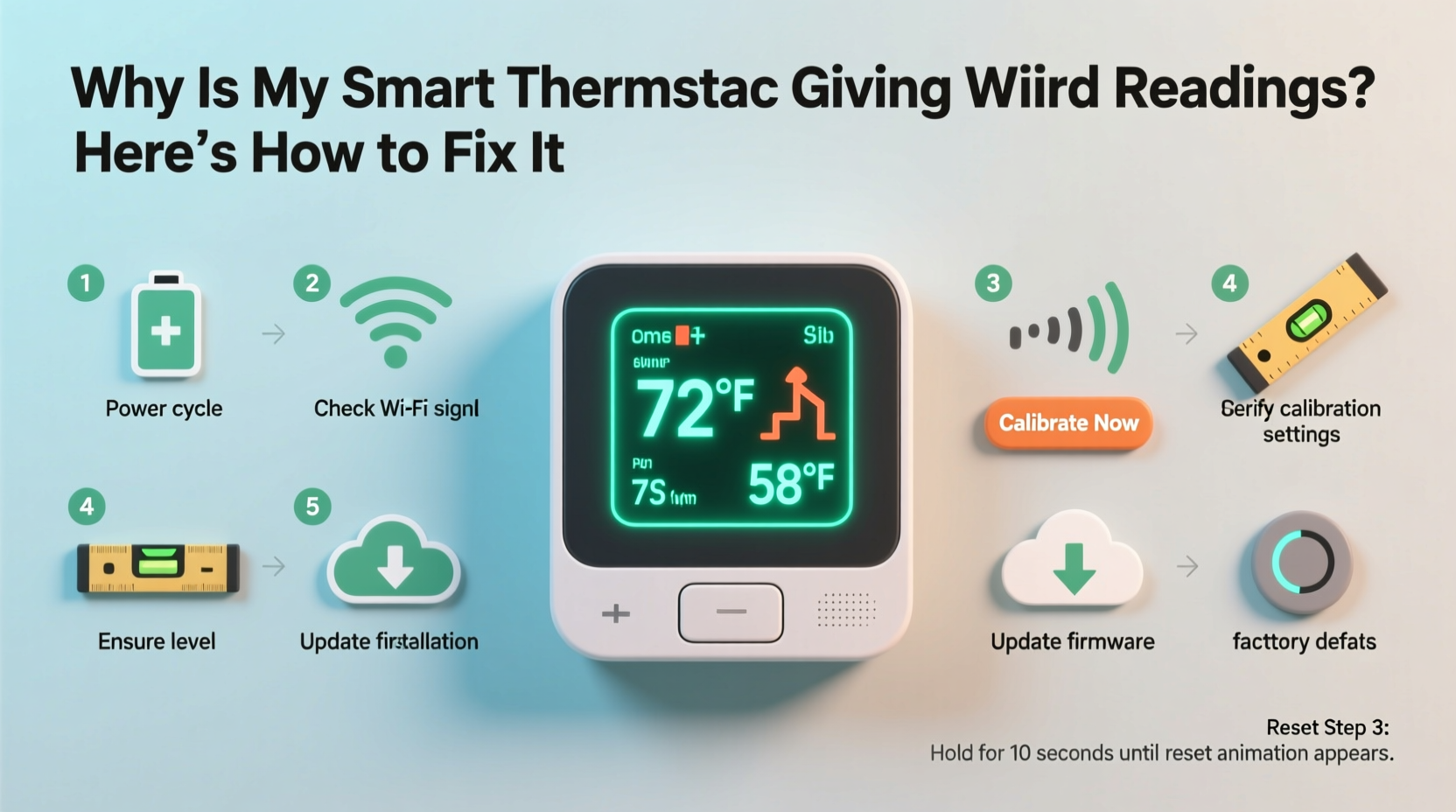
Before diving into solutions, it's important to understand what might be causing the discrepancy. Smart thermostats use internal sensors to monitor ambient temperature, but several factors can interfere with their performance:
- Improper placement: Installing the thermostat near heat sources like appliances, sunlight-exposed walls, or drafty windows skews sensor data.
- Dust buildup: Over time, dust can coat internal sensors, reducing their sensitivity and accuracy.
- Firmware glitches: Like any smart device, software bugs or outdated firmware can cause erratic behavior.
- Ambient interference: Nearby electronics, Wi-Fi routers, or metal surfaces may affect temperature sensing or communication.
- Battery or power issues: Low battery (in battery-powered models) or unstable power supply can disrupt sensor calibration.
- Calibration drift: Sensors can naturally degrade or drift over time, especially in environments with fluctuating humidity or extreme temperatures.
These factors don’t mean your thermostat is defective—they’re common challenges that can be addressed with proper troubleshooting and recalibration.
Tip: Avoid placing your thermostat near kitchens, bathrooms, laundry rooms, or exterior doors where temperature fluctuations are common.Step-by-Step Guide to Recalibrating Your Smart Thermostat
Recalibration isn’t always a one-click fix, but following a structured process ensures you cover all bases. This guide works for most major brands, including Nest, Ecobee, Honeywell Home, and Emerson.
- Check the current reading against a reliable thermometer. Place a standalone digital thermometer next to the thermostat and wait 15–20 minutes. Compare the two readings. A difference of more than ±2°F indicates a calibration issue.
- Power down the thermostat. Remove it from the wall mount (if detachable) or turn off power at the circuit breaker for hardwired units. Wait 30 seconds to reset the internal system.
- Clean the unit gently. Use a soft, dry cloth or compressed air to remove dust from the vents and around the sensor area. Do not use liquids or abrasive materials.
- Restart and reconnect. Reattach the thermostat or restore power. Allow it to reboot fully—this may take up to two minutes. Ensure it reconnects to Wi-Fi.
- Check for firmware updates. Open the companion app (e.g., Google Home for Nest, Ecobee app) and navigate to settings. Install any pending updates, as these often include sensor improvements.
- Initiate manual calibration (if supported). Some models, like certain Ecobee thermostats, allow offset adjustments. For example, if your thermostat reads 72°F but the room is actually 70°F, you can set a +2°F offset to correct future readings.
- Test again after 24 hours. Let the system run under normal conditions. Recheck the thermometer comparison to confirm accuracy.
If discrepancies persist, consider relocating the thermostat or using remote room sensors—many high-end models support them for better zone-based control.
Common Mistakes That Worsen the Problem
Even well-intentioned users can accidentally make thermostat inaccuracies worse. Avoid these pitfalls:
| Mistake | Why It’s Harmful | What to Do Instead |
|---|---|---|
| Mounting near a window or vent | Direct sunlight or airflow creates false temperature spikes/drops | Install on an interior wall, away from drafts and direct heat |
| Ignoring software updates | Missed bug fixes and sensor optimizations | Enable auto-updates or check monthly |
| Using aggressive temperature swings | Forces the system to overcompensate, masking sensor issues | Maintain a consistent baseline setting during testing |
| Assuming the app reading is always correct | The app reflects thermostat input, which may already be flawed | Always verify with a physical thermometer |
Real-World Example: A Homeowner’s Calibration Journey
Sarah from Portland noticed her Nest thermostat kept turning on the heat at night, even though her bedroom felt warm. She checked the reading—68°F—but a separate thermometer showed 73°F. After ruling out furnace issues, she followed recalibration steps. First, she cleaned dust from the thermostat’s edges using compressed air. Then, she restarted the unit and updated its firmware through the Google Home app. Still, the reading was off by 3 degrees. Finally, she accessed the “Temperature Sensor Calibration” option in the advanced settings (buried under Equipment section) and applied a -3°F offset. Within hours, the HVAC behavior normalized. Her electric bill dropped 12% the next month due to fewer unnecessary cycles.
This case highlights how small sensor errors can have big impacts—and how systematic troubleshooting leads to real savings.
“Thermostat accuracy isn't just about comfort—it directly affects energy efficiency. A miscalibrated unit can increase HVAC runtime by up to 20%.” — Dr. Alan Reyes, Building Efficiency Engineer, National Institute of Sustainable Homes
When to Use Remote Sensors and Smart Zoning
If your main thermostat is in a hallway or less-used room, its readings may not reflect living areas accurately. Many modern thermostats—especially Ecobee models—support wireless room sensors. These devices monitor temperature and occupancy in key zones (like bedrooms or living rooms) and feed data back to the thermostat.
To maximize effectiveness:
- Place sensors in frequently occupied areas, away from electronics and direct light.
- Use occupancy detection to avoid heating empty rooms.
- Set average mode or prioritize specific rooms depending on your daily routine.
This approach compensates for poor thermostat placement and provides true whole-home comfort.
Tip: If your thermostat supports multi-sensor input, enable “Follow Me” or “Smart Home/Away” features to dynamically adjust based on where people are located.Comprehensive Checklist: Fixing Weird Thermostat Readings
Use this checklist to methodically resolve temperature inaccuracies:
- ✅ Compare thermostat reading with a trusted digital thermometer
- ✅ Inspect installation location for heat sources, drafts, or sunlight
- ✅ Power cycle the thermostat (restart)
- ✅ Clean exterior and sensor vents gently
- ✅ Check for and install firmware updates
- ✅ Verify HVAC system is functioning correctly (no short cycling, strange noises)
- ✅ Adjust temperature offset if supported by model
- ✅ Consider adding remote room sensors for better zoning
- ✅ Monitor performance over 24–48 hours after changes
- ✅ Contact manufacturer support if issues persist
Frequently Asked Questions
Can I manually calibrate any smart thermostat?
Not all models allow manual calibration. High-end thermostats like Ecobee and some Nest versions let you apply temperature offsets. Others rely on automatic calibration. Check your user manual or app settings under \"Sensors\" or \"Equipment.\" If no option exists, focus on optimal placement and regular maintenance instead.
How often should I recalibrate my smart thermostat?
Most users only need to recalibrate every 1–2 years, or when noticing performance issues. However, checking accuracy seasonally—especially before extreme weather—helps catch drift early. Homes with high humidity, pets, or frequent renovations may benefit from more frequent checks.
Why does my thermostat show different temps than my phone’s weather app?
Your phone displays outdoor temperature from a remote station, while your thermostat measures indoor ambient air. They serve different purposes. More importantly, compare your thermostat to an indoor thermometer—not outdoor forecasts. A 10-degree difference between indoor and outdoor readings is normal and expected.
Conclusion: Take Control of Your Home’s Comfort
Inaccurate thermostat readings don’t have to be a mystery or a permanent annoyance. With a clear understanding of potential causes—from placement errors to software hiccups—you’re equipped to diagnose and fix most issues yourself. Recalibration isn’t complex, but it requires attention to detail and patience. By following the steps outlined here, you’ll ensure your smart thermostat delivers accurate, efficient climate control year-round.
Don’t settle for guesswork when comfort and savings are on the line. Apply these strategies today, verify results with a simple thermometer, and enjoy a smarter, more responsive home environment.
💬 Have a thermostat quirk you solved? Share your experience in the comments—your insight could help another homeowner avoid costly mistakes.