Laptop fans are designed to protect your device from overheating by expelling hot air generated during operation. But when the fan runs constantly at high speed and creates a distracting noise, it’s more than just an annoyance—it’s a warning sign. Excessive fan noise often points to underlying issues that, if ignored, can degrade performance, shorten hardware lifespan, or even cause permanent damage. The good news is that most causes are preventable or fixable with the right approach.
Understanding why your laptop fan is working overtime—and knowing how to respond—can restore quiet operation, extend battery life, and maintain system responsiveness. This guide breaks down the common culprits, provides actionable fixes, and shares long-term strategies to keep your laptop cool and silent.
Why Laptop Fans Run Loud: Common Causes
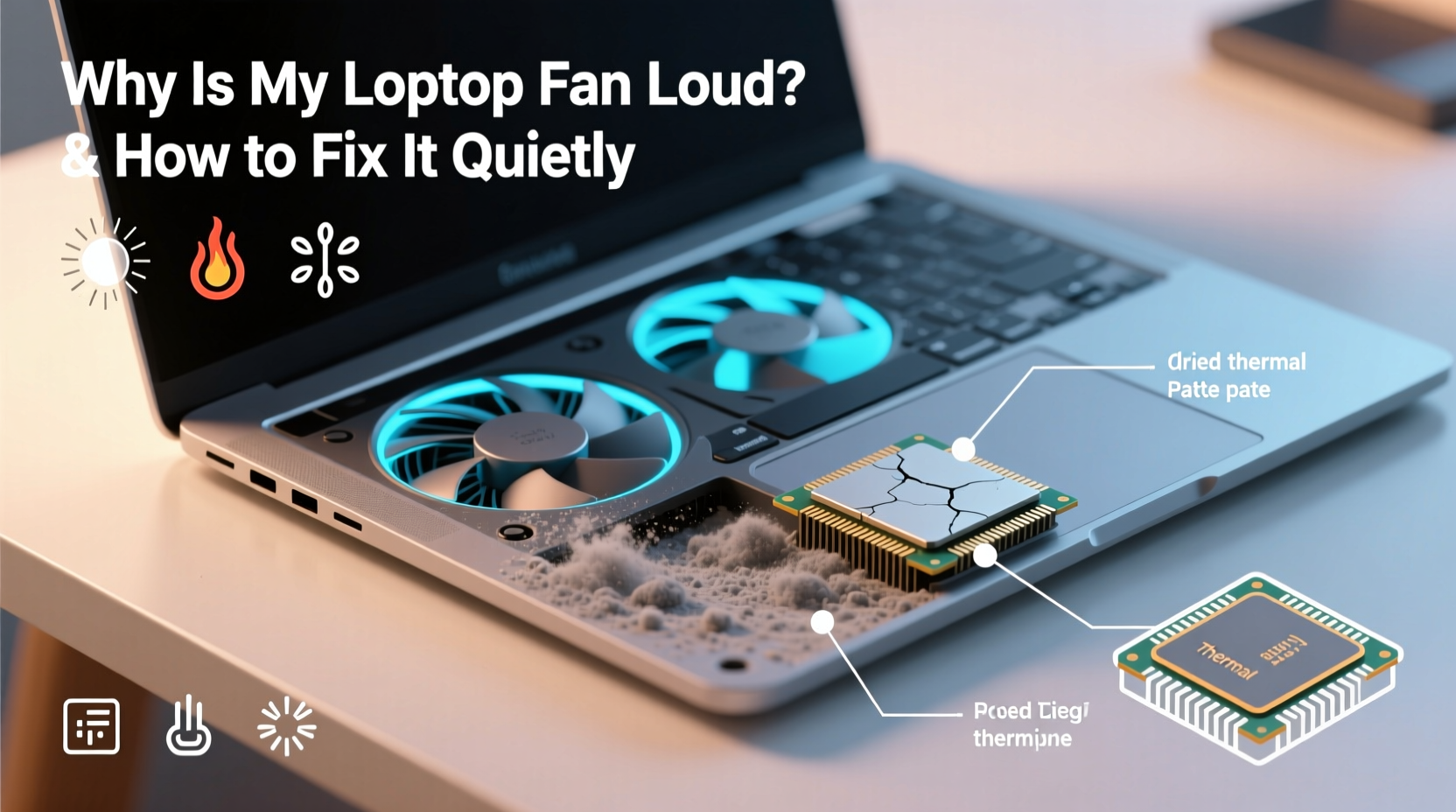
Laptop cooling systems rely on thermal sensors, fans, heat sinks, and ventilation channels to regulate internal temperature. When any part of this system is compromised, the fan compensates by spinning faster and louder. Below are the most frequent reasons for persistent, noisy fan activity.
- High CPU or GPU usage: Resource-intensive applications like video editors, games, or background processes (e.g., malware scans) generate heat that triggers aggressive cooling.
- Dust buildup in vents and fans: Over time, dust clogs air intakes and heat sinks, reducing airflow efficiency and causing components to overheat.
- Outdated or faulty thermal paste: Thermal paste between the processor and heatsink degrades over time, impairing heat transfer and forcing the fan to work harder.
- Poor ventilation: Using your laptop on soft surfaces like beds or couches blocks intake vents, trapping heat inside.
- Ambient temperature: Operating in hot environments (e.g., direct sunlight, poorly ventilated rooms) increases baseline internal temperatures.
- Background software and startup bloat: Too many apps launching at startup can keep the CPU active even during idle periods.
- Failing hardware: A worn-out fan motor or malfunctioning temperature sensor may cause erratic or constant fan behavior.
Step-by-Step Guide to Cool Your Laptop Quietly
Reducing fan noise isn’t just about silencing the symptom—it’s about addressing the root cause. Follow this structured process to diagnose and resolve excessive fan activity.
- Check current system load: Open Task Manager (Windows) or Activity Monitor (Mac). Look for processes consuming high CPU or GPU resources. End unnecessary tasks.
- Clean the exterior vents: Use compressed air to blow out dust from intake and exhaust vents. Do this outdoors to avoid spreading debris indoors.
- Elevate the laptop: Place it on a hard, flat surface. Even a slight elevation improves airflow. Avoid fabric or carpeted surfaces.
- Update software and drivers: Outdated BIOS, chipset, or graphics drivers can affect power management and thermal regulation. Check your manufacturer’s support site.
- Adjust power settings: Set your laptop to “Balanced” or “Power Saver” mode. High-performance modes increase clock speeds and heat output unnecessarily.
- Scan for malware: Run a full system scan with trusted antivirus software. Malware often runs hidden crypto-mining scripts that spike CPU usage.
- Manage startup programs: Disable non-essential apps from launching at boot. On Windows, use Task Manager > Startup tab; on Mac, go to System Settings > Login Items.
- Improve room environment: Keep ambient temperature below 77°F (25°C). Use air conditioning or a desk fan to reduce surrounding heat.
When to Consider Internal Cleaning
If external cleaning doesn’t help, internal dust accumulation may be the issue. While opening your laptop voids warranties in some cases, it’s often necessary after 1–2 years of regular use.
“After two years, most laptops accumulate enough dust to reduce cooling efficiency by up to 40%. A thorough internal clean can restore near-new thermal performance.” — David Lin, Hardware Technician at TechCare Labs
To clean internally:
- Power off and unplug the laptop. Remove the battery if possible.
- Use a Phillips screwdriver to open the back panel (refer to your model’s service manual).
- Use compressed air and a soft brush to clean the fan blades, heat sink fins, and air ducts.
- Reapply thermal paste if the old layer is cracked or dried (use high-quality paste like Arctic MX-4).
- Reassemble carefully and test performance under load.
Do’s and Don’ts of Laptop Cooling
| Do’s | Don’ts |
|---|---|
| Use a hard, flat surface for optimal airflow | Place your laptop on a bed, pillow, or blanket |
| Invest in a quality cooling pad with adjustable fans | Rely solely on passive cooling pads without airflow |
| Keep ambient room temperature moderate | Leave your laptop in a hot car or direct sunlight |
| Regularly update OS and firmware for better thermal management | Ignore system updates that include power and fan control improvements |
| Reapply thermal paste every 2–3 years for older devices | Apply too much thermal paste—pea-sized amount is sufficient |
Mini Case Study: Sarah’s Overheating Work Laptop
Sarah, a freelance graphic designer, noticed her 3-year-old laptop fan running loudly even when she wasn’t rendering videos. She initially assumed it was due to aging hardware. After reading this guide, she decided to investigate.
She opened Task Manager and found Adobe Creative Cloud updater consuming 60% CPU in the background. She disabled it from startup and manually updated the software later. Next, she used compressed air to clean the side vents, which were visibly clogged with pet hair (she works from her living room). Finally, she switched her power plan from “High Performance” to “Balanced.”
The result? Fan noise dropped significantly within minutes. Internal temperatures fell from a consistent 92°C to 74°C under light use. Sarah extended her laptop’s usable life by over a year—without spending a dime on repairs.
Preventive Maintenance Checklist
Stay ahead of overheating with this quarterly maintenance routine:
- ✅ Clean exterior vents with compressed air
- ✅ Review and disable unnecessary startup programs
- ✅ Update operating system and drivers
- ✅ Run a full malware scan
- ✅ Check CPU temperature under load (e.g., while streaming or editing)
- ✅ Ensure laptop is on a hard, elevated surface
- ✅ Verify fan behavior in BIOS/UEFI settings (some models allow fan curve adjustments)
For laptops over two years old, add these biannual tasks:
- 🔧 Perform internal cleaning (or have it done professionally)
- 🔧 Reapply thermal paste to CPU and GPU
- 🔧 Test battery health—swollen batteries can press against internal components and block airflow
Frequently Asked Questions
Is it bad if my laptop fan is always running?
Not necessarily—if the fan runs quietly at low speed, it’s likely managing normal heat. However, constant loud operation indicates poor heat dissipation, which can lead to throttling (reduced performance) or long-term component wear. Investigate the cause promptly.
Can I turn off the laptop fan manually?
No, and you shouldn’t. The fan is critical for preventing overheating. Disabling it—even temporarily—risks damaging the CPU, GPU, or motherboard. Instead, address the reason the fan is running hard.
Do laptop cooling pads really work?
Yes, but only effective models with active fans and proper airflow alignment. Passive metal pads offer minimal benefit. Choose a cooling pad with adjustable fan speeds and intake positioning that matches your laptop’s vent layout (usually bottom or side). They can reduce surface temperatures by 5–15°C under load.
Expert Tips for Long-Term Quiet Operation
Beyond immediate fixes, adopting smart habits ensures your laptop remains cool and quiet for years:
- Optimize software usage: Close unused browser tabs and applications. Each tab can consume memory and CPU cycles, especially those with autoplay videos or ads.
- Limit background sync: Disable automatic cloud syncing (Dropbox, OneDrive) when not needed. These services continuously read/write data, generating heat.
- Use an external keyboard and monitor: This allows you to close the laptop lid and place it on a stand, improving airflow and reducing heat buildup near your body.
- Monitor firmware updates: Manufacturers occasionally release UEFI/BIOS updates that refine fan algorithms and thermal thresholds.
- Consider undervolting (advanced users): Reducing CPU voltage slightly can lower heat output without sacrificing performance. Tools like ThrottleStop (Windows) enable this, but proceed with caution and backup settings.
“Thermal stress is the silent killer of electronics. Keeping your laptop below 85°C during heavy tasks can double its functional lifespan compared to consistently running at 95°C or higher.” — Dr. Rajiv Mehta, Electronics Reliability Engineer
Conclusion: Take Control of Your Laptop’s Temperature
A loud laptop fan is not something to ignore. It’s a signal that your device is struggling to manage heat, often due to preventable factors like dust, poor ventilation, or software overload. By diagnosing the cause and applying targeted solutions—from simple cleaning to smarter usage habits—you can restore quiet operation and protect your investment.
Start today: check your Task Manager, clean the vents, adjust your power settings, and ensure your laptop has room to breathe. Small changes yield big results in performance, longevity, and peace of mind. A cooler laptop isn’t just quieter—it’s faster, safer, and more reliable.
💬 Have a tip that tamed your noisy laptop fan? Share your experience in the comments and help others find relief from the roar!