
Suddenly noticing your once-zippy Chromebook dragging through tasks can be frustrating—especially when you're in the middle of work, school, or streaming. Unlike traditional laptops, Chromebooks rely heavily on cloud integration, efficient operating systems, and minimal local processing. But even these streamlined devices aren’t immune to slowdowns. The good news? Most causes are fixable with simple, immediate actions. Understanding what’s slowing your device and how to address it can restore its responsiveness in minutes.
Chromebooks run Chrome OS, a lightweight system designed for speed and simplicity. However, factors like outdated software, too many browser tabs, background apps, or storage overload can degrade performance over time. This guide breaks down the most common reasons behind sudden sluggishness and delivers actionable, expert-backed solutions to get your Chromebook back up to speed—fast.
Common Causes of Sudden Chromebook Slowdowns
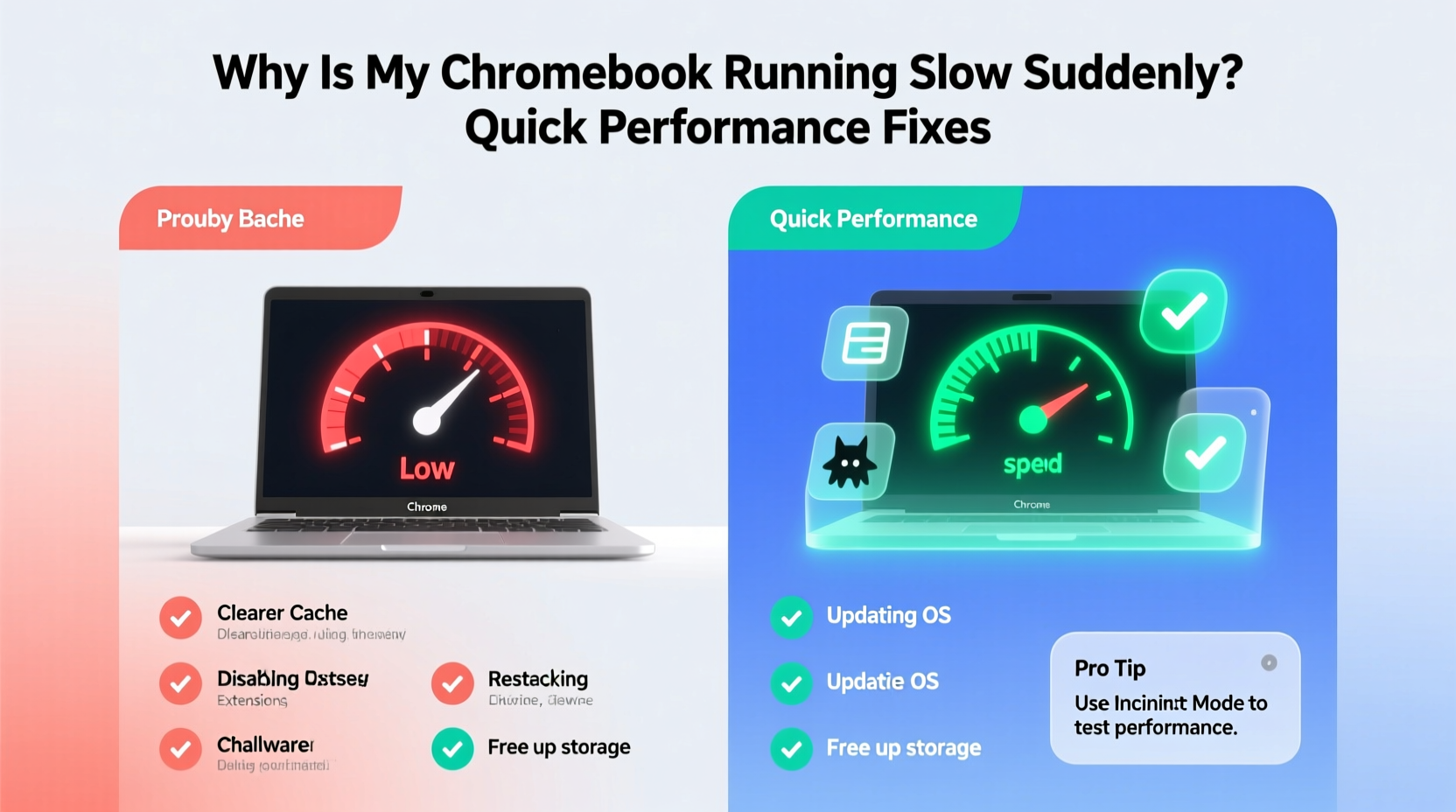
A Chromebook that was fast yesterday but feels sluggish today likely isn’t failing—it’s reacting to changes in usage, updates, or system health. Identifying the root cause is the first step toward resolution.
- Too many open tabs or apps: Each tab consumes memory. Dozens of open tabs—even inactive ones—can overwhelm your device.
- Outdated Chrome OS: Missing critical updates can lead to compatibility issues and security patches that improve performance.
- Full storage space: Chromebooks typically have limited internal storage (32GB or 64GB). When nearly full, the system struggles to manage temporary files and cache.
- Background extensions and apps: Auto-starting apps and poorly optimized extensions run silently, eating up CPU and RAM.
- Wi-Fi congestion or weak signal: Since Chrome OS relies on cloud services, poor connectivity mimics system lag.
- Hardware limitations: Older models with 2GB or 4GB RAM may struggle with modern web applications and multitasking.
Step-by-Step Guide to Restore Chromebook Speed
Follow this logical sequence to diagnose and resolve performance issues efficiently. Most fixes take under five minutes and require no technical expertise.
- Restart your Chromebook. A simple reboot clears temporary files, resets memory usage, and stops rogue processes. This resolves minor glitches instantly.
- Check for Chrome OS updates. Go to Settings > About Chrome OS > Check for Updates. Install any pending updates—they often include performance improvements.
- Close unnecessary browser tabs and apps. Aim to keep fewer than 10 tabs open at once. Use bookmarks or tab managers instead of keeping everything open.
- Clear browsing data. Navigate to Settings > Privacy and Security > Clear Browsing Data. Select “All time” and check boxes for cookies, cached images, and site data.
- Disable or remove unused extensions. Type
chrome://extensionsin the address bar. Remove anything you don’t actively use. Disable others temporarily to test performance. - Manage startup apps. Some apps launch automatically. Go to Settings > Apps and Extensions > Manage Settings > On Startup and disable non-essential entries.
- Free up storage space. Delete downloaded files, old screenshots, and offline media. Empty the Trash in the Files app to permanently remove them.
- Reset Chrome settings (if needed). As a last resort before powerwashing, go to Settings > Reset Settings > Restore settings to their original defaults.
When to Consider a Powerwash
If your Chromebook remains slow after trying the above steps, a factory reset—called a Powerwash—may be necessary. This wipes all local data and reinstalls Chrome OS from scratch.
To Powerwash: Go to Settings > Advanced > Reset Settings > Powerwash > Restart. Follow prompts. Note: You must sign in with your Google account afterward, and only synced data will return.
“Powerwashing is one of the most effective ways to eliminate deep-seated performance issues on Chromebooks. It’s like hitting a hardware-level reset button.” — David Lin, Chrome OS Support Specialist
Performance Optimization Checklist
Use this checklist weekly to maintain optimal Chromebook performance and prevent future slowdowns.
Weekly Chromebook Tune-Up Checklist:- ✅ Reboot the device
- ✅ Check for and install OS updates
- ✅ Close unused tabs and apps
- ✅ Clear browsing cache and cookies
- ✅ Review and remove unnecessary extensions
- ✅ Delete old downloads and clear the Trash
- ✅ Monitor available storage (aim for 20% free)
- ✅ Test Wi-Fi speed and reconnect if unstable
Storage Management: What’s Eating Your Space?
Many users overlook storage until the system warns them. But even small amounts of clutter add up. Chromebooks store downloads, offline files, app data, and cached content locally—all of which consume valuable space.
To view storage usage: Click the system tray (bottom right) > Settings > Device > Storage management. Here, you’ll see breakdowns by category.
| Storage Category | What It Includes | Action to Free Up Space |
|---|---|---|
| Downloads | PDFs, documents, installers, media files | Delete outdated files; move essentials to Google Drive |
| Offline Content | YouTube videos, Google Play Books, Maps areas | Remove saved items no longer needed |
| Cache & Temporary Files | Browsing history, thumbnails, app logs | Clear via Settings or use \"Free up space\" tool |
| Apps & Extensions | Installed Android/Linux apps, extensions | Uninstall rarely used apps; disable heavy extensions |
| Trash | Deleted files awaiting permanent removal | Empty Trash in Files app immediately |
Pro tip: Enable automatic file syncing to Google Drive. Right-click folders in the Files app and select “Sync to Google Drive.” This reduces local dependency and safeguards data.
Real-World Example: How Sarah Fixed Her Lagging School Chromebook
Sarah, a high school sophomore, noticed her Chromebook freezing during virtual classes. Pages took seconds to load, and switching between Google Meet and Docs felt impossible. She tried restarting it multiple times with little improvement.
After reviewing her device, she discovered over 70 open tabs across three browser windows, five auto-launching apps, and 95% storage usage due to hundreds of downloaded worksheets and offline YouTube videos.
She followed these steps:
- Closed all tabs except those needed for class.
- Uninstalled unused quiz and game extensions.
- Moved 2GB of school projects to Google Drive and deleted local copies.
- Used the built-in “Free up space” tool to remove cached files.
- Disabled all startup apps.
The result? Her Chromebook booted 40% faster, pages loaded instantly, and app switching became smooth. She now performs a 10-minute cleanup every Friday to stay ahead of clutter.
Do’s and Don’ts for Long-Term Chromebook Health
Maintaining consistent performance means avoiding habits that strain the system. Use this comparison table to guide daily usage.
| Do’s | Don’ts |
|---|---|
| Keep at least 15–20% of storage free | Store large video or music files locally |
| Update Chrome OS as soon as updates appear | Ignore update notifications for weeks |
| Use incognito mode for heavy browsing sessions | Run 30+ tabs continuously in normal mode |
| Install only trusted, well-reviewed extensions | Add extensions “just in case” without testing impact |
| Reboot weekly to clear system memory | Leave your Chromebook on for days without restart |
Frequently Asked Questions
Why is my Chromebook slow even after restarting?
If slowness persists post-restart, check storage levels and background apps. High storage usage (over 85%) severely impacts performance. Also, verify that your Wi-Fi connection is stable—slow internet can mimic device lag. Run a speed test using sites like fast.com. If speeds are below 10 Mbps, contact your ISP or switch networks.
Can too many Chrome extensions really slow down my device?
Yes. Each extension runs in the background and consumes RAM and CPU. Even seemingly harmless tools like ad blockers or grammar checkers can accumulate overhead. Limit extensions to five or fewer essential ones. Test performance by disabling all, then re-enabling one at a time while monitoring speed.
Is it safe to Powerwash my Chromebook?
Absolutely. Powerwashing is a standard troubleshooting tool endorsed by Google. Since most data syncs to your Google account (bookmarks, settings, apps), it returns automatically after sign-in. Just ensure your files are backed up to Google Drive or an external source before proceeding.
Conclusion: Regain Control of Your Chromebook’s Speed
A slow Chromebook doesn’t mean it’s time for a replacement. In most cases, performance drops stem from manageable issues—cluttered storage, outdated software, or inefficient browsing habits. By applying targeted fixes like clearing cache, managing extensions, and maintaining free space, you can restore near-new responsiveness in minutes.
The key is consistency. Treat your Chromebook like any precision tool: regular maintenance prevents major breakdowns. Set a reminder to review your device monthly. Small efforts compound into long-term reliability, especially for students, remote workers, and families relying on these devices daily.
💬 Have a Chromebook speed tip that worked for you? Share your experience in the comments and help others keep their devices running smoothly!