There are few modern frustrations quite like pressing the power button on your TV remote and getting nothing in return—not a flicker, not a sound, just silence. Even more maddening is when the remote works sometimes and then cuts out without warning. This intermittent behavior isn’t random; it’s usually a sign of specific underlying issues that are often easy to fix. Whether your remote acts up only during evening viewing or fails unpredictably throughout the day, understanding the root causes can save you time, money, and the urge to throw it across the room.
TV remotes rely on infrared (IR) signals or Bluetooth/Radio Frequency (RF) technology to communicate with your television. When those signals are disrupted or weakened, communication breaks down. The good news? Most problems causing inconsistent performance are user-fixable. From simple battery issues to environmental interference, this guide walks through the most common culprits and what you can do about them—step by step.
1. Check and Replace the Batteries
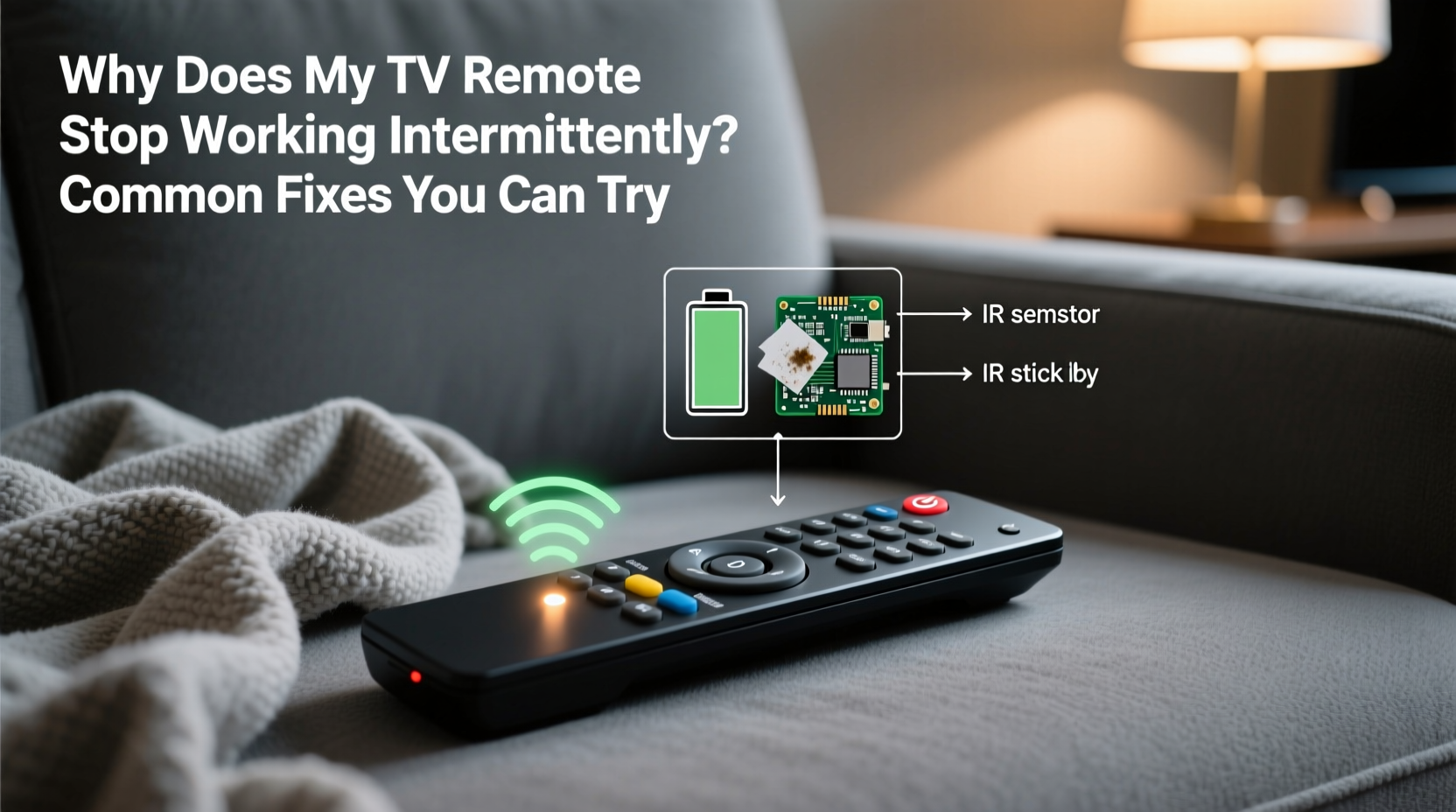
The most frequent cause of an intermittently working remote is weak or poorly seated batteries. Even if the remote seems to work occasionally, low power output can result in inconsistent signal transmission. Over time, batteries degrade, especially if they’ve been sitting for months or exposed to temperature fluctuations.
Batteries may appear functional but deliver insufficient voltage under load. For example, a 1.5V AA battery might read 1.4V on a multimeter but fail to maintain that level when transmitting a signal. This leads to sporadic responsiveness—working once, then failing the next three times.
Tip: Always replace both batteries at the same time—even if one looks newer. Mixing old and new cells creates imbalance and reduces overall efficiency.How to Properly Replace Remote Batteries
- Remove the battery cover using a coin or fingernail.
- Take out both batteries and inspect for corrosion (white or green crusty residue).
- If corrosion is present, clean the terminals with a cotton swab dipped in white vinegar or lemon juice. Let dry completely before inserting new batteries.
- Insert two fresh, high-quality alkaline batteries, ensuring correct polarity (+ and – ends match).
- Test the remote immediately from a close distance (within 3 feet of the TV).
Avoid rechargeable batteries unless specified by your remote’s manufacturer. While eco-friendly, NiMH rechargeables typically output 1.2V instead of 1.5V, which some remotes struggle to handle consistently.
2. Clean the Remote and Test the Buttons
Dirt, dust, spilled drinks, or oily fingerprints can interfere with the internal circuitry of your remote. Over time, grime builds up under the buttons, preventing proper electrical contact when pressed. This results in missed commands or delayed responses—classic signs of intermittent failure.
The rubber membrane beneath the buttons contains conductive pads that complete circuits when pressed. If these pads are dirty or deformed, they won’t make reliable contact with the circuit board.
Step-by-Step Cleaning Guide
- Remove the batteries.
- Use compressed air to blow out debris from between the buttons.
- Dampen a lint-free cloth with isopropyl alcohol (70% or higher) and gently wipe the surface and sides of the remote.
- For deeper cleaning, carefully open the remote casing (if possible) to access the rubber pad and circuit board.
- Clean the underside of the rubber pad and the corresponding contact points on the PCB with a cotton swab and alcohol.
- Let all components dry for at least 15 minutes before reassembling.
- Reinsert batteries and test each button systematically.
This process often restores full functionality, especially in households with children or pets where spills are common.
3. Eliminate Signal Interference and Obstructions
Infrared remotes require a clear line of sight between the remote’s LED and the TV’s IR receiver. Any obstruction—such as furniture, glass cabinets, or even bright sunlight—can block or distort the signal. Similarly, strong sources of light (like halogen lamps or direct sun) emit infrared radiation that can drown out the remote’s signal.
Bluetooth or RF-based remotes (common with smart TVs and streaming devices like Roku or Apple TV) are less prone to line-of-sight issues but can still suffer from wireless interference caused by Wi-Fi routers, microwaves, or nearby electronic devices.
| Type of Remote | Signal Type | Common Interference Sources | Solutions |
|---|---|---|---|
| Standard Infrared (IR) | Infrared light pulses | Sunlight, fluorescent lights, physical barriers | Move seating position, close curtains, avoid placing TV behind glass |
| Bluetooth (e.g., Samsung Smart Remotes) | Short-range radio waves | Wi-Fi networks, USB 3.0 devices, thick walls | Reduce device clutter near TV, pair remote again |
| RF (Radio Frequency) | Long-range radio signals | Other RF devices, metal enclosures | Ensure no competing transmitters, check pairing status |
4. Reset or Re-Pair Your Remote
Smart remotes, particularly those using Bluetooth, can lose their connection to the TV over time. This disconnection often manifests as delayed response or total non-responsiveness—even though the batteries are fine and the remote appears undamaged.
Re-pairing resets the communication link between the remote and the television. The process varies slightly depending on the brand, but general principles apply.
Universal Re-Pairing Steps for Bluetooth Remotes
- Press and hold the **Back** and **Home** buttons simultaneously for 5–10 seconds (for Samsung models).
- For LG Magic Remotes, point the remote at the TV and press **OK** and **Cancel** together until pairing completes.
- On Android TV remotes, go to Settings > Remotes & Accessories > Add Remote, then follow prompts.
- Wait for a confirmation tone or on-screen message indicating successful pairing.
- Test all major functions (power, volume, input selection).
If re-pairing fails, remove the remote from the TV’s paired devices list first, then start fresh. Consult your TV manual for model-specific instructions.
“Many ‘broken’ remotes are simply disconnected. A quick re-pair resolves nearly 30% of support calls we receive.” — Mark Tran, Consumer Electronics Technician at BestBuy Geeksquad
5. Evaluate Environmental and Physical Factors
Your living environment plays a bigger role in remote performance than most realize. High humidity can corrode internal contacts. Extreme temperatures affect battery chemistry. Even how you store the remote matters—if it’s constantly buried under cushions or left near heat sources, longevity decreases significantly.
Another overlooked issue is physical damage. Dropping a remote—even from a short height—can crack solder joints on the circuit board or misalign internal components. These micro-fractures may allow intermittent connectivity, explaining why shaking or tapping the remote sometimes brings it back to life.
Mini Case Study: The Couch Cushion Culprit
Consider Sarah from Austin, TX, who complained that her Roku remote worked only after she “tapped it a few times.” She’d replaced batteries twice with no lasting improvement. Upon inspection, she realized the remote spent most nights wedged between couch cushions. Crumbs and fabric fibers had seeped into the button gaps, interfering with conductivity. After a thorough cleaning and switching to a dedicated side-table tray, the remote worked flawlessly for over a year.
Her experience highlights a common household pattern: casual misuse leading to technical degradation. Simple changes in handling can prevent recurring issues.
Troubleshooting Checklist
- ✅ Replace both batteries with fresh alkaline ones
- ✅ Clean the remote surface and internal contacts
- ✅ Ensure clear line of sight between remote and TV (for IR models)
- ✅ Test the IR signal using a smartphone camera
- ✅ Re-pair Bluetooth remotes via system settings
- ✅ Remove obstructions like glass doors or decorative panels
- ✅ Reduce ambient infrared light (close blinds, turn off halogens)
- ✅ Inspect for physical damage or liquid exposure
- ✅ Store the remote in a dry, accessible location
- ✅ Try a universal remote or mobile app as temporary workaround
Frequently Asked Questions
Can a TV remote work intermittently due to a problem with the TV itself?
Yes. While remotes are often blamed, the TV’s IR receiver or Bluetooth module could be failing. To test, use a different remote (or a smartphone IR app) to control the TV. If the issue persists, the fault likely lies with the television. Some TVs also have software bugs that disrupt remote recognition—checking for firmware updates may resolve this.
Why does my remote only work when I’m standing close to the TV?
This usually indicates weak signal strength, commonly caused by low batteries or dirt on the IR emitter. It can also happen if the TV is placed inside a cabinet with narrow openings, limiting the angle of reception. Try increasing ambient lighting contrast (dim the room) or relocating the TV for better accessibility.
Is it worth repairing an old remote, or should I buy a new one?
Repairing is usually worthwhile only if the issue is cleaning or batteries. Internal circuit repairs require soldering skills and parts not easily sourced. For older models, replacement remotes are affordable and widely available online. Universal remotes or branded replacements typically cost $10–$25 and can be programmed quickly.
Conclusion: Take Control of Your Viewing Experience
An intermittently working TV remote doesn’t have to mean buying a new one—or enduring endless frustration. Most issues stem from simple, fixable causes: tired batteries, dirty contacts, environmental interference, or lost pairing connections. By methodically testing each possibility, you can restore reliable performance in under an hour, often with tools already in your home.
Start with the basics—replace the batteries and clean the remote. Then move to signal testing and re-pairing if needed. Small adjustments in how you use and store your remote can prevent future issues entirely. Don’t underestimate the value of consistent maintenance; it extends the life of every electronic device in your home.
💬 Have a remote that drives you crazy? Share your story or solution below. Help others troubleshoot—and celebrate the fixes that actually work!