
Laptop fans are designed to regulate internal temperature by expelling heat generated during operation. However, when the fan runs loudly despite minimal activity—like browsing a webpage or typing in a document—it signals an underlying issue. Excessive fan noise not only disrupts focus but may also indicate performance degradation or hardware stress. The root causes range from software inefficiencies to physical dust buildup. Understanding why this happens and how to fix it is essential for preserving both comfort and device longevity.
Common Causes of Persistent Fan Noise at Idle
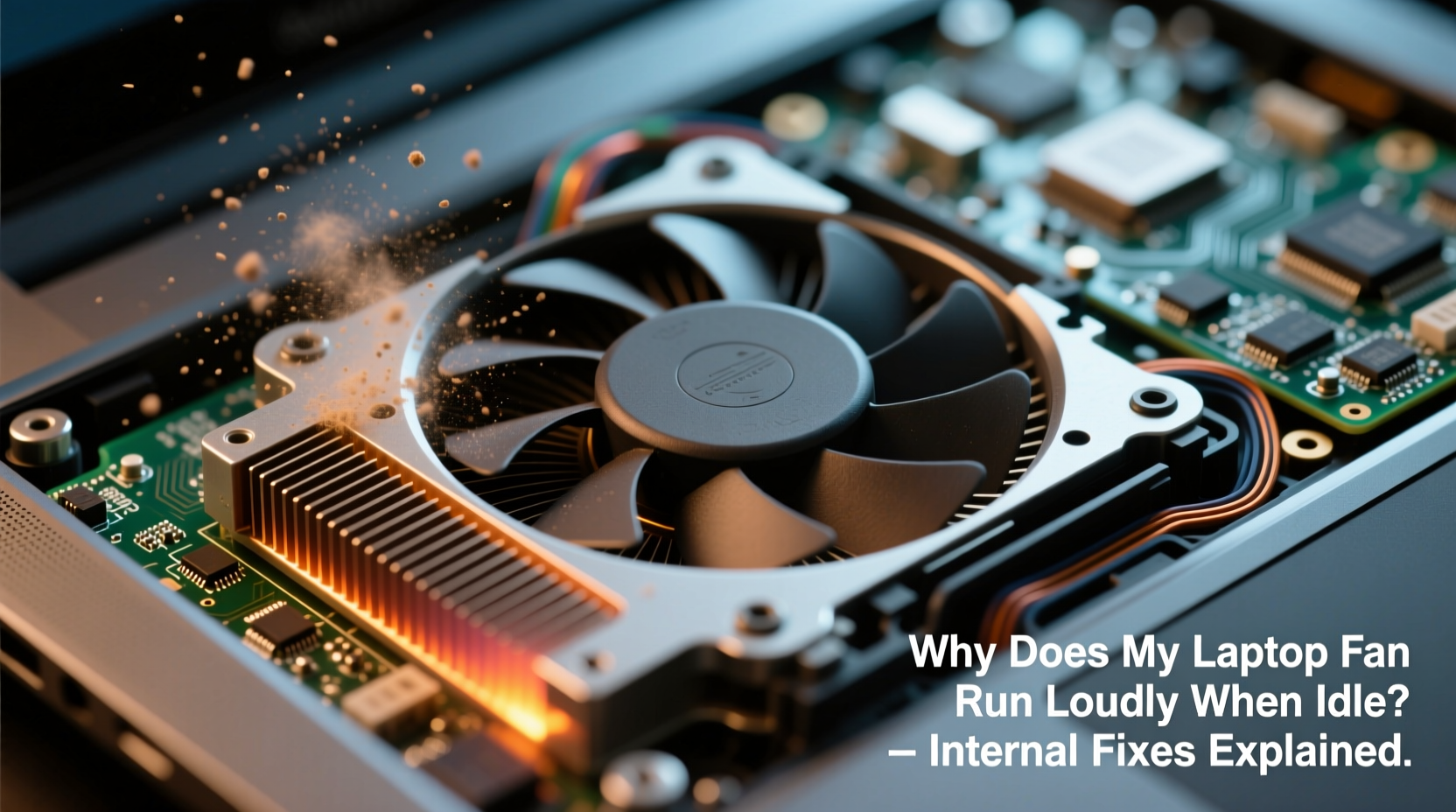
A laptop fan that runs loudly while the system appears idle often reflects hidden background processes, poor thermal management, or aging components. While some noise is normal under load, constant high-speed spinning suggests something is amiss. Below are the most frequent culprits:
- Background processes consuming CPU: Applications like updaters, antivirus scans, or browser tabs with autoplay videos can spike CPU usage without visible signs.
- Dust accumulation in vents and heatsinks: Over time, dust blocks airflow, reducing cooling efficiency and forcing the fan to work harder.
- Faulty thermal paste: On older laptops, dried-out thermal paste between the CPU and heatsink reduces heat transfer, leading to higher temperatures.
- Malware or cryptomining scripts: Hidden programs can run intensive computations in the background, increasing heat output.
- Power settings misconfigured: High-performance power plans keep the CPU clocked up unnecessarily, generating more heat.
- Failing fan or sensor: A malfunctioning fan may run continuously due to incorrect thermal readings or mechanical issues.
“Persistent fan noise on an idle laptop is rarely normal. It’s usually a symptom of inefficient resource use or degraded hardware.” — Dr. Alan Reyes, Hardware Systems Engineer
Step-by-Step Guide to Diagnose and Fix Fan Issues
Resolving loud fan noise requires a methodical approach. Jumping straight into disassembly or software reinstallation might not address the actual cause. Follow this structured timeline to identify and eliminate the problem efficiently.
- Monitor CPU and temperature usage: Use tools like Task Manager (Windows), Activity Monitor (macOS), or third-party apps such as HWMonitor or Core Temp to check real-time CPU load and temperatures. If CPU usage exceeds 15–20% at idle, investigate further.
- Identify resource-heavy background processes: Sort processes by CPU usage. Look for unfamiliar entries or known heavy users like Adobe Genuine Software Integrity Service, Google Update, or Java schedulers.
- Scan for malware: Run a full system scan using Windows Defender or a trusted antivirus tool. Some malware operates silently, mining cryptocurrency or logging keystrokes, which increases CPU load.
- Adjust power plan settings: Switch from “High Performance” to “Balanced” or “Power Saver” mode. This reduces CPU throttling and lowers baseline heat production.
- Clean internal components: Power off the laptop, disconnect the battery (if possible), and use compressed air to blow out dust from vents and fan blades. Avoid vacuum cleaners, which generate static electricity.
- Update BIOS and drivers: Outdated firmware or graphics drivers can cause improper fan control. Visit the manufacturer’s support site to download the latest versions.
- Reapply thermal paste (advanced): For laptops over two years old, consider replacing dried thermal paste. This requires partial disassembly and should be done carefully.
Do’s and Don’ts When Managing Laptop Cooling
Mistakes in maintenance or usage habits can worsen fan performance. The following table outlines best practices and common errors to avoid.
| Do’s | Don’ts |
|---|---|
| Use a hard, flat surface for optimal airflow | Place the laptop on soft surfaces like beds or couches |
| Clean vents every 3–6 months | Ignore visible dust buildup near exhaust ports |
| Enable automatic driver updates | Disable all background services indiscriminately |
| Use cooling pads for extended sessions | Block intake vents with hands or objects |
| Check fan behavior after OS updates | Run intensive tasks indefinitely without breaks |
Real Example: Resolving Fan Noise on a Dell XPS 13
A freelance writer using a 2018 Dell XPS 13 began noticing loud fan noise even when editing plain text documents. Despite no active applications, the fan would ramp up every few minutes. Initial checks showed CPU usage hovering around 22%, primarily attributed to \"Runtime Broker\" and \"Antimalware Service Executable.\"
Using Task Manager, she discovered that Windows Defender was performing frequent background scans. By adjusting Windows Security settings to limit scan times and excluding non-critical folders, CPU usage dropped to 7%. Additionally, she switched her power plan to \"Balanced\" and disabled startup programs like Dropbox and Skype.
After these changes, the fan remained silent during light work. Three months later, when noise returned slightly, she used compressed air to clean the side vents. Post-cleaning, internal temperatures decreased by 8°C under idle conditions, confirming that dust had begun to restrict airflow.
This case highlights how combining software optimization with periodic physical maintenance resolves most persistent fan issues.
Checklist: Silence Your Laptop Fan in 7 Steps
Use this concise checklist to systematically tackle fan noise problems:
- ✅ Open Task Manager and sort by CPU usage to spot hidden consumers
- ✅ Run a full antivirus and anti-malware scan
- ✅ Change power plan to “Balanced” or “Power Saver”
- ✅ Disable unnecessary startup programs
- ✅ Clean external vents with compressed air
- ✅ Update BIOS, chipset, and GPU drivers
- ✅ Consider professional cleaning or thermal paste replacement for older devices
When Hardware Intervention Is Necessary
Software fixes often resolve fan noise, but hardware limitations eventually require attention. Laptops older than three years commonly suffer from degraded thermal compounds, worn fan bearings, or clogged internal ducts inaccessible through external cleaning.
If software optimization and basic cleaning fail, consider professional servicing. Technicians can fully disassemble the unit, clean the heatsink and fan assembly, and reapply high-quality thermal paste. Some manufacturers offer certified maintenance packages that include ultrasonic cleaning for stubborn grime.
In extreme cases, replacing the fan module may be more cost-effective than repeated repairs. Units with soldered components or proprietary designs should only be serviced by authorized centers to avoid voiding warranties or causing damage.
Frequently Asked Questions
Is it harmful if my laptop fan runs constantly?
Not always. Fans are designed to cycle based on temperature. However, constant high-speed operation suggests inadequate cooling, which can shorten component lifespan due to sustained thermal stress. Investigate the cause if noise persists during low usage.
Can I disable the fan manually?
No. Disabling the fan—even temporarily—is dangerous. Without active cooling, CPUs and GPUs can overheat within seconds, triggering automatic shutdowns or permanent damage. Always address the root cause instead of tampering with safety mechanisms.
How hot should my laptop get under idle conditions?
Idle temperatures typically range between 35°C and 45°C (95°F–113°F). If your laptop exceeds 50°C at rest with no active programs, it indicates poor ventilation, excessive background load, or failing thermal management.
Conclusion: Take Control of Your Laptop’s Performance and Quietness
A loud laptop fan during idle moments isn't just annoying—it's a warning sign. Whether caused by rogue software, dust accumulation, or outdated thermal materials, the solution lies in proactive diagnosis and consistent care. Most issues can be resolved without professional help by monitoring system resources, optimizing settings, and maintaining cleanliness.
By understanding what drives fan behavior and applying practical fixes, you extend your laptop’s usability, improve battery life, and create a quieter, more efficient workspace. Don’t wait until overheating triggers shutdowns. Start today: check your CPU usage, clean those vents, and reclaim the calm productivity your machine was meant to deliver.
💬 Have a tip that silenced your noisy laptop? Share your experience in the comments and help others find relief from constant fan noise!