Microsoft Word has long been the cornerstone of professional writing, academic work, and daily documentation. But with the integration of AI through Microsoft 365 Copilot, Word is no longer just a word processor—it’s an intelligent assistant that helps you write, edit, summarize, and format with unprecedented efficiency. Many users, however, are unaware of how to activate or fully leverage these capabilities. This guide walks you through the essential steps to unlock Word’s full potential using Copilot, ensuring you’re not just typing words but working smarter.
Understanding Microsoft 365 Copilot in Word
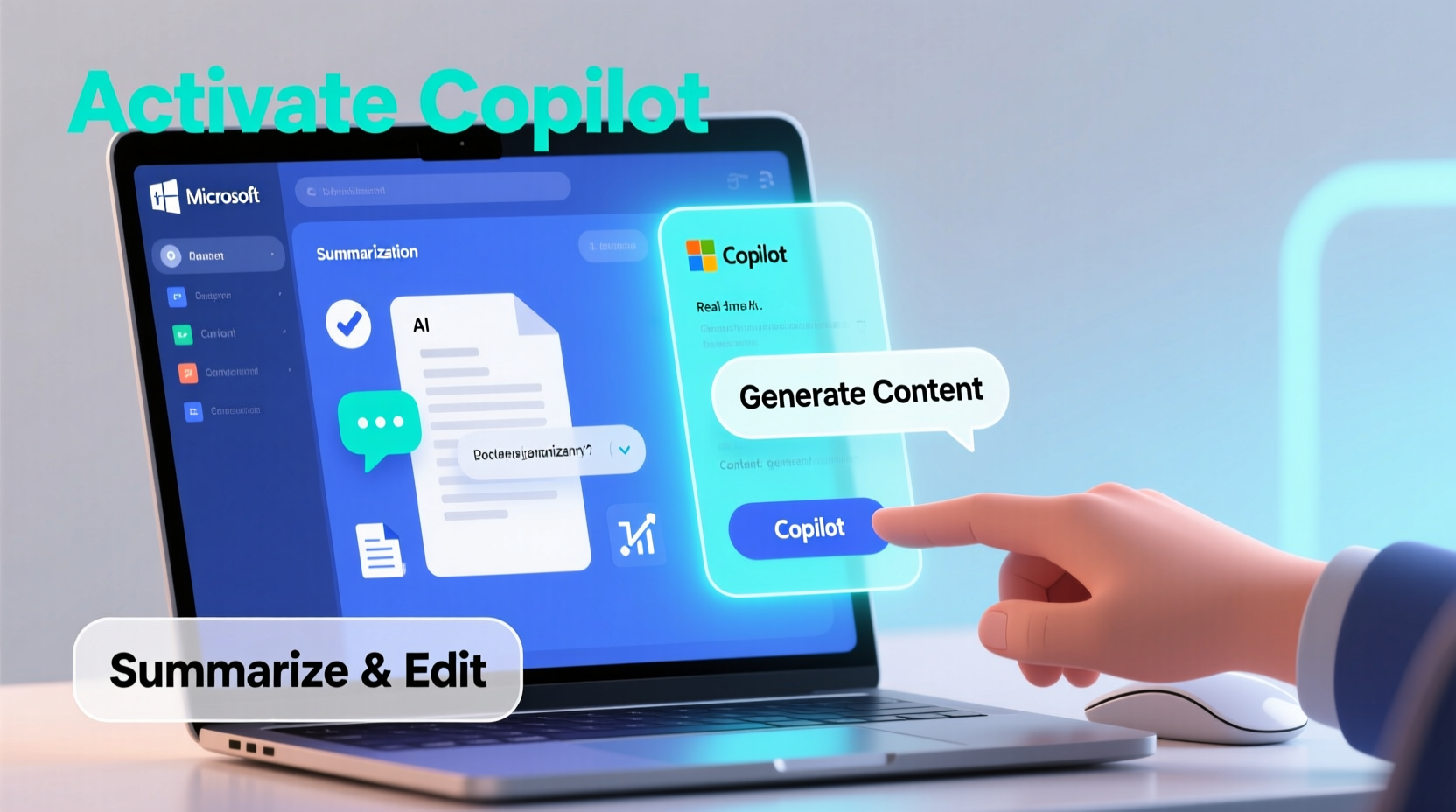
Copilot in Microsoft Word is powered by advanced AI and large language models, integrated directly into the Microsoft 365 ecosystem. It goes beyond grammar checks and spell correction, offering real-time suggestions for rewriting sentences, generating content from prompts, summarizing lengthy documents, and adjusting tone based on audience. The tool is designed to reduce cognitive load, allowing users to focus on ideas rather than mechanics.
To use Copilot in Word, you must have a compatible Microsoft 365 subscription—specifically, a commercial plan such as Microsoft 365 E3, E5, or Business Premium. Consumer subscriptions (like personal or family plans) currently do not support Copilot, though Microsoft may expand access in the future.
“Copilot isn’t about replacing human creativity—it’s about amplifying it. We see users saving up to two hours per day on routine writing tasks.” — Jared Spataro, Corporate Vice President, Microsoft 365
Step-by-Step Guide to Activating Copilot in Word
Activating Copilot requires administrative setup if you're part of an organization. For individual business subscribers, the process is straightforward but dependent on proper licensing and system configuration.
- Verify Subscription Eligibility: Ensure your Microsoft 365 plan includes Copilot access. Check your license under Admin Center > Users > Active Users > Licenses.
- Enable Copilot in the Admin Center: As an admin, go to admin.microsoft.com, navigate to “Settings” > “Org Settings” > “Microsoft 365 Copilot,” and turn it on.
- Assign Licenses: Assign a Copilot license to each user who needs access. This can be done individually or in bulk.
- Update Office Applications: Ensure Word is updated to version 2308 (Build 16733) or later. Go to File > Account > Update Options > Update Now.
- Launch Word and Sign In: Open Word, sign in with the licensed account, and look for the Copilot icon in the top-right corner of the ribbon.
Key Copilot Features and How to Use Them Effectively
Once activated, Copilot offers several powerful tools embedded within the Word interface. These features are context-aware, meaning they analyze your document’s content before responding.
Rewrite and Refine Text
Highlight any paragraph and click “Refine” in the Copilot panel to generate improved versions. You can choose tones like professional, concise, casual, or persuasive. This is particularly useful for emails, reports, or proposals where clarity and tone matter.
Generate Content from Prompts
Type a prompt in the Copilot sidebar—e.g., “Write a summary of this report for executives”—and Copilot will draft a response based on the current document. It pulls key points, maintains consistency, and avoids hallucinations by grounding responses in your text.
Summarize Long Documents
For lengthy manuscripts or research papers, use the “Summarize” feature to create abstracts, executive summaries, or bullet-point overviews. Adjust length preferences to get short, medium, or detailed summaries.
Create Outlines Automatically
Start with a blank document, type a topic, and ask Copilot to “Create an outline.” It will generate a structured hierarchy of sections and subsections, saving time in planning complex documents.
Adjust Tone and Style
Use the “Tone” tool to adapt writing for different audiences. Transform technical jargon into plain language for clients or elevate casual notes into formal submissions.
| Feature | Best Use Case | Access Method |
|---|---|---|
| Rewrite | Improving clarity and tone | Highlight text > Refine |
| Summarize | Condensing reports or articles | Copilot sidebar > Summarize |
| Prompt Generation | Drafting emails or content | Type request in sidebar |
| Outline Creator | Planning essays or presentations | New doc > “Create outline” |
| Tone Adjustment | Adapting communication style | Right-click suggestion or sidebar |
Real-World Example: Streamlining Report Creation
Sarah, a project manager at a mid-sized consulting firm, used to spend three hours every Friday compiling weekly status reports. She’d gather updates from team members, reformat inconsistent inputs, and rewrite sections for clarity. After her company enabled Copilot, she changed her workflow.
She pasted raw team updates into a new Word document, highlighted the text, and typed into Copilot: “Summarize this into a one-page client-ready report with a professional tone.” Within seconds, Copilot generated a clean, structured summary. Sarah reviewed it, made minor adjustments, and sent it off—cutting her reporting time to under 30 minutes.
This isn’t automation replacing judgment; it’s AI handling repetitive tasks so professionals can focus on strategy and relationships.
Best Practices and Common Pitfalls to Avoid
While Copilot enhances productivity, misuse can lead to generic content, privacy risks, or over-reliance. Follow these guidelines to maximize benefits while minimizing downsides.
- Always review AI output: Copilot suggests, not decides. Verify facts, tone, and relevance before finalizing.
- Avoid sensitive data in prompts: Even though Microsoft claims enterprise-grade security, refrain from inputting confidential financials, HR details, or customer PII.
- Don’t accept first drafts blindly: Use Copilot outputs as starting points. Customize them to reflect your voice and intent.
- Leverage feedback loops: If a suggestion misses the mark, refine your prompt. Instead of “Make it better,” try “Rewrite for a non-technical audience using simpler terms.”
FAQ: Common Questions About Word Copilot
Can I use Copilot offline?
No. Copilot requires an active internet connection and cloud processing. All requests are sent securely to Microsoft’s servers for AI analysis.
Is my data safe when using Copilot?
Yes, for eligible enterprise customers. Microsoft states that data processed by Copilot is not used to train public models and remains within your organization’s control. However, admins should enforce data loss prevention (DLP) policies.
Why doesn’t Copilot appear in my Word app?
Common reasons include: incorrect subscription tier, missing license assignment, outdated Office version, or regional availability restrictions. Confirm all prerequisites with your IT administrator.
Conclusion: Embrace the Future of Writing Today
The integration of Copilot into Microsoft Word marks a turning point in how we interact with documents. It’s no longer enough to know formatting shortcuts or track changes—modern productivity demands fluency with AI collaboration. By activating and thoughtfully using Copilot, you transform Word from a passive canvas into an active partner in communication.
Start small: use it to rewrite one paragraph, summarize a meeting note, or generate an outline. Build confidence, refine your prompts, and gradually integrate it into your daily workflow. The goal isn’t to let AI write for you—but to free your mind for higher-value thinking.
🚀 Ready to supercharge your writing? Activate Copilot today and experience the next generation of document creation. Share your first Copilot success story in the comments!