For writers, coders, remote workers, and anyone who spends hours at a keyboard, the physical experience of typing isn’t just a preference—it’s a necessity. A poor keyboard can lead to fatigue, discomfort, or even repetitive strain injuries over time. Two premium wireless keyboards dominate this space: the Logitech MX Keys and the Apple Magic Keyboard. Both are sleek, high-end peripherals designed for productivity, but when it comes to extended typing sessions—those 4-, 6-, or even 8-hour marathons—only one can truly claim superiority in comfort and tactile satisfaction.
This isn’t about brand loyalty or ecosystem integration. It’s about how each keypress feels under your fingers, how your wrists respond after hours of use, and whether the design supports sustained focus without distraction. We’ll break down every aspect that matters when choosing between these two contenders, from key switch mechanics to wrist support, real-world usage patterns, and subtle ergonomic details most reviews overlook.
Key Feel and Actuation: The Heart of Typing Comfort
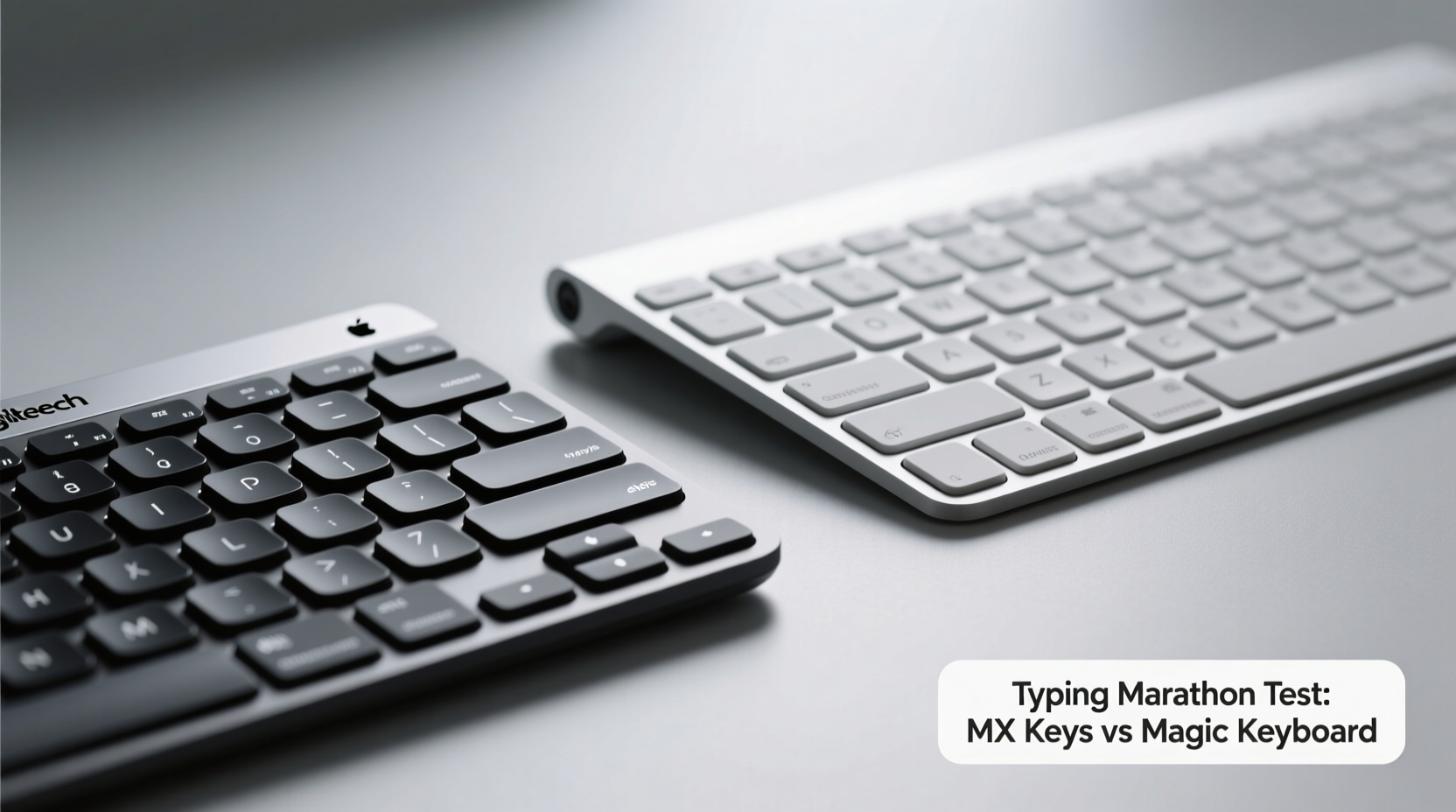
The sensation of pressing a key—the resistance, travel distance, feedback, and reset point—defines your relationship with a keyboard. These elements collectively influence speed, accuracy, and endurance during long typing sessions.
The **Logitech MX Keys** uses what Logitech calls “Perfect Stroke” keys. These are low-profile scissor switches with a 1.5mm key travel and optimized actuation force (around 50–55 grams). The keystroke is smooth, slightly damped, and consistent across the entire board. There's a soft landing and minimal bottoming-out noise, making it ideal for quiet environments. Most users describe the feel as “crisp” and “confident,” with enough feedback to know a key has registered without requiring excessive pressure.
In contrast, the **Apple Magic Keyboard** (particularly the version with numeric keypad) employs a modified scissor mechanism with a shorter 0.5mm travel. This results in an extremely shallow key press—snappy and fast, but lacking depth. While some touch typists appreciate the speed, others find it fatiguing over time due to reduced tactile differentiation between key states. The lack of travel means your fingers don’t get the same kinesthetic feedback, leading to over-typing or double-taps if rhythm falters.
Tip: If you rely on muscle memory and deep tactile cues, longer key travel like the MX Keys’ 1.5mm will reduce errors and strain during prolonged writing.From a biomechanical standpoint, shallower keys require more precision and less finger movement, which sounds efficient—but they also increase micro-muscle tension because there’s no \"give\" to absorb impact. Over hours, this can contribute to finger fatigue, especially for those with larger hands or heavier typing styles.
Ergonomics and Wrist Support: What Happens After Hour Three?
No amount of key perfection matters if your wrists begin to ache by mid-afternoon. Ergonomics go beyond posture; they include keyboard angle, height, palm contact, and overall hand alignment.
The **MX Keys** features a gently curved keywell and integrated rubber feet that allow for a slight negative tilt when used with laptop stands or risers. More importantly, it includes a built-in magnetic wrist rest made of soft-touch silicone. This rest isn’t an afterthought—it’s contoured to support the natural curve of the wrist and significantly reduces ulnar deviation (the inward bending of the wrist during typing).
The **Magic Keyboard**, while elegant, offers zero built-in wrist support. Its aluminum base is rigid and cold to the touch, and its default angle—even when elevated via the foldable stand—is positive rather than neutral. This forces the wrists into extension, increasing pressure on the carpal tunnel over time. Users often report numbness or tingling after extended use, particularly when paired with MacBook setups where screen height exacerbates poor posture.
“Even small changes in wrist angle can reduce median nerve compression by up to 30%. A supportive rest and neutral typing position are non-negotiable for marathon typists.” — Dr. Lena Torres, Occupational Therapist & Hand Biomechanics Researcher
Additionally, the MX Keys allows multi-device pairing and remembers settings per device, so switching between work and personal machines doesn’t disrupt your setup. The Magic Keyboard, while compatible with iPad and Mac, lacks cross-platform versatility and requires manual re-pairing, breaking workflow continuity.
Build Quality and Long-Term Durability
A keyboard meant for daily, intensive use must withstand wear without degrading in performance. Both keyboards use premium materials, but their longevity differs in critical ways.
| Feature | Logitech MX Keys | Apple Magic Keyboard |
|---|---|---|
| Frame Material | Aluminum top plate + matte plastic base | Full aluminum unibody |
| Keycaps | PBT with laser-etched legends | ABS with laser-cut legends |
| Switch Lifespan | 10 million keystrokes | Estimated 5–7 million |
| Spill Resistance | Yes (sealed membrane) | No |
| Battery Life | Up to 10 days (with backlight), 5 months (off) | Approx. 1 month (USB-C recharge) |
The PBT keycaps on the MX Keys resist shine and degradation far better than the Magic Keyboard’s ABS caps, which tend to become glossy and slippery after months of use. Additionally, the MX Keys’ backlighting adapts to ambient light, illuminating keys only when hands are near—this not only saves power but also reduces visual distraction during night writing.
While the Magic Keyboard’s all-metal construction looks stunning, it’s prone to scratches and fingerprints. More critically, any liquid spill renders it unusable, whereas the MX Keys’ sealed design provides protection against accidental coffee spills—a common hazard during late-night writing sprints.
Real-World Usage: A Writer’s Perspective
Consider Sarah, a freelance technical writer based in Portland, who transitioned from a mechanical desktop setup to remote work using a MacBook Pro and external keyboard. She initially chose the Magic Keyboard for its seamless integration with her Mac and minimalist aesthetic. Within three weeks, she began experiencing intermittent numbness in her right pinky and ring finger, along with growing dissatisfaction with typing accuracy.
After switching to the Logitech MX Keys, she noticed immediate improvements. “The keys feel more deliberate,” she said. “I’m not guessing whether a letter registered. And the wrist rest? Game-changer. I went from taking breaks every 45 minutes to writing for three hours straight without discomfort.”
Sarah isn’t alone. Numerous user reports on forums like Reddit’s r/MechanicalKeyboards and Stack Exchange highlight similar patterns: initial attraction to Apple’s design gives way to ergonomic frustration, while the MX Keys earns praise for consistency and fatigue reduction. One developer noted, “I code for 6+ hours a day. The MX Keys lets me forget I’m typing. The Magic Keyboard reminds me—with every shallow press.”
Step-by-Step Guide: Choosing the Right Keyboard for Your Typing Style
Selecting the best keyboard isn’t just about specs—it’s about matching the tool to your physiology and habits. Follow this decision framework:
- Assess your typing duration: If you type more than 3 hours daily, prioritize ergonomics and key travel. The MX Keys is superior here.
- Test your environment: Are you near liquids? Do you work in dim lighting? The MX Keys’ spill resistance and smart backlighting offer practical advantages.
- Check your device ecosystem: If you use multiple devices (Windows, Mac, Linux, iPad), the MX Keys’ multi-device Bluetooth and Easy-Switch buttons streamline transitions.
- Evaluate hand size and strength: Larger hands benefit from deeper key travel and wider spacing. The MX Keys has a slightly broader layout and better key isolation.
- Simulate a marathon session: Try both keyboards for at least 90 minutes of continuous typing. Note any signs of fatigue, mispresses, or discomfort.
Frequently Asked Questions
Can the Apple Magic Keyboard be used with Windows or Linux?
Yes, but functionality is limited. Media keys may not work correctly, and the lack of dedicated function row labels can cause confusion. Bluetooth pairing is less reliable outside macOS/iOS.
Is the Logitech MX Keys quieter than the Magic Keyboard?
Generally, yes. The MX Keys produces a softer, more muted sound due to dampened key bottoms and internal padding. The Magic Keyboard has a sharper, higher-pitched click that can be distracting in quiet spaces.
Does the MX Keys require Logitech software to function?
No, basic typing works out of the box. However, full customization (key remapping, flow control, backlight settings) requires Logitech Options+ software, available free for Mac and Windows.
Final Verdict: Which Keyboard Wins for Typing Marathons?
When judged purely on typing endurance, comfort, and long-term usability, the **Logitech MX Keys** emerges as the clear winner. It delivers a balanced blend of tactile feedback, ergonomic support, durability, and intelligent design features that directly address the needs of heavy typists.
The Apple Magic Keyboard excels in aesthetics and macOS integration, offering a satisfyingly crisp, fast typing experience suited for light to moderate use. But for those who live in documents, codebases, or long-form content creation, its shallow keys and lack of wrist support become liabilities over time.
The difference isn’t dramatic in a five-minute test. But after two hours? Three? Six? That’s when the MX Keys proves its value—not through flashy features, but through thoughtful engineering that respects the human body’s limits.
“The best keyboard doesn’t draw attention to itself. It disappears into the flow of thought. The MX Keys gets closer to that ideal than any other mainstream wireless model.” — Mark Rial, Senior UX Designer & Keyboard Enthusiast
Ready to Upgrade Your Typing Experience?
If you’ve been pushing through discomfort or battling typos during long sessions, it’s time to reconsider your tools. Small upgrades in input hardware yield outsized returns in productivity, accuracy, and physical well-being. The Logitech MX Keys isn’t just a keyboard—it’s an investment in sustainable focus.
💬 Have you switched from the Magic Keyboard to the MX Keys—or vice versa? Share your experience in the comments below. Your insight could help someone avoid months of wrist strain.