In the age of smartphones and multitasking, a persistent question lingers in the back of many users’ minds: should you manually close apps you’re not using, or is it safer and more efficient to just leave them be? The answer isn’t as simple as “yes” or “no.” It depends on your device type, operating system, usage patterns, and what kind of performance and battery life you expect. With myths circulating for over a decade—like “closing apps saves battery”—it’s time to separate fact from fiction with real-world insights and technical clarity.
Modern mobile operating systems like iOS and Android are designed with intelligent memory and power management. They don’t treat background apps the same way desktop programs work. Understanding how these systems function can help you make smarter decisions—not based on habit or hearsay, but on how your phone actually operates.
How Background Apps Actually Work
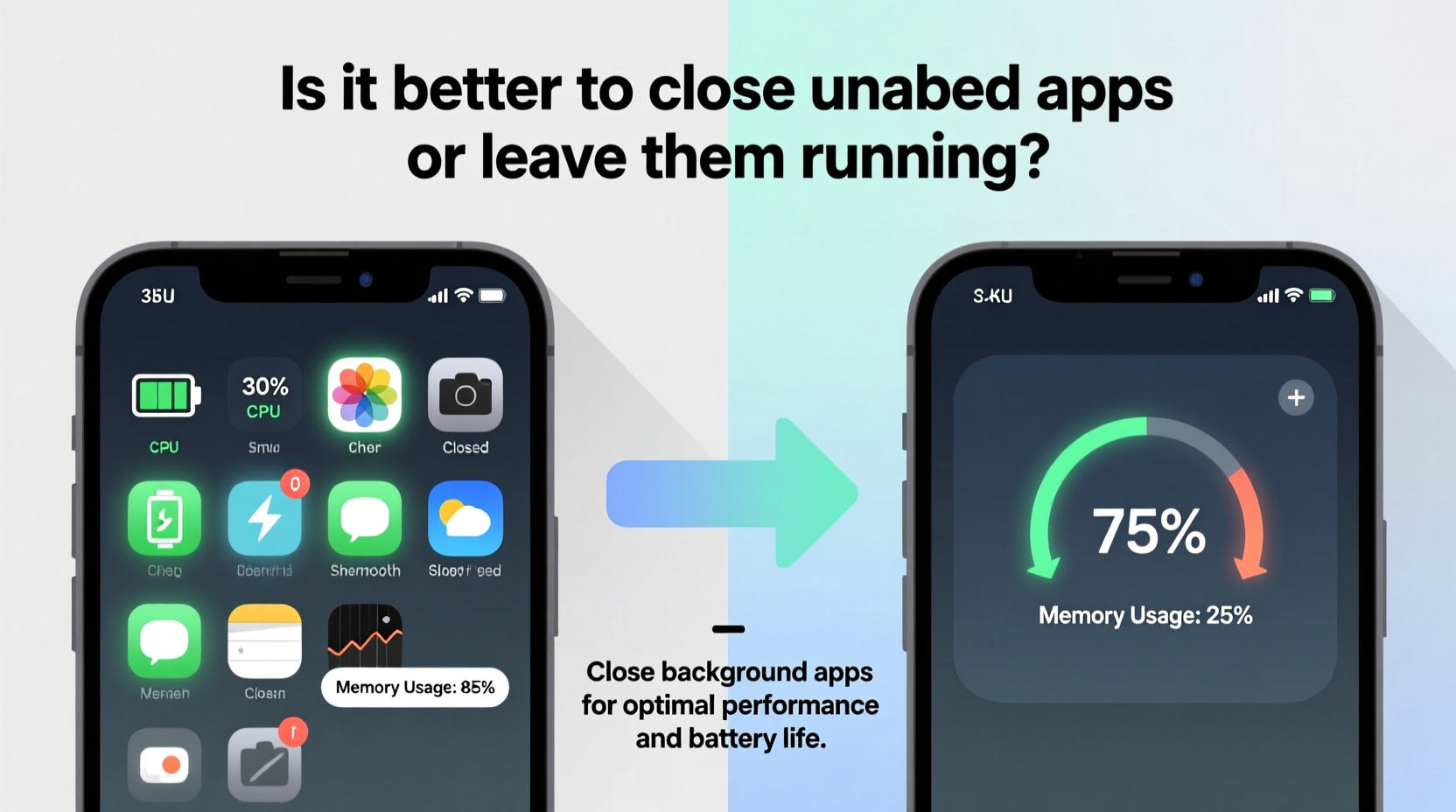
When you press the home button or swipe an app away from recent view, that app doesn’t continue running in full capacity. Instead, it enters a suspended or dormant state. In this state, the app consumes minimal CPU resources and typically no battery. It remains in RAM (random access memory) so that when you return to it, it resumes quickly—often appearing exactly where you left off.
This behavior is intentional. Loading an app from scratch requires more energy than resuming it from a suspended state. Every time you force-close an app and reopen it later, the system must reload data, re-establish connections, and redraw the interface—all of which use more battery and processing power than simply leaving it in standby.
“iOS and Android are built to manage app states efficiently. Manually closing apps frequently does more harm than good.” — Dr. Lena Torres, Mobile Systems Engineer at TechInsight Labs
The key misconception lies in equating visible presence in the app switcher with active resource consumption. Just because an app appears in your recent apps list doesn’t mean it’s draining your battery. Most are frozen, waiting quietly in the background until called upon again.
iOS vs. Android: Different Approaches, Similar Logic
While both platforms aim for efficiency, they handle background processes differently due to architectural distinctions.
| Feature | iOS | Android |
|---|---|---|
| Background State | Apps suspend immediately after leaving screen | Apps may run limited background tasks unless restricted |
| Memory Management | Aggressively purges inactive apps from RAM | Keeps more apps in memory; relies on garbage collection |
| Battery Impact of Closed Apps | Negligible benefit from manual closure | Slight risk of increased drain if reopened often |
| User Control | Limited; system manages most processes | More customization via settings and developer options |
On iOS, Apple maintains tight control over background activity. Once you leave an app, it has only a few seconds to complete any final tasks before being suspended. Exceptions exist for specific functions like music playback, navigation, or VoIP calls—but these are tightly regulated by the OS.
Android offers more flexibility but also more complexity. Some manufacturers add custom layers (like Samsung’s One UI or Xiaomi’s MIUI) that can alter default behaviors, sometimes allowing apps to run background services longer. This can lead to higher battery usage—but the solution isn’t mass-closing apps; it’s managing permissions and autostart settings.
Tip: Instead of closing apps, check your battery usage settings to identify which apps are truly consuming power—and restrict their background activity there.When You Should Close Apps (And When You Shouldn’t)
There are legitimate reasons to close apps manually—but they’re exceptions, not routine maintenance.
Close Apps When:
- An app is misbehaving: If an app is freezing, crashing repeatedly, or using excessive battery, force-closing it can stop the issue temporarily.
- You’re concerned about privacy: On shared devices, closing banking, messaging, or health apps ensures no one else can swipe into them accidentally.
- You’ve finished sensitive tasks: After logging into financial accounts or entering personal data, closing the app adds a small layer of security.
- You’re restarting after updates: Some apps require a fresh start post-update to apply changes correctly.
Don’t Close Apps When:
- You’re doing it habitually: Swiping away all apps every few hours offers no benefit and may reduce performance.
- The app resumes quickly: If opening Gmail or Spotify feels instant, it’s working as intended—don’t interfere.
- You’re trying to save battery: Studies show that users who constantly close apps often see shorter battery life due to repeated reloading.
Real-World Example: The Commuter’s Dilemma
Consider Sarah, a daily commuter who uses her phone heavily. She checks news in the morning, listens to podcasts during transit, replies to emails at work, and uses maps for directions home. At lunch, she reads articles, messages friends, and checks the weather.
By midday, Sarah notices her phone feels sluggish. Her instinct? Open the app switcher and swipe everything closed. She repeats this twice more before bedtime, believing it keeps her phone “clean.”
But here’s what happens behind the scenes: each time she closes her email app, it must reconnect to servers, sync new messages, and rebuild the inbox view. The podcast app loses its place and restarts buffering. Maps recalculates routes from scratch. Over the course of a day, this adds up to hundreds of unnecessary operations—each drawing extra power and slowing response times.
After switching to a “leave-it-be” approach and instead reviewing actual battery usage in settings, Sarah discovers that her weather widget and social media app were the real culprits. By restricting background refresh for those instead of closing everything, her battery lasted 22% longer, and her phone felt smoother overall.
Step-by-Step: Optimize App Behavior Without Closing Them
If you're looking to improve performance and battery life, follow this practical sequence instead of swiping apps away:
- Open Settings > Battery and review which apps consume the most power over 24 hours.
- Identify outliers: Is a navigation app using 40% battery while you drove for 20 minutes? That might be normal. Is your calculator using 15%? Investigate.
- Go to Settings > Apps and select high-usage apps. Check if they’re allowed to run background processes or autostart.
- Disable background refresh for non-essential apps (e.g., games, shopping, social media).
- Enable Low Power Mode (iOS) or Battery Saver (Android) to automatically limit background activity system-wide.
- Restart your device weekly to clear accumulated cache and reset system memory—this is far more effective than daily app-swiping.
This method targets actual inefficiencies rather than perceived clutter. It respects the OS’s built-in optimization while giving you control where it matters.
Expert Insight: What Engineers Say About App Management
Mobile developers and OS engineers consistently advise against routine app closing. The systems they build are designed to self-regulate.
“The idea that closing apps saves battery comes from a misunderstanding of how modern operating systems use memory. RAM isn’t battery—it’s a tool for speed. Keeping apps in memory improves responsiveness without cost.” — Mark Chen, Senior Android Framework Developer
Chen explains that RAM is meant to be used, not conserved. A phone with 6GB of RAM should ideally have most of it occupied—not because apps are running, but because they’re ready. Freeing RAM manually forces the system to refill it later, creating inefficiency.
Apple has long maintained this stance. In official support documentation, they state: “Closing apps won’t make your iPhone battery last longer. In fact, it could use more battery because the system has to reload the app from scratch.”
FAQ: Common Questions About Closing Apps
Does leaving apps open slow down my phone?
Not usually. Modern phones suspend background apps, so they don’t consume CPU or battery. However, if your device has very limited RAM (e.g., under 3GB), having too many apps loaded may cause frequent reloading. Even then, closing apps manually isn’t the fix—upgrading your device or limiting multitasking is more effective.
Why do some apps still use battery in the background?
Certain apps need background access for core functionality: music players, fitness trackers, messaging apps, and location-based services. These are optimized to use minimal resources, but poor coding or bugs can cause excess drain. Use battery settings to detect such cases and disable background permissions if needed.
Is it safe to leave banking apps open?
Yes, but with caveats. Most banking apps automatically log out after a short period of inactivity or lock when the device locks. For added security, enable biometric authentication and avoid saving login details on shared devices. Closing the app manually adds little extra protection but can provide peace of mind.
Checklist: Smart App Management Habits
- ✅ Review battery usage weekly to spot abnormal drains
- ✅ Disable background refresh for non-critical apps
- ✅ Restart your phone once a week for optimal performance
- ✅ Use built-in battery saver modes during heavy usage
- ✅ Avoid force-closing apps unless they’re malfunctioning
- ✅ Keep your OS and apps updated for improved efficiency
- ✅ Trust the system—modern OSes are designed to manage themselves
Conclusion: Work With Your Phone, Not Against It
The habit of closing unused apps stems from a well-intentioned desire to maintain control over our devices. But in doing so, many users unknowingly undermine the very systems designed to serve them best. Rather than fighting your phone’s intelligence, learn to trust it. Let iOS or Android manage memory and processes as intended.
True optimization comes not from ritualistic swiping, but from informed choices: understanding which apps use resources, adjusting settings wisely, and relying on system-level tools. When an app misbehaves, yes—close it. But don’t make it a daily chore. Your phone isn’t a desktop computer from 2005. It’s a sophisticated piece of engineering built to adapt to how you use it.
💬 What’s your take? Do you close apps regularly, or have you switched to a hands-off approach? Share your experience and help others find the right balance between control and convenience.