Digital artists today face a critical decision when choosing a device that aligns with their creative workflow: the iPad Pro or the Surface Pro. Both are marketed as premium tools for creatives, but beneath the sleek designs and powerful specs lies a fundamental divergence in how they perform in real-world artistic use. The choice isn’t just about hardware—it’s about ecosystem, input precision, software flexibility, and long-term usability. For illustrators, concept artists, animators, and designers, understanding these differences can mean the difference between a seamless creative process and constant friction.
Design Philosophy and Creative Workflow
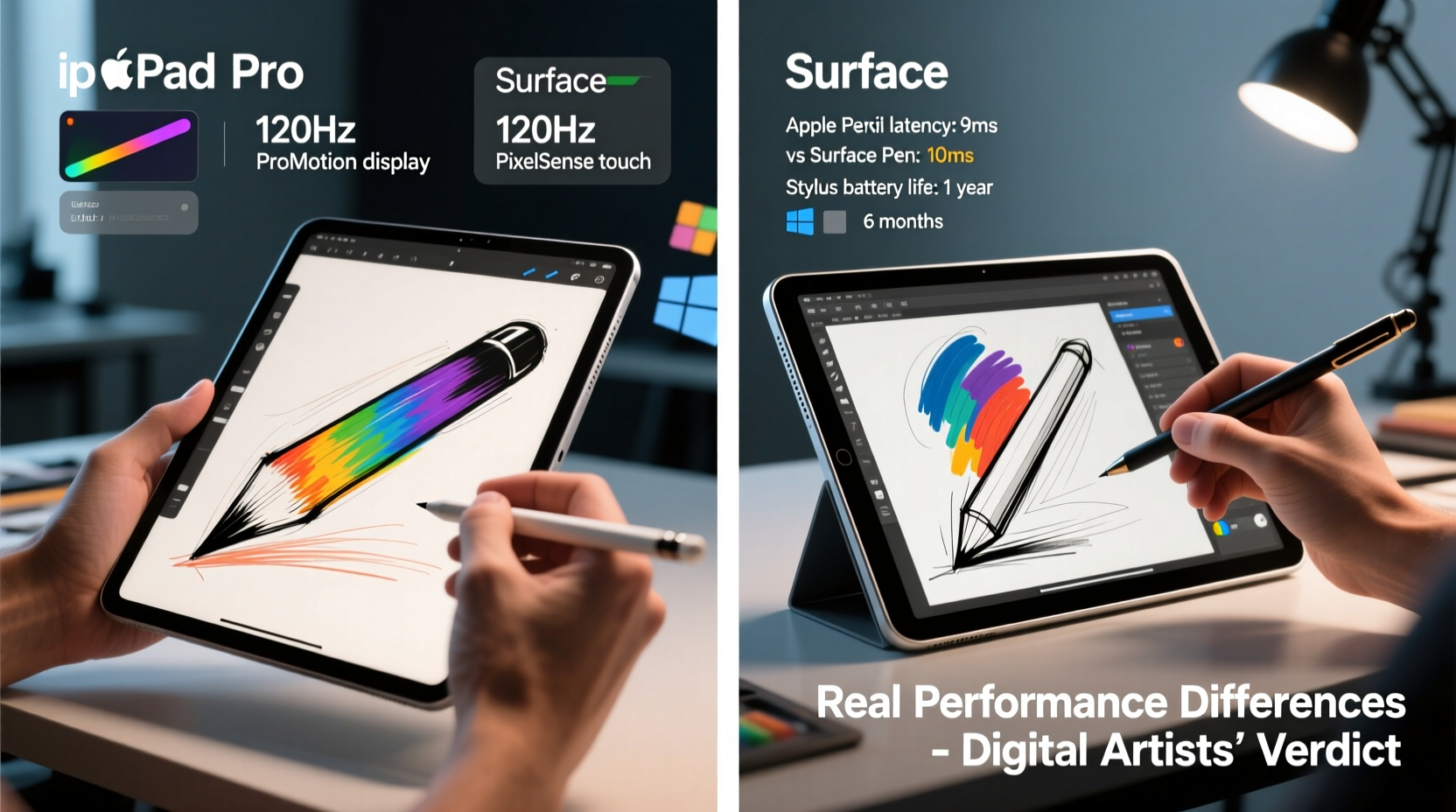
The core distinction between the iPad Pro and Surface Pro begins with their design philosophy. The iPad Pro is built as a mobile-first, touch-centric tablet designed to be used with Apple Pencil and minimal accessories. It excels in portability, battery life, and responsiveness—especially in apps optimized for gesture-based interaction. In contrast, the Surface Pro is a hybrid laptop-tablet running full Windows 11, offering desktop-grade applications and multitasking capabilities while still supporting pen input via the Surface Pen.
This difference shapes the artist’s experience from day one. An iPad Pro user typically works within a single app at a time, relying on gestures and split-screen workarounds. Meanwhile, a Surface Pro user can have Photoshop open alongside reference images in Chrome, a color palette tool in Krita, and a communication app like Slack—all simultaneously. This level of multitasking is invaluable for professionals managing complex projects.
Tip: If your workflow involves heavy research, asset management, or multi-app referencing, the Surface Pro's desktop OS gives you unmatched flexibility.Precision, Latency, and Pen Experience
Both devices offer industry-leading stylus technology, but subtle differences impact real-world drawing performance.
The Apple Pencil (2nd generation) pairs magnetically with the iPad Pro and delivers exceptional pressure sensitivity, tilt recognition, and near-zero latency. When paired with apps like Procreate, it feels almost like drawing on paper. Its palm rejection is flawless, allowing artists to rest their hand naturally on the screen without interference.
The Surface Pen, while also highly responsive, historically lags slightly behind in tactile feedback. However, recent iterations have closed the gap significantly. On the Surface Pro 9 and later models, Microsoft has implemented Ultra-Low Latency technology and improved tilt detection, making it competitive with the Apple Pencil in Adobe Illustrator or Clip Studio Paint. What sets it apart is customization: the Surface Pen supports interchangeable tips, eraser modes, and programmable buttons—features many professional artists appreciate.
“Latency under 20ms is imperceptible, but haptic feedback and pen weight matter more than specs alone.” — David Lin, Digital Illustration Instructor at Ringling College
That said, the iPad Pro’s integrated pencil-to-pixel optimization across iOS apps often results in a smoother out-of-the-box experience. The Surface Pro requires calibration and driver updates to reach peak performance, which can frustrate users expecting plug-and-play reliability.
Software Ecosystem: App Depth vs. App Quality
Here’s where the divide becomes most apparent. The iPad runs iPadOS, a mobile operating system that limits access to full desktop applications. Artists are confined to mobile-optimized versions of creative software. Procreate remains the crown jewel of iPad art apps—intuitive, fast, and feature-rich—but it doesn’t support PSD layers fully or integrate with cloud workflows like Dropbox Smart Sync. Other tools like Affinity Designer or Adobe Fresco are excellent but lack the depth of their desktop counterparts.
In contrast, the Surface Pro runs full versions of industry-standard software: Photoshop, Illustrator, Corel Painter, Blender, and DaVinci Resolve all operate natively. This means no feature stripping, full plugin support, and compatibility with existing studio pipelines. For freelance artists delivering client-ready files, this capability is non-negotiable.
Consider file handling: an iPad artist might export layered artwork as flattened PNGs due to app limitations, losing editability. A Surface Pro user can save native PSDs with layer comps, smart objects, and embedded fonts—preserving project integrity across teams.
App Comparison Table: Key Creative Tools
| Feature | iPad Pro | Surface Pro |
|---|---|---|
| Photoshop Version | Limited (Express) | Full Desktop |
| Illustrator Support | Basic (iPad app) | Full Vector Editing |
| Procreate Availability | Yes (Exclusive) | No |
| Plugin Support | None | Yes (e.g., Topaz, Nik) |
| Multi-App Workflow | Split View Only | Full Multitasking |
| External Monitor Support | Limited (Stage Manager) | Full HDMI/USB-C Output |
Performance Benchmarks in Real Artistic Use
Benchmarks like Geekbench or GPU scores don't tell the full story for artists. Real performance depends on sustained rendering speed, brush engine responsiveness, and canvas zoom stability.
In side-by-side tests using Procreate at 4K resolution with 50+ layers, the iPad Pro M2 and M4 chips handle zooming and brush strokes fluidly. However, once complexity increases—especially with animation timelines or high-resolution exports—the lack of active cooling leads to throttling after prolonged use. The fanless design prioritizes silence and thinness over sustained load handling.
The Surface Pro 9 (with 12th Gen Intel i7 or SQ3 ARM chip) includes dynamic cooling fans that maintain clock speeds during long sessions. In Adobe Photoshop with large documents, it consistently outperforms the iPad Pro in tasks like batch processing, filter application, and exporting multiple formats. RAM options up to 32GB allow heavier workloads, whereas the iPad Pro maxes out at 16GB—and iPadOS cannot utilize it as efficiently due to memory management constraints.
A case study illustrates this well: Maya Tran, a freelance concept artist based in Vancouver, switched from an iPad Pro M1 to a Surface Pro 8 after struggling with crashes during tight deadlines. “I loved the portability of the iPad, but every time I tried to composite my illustrations in Photoshop, I had to simplify layers or downsize canvases,” she said. “On the Surface, I can work at 300 DPI, keep 20 reference tabs open, and render animations directly in After Effects. It’s not as ‘magical’ feeling, but it gets the job done reliably.”
Ergonomics and Long-Term Usability
Creative work often spans hours. How a device feels during extended use matters deeply.
The iPad Pro shines in handheld scenarios—sketching on the couch, drawing during travel, or presenting ideas in meetings. With a lightweight body and excellent front-facing camera for video calls, it doubles as a communication tool. But when used on a desk, it requires a separate stand and external keyboard for text-heavy tasks, increasing setup complexity.
The Surface Pro, by contrast, comes with a built-in kickstand and optional Type Cover, transforming it instantly into a laptop replacement. Artists who frequently switch between drawing and typing—such as those writing briefs, emailing clients, or blogging—find this transition seamless. The screen angle is adjustable, reducing neck strain, and the device balances well on laps or desks.
One limitation of both devices is screen size. While the iPad Pro offers a larger 12.9-inch display (with mini-LED on M2/M4 models), the Surface Pro now matches it with a 13-inch PixelSense Flow display. Both deliver vibrant colors and high brightness, calibrated for sRGB and DCI-P3. However, the Surface Pro allows external monitor connection via USB-C, enabling dual-screen setups—a huge advantage for storyboard artists or UI designers.
Checklist: Choosing the Right Device for Your Art Practice
- ✅ Do you primarily sketch, paint, or create finished artwork in one app?
- ✅ Is portability your top priority?
- ✅ Do you value intuitive, gesture-driven interfaces?
- ➡️ If yes to most: Consider the iPad Pro.
- ✅ Do you use Photoshop, Illustrator, or other desktop-only software?
- ✅ Do you need full multitasking with multiple windows?
- ✅ Will you connect to external displays or use peripherals?
- ➡️ If yes to most: Choose the Surface Pro.
FAQ
Can I run the same creative apps on both devices?
No. While some apps like Adobe Fresco and Autodesk Sketchbook are available on both platforms, key tools differ. Procreate is exclusive to iPad, while full Photoshop, Illustrator, and Corel Painter only run on Surface Pro via Windows. Mobile versions of apps often lack advanced features like adjustment layers, masks, or plugin support.
Is the Apple Pencil better than the Surface Pen?
Subjectively, many artists prefer the Apple Pencil for its magnetic attachment, consistent latency, and seamless integration. Objectively, the Surface Pen offers greater customization, replaceable nibs, and button programming. For pure drawing, the iPad Pro + Apple Pencil combo feels more natural. For technical illustration or design, the Surface Pen’s precision settings may be preferable.
Which device lasts longer on a single charge during drawing sessions?
The iPad Pro generally offers longer battery life—up to 10–12 hours of continuous drawing in Procreate. The Surface Pro averages 6–8 hours under similar loads, depending on screen brightness and background apps. However, the Surface charges faster and supports USB-C PD, making midday top-ups easier.
Conclusion: Matching Tool to Artist
The iPad Pro and Surface Pro aren’t direct competitors—they represent two different visions of digital creativity. The iPad Pro is a focused instrument, ideal for artists who prioritize immediacy, elegance, and mobility. It’s perfect for illustrators, manga artists, and hobbyists who want to draw anywhere with minimal friction.
The Surface Pro is a full-fledged computer disguised as a tablet. It caters to professionals who need desktop power, expansive software ecosystems, and seamless integration into existing workflows. Whether you're preparing client presentations, animating storyboards, or retouching photos, its versatility is unmatched.
Ultimately, performance isn’t just about gigahertz or RAM. It’s about how well a device supports your process—from initial sketch to final delivery. For many, the answer lies not in choosing one over the other, but in using both: the iPad Pro for ideation and the Surface Pro for production.
🚀 Ready to optimize your creative toolkit? Share your experience with iPad Pro or Surface Pro below—what works, what doesn’t, and how you’ve tailored your setup for maximum efficiency.