For digital artists, choosing the right creative device isn't just about preference—it's about workflow, precision, and long-term satisfaction. Two of the most powerful tools in this space are the iPad Pro and the Microsoft Surface Pro. Both offer high-resolution displays, pressure-sensitive styluses, and sleek designs tailored for creatives. But when it comes down to daily use in illustration, photo editing, animation, or concept design, which one truly excels?
This comparison dives deep into the core aspects that matter most to artists: display quality, stylus performance, software ecosystem, multitasking capabilities, and overall portability. Whether you're a professional illustrator, hobbyist painter, or a designer on the move, understanding these differences will help you make an informed decision.
Display and Drawing Experience
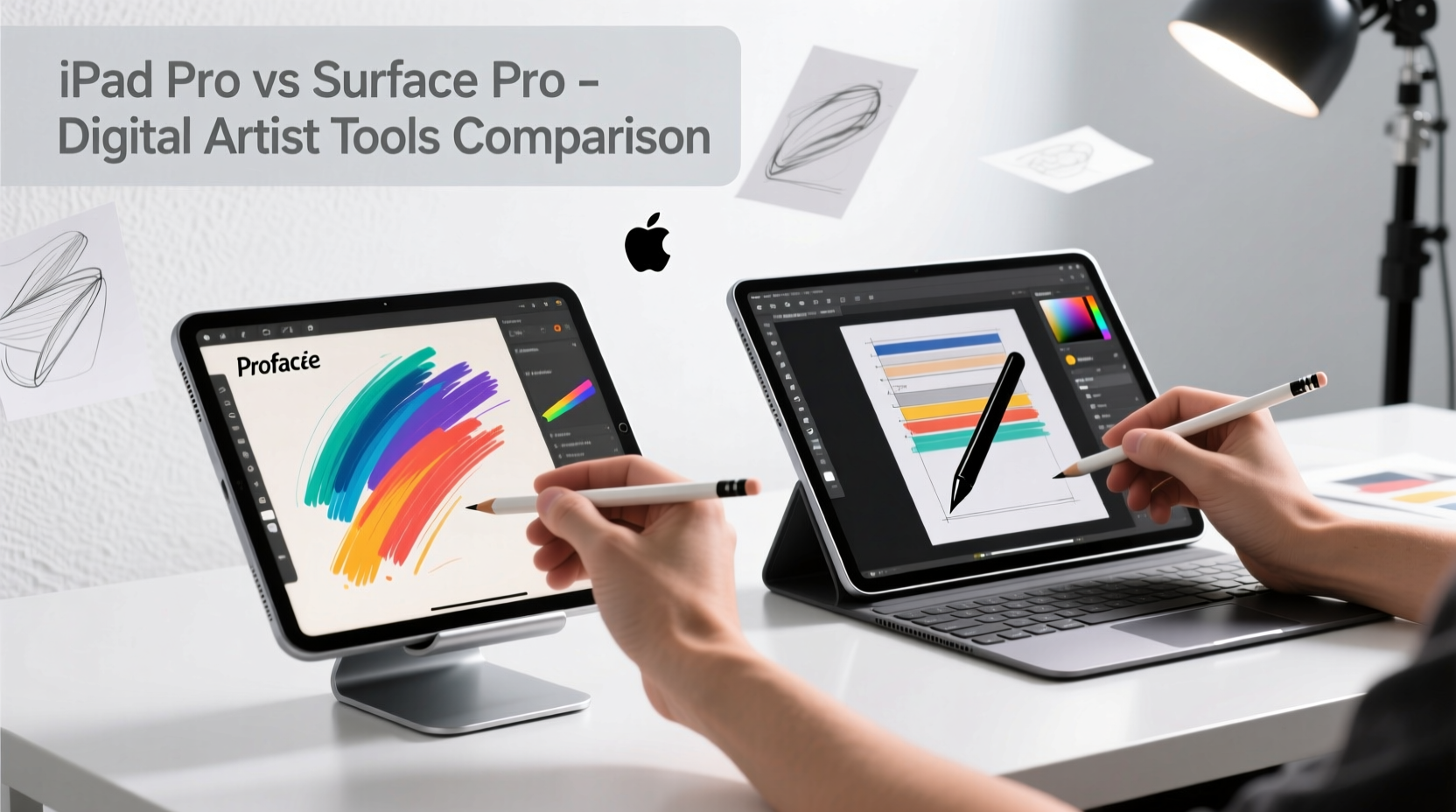
The foundation of any digital art device is its screen. Artists need accurate color reproduction, high resolution, minimal parallax, and a responsive surface that feels natural under the stylus.
The iPad Pro features a Liquid Retina XDR display with ProMotion technology, offering a 120Hz refresh rate across all models. This means smoother brush strokes, reduced lag, and a more lifelike drawing feel—especially crucial when sketching fast gestures or animating frames. The OLED panels (on M4 models) deliver deep blacks, exceptional brightness up to 1600 nits, and support for P3 wide color gamut, making it ideal for color-critical work.
Meanwhile, the Surface Pro (11th Gen, 2024) uses a PixelSense Flow display with a 120Hz refresh rate and touch latency improvements. It supports Dolby Vision IQ and reaches up to 1200 nits peak brightness. While color accuracy is excellent out of the box—calibrated for sRGB and DCI-P3—the matte finish option reduces glare, which many artists prefer during long sessions.
One subtle but important difference is the glass texture. The iPad Pro ships with a glossy screen by default, though Apple offers a matte screen protector (for an extra $199). In contrast, Microsoft includes an optional anti-glare etched glass upgrade at purchase, giving artists immediate access to a paper-like drawing surface without third-party accessories.
Tip: If you draw for extended periods, consider a matte screen finish to reduce finger smudges and improve pen grip.Stylus Performance: Apple Pencil vs Surface Pen
The stylus is the artist’s primary tool. Latency, tilt sensitivity, palm rejection, and physical feedback determine how intuitive and expressive the experience feels.
The Apple Pencil (USB-C or Pro) remains unmatched in responsiveness. With ultra-low latency as low as 8ms on supported apps and hardware, and industry-leading tilt and pressure sensitivity, it behaves like a real pencil. Features like magnetic attachment, wireless charging, and double-tap gesture (on older models) add convenience. The new Apple Pencil Pro adds haptic feedback and a squeeze gesture, enhancing control during brush selection.
The Surface Pen has improved significantly. The latest version supports 4,096 levels of pressure sensitivity, tilt detection, and low latency (~9ms in optimized apps). It attaches magnetically and charges via USB-C. However, some users report inconsistent performance across apps, particularly outside Microsoft’s native ecosystem. Third-party apps may not fully utilize its capabilities, leading to slight lag or reduced sensitivity.
“After switching from Wacom to iPad Pro, I noticed my hand fatigue dropped dramatically. The Pencil feels weightless and responds instantly.” — Lena Torres, Concept Artist at Framestore
Software Ecosystem and Creative Apps
No matter how good the hardware, creative potential depends on software. This is where the fundamental divide between iPad Pro and Surface Pro becomes clearest.
iPadOS is optimized for touch-first workflows. Leading apps like Procreate, Adobe Fresco, Clip Studio Paint, and Pixelmator Pro are built specifically for the platform, leveraging GPU acceleration and Apple’s Metal framework for buttery-smooth performance. Procreate alone has become a standard in digital illustration due to its intuitive interface, vast brush library, and animation features.
However, iPadOS still lacks full desktop-class multitasking. While Stage Manager allows overlapping windows, app compatibility remains spotty. File management is more restrictive than traditional operating systems, and external monitor support is improving but not yet seamless.
Surface Pro runs full Windows 11, giving artists access to the complete suite of professional software: Photoshop, Illustrator, ZBrush, Blender, CorelDRAW, and SAI2. You can run multiple programs simultaneously, use keyboard shortcuts fluently, connect external drives, and customize your workspace extensively. For artists working in 3D modeling, animation pipelines, or complex layered compositions, this flexibility is invaluable.
That said, some touch-optimized apps on Windows still feel secondary to mouse-and-keyboard design. Touch gestures aren’t always consistent, and UI scaling can be awkward on the 13” or 15” screens. Still, the ability to install any software—even Linux-based tools—gives Surface Pro a clear edge for hybrid creators who code, edit video, or manage large projects.
Performance and Hardware Capabilities
Both devices now use ARM-based processors—Apple’s M-series chips and Qualcomm’s Snapdragon X Elite in the Surface Pro—but they approach performance differently.
The iPad Pro with M4 chip delivers staggering computational power. Its neural engine accelerates machine learning tasks, enabling real-time AI brushes in apps like Adobe Sensei or instant background removals. Video editors using DaVinci Resolve on iPad can export 4K timelines smoothly. Thermal design is passive (fanless), ensuring silent operation—a plus in quiet studios or recording environments.
The Surface Pro 11 with Snapdragon X Elite promises desktop-level performance with better battery life than previous Intel models. Early benchmarks show strong multi-threaded performance and efficient thermal management. However, emulation overhead for x64 apps can affect performance in legacy creative software. Native ARM versions of major Adobe apps are still rolling out, so compatibility isn’t universal yet.
RAM options differ too. iPad Pro maxes out at 16GB unified memory, while Surface Pro offers configurations up to 32GB RAM���important for handling large PSD files, 3D renders, or multitasking-heavy workflows.
| Feature | iPad Pro (M4) | Surface Pro 11 (Snapdragon X Elite) |
|---|---|---|
| Processor | Apple M4 (up to 10-core GPU) | Snapdragon X Elite (12-core Oryon CPU) |
| Max RAM | 16GB | 32GB |
| Storage Options | 128GB – 2TB | 256GB – 2TB |
| Battery Life (Creative Use) | ~8–10 hours (drawing/video) | ~9–11 hours (mixed workload) |
| Cooling | Fanless (passive) | Fan-assisted (active) |
| Ports | USB-C / Thunderbolt 4 | USB-C / Thunderbolt 4 + Surface Connect |
Portability, Flexibility, and Real-World Use
Artists often work in different environments—on location, in cafes, at client meetings, or in shared studio spaces. Portability and form factor play a big role in usability.
The iPad Pro is thinner and lighter. The 11-inch model weighs just 464g; the 13-inch is 609g. Paired with the Magic Keyboard or a third-party folio, it transforms into a laptop replacement, but only when needed. Without accessories, it slips easily into a backpack or tote.
The Surface Pro starts at 876g (lighter than past models but still heavier than the iPad). When attached to the Type Cover and Surface Pen, it becomes a self-contained workstation. The kickstand offers adjustable angles, useful for drawing on tables or laps. Unlike the iPad, it doesn’t require Bluetooth pairing for basic functions—everything works plug-and-play.
A mini case study illustrates this well: Maya Chen, a freelance storyboard artist, uses her iPad Pro on film sets. She values its quick wake-from-sleep function, silent operation, and ability to open Procreate instantly. “I don’t have time to boot up or wait,” she says. “The iPad wakes up like a notebook—I flip it open and start drawing.”
In contrast, James Reed, a UX designer and part-time illustrator, relies on his Surface Pro for both client presentations and nightly sketching. He runs Figma, Illustrator, and Slack side-by-side. “I need to switch contexts fast. The Surface lets me go from meeting mode to creative mode without missing a beat.”
Step-by-Step Guide: Choosing Based on Your Workflow
Here’s a practical sequence to help you decide which device aligns with your artistic needs:
- Assess your primary software. Do you rely on Procreate, Fresco, or Clip Studio? → Lean toward iPad Pro. Do you use Photoshop, ZBrush, or After Effects heavily? → Surface Pro is better suited.
- Evaluate multitasking needs. If you frequently reference images, watch tutorials, and draw simultaneously, test window management on both systems. Surface handles this more naturally.
- Consider mobility. Are you constantly traveling or working in tight spaces? The iPad’s lighter weight and longer standby time give it an edge.
- Test the stylus feel. Visit a store if possible. Try drawing curved lines, shading with tilt, and using palm rejection. Note which feels more natural to your hand.
- Factor in budget and accessories. Add the cost of keyboard, pen, and screen protector. The iPad Pro ecosystem can become expensive quickly, especially with the new Apple Pencil Pro and Magic Keyboard.
Checklist: Must-Have Features for Digital Artists
- Low-latency stylus with tilt and pressure sensitivity
- High-refresh-rate display (120Hz minimum)
- Color-accurate screen (P3 or DCI-P3 support)
- At least 8 hours of active drawing battery life
- Matte or anti-glare screen option
- Dedicated creative apps with regular updates
- Support for external monitors (if needed)
- Reliable palm rejection and hand rest functionality
FAQ
Can I use the iPad Pro for professional illustration work?
Absolutely. Many professional illustrators, including those in animation and publishing, use the iPad Pro with Procreate or Adobe Fresco as their main tool. Its portability, app optimization, and Apple Pencil precision make it highly capable for client-ready artwork.
Is the Surface Pro good for beginners in digital art?
Yes, especially if you plan to grow into advanced software. While the learning curve may be steeper than iPadOS, Windows offers a full creative suite and greater customization. Beginners who also want to learn photo editing, 3D modeling, or graphic design will benefit from the broader software access.
Which has better battery life for drawing?
In real-world usage, the iPad Pro typically lasts slightly longer during continuous drawing sessions—around 9–10 hours—due to its fanless design and efficient iOS optimization. The Surface Pro averages 8–9 hours under similar loads, though newer Snapdragon models are closing the gap.
Final Verdict: Which Should You Choose?
The iPad Pro is the ultimate focused creative canvas. It shines when your workflow revolves around drawing, painting, and mobile creativity. Its seamless integration of hardware and software, combined with best-in-class stylus performance, makes it the top choice for illustrators, concept artists, and comic creators who value immediacy and elegance.
The Surface Pro, on the other hand, is the versatile powerhouse. It’s not just a drawing tablet—it’s a full computer. For artists who also edit photos, animate in 3D, manage portfolios, or collaborate in design teams, the Surface Pro offers unmatched flexibility. Running native Windows software eliminates compatibility concerns and supports complex project structures.
“The right tool depends on whether you see yourself as a digital painter first or a multidisciplinary creator.” — Daniel Kim, Digital Art Instructor at RISD
Conclusion
There’s no single “best” device—only the best fit for your creative journey. If your priority is pure artistic expression with minimal friction, the iPad Pro delivers an unrivaled experience. But if you demand full control over your environment, software, and workflow, the Surface Pro stands tall as a true creative workstation.
Take stock of your habits, your preferred apps, and your long-term goals. Test both devices if possible. And remember: the most powerful tool is the one that disappears into your process, letting your creativity take center stage.
💬 Have you switched between iPad Pro and Surface Pro? What changed your mind? Share your story in the comments and help fellow artists make the right choice!