For digital artists, choosing the right device isn’t just about screen size or battery life—it’s about how well the tool responds to your hand, supports your creative process, and integrates with the software you rely on. Two leading contenders in the hybrid tablet space are the Apple iPad Air and Microsoft Surface Pro. Both offer stylus support, portability, and powerful hardware, but they diverge significantly in pen technology, drawing experience, and app ecosystems. Understanding these differences is essential for artists who depend on precision, responsiveness, and seamless workflows.
Pen Precision: How Each Device Handles Pressure, Tilt, and Latency
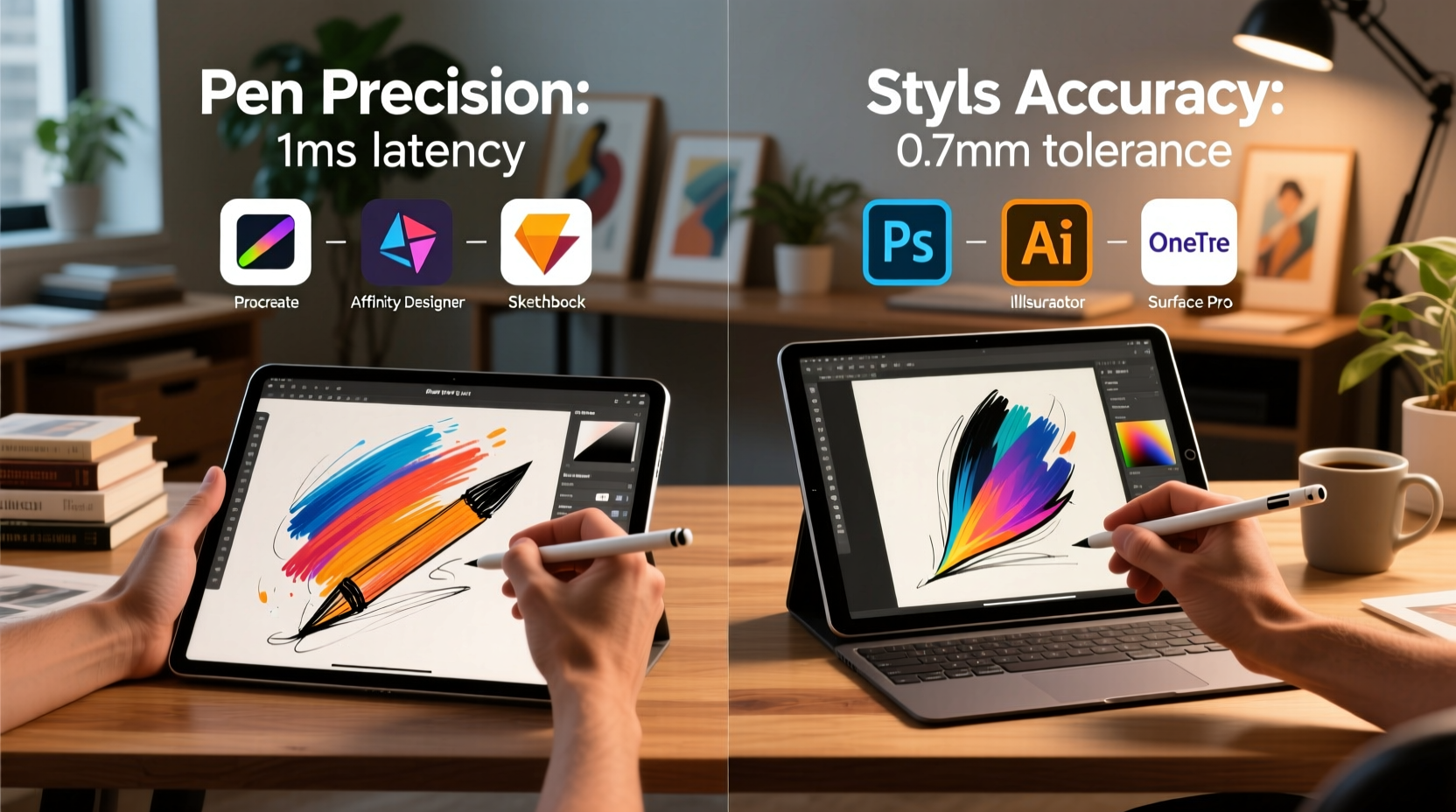
The quality of a stylus experience hinges on several technical factors: pressure sensitivity, tilt detection, palm rejection, and latency. These elements directly affect how natural and intuitive drawing feels—especially during long sessions or intricate detailing work.
The iPad Air supports the second-generation Apple Pencil, which connects magnetically and charges wirelessly. It offers 2048 levels of pressure sensitivity and full tilt recognition, allowing shading variation based on the angle of the pencil. More importantly, Apple has optimized the system-level integration between the Pencil and iOS, resulting in industry-leading latency as low as 9 milliseconds on compatible apps like Procreate. This near-instantaneous response makes sketching feel remarkably close to using traditional media.
In contrast, the Surface Pro uses Microsoft’s Surface Slim Pen or Surface Pen, depending on the model. These pens support up to 4096 levels of pressure sensitivity—a technical edge over the Apple Pencil—and also include tilt detection. However, real-world performance can vary due to driver inconsistencies and app-level optimization. While Microsoft claims latencies as low as 15ms under ideal conditions, many users report slightly more perceptible lag compared to the iPad, particularly when using third-party applications that haven’t been fine-tuned for Windows Ink.
Tip: For maximum pen responsiveness on the iPad Air, use apps specifically optimized for Apple Pencil, such as Procreate, Adobe Fresco, or Affinity Designer.Palm rejection is another critical factor. The iPad Air excels here, allowing artists to rest their hand naturally on the screen while drawing—something that mimics paper-based workflows. Surface Pro also supports palm rejection, but its effectiveness depends heavily on the app being used. Some Windows applications still struggle with accidental touch input, disrupting focus during intense illustration sessions.
App Ecosystem: Creativity Tools Across Platforms
An artist’s productivity is only as strong as the tools available. Here, the divide between iPadOS and Windows becomes stark—not just in quantity, but in depth of functionality and user experience.
iPadOS hosts a mature ecosystem of mobile-first creative apps designed around touch and stylus input. Procreate remains the gold standard for digital painting, offering an intuitive interface, advanced brush engine, time-lapse recording, and layer management—all tailored for the Apple Pencil. Other notable apps include Adobe Illustrator Draw, Affinity Photo for iPad, and Concepts for sketching and wireframing. These apps are built from the ground up for direct manipulation, meaning gestures, zoom, and brush adjustments happen fluidly without needing a keyboard or mouse.
However, iPadOS limitations become apparent when artists need full desktop-grade features. There’s no native support for complex file systems, background processes are restricted, and multitasking across multiple creative suites is clunkier than on traditional computers. While Stage Manager improves window handling, it still doesn’t match the flexibility of a true desktop OS.
On the other hand, the Surface Pro runs full Windows 11, giving artists access to professional-grade software like Adobe Photoshop, Illustrator, Corel Painter, Clip Studio Paint, and Blender—all running natively. This means no feature compromises, full plugin support, and compatibility with existing workflows. Artists transitioning from desktop setups often find the Surface Pro more familiar and capable for large projects involving layered compositions, animation timelines, or vector-heavy design.
“While mobile apps have come a long way, nothing replaces the depth of Photoshop or the precision of Illustrator when working on client deliverables.” — Lena Torres, Professional Concept Artist & Educator
That said, not all desktop apps are equally optimized for touch. Some require frequent switching between pen and mouse, undermining the tablet’s portability advantage. Additionally, certain creative tools on Windows lack the streamlined, gesture-driven interfaces found on iPad apps, making them less intuitive for pure drawing tasks.
Comparative Overview: Key Differences at a Glance
| Feature | iPad Air (with Apple Pencil) | Surface Pro (with Surface Pen) |
|---|---|---|
| Pressure Sensitivity | 2048 levels | 4096 levels |
| Latency (Best Case) | ~9 ms | ~15 ms |
| Tilt Support | Yes | Yes |
| Palm Rejection | Excellent, consistent across apps | Good, varies by app |
| Operating System | iPadOS (touch-first, limited multitasking) | Windows 11 (full desktop OS) |
| Creative App Examples | Procreate, Adobe Fresco, Affinity Designer | Photoshop, Illustrator, Clip Studio Paint |
| File Management | Limited (Files app, cloud-dependent) | Full desktop file system access |
| Portability & Battery Life | Average 10 hours, lightweight (~460g) | Average 7–8 hours, heavier (~790g with keyboard) |
Real-World Workflow: A Day in the Life of a Freelance Illustrator
Consider Maya Chen, a freelance illustrator who splits her time between concept art for indie games and editorial commissions. She recently switched from a Surface Pro 7 to an iPad Air (5th gen) primarily for mobility and improved drawing feel.
Maya starts her day sketching thumbnails on the couch with the iPad Air and Apple Pencil. The low latency allows quick ideation, and Procreate’s brush library lets her simulate watercolor, ink, and pencil textures effortlessly. She appreciates that she can lean her palm on the screen without interference and zoom with a two-finger pinch mid-stroke.
Later in the studio, she transfers finalized sketches to her desktop for coloring in Photoshop. While she misses having Photoshop directly on the iPad, she finds that the initial creative burst happens faster on iOS due to fewer distractions and smoother stylus interaction. When traveling, she uses the iPad exclusively, relying on Adobe Fresco for live client edits during video calls.
Had she stayed with the Surface Pro, Maya would have had immediate access to her full toolkit—but at the cost of a bulkier setup and slightly less responsive pen behavior. She noted that even small delays in stroke rendering disrupted her flow during rapid gesture drawing. “It’s not broken,” she said, “but it doesn’t disappear into the background like the Apple Pencil does.”
This case illustrates a broader trend: many artists use both platforms complementarily. The iPad Air shines in ideation, sketching, and fieldwork, while the Surface Pro excels in production phases requiring advanced software and multitasking.
Choosing Based on Your Creative Needs: A Practical Checklist
Selecting between the iPad Air and Surface Pro shouldn’t be about brand preference—it should align with your actual workflow. Use this checklist to evaluate which device fits your priorities:
- Choose the iPad Air if:
- You prioritize natural drawing feel and minimal latency.
- Your work involves frequent sketching, storyboarding, or on-the-go creation.
- You already use or prefer iOS apps like Procreate or Adobe Fresco.
- You value long battery life and ultra-portable form factor.
- You don’t need full desktop software like After Effects or InDesign regularly.
- Choose the Surface Pro if:
- You rely on full versions of Adobe Creative Cloud or other Windows-native software.
- You frequently switch between design, writing, and presentation tasks.
- You need robust file management, external drive support, or multi-monitor setups.
- You already own Windows peripherals or use cloud-synced desktop workflows.
- You want one device that doubles as a laptop replacement.
Frequently Asked Questions
Can I run Photoshop on the iPad Air?
Yes, but with limitations. Photoshop on iPad is functional and improving, yet lacks many advanced features found in the desktop version, such as full Actions support, 3D tools, and some filter options. It works well for basic photo editing and compositing but isn’t suitable for complex, high-end retouching or production pipelines.
Is the Apple Pencil worth the extra cost?
For serious artists, yes. The combination of low latency, precise pressure response, and magnetic attachment makes the Apple Pencil one of the most reliable styluses on the market. Its seamless pairing and charging eliminate common frustrations seen with Bluetooth pens.
Does the Surface Pro work well with Clip Studio Paint?
Absolutely. Clip Studio Paint runs natively on Windows and is highly optimized for the Surface Pen. Many manga and comic artists prefer this combination due to CSP’s powerful animation and vector tools, which are fully accessible only on desktop versions.
Final Considerations and Recommendation
The iPad Air and Surface Pro represent two philosophies in digital creativity: focused simplicity versus full-spectrum capability. The iPad Air delivers an unmatched drawing experience through tight hardware-software integration, making it ideal for artists whose primary mode is freehand creation. Meanwhile, the Surface Pro offers unparalleled versatility, serving as both a drawing tablet and a full computer—perfect for those who juggle illustration with layout, coding, or video editing.
Ultimately, the best choice depends on where you spend most of your creative time. If your process begins with a sketch and evolves through tactile exploration, the iPad Air’s superior pen precision and curated app ecosystem will likely serve you better. But if your final output demands desktop-class software and complex project management, the Surface Pro provides the necessary power and flexibility.
Many professionals now adopt a hybrid approach—using the iPad Air for initial concepts and the Surface Pro (or a desktop) for finishing work. As cross-platform syncing improves via iCloud, OneDrive, and Adobe Creative Cloud, this dual-device strategy is becoming increasingly practical.
💬 Which device powers your creative process? Share your experience with iPad Air or Surface Pro in the comments below—your insights could help fellow artists make a confident choice.