Streaming entertainment has evolved beyond traditional screens. With smart TVs like Hisense becoming central to home entertainment, many users want the flexibility to continue watching their favorite shows or movies on the go. Whether you're moving rooms, traveling within the house, or simply prefer viewing on a smaller screen, streaming Hisense TV content directly to your mobile phone is not only possible—it's efficient and easy when done right.
Hisense smart TVs run on platforms like VIDAA U, Android TV, or Roku TV (depending on model and region), all of which support screen mirroring, casting, and app-based streaming. This guide walks you through multiple reliable methods to bring your Hisense TV experience straight to your smartphone—without compromising quality or convenience.
Understanding Your Hisense TV Model and Compatibility
Before attempting any streaming method, it’s essential to identify your Hisense TV’s operating system. The process for streaming content varies significantly between models running VIDAA U, Android TV, or Roku TV.
Here’s how to check:
- Press the “Home” or “Menu” button on your Hisense remote.
- Navigate to “Settings” or “System Info.”
- Look for “About,” then find “Operating System” or “Software Information.”
Once identified, use the appropriate method below based on your OS:
| Hisense OS | Best Streaming Method | Mobile App Required? |
|---|---|---|
| VIDAA U | Screen Mirroring (Miracast) | No (built-in support) |
| Android TV | Google Cast / Screen Mirroring | Yes (Google Home or compatible apps) |
| Roku TV | Roku Mobile App + Screen Mirroring | Yes (Roku app) |
Step-by-Step: Stream via Screen Mirroring (Miracast & Built-In Options)
Screen mirroring allows you to duplicate your Hisense TV’s display onto your phone in real time. While less common than casting, some Hisense models support reverse mirroring using Miracast or third-party tools.
Note: Most Hisense TVs allow phones to mirror to the TV, not the other way around. However, if your goal is to view what’s currently playing on the TV, you can use companion apps or media server workarounds.
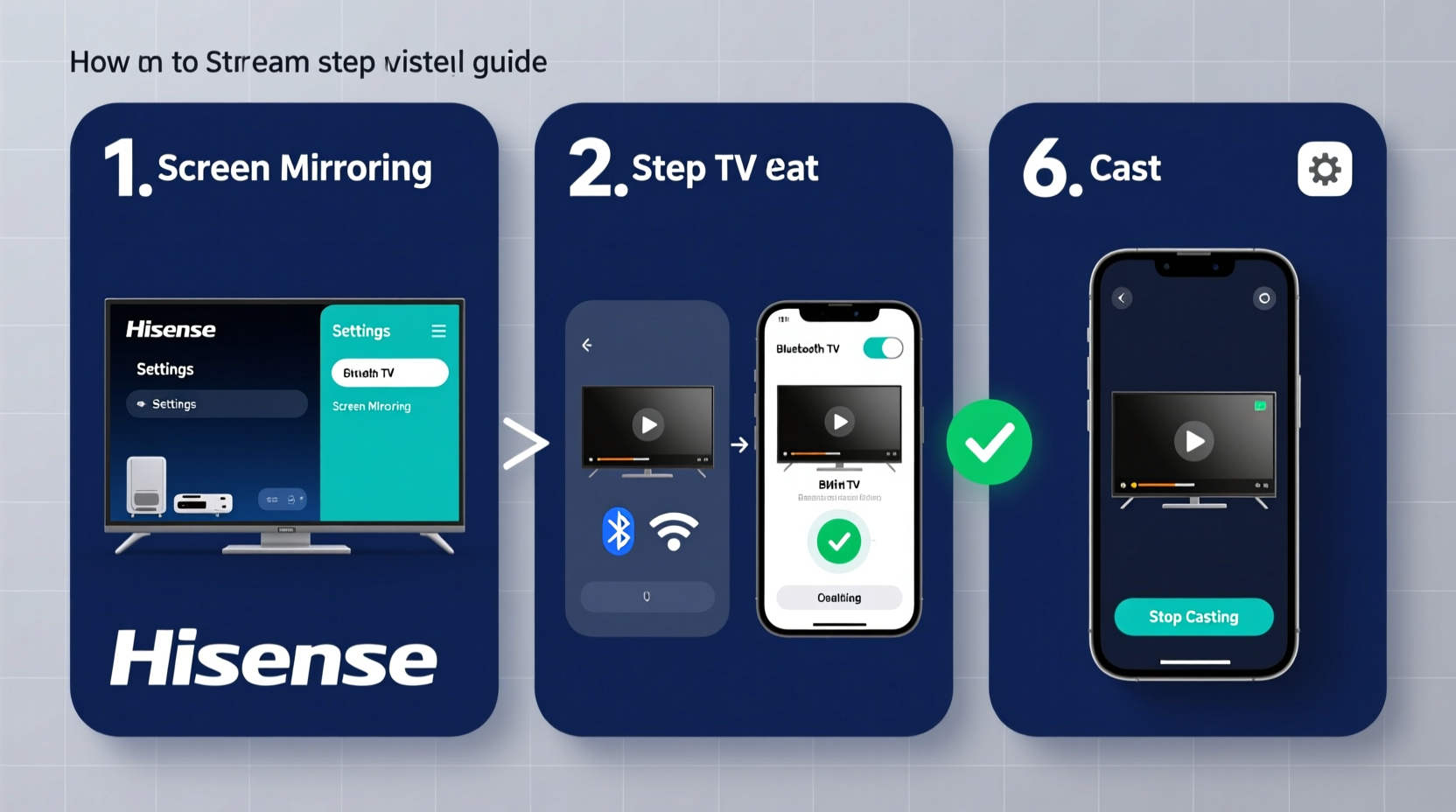
To enable screen mirroring from the TV (if supported):
- On your Hisense TV, go to Settings > Display & Sound > Screen Mirroring.
- Enable the feature and note the SSID and password shown.
- On your Android phone, open Settings > Connected Devices > Connection Preferences > Screen Sharing.
- Select your Hisense TV from the list and connect.
iOS devices do not natively support Miracast. For iPhone users, consider using AirPlay-compatible Hisense models (select 2023+ models) or alternative methods like DLNA streaming.
Using Google Cast with Android TV Models
If your Hisense TV runs on Android TV, you have direct access to Google’s ecosystem, including Chromecast functionality. This is one of the most effective ways to stream content from your phone to the TV—and vice versa using media apps.
While true \"reverse casting\" isn’t supported, you can achieve similar results by:
- Opening the same streaming app (e.g., Netflix, YouTube, Hulu) on your phone.
- Playing the same content already on your TV.
- Using account sync to resume playback seamlessly.
This creates the effect of continuing your viewing session on mobile without needing to mirror the screen.
“With cloud-synced platforms, users don’t need full screen mirroring—they just need continuity. That’s where modern streaming excels.” — David Lin, Smart Home Integration Specialist
Streaming via the Roku App (For Roku TV Models)
If your Hisense TV uses Roku TV, the official Roku mobile app unlocks powerful streaming capabilities. Though it doesn’t let you mirror the entire TV screen to your phone, it does allow private listening and secondary screen control.
Follow these steps:
- Download the free “Roku” app from the Apple App Store or Google Play.
- Open the app and tap “Devices” > “Set up a Device.”
- Ensure your phone and Hisense TV are on the same Wi-Fi network.
- Select your Hisense Roku TV from the detected list.
- Tap “Use as Private Listener” to stream audio directly to your phone’s headphones while the video plays on TV.
This is ideal for late-night viewing without disturbing others. You can also browse and launch content remotely, giving you partial mobile access to your TV’s interface.
Alternative Method: Use DLNA and Media Server Apps
For advanced users, setting up a DLNA (Digital Living Network Alliance) media server lets you stream content stored on your Hisense TV—or shared from it—to your mobile device.
This works especially well if you’ve saved videos, photos, or music on a USB drive connected to your TV or on a networked device.
Steps to set up DLNA streaming:
- Connect a USB drive with media files to your Hisense TV.
- Access the “Media Player” app on your TV and confirm files are readable.
- Install a DLNA-compatible app on your phone, such as VLC for Mobile or BubbleUPnP.
- Open the app and scan for available DLNA servers.
- Select your Hisense TV from the list and browse its media library.
- Tap any file to stream it directly to your phone.
This method bypasses screen mirroring limitations and gives you direct access to local content.
Tip: Rename your media files clearly (e.g., “BreakingBad_S3E5.mp4”) to make them easier to locate on your phone via DLNA.Mini Case Study: Sarah’s Seamless Viewing Experience
Sarah owns a Hisense H8G Android TV model and frequently watches documentaries with her kids. One evening, her son fell asleep during a nature special, and she wanted to finish it quietly in another room.
Instead of trying to mirror the entire screen (which wouldn’t work due to Android TV limitations), she opened the same PBS app on her phone, logged into her account, and resumed playback from where the TV left off. Within seconds, she was continuing the episode on her phone with headphones—no extra setup needed.
By leveraging app synchronization and a shared Wi-Fi network, Sarah achieved her goal efficiently, demonstrating that direct mirroring isn’t always necessary when smart alternatives exist.
Checklist: How to Stream Hisense TV Content to Your Phone
Use this checklist to ensure a smooth streaming experience:
- ✅ Confirm your Hisense TV’s operating system (VIDAA U, Android TV, or Roku TV).
- ✅ Ensure both TV and phone are on the same Wi-Fi network.
- ✅ Install required apps (Roku app, VLC, Google Home, etc.).
- ✅ Enable screen mirroring or media sharing on the TV (if applicable).
- ✅ Test connection before critical viewing sessions.
- ✅ Use cloud-synced accounts (Netflix, Disney+, YouTube) for seamless transitions.
- ✅ Try DLNA for accessing local media files from USB or NAS drives.
Frequently Asked Questions
Can I mirror my Hisense TV screen directly to my iPhone?
Direct screen mirroring from TV to iPhone is not supported on most Hisense models. However, if your TV supports AirPlay 2 (available on select 2022 and newer models), you can use AirPlay to send content from your iPhone to the TV—not the reverse. For viewing TV content on your iPhone, use DLNA apps or log into the same streaming service on your phone.
Why won’t my phone connect to my Hisense TV for screen mirroring?
The most common causes include being on different Wi-Fi networks, outdated firmware on the TV, or lack of Miracast support. Restart both devices, update the TV software via Settings > System Update, and verify compatibility with your phone’s OS.
Is there an official Hisense app for mobile streaming?
Hisense does not currently offer a dedicated app for streaming TV content to mobile devices. However, they provide remote control apps in some regions, and third-party solutions like DLNA or Roku/Google apps fill the functionality gap effectively.
Conclusion: Take Control of Your Viewing Experience
Streaming Hisense TV content directly to your mobile phone doesn’t require expensive hardware or complex setups. By understanding your TV’s operating system and leveraging built-in features like Google Cast, Roku’s private listening, or DLNA media sharing, you gain flexibility and control over how and where you watch.
The key is knowing which method aligns with your model and needs. Whether it’s continuing a show on your phone after leaving the living room or quietly enjoying audio through headphones, these techniques transform your Hisense TV into a truly integrated part of your digital lifestyle.
🚀 Ready to take your viewing experience mobile? Pick one method from this guide, try it tonight, and share your success story in the comments!