Streaming platforms like Netflix offer vast libraries of content, from educational documentaries to gripping dramas and action-packed series. While this diversity is a strength, it also presents challenges for parents seeking to ensure their children are only exposed to age-appropriate material. Without proper safeguards, kids can easily stumble upon shows or movies with strong language, violence, or sexual content. The good news is that Netflix provides robust parental control features designed to help families manage what gets watched at home. Setting these up correctly allows parents to maintain oversight without constant supervision.
Netflix’s parental controls are built around its profile system, allowing customized viewing experiences based on age and maturity level. Unlike third-party software or router-level restrictions, Netflix's native tools integrate seamlessly into the platform and adapt across devices. Whether you're using a smart TV, tablet, smartphone, or gaming console, the settings remain consistent and accessible. This guide walks through every step needed to configure effective content filters, explains rating thresholds, and offers practical advice for maintaining digital safety in a streaming-first world.
Understanding Netflix’s Content Rating System
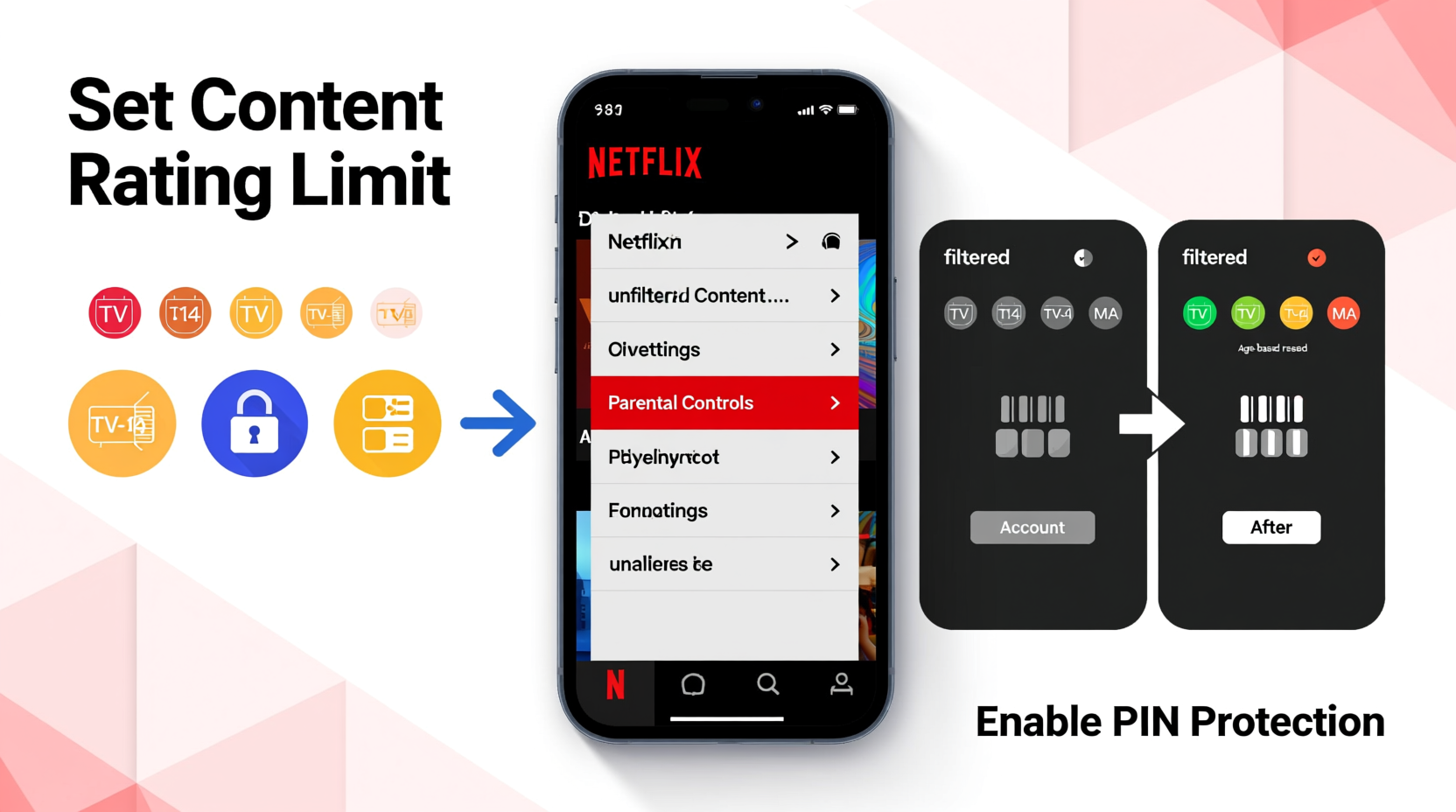
Before setting up parental controls, it's essential to understand how Netflix categorizes content. The platform uses a global rating system influenced by regional standards but adapted to its own internal guidelines. These ratings determine which titles appear under each user profile depending on the maturity level selected.
The primary categories include:
- TV-Y: Designed for all children; no inappropriate content.
- TV-G: General audience; suitable for most ages.
- TV-PG: Parental guidance suggested; may contain mild violence, language, or suggestive themes.
- TV-14: Suitable for viewers 14 and older; moderate violence, stronger language, or partial nudity possible.
- TV-MA: Mature audiences only; intended for adults due to intense violence, explicit language, or sexual content.
These labels appear beneath each title on the app or website. However, relying solely on visual scanning isn’t enough—especially when young viewers navigate independently. That’s where profile-based filtering comes in.
“Parents shouldn’t assume kids will self-regulate when faced with endless scrolling options. Proactive filtering through platform tools is one of the most effective ways to reduce exposure to harmful media.” — Dr. Linda Chen, Child Development & Digital Media Researcher, University of California
Step-by-Step Guide to Configuring Parental Controls
Setting up parental controls on Netflix requires access to your account and a few minutes of focused attention. Follow this detailed sequence to lock down mature content effectively.
- Log in to Your Netflix Account
Open a web browser and go to netflix.com. Sign in with your email and password. Note: Mobile apps do not support full account management—this must be done via desktop or mobile browser. - Navigate to Account Settings
Click your profile icon in the top-right corner, then select “Account” from the dropdown menu. - Select the Profile You Want to Modify
Scroll down to the “Profiles” section. Click on the name of the child’s profile—or create a new one if needed. - Edit Profile Restrictions
Once inside the profile settings, look for “Viewing restrictions.” This option lets you set a PIN-protected limit on content maturity. - Set a Four-Digit PIN
If you haven’t already, create a unique four-digit PIN. Avoid obvious combinations like 1234 or birth years. This PIN will be required to change settings or view restricted content. - Choose a Maximum Maturity Level
You’ll see several age-based filters:- Little Kids (up to TV-Y7)
- Older Kids (up to TV-PG)
- Teens (up to TV-14)
- Adults (unrestricted, including TV-MA)
- Save Changes
After making selections, click “Save” to apply the restrictions. The changes take effect immediately across all devices linked to the account.
Best Practices for Managing Multiple Profiles
Families often share a single Netflix subscription among multiple members. To maximize control and personalization, use separate profiles for each viewer. A common mistake is letting children use an adult’s profile—even temporarily—which bypasses all filters.
Here’s how to structure profiles effectively:
| Profile Name | Type | Maturity Setting | Recommended For |
|---|---|---|---|
| Sophia (Kids) | Child | Little Kids (TV-Y7) | Ages 2–6 |
| Jamal (Tween) | Child | Older Kids (TV-PG) | Ages 7–10 |
| Lena (Teen) | Teen | Teens (TV-14) | Ages 11–16 |
| Parents Only | Adult | Adults (Unrestricted) | Age 17+ |
When creating child profiles, consider enabling the “Ask to Play” feature. This setting requires a parent to approve any title before it starts, adding an extra layer of oversight. It’s particularly useful during transitional phases—for example, when a child is maturing into more complex content but still needs guidance.
Avoid These Common Mistakes
- Using the same PIN across accounts – If your Netflix PIN matches your bank or phone unlock code, a tech-savvy child might guess it.
- Forgetting to update settings as kids grow – A profile locked at “Little Kids” may frustrate a 12-year-old who wants to watch age-appropriate fantasy adventures.
- Sharing adult profiles casually – Even a quick movie request can lead to accidental exposure if the adult profile has unrestricted access.
Real-World Example: The Thompson Family Setup
The Thompsons, a family of five in Austin, Texas, struggled with managing screen time and content after their 9-year-old son accidentally started watching a violent crime drama meant for his older brother. Alarmed by the incident, they decided to overhaul their Netflix setup.
They began by deleting old merged profiles and creating individual ones for each family member. The two youngest children (ages 5 and 7) were assigned “Little Kids” profiles limited to animated shows and educational programs. Their 13-year-old daughter received a “Teens” profile, allowing her to explore coming-of-age series and light sci-fi, but blocking anything rated TV-MA.
The parents retained the main account with full access but added a non-obvious PIN (7391) known only to them. They also enabled notifications on their phones whenever a profile attempted to access restricted content—an optional third-party tool they integrated through a family digital wellness app.
Within weeks, they noticed fewer arguments about screen choices and greater trust between parents and kids. “It wasn’t about censorship,” said Maria Thompson. “It was about giving our kids freedom within safe boundaries.”
Tips for Long-Term Success
Parental controls are not a one-time fix. As children grow and media evolves, so should your approach. Here are key strategies to ensure lasting effectiveness:
Tip: Revisit your Netflix settings every six months—especially around back-to-school season or holidays when viewing habits shift.- Educate your children about ratings – Explain why certain shows are off-limits, helping them develop media literacy rather than just obeying rules.
- Use real conversations alongside tech tools – Filters work best when paired with open dialogue about online safety and responsible viewing.
- Monitor search behavior – Even filtered profiles can sometimes surface borderline content through searches. Periodically check recent activity.
- Keep the PIN confidential – Never write it down near devices or share it with children, even jokingly.
Checklist: Securing Your Netflix Account
- Log in to Netflix via a web browser.
- Create individual profiles for each family member.
- Assign appropriate maturity levels to child profiles.
- Set a secure, unique four-digit PIN.
- Enable “Ask to Play” for younger viewers if desired.
- Review monthly viewing activity together as a family.
- Schedule biannual check-ins to adjust settings as kids age.
Frequently Asked Questions
Can I block specific shows or movies on Netflix?
No, Netflix does not allow blocking individual titles. Instead, you must rely on maturity-level filtering. If a particular show is a concern, set the profile restriction below its rating (e.g., restrict to TV-PG to avoid a TV-14 series).
Do parental controls work on all devices?
Yes. Once configured, restrictions apply universally—whether the profile is used on a smartphone, tablet, smart TV, or gaming console. The settings sync automatically across platforms.
What happens if someone tries to watch restricted content?
When a user attempts to play a title exceeding their profile’s maturity limit, they’ll be prompted to enter the parental PIN. Without it, playback is denied. This acts as both a technical and psychological barrier.
Conclusion: Take Control Today
Setting up parental controls on Netflix isn’t just about restricting content—it’s about empowering families to enjoy entertainment safely and thoughtfully. With a few deliberate steps, you can create a viewing environment that aligns with your values while respecting your children’s growing independence. Technology gives us powerful tools, but their success depends on consistent use and ongoing communication.
💬 Ready to protect your family’s streaming experience? Log in to your Netflix account today and set up customized profiles with proper maturity filters. Share this guide with other parents who want to raise digitally aware kids!