For years, Adobe Photoshop has been the gold standard in image editing and design. Professionals across photography, marketing, and digital art have relied on its depth of features to create polished visuals. But as content creation becomes more accessible—and more people produce social media graphics, blog illustrations, and promotional images from home—the question arises: does every creator still need Photoshop?
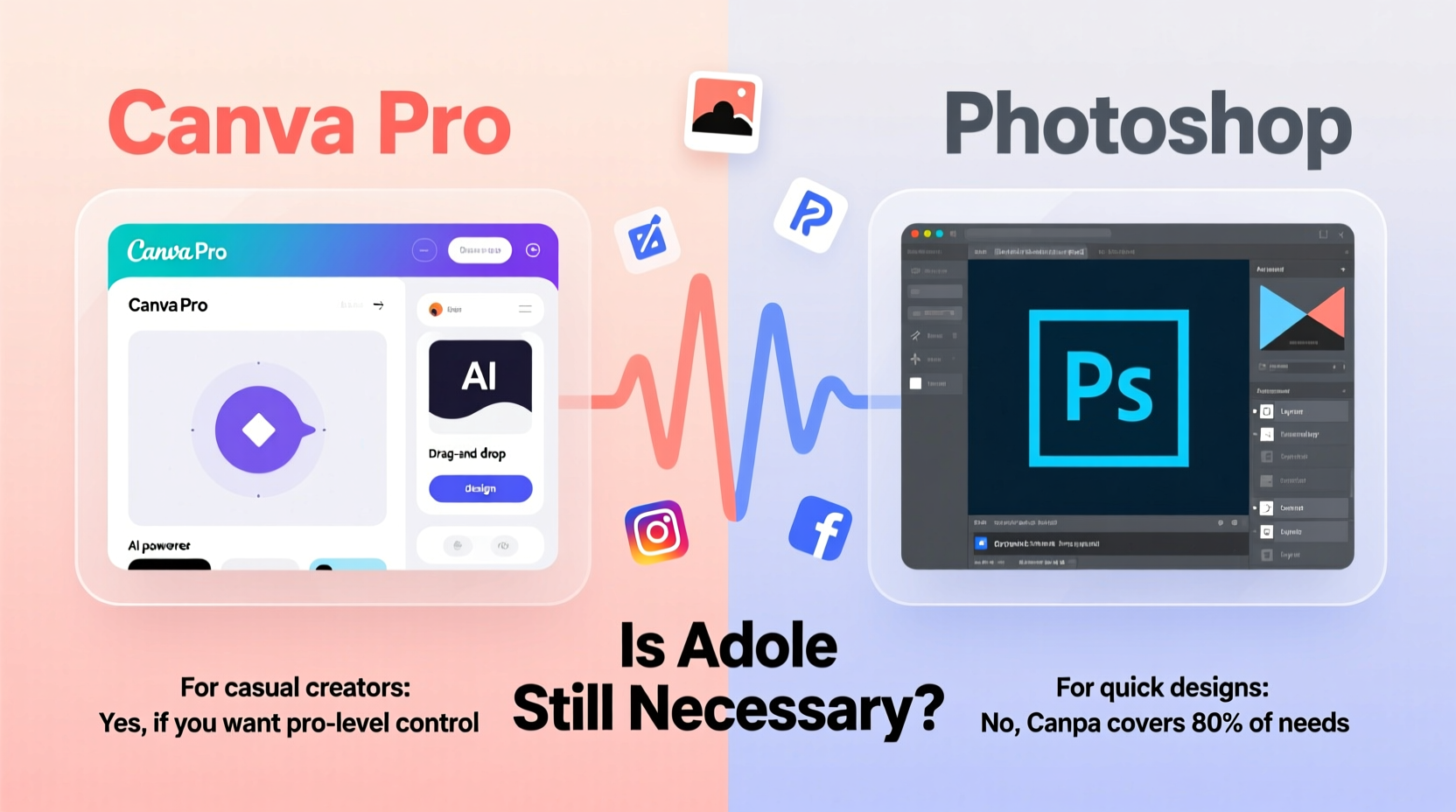
Enter Canva Pro. Designed for simplicity and speed, it’s become a favorite among non-designers, entrepreneurs, educators, and small business owners. With drag-and-drop functionality, ready-made templates, and cloud-based collaboration, Canva lowers the barrier to entry. But how does it truly stack up against Photoshop when it comes to creative control, output quality, and long-term value?
This isn’t just about choosing between two tools—it’s about re-evaluating what “necessary” means in today’s creative landscape. For casual creators who aren’t aiming for magazine covers or professional retouching but still want high-quality visuals, the answer may surprise you.
The Shift in Content Creation Demands
The nature of visual content has changed dramatically over the past decade. Where once print-quality resolution and pixel-perfect layering were mandatory, today’s audiences consume most media through mobile devices, social feeds, and quick-scroll interfaces. This shift favors speed, consistency, and brand alignment over technical perfection.
Casual content creators—think bloggers, solopreneurs, fitness coaches, or influencers—often prioritize efficiency. They need to produce multiple posts per week, adapt designs across platforms (Instagram, TikTok, Pinterest), and maintain a cohesive aesthetic without spending hours learning complex software.
Adobe Photoshop, while powerful, was built for precision work: photo manipulation, compositing, advanced masking, and detailed retouching. It assumes a level of technical familiarity that many modern creators simply don’t have—or need. In contrast, Canva Pro focuses on workflow optimization. Templates update globally, branding kits lock in fonts and colors, and resizing happens with one click.
“Most people don’t need a Formula 1 car to run errands. They need something reliable, easy to drive, and fuel-efficient.” — Lena Torres, Digital Creativity Consultant
Feature-by-Feature Comparison: Canva Pro vs Photoshop
To understand where each tool excels, let’s break down key capabilities relevant to everyday content creation.
| Feature | Canva Pro | Photoshop |
|---|---|---|
| User Learning Curve | Low – intuitive interface, minimal training required | High – steep learning curve, especially for layers, masks, and tools |
| Template Library | Extensive, regularly updated, platform-specific (e.g., Instagram Story) | Limited official templates; third-party sources required |
| Photo Editing Depth | Basic adjustments (brightness, contrast, blur, background removal) | Advanced editing (curves, channels, frequency separation, RAW processing) |
| Brand Consistency Tools | Branding Kits, team sharing, style presets | Swatches and actions possible, but not centralized or collaborative |
| Collaboration | Real-time co-editing, commenting, role permissions | Limited; requires third-party sharing or Creative Cloud sync |
| Pricing (Monthly) | $12.99/month (billed annually) or $14.99 monthly | $20.99/month for Photoshop only; full Creative Cloud from $54.99 |
| Offline Access | Partial (mobile app allows offline editing) | Full desktop functionality, no internet needed |
| Output Flexibility | Web-ready formats, limited print support | CMYK, high-res TIFF/PDF, prepress-ready files |
The table reveals a clear divide: Photoshop offers unmatched control and fidelity, but at the cost of complexity and time. Canva Pro sacrifices granular editing power for accessibility and workflow integration—making it ideal for those who value consistency and speed over pixel-level manipulation.
Tip: If your primary goal is creating social media content, email headers, or simple graphics, Canva Pro likely covers 95% of your needs—with less than 10% of the learning curve.When Photoshop Still Matters
Despite Canva’s rise, there are scenarios where Photoshop remains indispensable—even for semi-professional users.
- Photo Retouching: Removing blemishes, smoothing skin, adjusting lighting in portraits.
- Background Replacement: Beyond simple cutouts, blending subjects into new environments with realistic shadows and lighting.
- Digital Art & Illustration: Using brushes, custom textures, and layer effects for original artwork.
- Print Design: Creating brochures, posters, or packaging that require bleed, CMYK color mode, and high DPI.
- Batch Processing: Automating repetitive tasks like resizing hundreds of product images.
If a casual creator occasionally steps into these areas—say, preparing a portfolio, designing merch, or editing personal photos—Photoshop’s capabilities justify the investment. However, many of these functions now have simplified alternatives within Canva or via AI-powered add-ons.
For example, Canva’s background remover uses AI and delivers results comparable to basic Photoshop selections—without requiring manual masking. Similarly, automatic photo enhancement tools in both platforms reduce the need for manual curve adjustments.
Real-World Example: A Small Business Owner’s Workflow
Sophie runs a yoga studio and handles all her own marketing. She posts three times a week on Instagram, sends a monthly newsletter, and updates her website banners quarterly. Her previous designer charged $75/hour, so she decided to take over visuals herself.
Initially, she tried Photoshop. After two weeks of tutorials and frustration, she abandoned it. Layers confused her, saving files in the right format was inconsistent, and creating uniform posts took too long. She switched to Canva Pro and saw immediate improvements.
Using a Brand Kit, she uploaded her logo, set her signature font (Playfair Display), and saved her palette of soft greens and creams. Now, whenever she creates a new post, everything aligns automatically. She resizes a single design for Instagram, Facebook, and Stories in under a minute. Team members can edit drafts without breaking the layout.
When she needed to edit a photo of a workshop—removing a distracting signpost—she used Canva’s erase tool. The result wasn’t perfect, but it was good enough for social media. For a printed flyer, she outsourced one-time design work to a freelancer who used Photoshop, then imported the final version into Canva for future tweaks.
Sophie spends less than three hours a week on visuals now—down from eight—and her engagement has increased by 34% due to consistent branding.
“I don’t need to be a chef to cook dinner. I just need the right tools. Canva is my kitchen.” — Sophie Lin, Yoga Studio Owner
Step-by-Step: Choosing the Right Tool for Your Needs
Follow this decision framework to determine whether Canva Pro, Photoshop, or both make sense for your workflow.
- Assess Your Output Goals
- Social media graphics, presentations, simple ads → Canva Pro
- Professional photo editing, complex compositions, print materials → Photoshop
- Evaluate Time Investment
- Less than 5 hours/week on design → Lean toward Canva
- Regular, intensive design work → Justifies Photoshop learning curve
- Consider Collaboration Needs
- Working with a team or clients? Canva’s sharing and approval tools save time.
- Solo work with no feedback loops? Photoshop standalone may suffice.
- Test Both with a Real Project
- Create the same Instagram carousel in both tools. Note time spent, ease of use, and final quality.
- Ask: Which felt more natural? Which delivered faster results?
- Calculate Long-Term Cost
- Canva Pro: ~$155/year
- Photoshop only: ~$250/year
- Full Creative Cloud: ~$660/year
- Weigh cost against actual usage—not perceived prestige.
Checklist: Should You Switch to Canva Pro?
Answer “yes” to three or more of these to consider making the switch:
- Do you spend more time figuring out software than creating?
- Are you using fewer than 10% of Photoshop’s tools regularly?
- Do you struggle with maintaining consistent branding across posts?
- Have you paid someone else to finish your designs because they weren’t “good enough”?
- Do you create mostly web or social content rather than print?
- Would one-click resizing across platforms save you significant time?
If so, Canva Pro could streamline your process without sacrificing quality.
Frequently Asked Questions
Can Canva replace Photoshop completely?
For most casual creators, yes—especially if your work involves assembling graphics, applying filters, and using templates. However, if you do deep photo editing, digital painting, or prepress design, Photoshop still offers irreplaceable precision.
Is Canva Pro worth the subscription if I only design occasionally?
Absolutely. At $12.99/month, it’s less than the cost of an hour with a freelance designer. Even occasional use benefits from templates, branding tools, and AI features that reduce effort and improve consistency.
Does Photoshop offer any free alternatives that compete with Canva?
Adobe Express is Adobe’s attempt at a Canva competitor, but it lacks depth and polish. Free tools like GIMP or Photopea mimic Photoshop’s interface but don’t offer Canva’s user experience or ecosystem. For simplicity, Canva remains unmatched.
Conclusion: Rethinking Necessity in the Age of Accessibility
The assumption that “serious” creators must use Adobe software is fading. Tools like Canva Pro prove that thoughtful design doesn’t require mastery of complex interfaces. What matters most is clarity of message, consistency of style, and speed of delivery—areas where Canva often outperforms Photoshop for everyday users.
Adobe still holds dominance in professional creative fields. But for the growing number of casual content creators—those building personal brands, teaching online, or promoting small ventures—necessity must be measured by utility, not legacy status. If your goal is to communicate effectively and look polished without investing months into software training, Canva Pro isn’t just sufficient. It’s smart.
You don’t need a scalpel to slice bread. And you don’t need Photoshop to make great social content. Choose the tool that fits your goals, not the one that carries the most prestige. In today’s creative economy, effectiveness trumps expertise.
🚀 Ready to simplify your design workflow? Try Canva Pro free for 30 days and compare it side-by-side with your current tool. See which one helps you create faster, stay consistent, and enjoy the process.