Switching your home Wi-Fi network—whether due to a new router, ISP change, or improved security settings—can disrupt smart devices connected across your home. Google Nest devices, including thermostats, speakers, displays, and cameras, rely on stable internet connections to function properly. Fortunately, updating your Wi-Fi credentials on these devices is straightforward when you follow the right process. This comprehensive guide walks you through every stage of reconfiguring your Nest devices to work seamlessly with your new network.
Why You Might Need to Change Wi-Fi on Nest Devices
There are several common reasons why you may need to reconnect your Google Nest devices to a different Wi-Fi network:
- You’ve upgraded your router or modem.
- You’re moving to a new home and setting up a fresh network.
- You've changed your Wi-Fi password for security purposes.
- Your current network suffers from poor signal strength in certain areas.
- You want to switch from a crowded 2.4 GHz band to a less congested one (or vice versa).
Regardless of the reason, ensuring each Nest device connects correctly prevents functionality loss—from voice assistant features to remote access via the Google Home app.
Tip: Before starting, ensure your new Wi-Fi network is active and that you know the exact network name (SSID) and password.What You’ll Need Before Getting Started
To successfully update your Nest devices’ Wi-Fi settings, gather the following essentials:
- Smartphone or tablet with the Google Home app installed (iOS or Android).
- Stable power supply for all Nest devices during setup.
- Wi-Fi network details: SSID and password for the new network.
- Patience: Some devices take several minutes to disconnect and reconnect.
Ensure Bluetooth is enabled on your phone—it’s required for local communication during setup. Also, make sure your mobile device is already connected to the new Wi-Fi network you intend to assign to your Nest products.
Step-by-Step Guide to Changing Wi-Fi on Google Nest Devices
The process varies slightly depending on the type of Nest device, but the general flow remains consistent across models. Follow this universal timeline to transition smoothly:
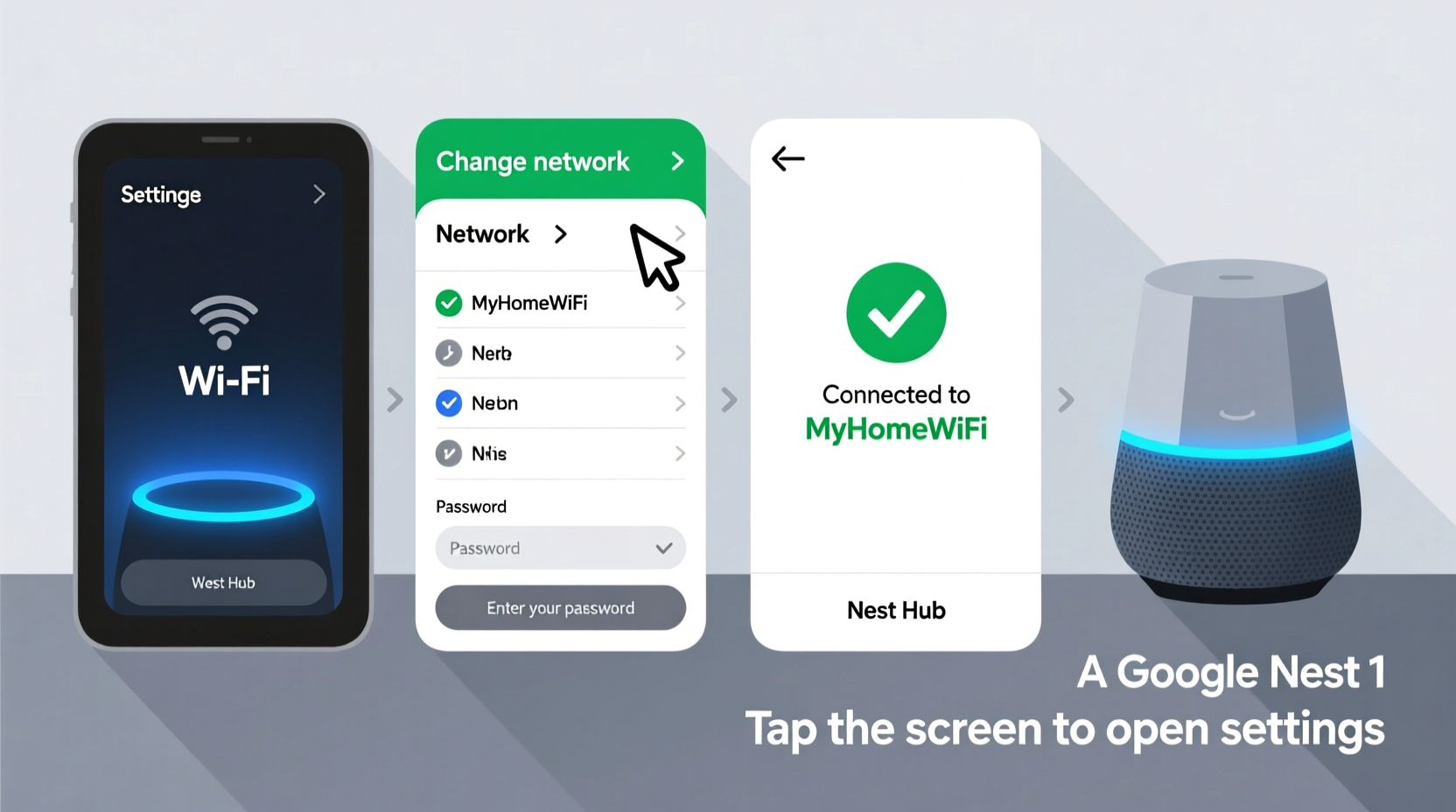
- Open the Google Home App
Launch the Google Home app on your smartphone. Make sure you're signed into the same Google account used to set up your Nest devices. - Select the Device
Tap the Nest device you want to update (e.g., “Nest Mini,” “Nest Thermostat,” or “Nest Cam”). If it's offline, don’t worry—you can still initiate setup. - Access Settings
In the top-right corner, tap the gear icon to open device settings. - Navigate to Wi-Fi Options
Look for \"Wi-Fi\" or \"Network\" under device information. Tap it to proceed. - Forget Current Network
Choose “Forget network” or “Disconnect.” This clears old credentials and prepares the device for reconnection. - Reboot the Device (if needed)
For some older models, manually restarting helps reset the network interface. Unplug for 10 seconds, then plug back in. - Initiate Setup Mode
Return to the main screen in the Google Home app and tap the \"+\" sign > \"Set up device\" > \"Have something already set up?\" Then select your device again. - Follow On-Screen Prompts
The app will guide you through reconnecting. When prompted, choose your new Wi-Fi network from the list and enter the password carefully. - Wait for Confirmation
The device will reboot and attempt to connect. A success message appears once online. Green status indicators confirm full connectivity. - Repeat for Other Devices
Perform the same steps for each Nest product in your ecosystem.
Device-Specific Considerations
While most Nest devices use the standard procedure above, there are nuances based on model type:
| Device Type | Wi-Fi Bands Supported | Special Notes |
|---|---|---|
| Nest Learning Thermostat | 2.4 GHz only | Does not support 5 GHz; ensure your new network broadcasts a compatible band. |
| Nest Audio / Mini | 2.4 GHz and 5 GHz | Auto-switches between bands; optimal placement improves handoff reliability. |
| Nest Hub (1st & 2nd Gen) | 2.4 GHz and 5 GHz | Requires proximity to phone during setup for Bluetooth handshake. |
| Nest Cam (Indoor/Outdoor) | 2.4 GHz only (battery models), both bands (wired) | Battery-powered cams must be charged above 30% before reconfiguration. |
“Always verify that your thermostat supports your router’s frequency band. Many users overlook this and face failed connections.” — David Lin, Smart Home Integration Specialist
Troubleshooting Common Connection Issues
Even with careful execution, problems may arise. Here’s how to resolve frequent post-switch complications:
- Device won’t connect after entering correct password: Restart your router and try again. Interference or IP conflicts can block registration.
- Google Home app doesn’t detect the device: Hold the reset button (if available) for 10–15 seconds until LED blinks. This forces factory reset mode.
- Slow response after switching: Check if Quality of Service (QoS) settings on your router prioritize media traffic.
- Intermittent dropouts: Move the device closer to the router or install a mesh extender in dead zones.
Mini Case Study: Sarah’s Seamless Transition
Sarah recently moved into a new apartment and replaced her ISP-provided gateway with a high-performance Eero mesh system. Her Nest Thermostat and two Nest Minis lost connection immediately. Using the Google Home app, she first updated the speakers—one at a time—by forgetting the old network and selecting the new dual-band SSID. She discovered her thermostat only supported 2.4 GHz, so she temporarily disabled the 5 GHz broadcast to simplify selection. Within 20 minutes, all devices were online. She later re-enabled band steering and experienced no further issues thanks to proper planning.
Best Practices Checklist
Use this actionable checklist to ensure a smooth Wi-Fi migration:
- ✅ Confirm your new network uses WPA2 or WPA3 encryption (required for Nest compatibility).
- ✅ Write down your new SSID and password in a secure location.
- ✅ Update one device at a time to isolate potential issues.
- ✅ Keep your phone close to the device during setup for reliable Bluetooth pairing.
- ✅ Test voice commands and remote access after each successful connection.
- ✅ Label routers and access points if using a multi-node system.
Frequently Asked Questions
Can I change Wi-Fi without the Google Home app?
No. All modern Nest devices require the Google Home app for network configuration. There is no web-based admin panel or physical menu system for Wi-Fi changes.
Do I need to remove and re-add my Nest devices?
Not necessarily. Most can be updated directly within their settings. However, a full remove-and-repair may help if the device fails to reconnect after multiple attempts.
Will changing Wi-Fi affect my routines or automations?
No. Routines, schedules, and integrations with other smart services remain intact as long as the device reconnects successfully. Only network-dependent functions pause temporarily during downtime.
Final Steps and Long-Term Maintenance
Once all your Nest devices are connected to the new Wi-Fi, take a moment to review their performance. Open the Google Home app and check each device’s signal strength under network details. Aim for a strong signal (above -70 dBm). Weak signals lead to delayed responses and unreliable automation triggers.
Consider naming your 2.4 GHz and 5 GHz bands differently (e.g., “Home-WiFi-2G” and “Home-WiFi-5G”) to give you more control over which devices connect where. This avoids automatic switching that might disconnect incompatible gadgets like thermostats.
Conclusion
Updating your Google Nest devices to a new Wi-Fi network doesn’t have to be stressful. With the right preparation and methodical approach, you can complete the transition in under an hour. Whether you're relocating, upgrading hardware, or enhancing security, maintaining seamless connectivity ensures your smart home continues operating efficiently. Take action today—review your device list, gather your credentials, and walk through the steps confidently.
💬 Successfully switched your Nest devices? Share your experience or ask questions in the comments below—we’d love to hear what worked for you!