Turtle Beach headsets are renowned for their immersive sound, crisp mic clarity, and comfort during long gaming sessions. Whether you're using a Recon, Stealth, or Elite series model, getting the most out of your headset starts with a proper connection. However, compatibility varies widely between platforms—PCs, PlayStation, Xbox, Nintendo Switch, and even mobile devices—each requiring specific steps and sometimes additional hardware. This guide walks through every major device type, offering clear, tested methods to ensure your Turtle Beach headset works flawlessly wherever you use it.
Understanding Your Turtle Beach Model
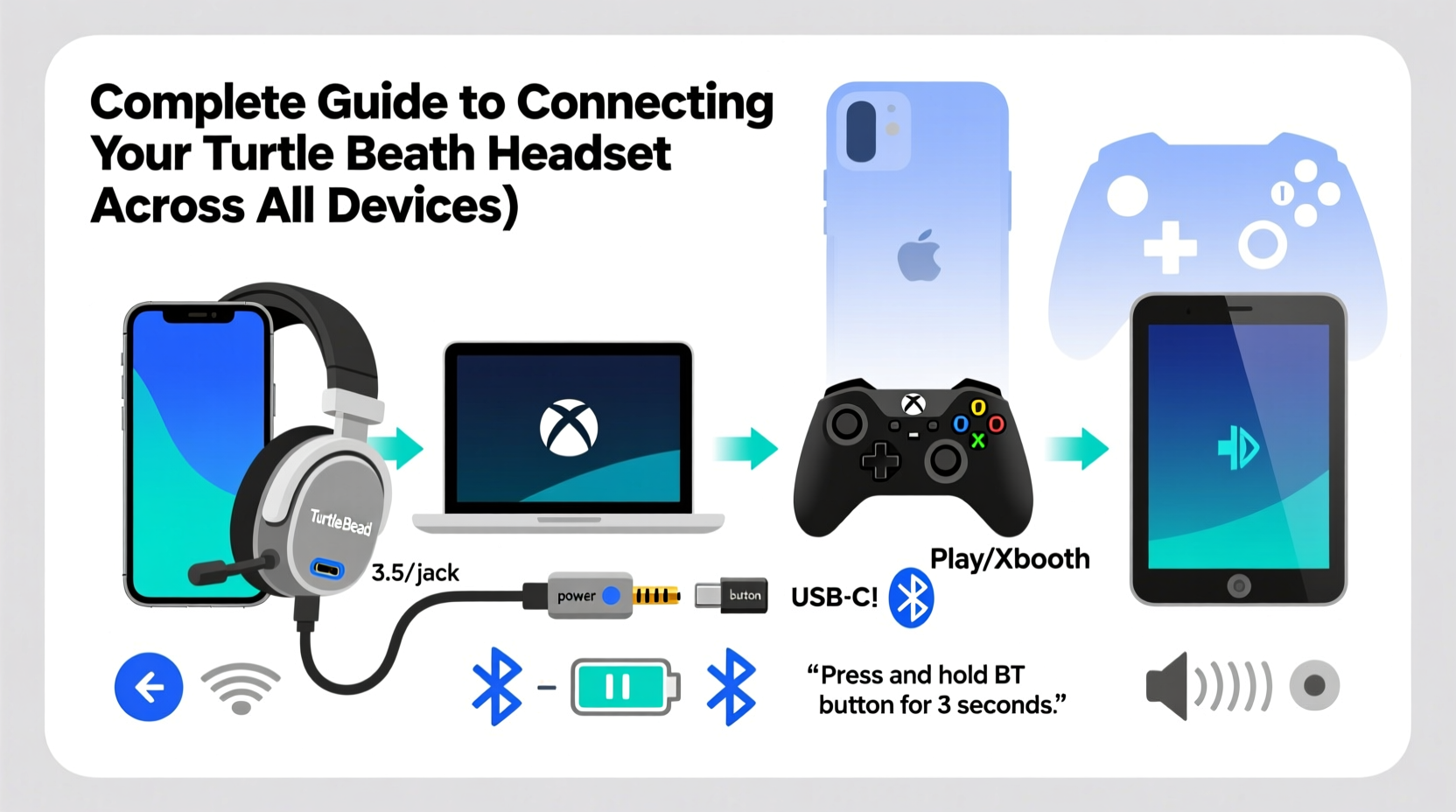
Before attempting any connection, identify your headset model. Turtle Beach offers both wired and wireless options, each with different connectivity needs:
- Wired Headsets (e.g., Recon 50X, Battle Buds): Use 3.5mm analog jacks or USB connections.
- Wireless Headsets (e.g., Stealth 700 Gen 2, Elite Pro 2): Rely on proprietary wireless transmitters or Bluetooth (on select models).
Check the product manual or the label under the earcup for the exact model number. This determines whether your headset supports multi-platform use or is locked to a specific ecosystem like Xbox or PlayStation.
Tip: If your headset came with a USB transmitter or dongle, do not lose it—this is essential for wireless functionality on compatible devices.Connecting to Gaming Consoles
Xbox Series X|S and Xbox One
Turtle Beach has a strong partnership with Xbox, making most of its headsets plug-and-play on Microsoft consoles.
- For **wired headsets**, plug the 3.5mm jack into the controller’s audio port.
- For **wireless models** like the Stealth 700 Gen 2 (Xbox version), power on the headset and press the pairing button on the right earcup until the LED blinks.
- Press the pairing button on the Xbox console (usually located near the USB ports).
- Wait for the headset LED to turn solid green—connection is complete.
Xbox automatically detects the headset and configures chat and game audio balance. Adjust volume and mic monitoring via **Settings > General > Volume & Audio Output**.
PlayStation 5 and PlayStation 4
PlayStation support depends on the headset model. Not all Turtle Beach headsets work wirelessly with PS5/PS4.
- Wired Connection: Plug the 3.5mm jack into the DualShock 4 or DualSense controller. Audio and microphone will activate instantly.
- Wireless (Stealth 600/700 Gen 2 for PlayStation): Turn on the headset, then press the small sync button on the console and the headset simultaneously until the LED stabilizes.
Note: The PS5 does not support third-party wireless audio by default. Only Turtle Beach headsets specifically labeled “for PlayStation” will work wirelessly.
Nintendo Switch
The Switch supports only wired headsets via its 3.5mm jack (on the side of the console in handheld mode or on the Joy-Con dock).
- Plug your Turtle Beach headset directly into the Switch’s headphone port.
- Go to **System Settings > Audio > Output Device** to confirm the headset is detected.
- Adjust volume using the physical buttons or in-game settings.
Bluetooth audio is disabled by default on the Switch. While some third-party adapters enable wireless audio, Turtle Beach does not officially support this method.
Setting Up on PC and Laptops
PC offers the most flexibility for Turtle Beach headsets, supporting both USB and 3.5mm connections.
USB Headsets (e.g., Recon 200, Battle Buds)
- Plug the USB cable into an available port.
- Windows will install basic drivers automatically. For full features (surround sound, mic monitoring), download the **Turtle Beach Audio Hub** software from the official website.
- In Windows, go to **Settings > System > Sound** and set the Turtle Beach headset as the default input and output device.
Analog 3.5mm Headsets
If your PC has separate microphone and headphone jacks:
- Use a splitter cable to connect both ends of the headset.
- Select the headset as the playback and recording device in **Sound Control Panel**.
If using a single combo jack (common on laptops), plug directly—no extra steps needed.
“Proper driver installation can unlock up to 30% better audio fidelity on PC, especially for surround sound profiles.” — Daniel Reed, Audio Hardware Engineer
Mobile and Tablet Compatibility
Many Turtle Beach headsets, particularly the Battle Buds and Recon 50X, are compatible with smartphones and tablets via 3.5mm or USB-C (with adapter).
- Plug the headset into the device’s headphone jack or use a USB-C to 3.5mm adapter if needed.
- Ensure the app or game you’re using supports external audio input (most modern games and VoIP apps do).
- Adjust volume using the device’s controls or the headset’s inline remote (if available).
iOS users may need a Lightning to 3.5mm adapter. Note that microphone functionality is not guaranteed on all iOS apps due to system-level restrictions.
Tip: Test your microphone in Voice Memos or WhatsApp before critical calls to ensure compatibility.Troubleshooting Common Connection Issues
Even with correct setup, problems can occur. Here’s how to resolve them:
| Issue | Possible Cause | Solution |
|---|---|---|
| No sound | Wrong audio output selected | Set Turtle Beach as default device in OS sound settings |
| Microphone not working | Permissions or mute switch | Check app permissions; toggle mute on headset |
| Wireless disconnects frequently | Interference or low battery | Move closer to console; charge headset fully |
| Only chat audio, no game audio (Xbox) | Auxiliary cable not connected | Use the included optical or USB cable for full audio |
Mini Case Study: Fixing a Silent Stealth 700 on PS5
Jamal purchased a Turtle Beach Stealth 700 Gen 2 for PlayStation but found no game audio after pairing. He could hear teammates, but not in-game sounds. After checking settings, he realized the PS5 was routing game audio to the TV instead of the headset. By navigating to **Settings > Sound > Audio Output**, he changed the output device to “Headphones (Chat Audio)” and enabled “Audio Multitasking.” Game audio immediately appeared in his headset. The issue wasn’t the headset—it was a system setting many overlook.
Quick Setup Checklist
Follow this checklist to ensure a smooth setup across any device:
- ✅ Identify your Turtle Beach model and connection type (wired/wireless)
- ✅ Gather necessary cables or dongles (USB, 3.5mm, optical, etc.)
- ✅ Power on the headset and place it in pairing mode if wireless
- ✅ Connect to the device using the appropriate port or sync method
- ✅ Confirm detection in system audio settings
- ✅ Test both audio output and microphone input
- ✅ Install Turtle Beach software (on PC) for advanced customization
Frequently Asked Questions
Can I use my Xbox Turtle Beach headset on PlayStation?
No, wireless Turtle Beach headsets are platform-locked due to proprietary pairing protocols. A headset designed for Xbox will not pair with PlayStation, and vice versa. Wired models with 3.5mm jacks can be used on either console.
Why won’t my headset connect to my PC?
First, try a different USB port. Then check Device Manager to see if the headset appears under “Audio inputs and outputs.” If not, reinstall drivers or download the Turtle Beach Audio Hub. Also, ensure no other audio device is set as default.
Do Turtle Beach headsets support Bluetooth?
Most gaming-focused models do not support standard Bluetooth to preserve low-latency audio. However, the Battle Buds and certain newer Recon models include Bluetooth for mobile use. Always verify specs before assuming compatibility.
Conclusion: Master Your Audio Experience
Connecting your Turtle Beach headset doesn’t have to be complicated. With the right knowledge and tools, you can enjoy high-quality audio and voice chat across nearly every device you own. From plug-and-play simplicity on Xbox to careful configuration on PC, each platform has its nuances—but once mastered, your headset becomes a seamless extension of your gaming and communication setup. Take the time to configure settings properly, keep firmware updated, and store accessories safely. Your ears—and your teammates—will thank you.
💬 Got a tricky setup scenario? Share your experience or ask for help in the comments—let’s build a community guide together!