Many gamers experience a frustrating issue: their microphone works perfectly in Discord during idle moments, but the moment they launch a game, the mic starts cutting out or becomes completely undetectable. This problem disrupts communication with teammates, breaks immersion, and can even cost you a win in competitive play. The root causes are rarely related to Discord itself, but rather to how system resources, audio settings, and background processes interact under load. Understanding this behavior requires looking at CPU usage, audio driver conflicts, power management, and software prioritization.
The key difference between normal use and gaming is system demand. Games push the CPU, GPU, and RAM to their limits. When system resources become strained, lower-priority background tasks—like voice capture—can be deprioritized or interrupted. Additionally, some games take exclusive control of audio devices, blocking other applications from accessing the microphone. This article dives into the technical reasons behind this issue and provides actionable solutions to restore consistent mic performance while gaming.
Why System Load Triggers Mic Issues
When you're not playing a game, your PC runs at low to moderate resource usage. Discord operates smoothly in the background, capturing audio without interference. But launching a game changes everything. High-end titles consume significant CPU cycles, memory bandwidth, and GPU processing power. Under this load, the operating system may throttle or delay non-critical processes to maintain game performance.
Discord’s voice engine relies on real-time audio sampling and encoding. If the CPU is too busy rendering frames or simulating physics, the thread responsible for capturing microphone input might miss its scheduled execution window. This results in audio dropouts or complete disconnections. These micro-delays accumulate, leading to choppy or absent voice transmission.
Another factor is interrupt handling. Audio devices generate hardware interrupts to signal data availability. In high-load scenarios, these interrupts may be delayed or dropped if the system scheduler is overwhelmed. This is especially common on older or budget systems with limited core counts or thermal throttling issues.
Tip: Close unnecessary background apps before gaming to free up CPU and memory for both the game and Discord.Audio Driver Conflicts and Exclusive Mode
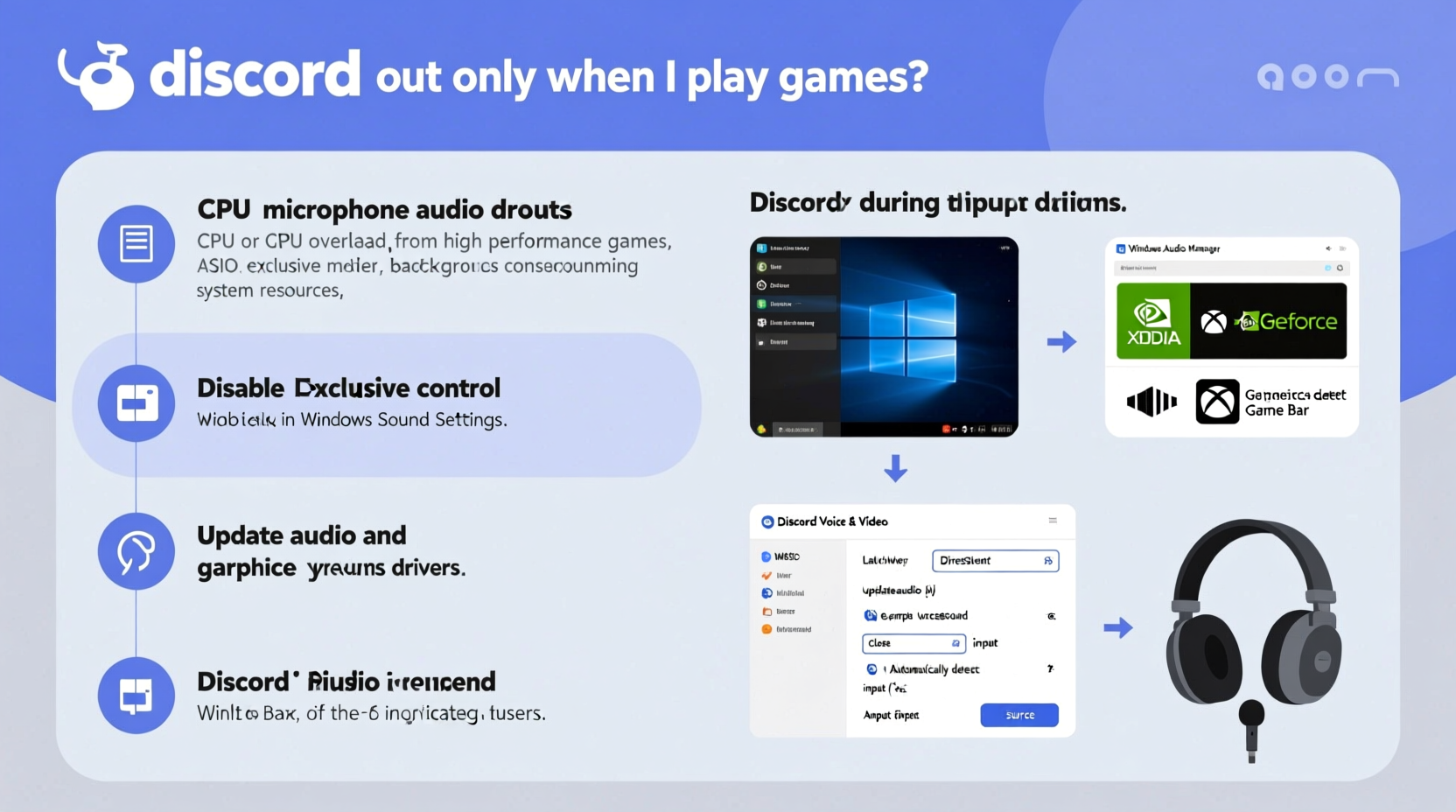
One of the most common culprits behind mic cutouts during gameplay is Windows’ Exclusive Mode settings. When enabled, certain applications—especially full-screen games—can claim exclusive access to audio devices. Once a game takes control of the audio stack, Discord loses the ability to read from the microphone until the game releases it.
To check this setting:
- Right-click the speaker icon in the system tray.
- Select Sound settings.
- Under the Input section, click Device properties for your microphone.
- Select Additional device properties.
- Navigate to the Advanced tab.
- Uncheck both options:
- Allow applications to take exclusive control of this device
- Give exclusive mode applications priority
- Click Apply and OK.
This change ensures that multiple applications can share the microphone simultaneously, preventing Discord from being locked out by the game.
Driver Bottlenecks and Sample Rate Mismatches
Some audio drivers, particularly those bundled with motherboards or headsets, are not optimized for multi-application audio routing. A mismatch between the sample rate used by the game and Discord can cause buffer underruns or overruns, resulting in audio glitches.
For example, if your microphone is set to 48 kHz but the game expects 44.1 kHz, the audio subsystem must perform real-time resampling. Under heavy load, this process can fail silently, causing the mic feed to stall. To avoid this:
- Set your default microphone format to 16-bit, 48000 Hz (DVD Quality) in Sound Settings > Device Properties > Additional Device Properties > Advanced.
- Ensure all connected audio devices use compatible sample rates.
- Update your audio drivers from the manufacturer’s website—not just through Windows Update.
“Modern games often bypass standard audio APIs for performance, which can inadvertently block third-party apps like Discord.” — Jordan Lee, Senior Systems Engineer at AudioTech Labs
Power Management and CPU Throttling
Power plans can significantly affect audio stability. The default Power Saver or Balanced modes may reduce CPU clock speeds during gameplay to manage heat and battery life. While this helps efficiency, it can starve real-time processes like voice capture.
Switch to the High Performance power plan:
- Open Control Panel > Hardware and Sound > Power Options.
- Select High Performance.
- If not visible, click “Show additional plans” or create a custom plan.
Additionally, disable CPU throttling features in BIOS/UEFI if available, such as Intel SpeedStep or AMD Cool'n'Quiet, especially on desktop systems where thermal constraints are less critical.
Background Process Prioritization
Windows does not inherently prioritize Discord over games. Without manual intervention, the game typically receives top scheduling priority. You can adjust this by increasing Discord’s process priority in Task Manager:
- Launch Discord and start a test call.
- Open Task Manager (Ctrl+Shift+Esc).
- Find Discord.exe under Processes.
- Right-click > Go to details.
- Right-click the process > Set priority > Choose High (do not use Realtime unless necessary).
Note: Changing priority manually resets after restarting Discord. For permanent changes, consider using a third-party tool like Process Lasso or a startup script.
Software and Overlap Conflicts
Many gamers use additional audio software—Voicemeeter, NVIDIA Broadcast, RTX Voice, SteelSeries Sonar, or Razer Synapse. While these tools enhance audio quality, they introduce virtual audio devices and complex routing layers that can conflict under load.
For instance, Voicemeeter acts as a virtual mixer, but if it crashes or lags due to high CPU usage, the entire audio chain—including Discord’s mic input—fails. Similarly, NVIDIA Broadcast uses AI-based noise cancellation, which consumes GPU VRAM and CUDA cores. If the GPU is maxed out by the game, Broadcast may freeze, cutting off the mic stream.
To diagnose software conflicts:
- Temporarily disable all third-party audio enhancement tools.
- Test mic stability in Discord while gaming.
- Re-enable one tool at a time to identify the culprit.
Game-Specific Audio Engine Interference
Some games, especially those built on Unreal Engine or using proprietary audio middleware (like FMOD or Wwise), aggressively manage audio resources. They may disable unused input devices to save memory or reduce latency. If the game doesn’t detect active voice chat, it might shut down the microphone driver entirely.
This is particularly common in full-screen, single-player titles that don’t support in-game voice chat. Multiplayer-focused games usually preserve mic access, but even they can interfere when switching between menus and gameplay.
| Common Game Engines | Likelihood of Mic Conflict | Workaround |
|---|---|---|
| Unity | Low | Usually compatible with Discord |
| Unreal Engine 4/5 | Medium-High | Disable exclusive audio mode; update audio plugins |
| Frostbite | Medium | Run game in borderless windowed mode |
| Custom Proprietary | Check community forums for known issues |
Troubleshooting Checklist
Follow this step-by-step checklist to resolve mic cutouts when gaming:
- Disable Exclusive Mode in microphone properties.
- Update audio drivers from manufacturer’s website.
- Set consistent sample rate (16-bit, 48000 Hz) across all devices.
- Switch to High Performance power plan.
- Close unnecessary background apps (browsers, streaming tools).
- Run Discord as Administrator to prevent permission blocks.
- Use a USB microphone or dedicated audio interface to reduce onboard audio strain.
- Test in borderless windowed mode instead of full screen.
- Lower in-game graphics settings to reduce CPU/GPU load.
- Disable third-party audio software temporarily to isolate conflicts.
Real-World Example: Competitive FPS Player’s Fix
Alex, a ranked Apex Legends player, noticed his mic cutting out every time he entered combat. In base, his team could hear him clearly, but during fights, his voice disappeared for 3–5 seconds at a time. After testing various fixes, he discovered the issue stemmed from a combination of factors:
- His RGB headset’s audio software was using 15% CPU constantly.
- Exclusive Mode was enabled on his mic.
- He was using Balanced power mode.
After disabling the RGB software, turning off exclusive mode, and switching to High Performance mode, the mic remained stable throughout matches. He also reduced shadow quality in-game to free up CPU cycles, which further improved consistency. The fix took less than 15 minutes and immediately restored reliable comms.
Frequently Asked Questions
Can overclocking cause mic cutouts in games?
Yes. Unstable overclocks can lead to system crashes or timing errors in peripheral communication. If your CPU or RAM is overclocked beyond stability, audio drivers may fail to respond under load. Return to stock settings temporarily to test if the issue resolves.
Does using a wireless headset increase mic dropout risk?
It can. Wireless headsets rely on Bluetooth or 2.4 GHz dongles, both of which are susceptible to interference under high system load. Bluetooth, in particular, shares bandwidth with Wi-Fi and can degrade when the CPU is busy. Use a wired connection or a dedicated USB dongle with low-latency mode enabled.
Why does my mic work fine in Xbox Game Bar but not in Discord?
Xbox Game Bar runs at a deeper system level and often has higher access privileges. Discord, being a user-mode application, may be blocked by driver-level restrictions or power-saving features that don’t affect Game Bar. This discrepancy highlights a permissions or driver issue rather than a hardware fault.
Conclusion: Stable Comms Are Within Reach
Mic cutouts during gaming are not inevitable. They stem from predictable system behaviors that can be diagnosed and corrected with careful configuration. By addressing resource competition, disabling aggressive audio exclusivity, and optimizing your environment for real-time communication, you can maintain clear, uninterrupted voice chat—even in the most intense matches.
The solution isn’t always a single fix but a combination of adjustments tailored to your hardware and software setup. Start with the basics: disable exclusive mode, update drivers, and manage system load. From there, fine-tune priorities and configurations based on your specific rig.
🚀 Take action tonight: Run through the checklist before your next gaming session. Share your results or tips in the comments—your insight could help another player finally fix their broken mic!