
Setting up an Xbox One S might seem straightforward, but a truly optimized system goes beyond plugging in cables. A well-configured console ensures faster load times, stable connections, minimal input lag, and fewer interruptions during gameplay. Whether you're new to the platform or upgrading from an older model, taking the time to set up your Xbox One S correctly can transform your gaming experience from frustrating to flawless.
1. Unboxing and Initial Setup
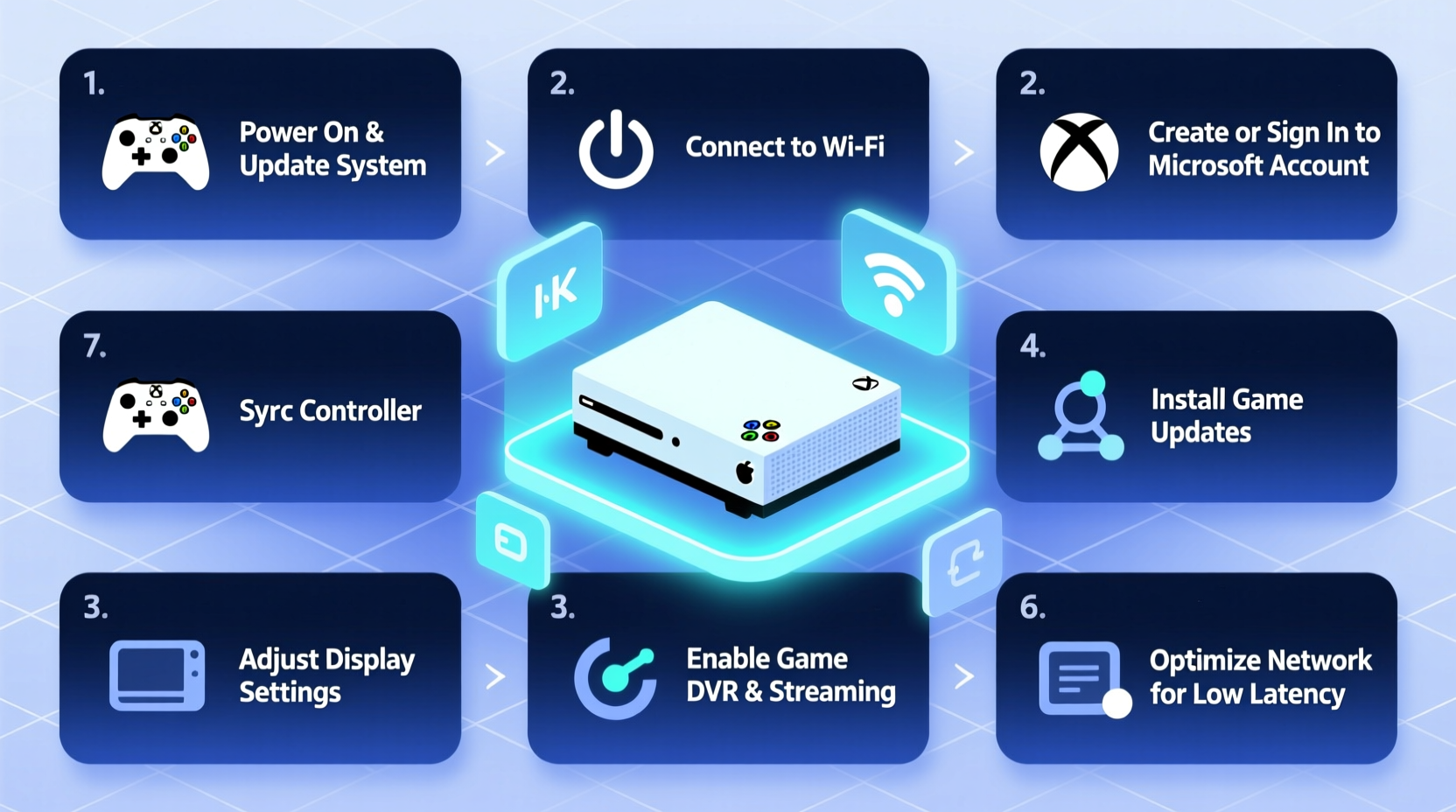
Begin with careful unboxing. The Xbox One S comes with the console, power supply, HDMI cable, wireless controller, AA batteries, and a quick-start guide. Before powering on, place the console in a well-ventilated area—never enclosed or covered. Overheating leads to throttling, which reduces performance over time.
Connect the power cable to the back of the console and plug it into a surge protector, not directly into a wall outlet. Use the included HDMI cable to connect the console to your TV’s HDMI 1 or HDMI 2 port—ideally one that supports HDMI 2.0 for 4K HDR if your display allows.
- Power on the console using the button on the front.
- Follow the on-screen prompts to select language and region.
- Pair the controller by pressing the pairing button on the console and the controller simultaneously.
- Connect to Wi-Fi or Ethernet—preferably Ethernet for stability.
2. Optimizing Network Settings for Smooth Gameplay
Your internet connection is just as critical as the console itself. Even high-speed broadband can underperform if settings aren’t tuned correctly. Start by checking your network speed via Settings > Network > Test Network Speed & Capabilities. For seamless gaming, aim for at least 15 Mbps download and 3 Mbps upload. Lower speeds may cause stuttering or disconnections.
To prioritize gaming traffic, enable Quality of Service (QoS) on your router. Assign your Xbox a static IP address so it always receives priority bandwidth. You can also reserve bandwidth for the console through your router’s admin panel.
| Connection Type | Latency Range | Recommended For |
|---|---|---|
| Wired Ethernet | 10–30 ms | Competitive gaming, 4K streaming |
| Wi-Fi 5 (802.11ac) | 30–60 ms | Casual play, single-player titles |
| Wi-Fi 4 (802.11n) | 60+ ms | Basic use only—avoid for online gaming |
“Consistent low-latency connections are more important than raw speed when it comes to real-time gaming.” — Mark Tran, Senior Network Engineer at GameStream Labs
3. System Configuration for Peak Performance
After connecting to the internet, sign in with your Microsoft account. If you don’t have one, create it now—it unlocks cloud saves, achievements, and access to Xbox Live features.
Navigate to Settings > Display & Sound > Video Output. Set resolution to match your TV—typically 1080p or 4K UHD. Enable HDR if your display supports it. Then go to TV & OneGuide > Automatic Resume and disable it unless you frequently switch between apps; otherwise, it consumes background resources.
Under Preferences > Power & Startup, configure the console to stay in instant-on mode. This allows quicker wake-ups and background downloads while consuming slightly more power. If energy efficiency is a concern, choose “Energy-saving” mode instead.
Essential Settings Checklist
- ✅ Set video output to native TV resolution
- ✅ Enable HDMI-CEC for single remote control operation
- ✅ Turn off background apps in Settings > Apps
- ✅ Disable voice activation (Kinect not supported on One S)
- ✅ Update system software immediately
4. Storage Management and Game Optimization
The Xbox One S ships with either 500GB, 1TB, or 2TB of internal storage. Modern AAA titles can consume 50–100GB each, so space fills quickly. To maintain fast load times and avoid performance hiccups, keep at least 15% of your drive free.
Use an external USB 3.0 hard drive (1TB recommended) for storing less-played games. Format it via Settings > Devices & Connections > External Storage. Games run just as fast from external drives as internal ones, provided they’re USB 3.0 compatible.
Install game updates automatically by going to Settings > System > Updates and enabling “Keep my console up to date” and “Keep my games & apps up to date.” This prevents being locked out of online sessions due to missing patches.
Real Example: Alex’s Lag-Free Upgrade
Alex, a competitive Halo Infinite player, experienced frequent frame drops during ranked matches. After switching from Wi-Fi to a Cat 6 Ethernet cable, updating his router firmware, and moving two large games to an external SSD, his average ping dropped from 78ms to 26ms. Load times improved by nearly 30%, and he stopped experiencing mid-match crashes. His simple changes made a measurable difference in gameplay precision and consistency.
5. Maintaining Long-Term Performance
Like any electronic device, the Xbox One S benefits from regular maintenance. Dust buildup can block airflow and lead to overheating. Power down the console monthly and gently clean the vents with a dry microfiber cloth or compressed air. Never open the casing—this voids the warranty.
Rebuild the console cache every few months to clear fragmented data. To do this, hold the power button for 10 seconds until the light turns off. Unplug the power cord for 2 minutes, then reconnect and restart. This refreshes system memory without deleting personal data.
Monitor storage usage weekly. Delete unused games or move them to external drives. Reinstalling a game occasionally can resolve minor glitches caused by corrupted update files.
Frequently Asked Questions
Can I use any USB drive as external storage?
Yes, but it must be at least 256GB and use USB 3.0 or higher. Drives formatted specifically for Xbox work best. Avoid using flash drives—they’re too slow for game installations.
Why is my Xbox running slowly after updates?
Major system or game updates sometimes introduce temporary inefficiencies. Clear the cache, ensure adequate free space, and check for follow-up patches. Performance usually stabilizes within a week.
Does HDR really improve gaming visuals?
On compatible TVs, yes. HDR enhances contrast, color depth, and brightness range, making shadows richer and highlights more vivid. However, ensure your HDMI cable is High-Speed with Ethernet to support HDR properly.
Final Steps to Unlock Your Best Gaming Experience
Setting up your Xbox One S isn’t a one-time task—it’s the foundation of a responsive, reliable gaming environment. From choosing the right placement and network setup to managing storage and maintaining system health, each step contributes to smoother performance. Small adjustments often yield big results, especially in fast-paced or online games where milliseconds matter.
Take the time now to review your current setup against this guide. Are you using a wired connection? Is your console updated? Is unnecessary clutter slowing down your interface? Address these details today, and you’ll enjoy faster loads, sharper visuals, and uninterrupted play sessions tomorrow.
🚀 Ready to level up your gaming? Apply these steps tonight and feel the difference in your next session. Share your optimization tips in the comments—help others build better setups too!