Nothing is more frustrating than typing out an urgent message, hitting send, and watching it sit there—stuck with a red exclamation mark or no delivery confirmation. Whether you're using SMS, MMS, or a messaging app like iMessage or WhatsApp, failed texts can disrupt communication, cause misunderstandings, or delay important plans. The good news: most issues have simple explanations and even simpler solutions. Understanding why text messages fail to send—and how to fix them quickly—can save time, reduce stress, and keep your connections strong.
Common Reasons Messages Fail to Send
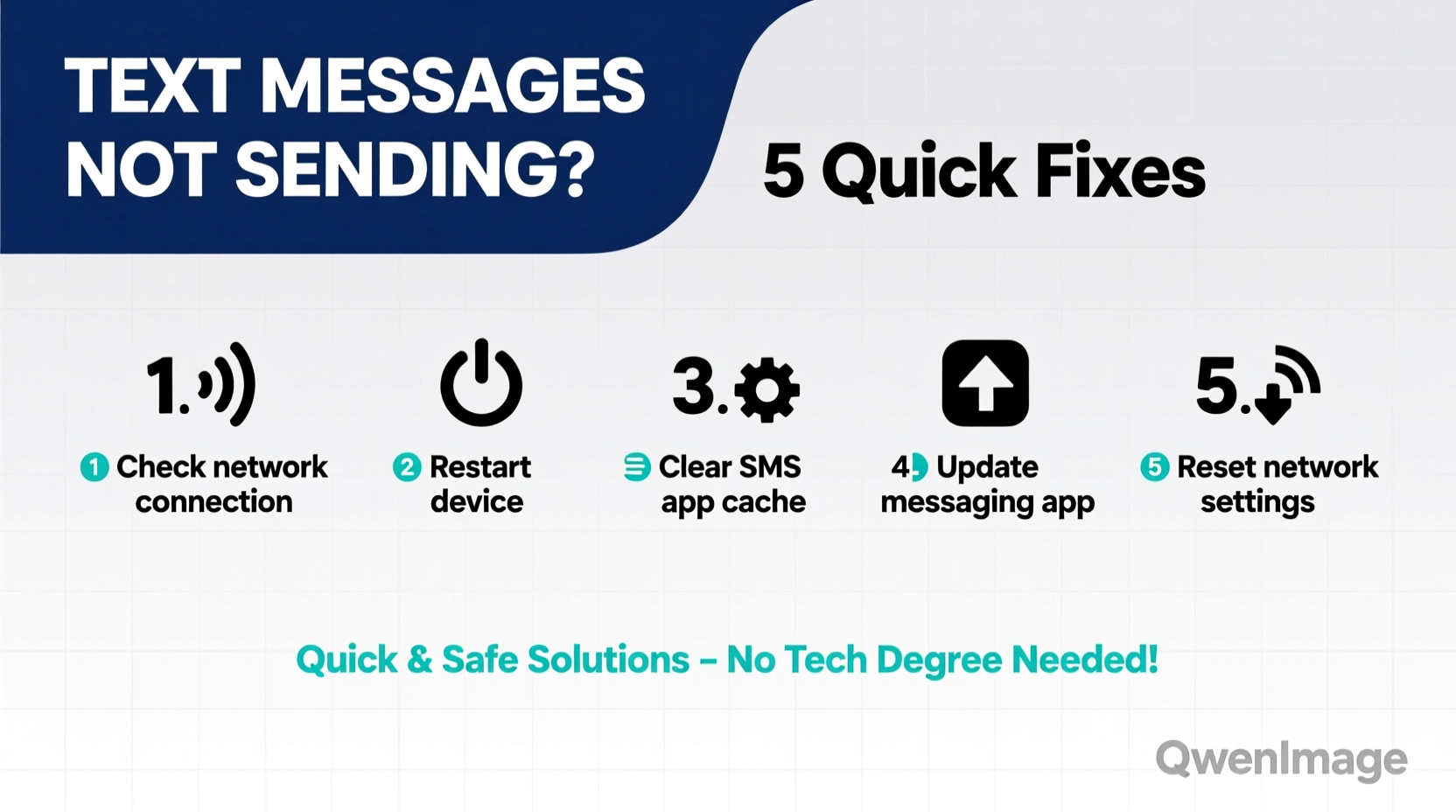
Before diving into fixes, it’s essential to understand what might be going wrong. Text delivery depends on several factors: network connectivity, device settings, carrier support, and app functionality. Here are the most frequent culprits behind undelivered messages:
- Poor or No Network Signal: Without cellular or Wi-Fi access, messages can't reach their destination.
- Incorrect Message Settings: Misconfigured SMS/MMS or iMessage/RCS settings can block delivery.
- Carrier Issues: Outages, service suspensions, or plan limitations may prevent message routing.
- Blocked Numbers or Contacts: Recipients may have blocked your number, or you might have accidentally blocked theirs.
- Outdated Software: Old operating systems or messaging apps can cause compatibility problems.
- Full Message Storage: If your device’s message inbox is full, new messages may fail to send or receive.
- Do Not Disturb or Airplane Mode: These modes can silently interfere with message transmission.
Quick Diagnostic Checklist
When your message won’t send, run through this checklist to identify and resolve the issue in under five minutes.
- Check if your phone has cellular or Wi-Fi signal.
- Ensure Airplane Mode is turned off.
- Verify that Do Not Disturb isn’t blocking notifications or background processes.
- Restart your phone to refresh network connections.
- Confirm the recipient’s number is correct and properly formatted (including country code if needed).
- Try sending a message to another contact to isolate the problem.
- Look for error messages (e.g., “Message failed,” “Not delivered”)—they often hint at the root cause.
Step-by-Step Fixes by Cause
1. Fix Network-Related Issues
Your phone needs a stable connection to send messages. If you’re relying on SMS or MMS, cellular data or voice networks must be active. For iMessage, RCS, or WhatsApp, Wi-Fi or mobile data suffices.
Solutions:
- Move to an area with better reception or near a window.
- Enable Wi-Fi and connect to a reliable network.
- Toggle Airplane Mode on for 10 seconds, then off to reset radios.
- Manually select your carrier: Go to Settings > Network & Internet > Mobile Network > Carrier and choose your provider.
2. Adjust Messaging App Settings
Misconfigured settings are a silent saboteur of message delivery. This is especially true when switching between devices or carriers.
For iPhone (iMessage/Text):
- Go to Settings > Messages and ensure iMessage is toggled on.
- Verify your Apple ID is signed in under Settings > [Your Name] > iCloud > Messages.
- If sending to Android users, confirm “Send as SMS” is enabled so fallback texts work.
For Android (RCS/Chat Features):
- Open Google Messages and tap your profile > Chat features.
- Turn on RCS if available. It enables read receipts, typing indicators, and internet-based messaging.
- If RCS fails, disable it temporarily and use standard SMS/MMS.
3. Verify Carrier Support and Plan Limits
Some mobile plans restrict MMS (multimedia messages) or international texting. Others may suspend services due to overdue payments.
| Issue | Symptom | Solution |
|---|---|---|
| No MMS support | Photos/videos fail to send; only text goes through | Contact carrier to enable MMS or upgrade plan |
| International restrictions | Messages to foreign numbers don’t send | Enable global roaming or use WhatsApp/iMessage over Wi-Fi |
| Service suspension | No calls, texts, or data | Check account status and pay outstanding balance |
“Over 60% of ‘failed message’ cases we see are due to misconfigured MMS settings or disabled data.” — Jamal Reed, Senior Network Technician at MetroNet Support
4. Clear Cache and Update Software
Bugs in outdated software can interfere with messaging functions. Similarly, a bloated cache in your messaging app may cause crashes or failed sends.
To clear cache on Android:
- Go to Settings > Apps > Messages (or default texting app).
- Select Storage > Clear Cache.
- Restart the app and try sending again.
On iPhone: While iOS doesn’t allow direct cache clearing for Messages, offloading the app or updating iOS often resolves glitches.
Always install the latest OS and app updates. Developers frequently patch bugs related to connectivity and message delivery.
Real-World Example: Maria’s Weekend Messaging Crisis
Maria was coordinating a family reunion via group text when her messages suddenly stopped sending. She saw red exclamation marks next to each attempt. Panicked, she called her brother—only to find he hadn’t received any of her updates.
She followed basic troubleshooting: restarted her phone, checked her signal (excellent), and confirmed her number was correct. Then she noticed iMessage was grayed out in Settings. After signing out of her Apple ID and back in, iMessage reactivated, and all pending messages sent instantly.
The issue? A temporary authentication failure during a recent iOS update had disabled iMessage without notification. A simple sign-in restored everything.
Tip: If iMessage or RCS shows as offline despite good connectivity, re-authenticate your account.Frequently Asked Questions
Why do some texts send but others don’t?
This often happens when mixing iMessage (blue bubbles) and SMS (green bubbles). iMessage requires internet and works only between Apple devices. If iMessage fails, the phone should auto-fallback to SMS—if “Send as SMS” is enabled. Otherwise, messages stall.
Can a full message inbox prevent sending?
Yes. Some older phones or carriers impose limits on stored messages. If your inbox is full, the system may reject new outgoing attempts. Regularly archive or delete old conversations to avoid this.
What if messages send but aren’t delivered?
Sent ≠ Delivered. “Sent” means your phone handed the message to the network. “Delivered” means it reached the recipient’s device. If messages remain unsent, the issue is on your end. If they’re sent but not delivered, the recipient’s phone may be off, out of range, or blocking your number.
Prevent Future Messaging Failures
Proactive maintenance reduces the chances of future hiccups. Adopt these habits to keep your messaging smooth:
- Keep your phone’s OS and apps updated.
- Use Wi-Fi whenever possible for iMessage, RCS, or messaging apps.
- Periodically restart your device to clear network glitches.
- Double-check message settings after switching SIM cards or carriers.
- Back up messages regularly to avoid storage-related failures.
Conclusion: Stay Connected With Confidence
Text messages not sending doesn’t have to mean hours of frustration. Most issues stem from easily diagnosable causes—poor signal, incorrect settings, or minor software hiccups. By following a structured approach, you can identify and resolve the problem in minutes. Whether you're troubleshooting iMessage delays, Android MMS failures, or carrier-related blocks, the key is knowing where to look and what steps to take.
💬 Did one of these fixes solve your messaging issue? Share your experience in the comments—your insight could help someone else get back online fast.