Creating a Google Account is the gateway to accessing Gmail, Google Drive, YouTube, Google Calendar, and dozens of other tools that shape modern digital life. Whether you're setting up your first email address or adding a secondary account for better organization, doing it correctly matters—not just for convenience, but for long-term security. This guide walks you through every essential step with clarity and precision, ensuring your account remains protected from the start.
Why You Need a Google Account
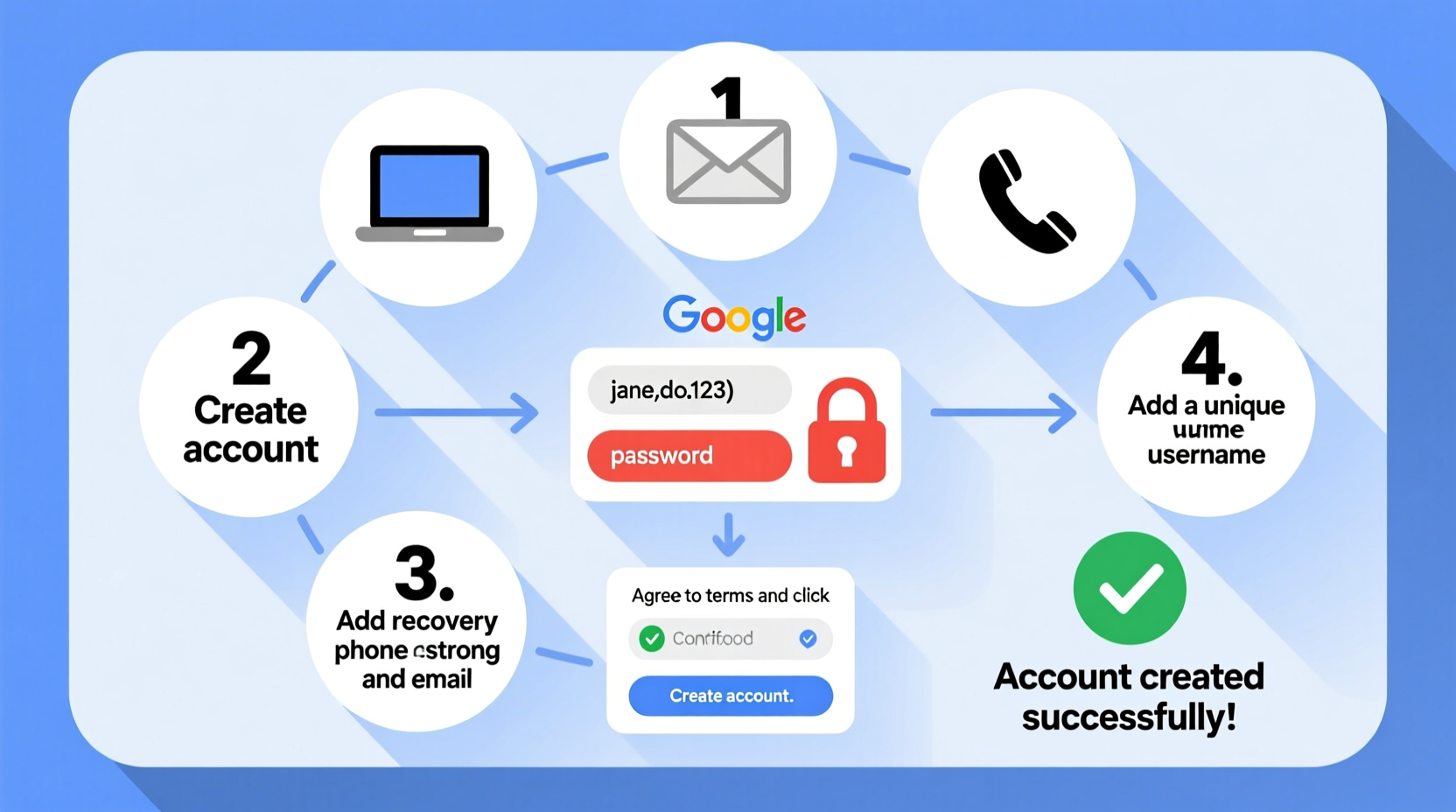
A Google Account isn’t just an email address—it’s a digital identity. Once created, it unlocks seamless access across Google's ecosystem: save files in Drive, sync bookmarks across devices, manage calendars, store passwords in Google Password Manager, and even control smart home devices via Google Home. For students, professionals, and everyday users, having a secure Google Account simplifies both work and personal tasks.
However, because this account holds so much data, setting it up securely from day one is critical. A weak password or poorly verified recovery method can leave your information vulnerable to unauthorized access.
What You’ll Need Before Starting
Before diving into the creation process, gather the following:
- A working internet connection
- A device (computer, tablet, or smartphone)
- Your phone number (for verification)
- An alternate email address (optional but recommended)
- A strong password ready (more on this later)
Having these items prepared ensures a smooth setup without interruptions. Avoid using public Wi-Fi during registration; instead, use a private, secure network to reduce the risk of interception.
Tip: Use a personal device and trusted network when creating your account. Public computers may log keystrokes or retain login sessions.Step-by-Step Guide to Creating Your Google Account
- Go to the Google Account Creation Page
Open your browser and navigate to accounts.google.com/signup. This is the official page—never create an account through third-party links. - Enter Your Name
Input your first and last name. While you can change this later, Google requires real names for account legitimacy. Nicknames are allowed as long as they don’t impersonate others. - Choose a Username (Your Gmail Address)
Type your desired username. This becomes your @gmail.com email. If it’s taken, Google will suggest alternatives. Try variations with numbers or middle initials if needed. - Create a Strong Password
Choose a password that is at least 12 characters long, combining uppercase letters, lowercase letters, numbers, and symbols. Avoid common phrases like “password123” or personal info such as birthdays. - Confirm Your Phone Number
Enter a mobile number where Google can send a verification code via SMS or automated call. This helps verify your identity and recover your account if locked out. - Add a Recovery Email (Optional but Recommended)
If you have another email, enter it here. It provides an extra layer of recovery should you lose access to your phone. - Enter Your Birthdate and Gender
Provide accurate details. Google uses birthdate to enforce age-based restrictions. Gender is optional and used for personalization only. - Review Privacy & Terms
Read Google’s Terms of Service and Privacy Policy. Click “I agree” to proceed. You can adjust privacy settings after setup. - Verify via Text or Call
Google sends a 6-digit code to your phone. Enter it to confirm ownership. Without this step, the account won’t activate. - Complete Setup
You’ll be redirected to your new Gmail inbox. The account is now active and ready to use.
Securing Your New Google Account Immediately
Creation is just the beginning. To ensure long-term safety, take these immediate actions:
Enable Two-Factor Authentication (2FA)
Go to myaccount.google.com/security, select “2-Step Verification,” and turn it on. After enabling, you’ll need both your password and a second form of confirmation—like a prompt on your phone or a code from an authenticator app—to sign in.
Set Up Account Recovery Options
In the same Security section, review and update your recovery phone and email. These are vital if you forget your password or get locked out.
Use a Password Manager
Store your Google password in a reputable password manager like Bitwarden, 1Password, or Google’s built-in Password Manager. Never write it down on paper or save it in unencrypted notes.
“Over 80% of account breaches occur due to weak or reused passwords. A unique, complex password combined with 2FA reduces risk dramatically.” — NIST Cybersecurity Guidelines, 2023
Do’s and Don’ts When Creating a Google Account
| Do’s | Don’ts |
|---|---|
| Use a strong, unique password | Reuse passwords from other accounts |
| Verify with your own phone number | Borrow someone else’s phone for verification |
| Enable two-factor authentication | Skip 2FA to save time |
| Add a recovery email | Leave recovery options blank |
| Review privacy settings monthly | Assume settings stay secure forever |
Real Example: Maria’s Secure Account Setup
Maria, a college student starting her first remote internship, needed a professional email. She avoided using her old nickname-based account and instead created a new Google Account with her full name: maria.rodriguez2024@gmail.com. She used a password generated by her password manager, enabled 2FA with Google Authenticator, and added her backup email. When she accidentally left her laptop in a café, the 2FA alert on her phone prevented unauthorized access. Her proactive setup saved her from potential data loss.
Frequently Asked Questions
Can I create a Google Account without a phone number?
While Google strongly encourages phone verification, it’s sometimes possible to skip it by clicking “Try another way” during signup. However, skipping verification limits functionality and makes recovery nearly impossible if you’re locked out. Using a phone number is highly recommended.
What if my desired Gmail username is taken?
Gmail has over 1.5 billion users, so many simple names are already claimed. Try adding numbers (e.g., johnsmith2024), using dots (e.g., j.ohn.smith), or including a middle initial. Remember: john.smith@gmail.com and johnsmith@gmail.com are treated as the same address by Gmail’s system.
How do I know if my Google Account is secure?
Visit myaccount.google.com and check the “Security Checkup” section. Google will highlight issues like weak passwords, unused recovery methods, or suspicious activity. Run this check quarterly.
Final Checklist: Your First 24 Hours
To lock in security and maximize utility, complete this checklist within the first day of account creation:
- ✅ Change your password if the initial one wasn’t strong enough
- ✅ Enable two-factor authentication
- ✅ Add or confirm recovery email and phone
- ✅ Review connected apps and remove unknown ones
- ✅ Set up Gmail filters or labels for organization
- ✅ Explore Google Drive and back up important files
Conclusion: Take Control of Your Digital Identity
Opening a Google Account is simple, but doing it securely separates a functional tool from a potential liability. By following these steps—choosing a strong password, verifying your identity properly, and enabling multi-layered protection—you build a foundation that supports productivity, communication, and peace of mind. Technology should serve you, not expose you. With your new account set up the right way, you’re ready to make the most of everything Google offers—safely and confidently.
💬 Have questions about securing your Google Account? Share your experience or ask for advice in the comments—helping others build safer digital habits starts with one conversation.