Creating a professional ID card from home is no longer limited to businesses with access to specialized equipment. With the right tools, attention to detail, and a clear process, you can produce high-quality identification cards for personal projects, small organizations, events, or volunteer groups. Whether it's for a school club, nonprofit team, or temporary staff credentialing, a well-designed ID card enhances credibility and security. This guide walks through every stage—from planning and design to printing and protection—ensuring your homemade ID card looks polished and functions effectively.
1. Define the Purpose and Required Information
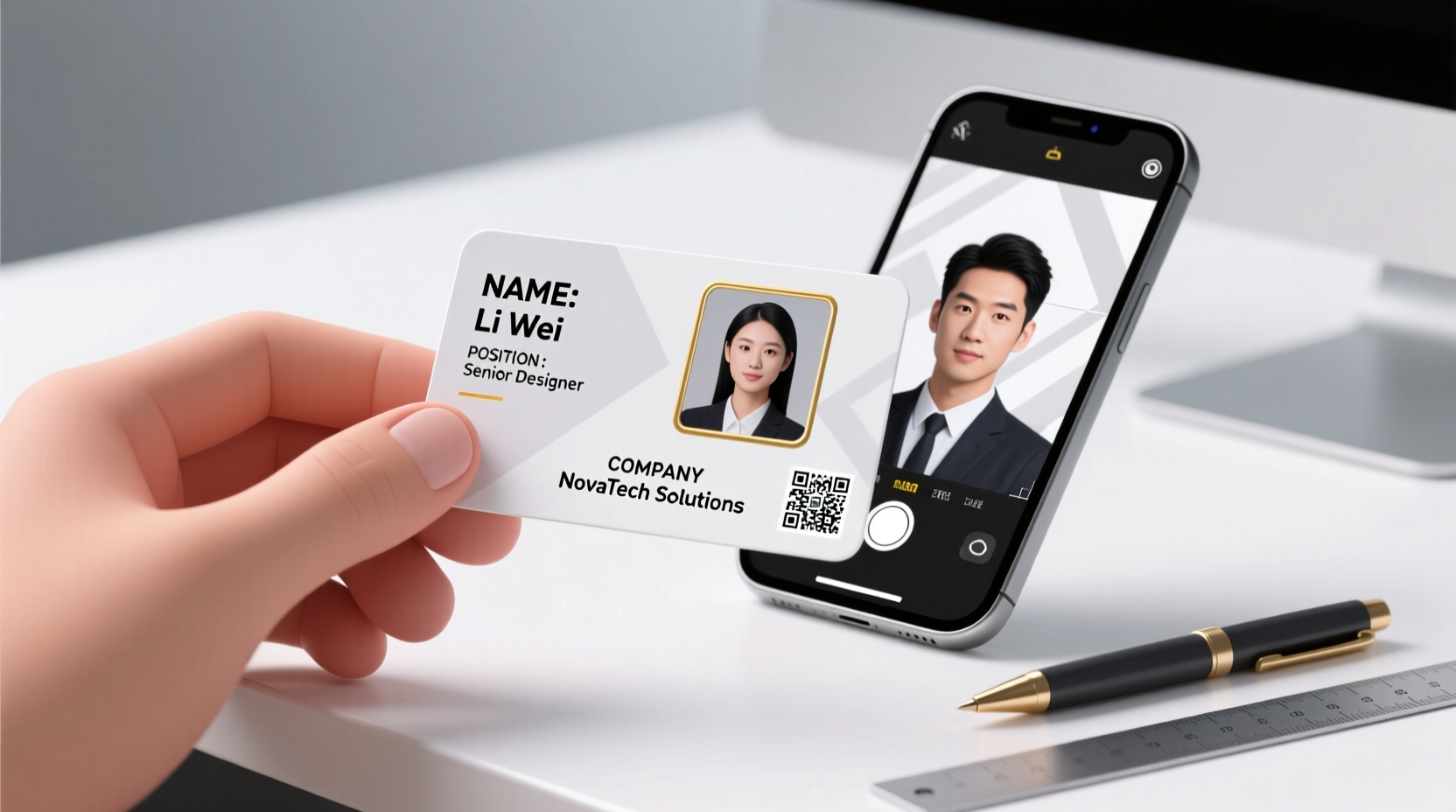
Before opening any design software, determine the purpose of your ID card. Is it for identification only? Does it need to include contact details, access permissions, or emergency information? The function dictates the content layout and level of formality.
A standard professional ID card typically includes:
- Full name (preferably in bold, legible font)
- Job title or role
- Organization name and logo
- Photo (ideally passport-style)
- ID number or barcode (optional)
- Expiry date (if applicable)
- Contact information or department
“Clarity and consistency are key in ID design. A clean layout communicates professionalism more than decorative elements.” — James Liao, Graphic Designer & Identity Consultant
2. Choose Your Design Tools and Template Size
You don’t need expensive software to create a quality ID card. Several accessible tools offer precision and flexibility:
- Canva: Free, user-friendly, with built-in ID card templates (8.6 cm x 5.4 cm or 3.375” x 2.125”, matching ISO/IEC 7810 ID-1 standard).
- Adobe Illustrator: Best for advanced users needing vector precision and print-ready output.
- Microsoft Word or Google Docs: Can be used with table-based layouts and image insertion, though less flexible.
- Inkscape: Free open-source alternative to Illustrator, suitable for scalable designs.
Stick to the standard credit-card size (CR-80: 3.375\" x 2.125\") so your card fits common badge holders and wallets.
Design Best Practices
| Do | Don't |
|---|---|
| Use high-resolution logos (300 DPI minimum) | Stretch low-quality images |
| Choose sans-serif fonts (e.g., Helvetica, Open Sans) | Use decorative or script fonts for critical info |
| Maintain contrast between text and background | Use light gray text on white |
| Align elements using grids or guides | Center everything haphazardly |
3. Take and Insert a Professional-Looking Photo
The photo is often the most scrutinized element. A poor image undermines the entire card’s legitimacy.
To capture an effective ID photo at home:
- Stand in front of a plain, light-colored wall.
- Use natural daylight or even artificial lighting (avoid shadows).
- Look directly at the camera with a neutral expression.
- Wear clothing that contrasts with your skin tone.
- Take the photo with a smartphone or digital camera in portrait mode.
Once taken, edit the image to crop tightly around the face (following passport photo guidelines), adjust brightness if needed, and save in PNG format to preserve quality. Import into your design tool and position it consistently—usually top-left or top-right corner.
Tip: Maintain a 0.25-inch margin around all edges to prevent cutoff during printing.4. Print and Laminate for Durability
Printing is where many DIY ID cards fail. Home printers vary in quality, but these steps maximize results:
Printer and Paper Selection
- Inkjet vs. Laser: Laser printers generally produce sharper text and smudge-resistant output. Inkjet works if using photo paper.
- Paper Type: Use thick, glossy photo paper (200–300 gsm) or PVC-compatible printable sheets if available.
- Print Settings: Select “High Quality” or “Best Photo” mode and ensure color calibration is accurate.
Before final printing, do a test run on regular paper to check alignment. Then print one sample on premium paper.
Lamination Process
Lamination protects against moisture, scratches, and wear—critical for a professional appearance.
- Cut your printed card to exact size using a paper cutter or guillotine for straight edges.
- Select self-adhesive or thermal laminating pouches sized for ID cards (or slightly larger).
- If using thermal lamination: insert card into pouch and run through a laminator at low-medium heat.
- If using adhesive pouches: peel and carefully apply without trapping air bubbles.
- Trim excess laminate evenly on all sides.
“A laminated finish signals durability and intention. It transforms a printout into a credible credential.” — Dana Reyes, Office Administration Trainer
5. Real-World Example: Community Center Volunteer IDs
The Maplewood Community Center needed ID badges for 15 new volunteers. With no budget for commercial printing, the coordinator, Maria, created them at home using this method.
She used Canva to design a simple template with the center’s logo, a blue accent bar, and fields for name, role (“Volunteer Staff”), and a QR code linking to their training portal. Photos were taken under a skylight using an iPhone, cropped uniformly, and uploaded. After printing on heavyweight semi-gloss paper, each card was laminated using pre-cut 3mil pouches.
The result: a cohesive, professional set of IDs that members praised for clarity and consistency. The entire project cost under $20 and took three hours.
Checklist: How to Make a Professional ID Card at Home
- ✅ Define the card’s purpose and required data fields
- ✅ Choose design software and set canvas to 3.375\" x 2.125\"
- ✅ Source or create a high-resolution organization logo
- ✅ Take a well-lit, passport-style photo
- ✅ Design layout with balanced spacing and readable fonts
- ✅ Proofread all text and test print on draft paper
- ✅ Print on high-quality, thick paper or PVC sheet
- ✅ Laminate for protection and professional finish
- ✅ Trim edges cleanly and inspect final product
- ✅ Store extras in a dry, flat container to prevent warping
Frequently Asked Questions
Can I use a regular printer for ID cards?
Yes, but results depend on paper quality and printer capabilities. For best results, use a laser printer or high-end inkjet with glossy photo paper. Avoid standard copy paper as it curls and wears quickly.
How do I add a barcode or QR code?
Generate a free QR code using online tools like QRCode Monkey or GoQR. Enter the desired link (e.g., staff profile or training page), download the image, and insert it into your design. For barcodes, use a free generator like Barcode Generator, ensuring the format (Code 128 or Code 39) suits your scanner.
Are homemade ID cards secure enough for official use?
For internal or non-sensitive environments (clubs, events, small teams), yes. However, they lack the anti-counterfeit features (holograms, microprinting, magnetic strips) of professionally issued cards. Always assess risk level before deployment.
Final Steps and Encouragement
Creating a professional ID card at home blends design sense, technical care, and attention to detail. While it may not replace government-issued credentials, it serves effectively for organizations needing affordable, consistent identification. By following standardized dimensions, using quality materials, and applying protective lamination, your homemade ID cards can look polished and inspire trust.
Start small—design one card, refine it, then scale. Share your template with others to maintain uniformity. With practice, you’ll develop a system that saves time and elevates your group’s professionalism.
🚀 Ready to create your first ID card? Gather your materials today and follow this guide step by step. Share your design tips or challenges in the comments below—your experience could help someone else get it right the first time.