Managing personal and professional communications separately has become essential in today’s fast-paced digital world. For many, WhatsApp is the primary messaging platform—but it only allows one account per device by default. What if you need to run two WhatsApp accounts simultaneously? The good news: you don’t need to root your phone or compromise security. Modern smartphones and smart workarounds make it possible to operate two WhatsApp accounts seamlessly on a single Android or iOS device.
This guide explores reliable, non-rooted methods that maintain data privacy, ensure app stability, and comply with WhatsApp’s terms of service. Whether you're balancing work and personal life, managing multiple businesses, or coordinating international contacts, these techniques will help you stay organized without carrying two phones.
Why Use Two WhatsApp Accounts?
Dual WhatsApp usage isn't just about convenience—it's often a necessity. Professionals who run small businesses from their personal devices may want to keep client conversations separate from family chats. Frequent travelers with local and home-country SIMs benefit from having both numbers active. Students studying abroad might maintain connections back home while integrating into new communities.
Keeping accounts separate reduces clutter, enhances privacy, and improves response efficiency. However, WhatsApp does not natively support multi-account login within the app. That’s where device-level features and trusted tools come into play.
Method 1: Built-in Dual Apps Feature (Android)
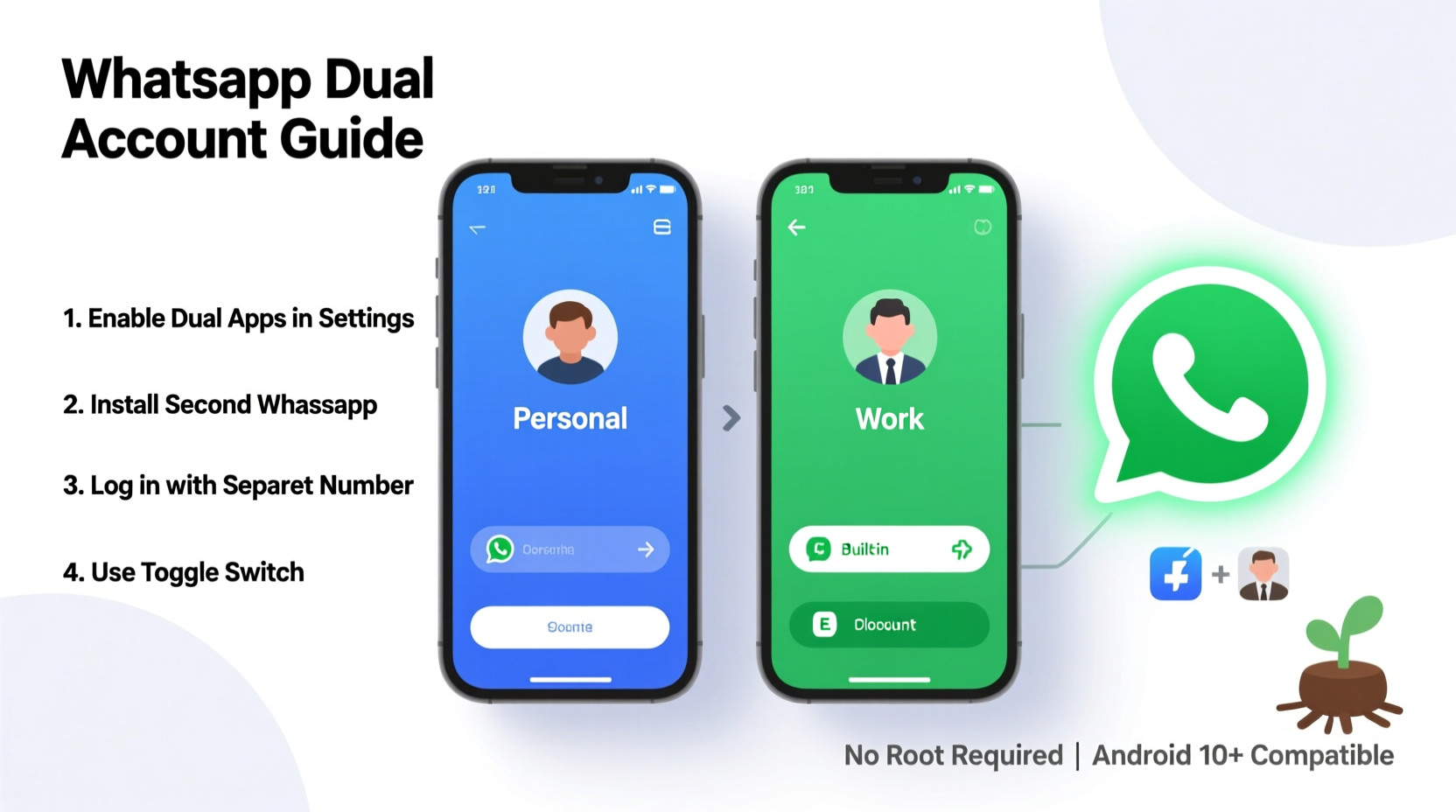
Many Android manufacturers—including Samsung, Xiaomi, Oppo, Vivo, and Realme—offer a native “Dual Apps” or “App Twin” feature. This creates an isolated clone of selected apps, allowing you to log in with a second WhatsApp account.
Step-by-Step Setup for Dual Apps
- Open Settings on your phone.
- Navigate to Apps > App Twin (or Dual Apps, depending on brand).
- Locate WhatsApp in the list and toggle the switch to enable it.
- A second WhatsApp icon will appear on your home screen, typically labeled with a badge like “2” or “Clone.”
- Launch the cloned app and verify a different phone number.
- Set up your profile, restore chat history if needed, and begin using the second account.
This method is fully supported by device manufacturers, requires no third-party software, and avoids any risk of violating WhatsApp’s policies. It works best on mid-range to premium Android devices released after 2018.
Method 2: Use WhatsApp Business Alongside Personal WhatsApp
If one of your accounts is for business purposes, WhatsApp offers an official solution: WhatsApp Business. Available as a free download on the Google Play Store and Apple App Store, this app functions independently from the standard WhatsApp application.
You can install both WhatsApp and WhatsApp Business on the same device, each linked to a different phone number. This approach is ideal for freelancers, entrepreneurs, or customer service teams needing dedicated lines for clients.
Setting Up WhatsApp Business Side-by-Side
- Download WhatsApp Business from your app store.
- Install it alongside your regular WhatsApp app.
- During setup, register the business app with a different phone number than your personal account.
- Customize your business profile with hours, address, email, and automated replies.
“Using WhatsApp Business doesn’t just allow dual usage—it adds professionalism through verified profiles and message templates.” — Lena Torres, Digital Communication Consultant
Note: Both apps must be registered with unique mobile numbers. Virtual numbers or landlines are not supported unless they can receive SMS or calls for verification.
Method 3: Third-Party Cloning Tools (Use with Caution)
For devices without built-in cloning features, third-party apps like Parallel Space, Dual Space, or Multi Parallel offer virtualized environments where a second instance of WhatsApp can run.
These tools create a sandboxed space inside your phone, mimicking a secondary user profile. They’re especially useful on budget devices or older models lacking native dual-app functionality.
How to Use Parallel Space Safely
- Download Parallel Space from the official Google Play Store (avoid third-party APK sites).
- Open the app and select Add Clone.
- Choose WhatsApp from the list of available apps.
- Tap the cloned WhatsApp icon within Parallel Space.
- Verify the second number as usual.
Important Security Note: While convenient, third-party cloning tools may pose privacy risks. Some have been flagged for excessive data collection. Only use reputable apps with strong user reviews and transparent privacy policies. Never use such tools for highly sensitive communications.
What About iPhones? Using Two WhatsApp Accounts on iOS
iOS does not support native app cloning or parallel spaces. However, Apple introduced a long-awaited feature in **iOS 17** that partially addresses this limitation: support for dual SIM with separate apps.
On iPhones with eSIM capability (iPhone 14 and later in certain regions), you can assign different default apps to each line. But WhatsApp still only supports one account per device.
Workaround for iPhone Users
The most practical option for iPhone users is to use WhatsApp Web or WhatsApp Desktop in combination with the mobile app:
- Use the main WhatsApp app on your iPhone for one number.
- Keep the second WhatsApp account logged in on WhatsApp Web via Safari or the desktop app.
- Pin the web session to your home screen for quick access.
To pin WhatsApp Web to your home screen:
- Open Safari and go to web.whatsapp.com.
- Scan the QR code using your second WhatsApp account (from another phone).
- Once logged in, tap the share button and select Add to Home Screen.
- A shortcut will appear, functioning like an app icon.
This hybrid method keeps both accounts accessible, though only one runs directly on the phone. It’s less seamless than Android’s dual-app systems but remains effective for moderate use.
Comparison Table: Methods Overview
| Method | Device Compatibility | Security Level | Requires Extra Number? | Best For |
|---|---|---|---|---|
| Native Dual Apps | Selected Android brands (Samsung, Xiaomi, etc.) | High (built-in) | Yes | General dual usage, personal + work |
| WhatsApp + WhatsApp Business | All Android & iOS | Very High (official apps) | Yes | Business owners, freelancers |
| Third-Party Cloners | Most Android devices | Moderate (varies by app) | Yes | Budget Android users |
| WhatsApp Web + Mobile | iPhones, any OS | High (end-to-end encrypted) | Yes | iOS users needing dual access |
Mini Case Study: Maria Balances Freelance and Family Life
Maria, a freelance graphic designer based in Lisbon, used to juggle client messages and family chats on a single WhatsApp account. Important deadlines were missed because personal notifications drowned out urgent work pings. After switching to a dual setup using Xiaomi’s Second Space feature, she now runs her business number in the cloned WhatsApp and reserves the primary app for relatives.
“I used to mute everyone and risk missing things,” she says. “Now I get focused alerts for clients, and my mom knows she has my full attention when she texts. My productivity improved overnight.”
She also enabled auto-replies during working hours and uses status updates to signal availability—features made more effective by the clear separation between accounts.
Frequently Asked Questions
Can I use the same number on two WhatsApp accounts?
No. Each WhatsApp account must be linked to a unique phone number. Attempting to verify the same number on two instances will log it out of the first device.
Will using two WhatsApp accounts drain my battery faster?
Slightly. Running two active messaging apps increases background activity. To minimize impact, disable push notifications for one account when not in use or limit media auto-download settings.
Is using app cloners against WhatsApp’s terms?
WhatsApp’s official stance prohibits unauthorized modifications or third-party clients. While using app cloners isn’t explicitly banned, it could trigger temporary bans if suspicious behavior is detected. Native dual apps and WhatsApp Business are safer choices.
Checklist: Setting Up Dual WhatsApp Successfully
- ✅ Confirm your phone model supports dual apps (check Settings > Apps > App Twin).
- ✅ Ensure you have two active phone numbers (SIM or eSIM).
- ✅ Install WhatsApp Business if one account is for professional use.
- ✅ For Android: Enable Dual Apps and activate WhatsApp cloning.
- ✅ For iPhone: Set up WhatsApp Web for the second account and add it to your home screen.
- ✅ Customize notification sounds and icons to distinguish between accounts.
- ✅ Back up both accounts regularly to Google Drive or iCloud.
- ✅ Review privacy settings (last seen, profile photo) for each account separately.
Conclusion: Stay Connected Without Compromise
Running two WhatsApp accounts on one phone without rooting is not only possible—it’s increasingly simple thanks to built-in smartphone features and strategic use of official apps. Whether you rely on dual app modes, leverage WhatsApp Business, or combine mobile and web sessions, the right setup can streamline communication, reduce mental clutter, and enhance professionalism.
The key is choosing a method that aligns with your device, usage pattern, and security needs. Prioritize native solutions over third-party tools when available, and always verify numbers with real SIM cards to avoid disruptions.
🚀 Ready to simplify your messaging life? Pick one method from this guide, set up your second WhatsApp today, and experience the freedom of organized, dual-account clarity—all from a single device.