
Managing multiple Instagram accounts from a single device is no longer a technical challenge—it’s a necessity for professionals, entrepreneurs, influencers, and individuals who want to keep their personal and business lives separate. Whether you're running a brand page alongside your private profile or managing client accounts, the ability to switch between profiles quickly and securely enhances productivity and organization. Instagram has evolved to support multi-account functionality natively, but there are still nuances in setup, switching, and maintaining privacy that can make or break the experience. This guide walks through proven methods, best practices, and real-world strategies to help you operate two Instagram accounts on one phone without friction.
Why Manage Two Instagram Accounts?
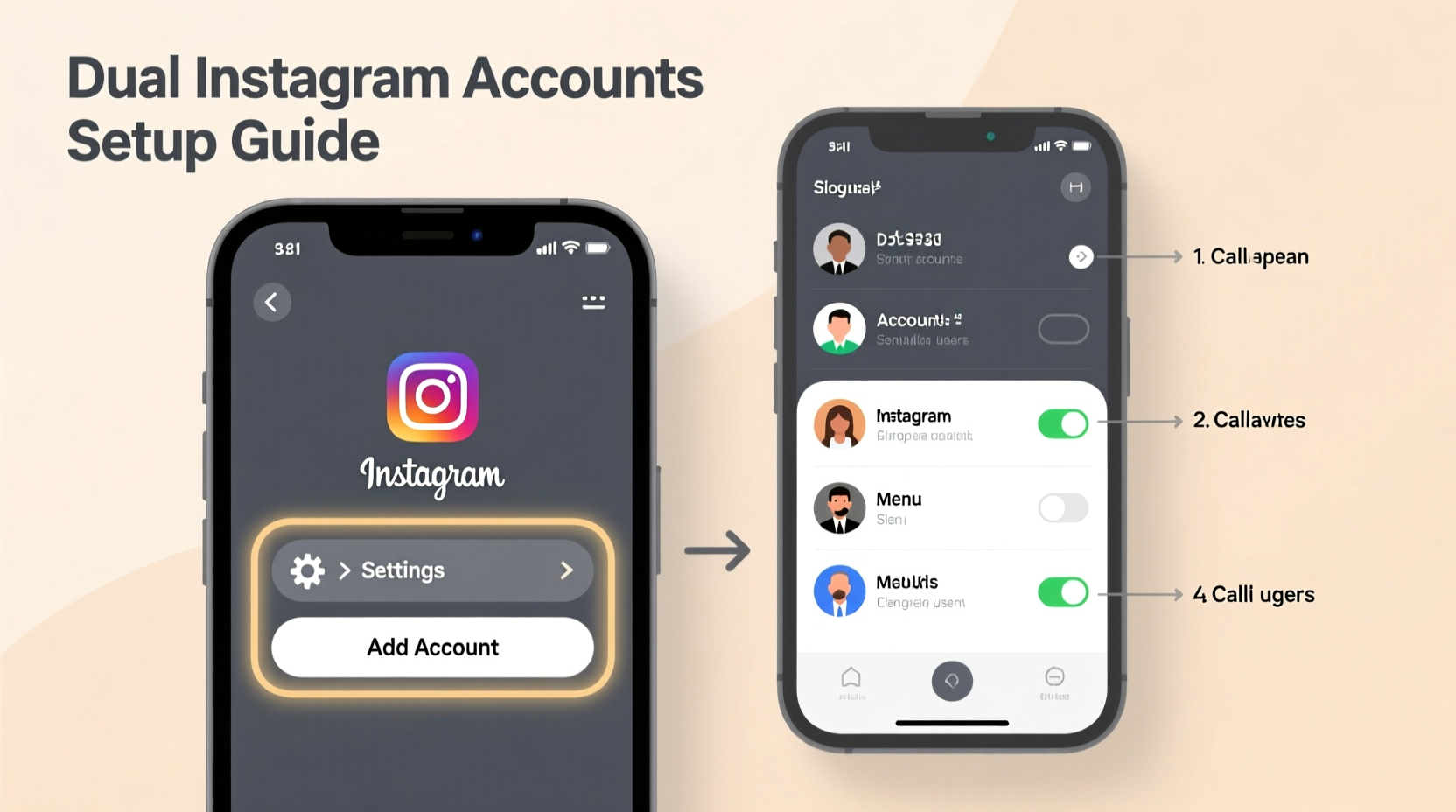
The rise of digital branding means many users now require more than one identity on social media. A freelance photographer might maintain a personal feed while showcasing portfolios under a professional handle. Small business owners often run branded pages distinct from their individual presence. Some users even separate interests—like travel, fitness, or art—into niche-specific accounts.
Having two accounts allows for targeted content, audience segmentation, and better engagement analytics. But juggling logins manually—logging out, logging back in—is inefficient and risks security lapses. The solution lies in seamless integration: staying logged into both accounts and switching with minimal effort.
Tip: Always enable two-factor authentication (2FA) on both accounts to protect against unauthorized access when switching frequently.Official Method: Using Instagram’s Built-in Multi-Account Feature
Instagram introduced native multi-account support years ago, and it remains the most secure and straightforward way to manage multiple profiles. This feature lets you add up to five accounts and toggle between them instantly within the app—no logout required.
Step-by-Step Guide to Adding a Second Account
- Open the Instagram app and go to your profile by tapping the silhouette icon in the bottom-right corner.
- Tap the three-line menu (☰) in the top-right corner, then select your current account name at the top of the screen.
- Choose “Add Account” at the bottom of the list.
- Enter the username and password for the second account you’d like to link.
- Tap “Log In.” Once verified, you’ll be returned to your original account.
- To switch, return to your profile, tap your username, and select the other account from the list.
After setup, switching takes just two taps. Notifications continue to appear for both accounts, though only the active one will receive real-time alerts unless you use additional tools.
“Native multi-account support is Instagram’s answer to growing user demand for flexibility. It reduces friction and keeps people engaged across roles—personal, professional, creative.” — Maya Tran, Social Media Platform Analyst
Third-Party App Solutions for Advanced Control
While Instagram’s built-in tool works well for casual use, power users may need deeper functionality: simultaneous posting, cross-account scheduling, or detailed analytics. Third-party apps fill this gap, offering enhanced workflows—but come with trade-offs in security and compliance.
Popular tools like Hootsuite, Buffer, Later, and Metricool allow you to connect multiple Instagram accounts and schedule content in advance. These platforms support publishing to Feed, Stories, and Reels, depending on permissions granted via Facebook Business Suite (required for API access).
Do’s and Don’ts When Using Third-Party Tools
| Do’s | Don’ts |
|---|---|
| Use only Instagram-approved partners (e.g., Meta Business Partners) | Share your password with unverified apps |
| Connect accounts through OAuth login (secure token-based access) | Use automation bots that violate Instagram’s Terms of Service |
| Schedule posts during optimal engagement windows | Automate likes, follows, or comments en masse |
| Monitor performance metrics across accounts | Store credentials in insecure note-taking apps |
Always review an app’s privacy policy and data handling practices before linking sensitive accounts. Avoid tools promising \"unlimited growth\" or \"instant followers\"—these often lead to shadowbanning or permanent suspension.
Tip: Use separate email addresses and phone numbers for each Instagram account to strengthen recovery options and reduce confusion.Workaround for Android Users: Dual Apps & App Cloning
Many Android manufacturers—including Samsung, Xiaomi, Oppo, and Realme—offer a built-in feature called \"App Twin,\" \"Dual Apps,\" or \"Clone.\" This creates a separate instance of Instagram, effectively allowing two fully independent installations on the same phone.
How to Enable App Cloning on Android
- Go to Settings on your phone.
- Search for “Dual Apps,” “App Twin,” or “Clone” (location varies by brand).
- Find Instagram in the list and toggle the switch to enable cloning.
- Exit settings. You’ll see a second Instagram icon on your home screen, usually marked with a badge (e.g., a small person or double outline).
- Open the cloned app and log in with your second account.
Both apps run independently. Notifications, caches, and login states are isolated. This method is ideal if you want full separation—different notification tones, separate message inboxes, and no accidental switches.
Caution: Not all devices support this feature. Stock Android (e.g., Google Pixel) does not include native app cloning, though some users install third-party launchers or use work profiles to achieve similar results.
iOS Limitations and Alternatives
iOS does not support app cloning due to Apple’s strict sandboxing policies. However, iPhone users aren’t left out. There are alternative approaches to simulate dual-account functionality:
- Use Safari or Chrome for secondary login: Log into the second account via mobile browser. While you can’t post natively, you can view content, respond to DMs, and check insights.
- Switch accounts regularly: Though less efficient, rapid toggling (via Settings > Switch Accounts) takes under 10 seconds once both are saved.
- Leverage the Facebook app: If your Instagram accounts are linked to Facebook Pages, you can manage posts and messages through the Facebook app or Meta Business Suite.
For iOS users seeking advanced control, combining Instagram’s native switching with a trusted scheduling platform offers the closest thing to true dual-account fluidity.
Mini Case Study: Sarah, Freelance Designer & Content Creator
Sarah runs a successful freelance graphic design business from her home studio. She maintains two Instagram accounts: @sarah.designs (her portfolio and client outreach) and @sarah.offduty (personal life, travel, and hobbies). Initially, she switched accounts multiple times daily, leading to missed messages and inconsistent posting.
She adopted the following system:
- Added both accounts using Instagram’s native multi-login feature.
- Connected @sarah.designs to Later.com for scheduled posts and Story templates.
- Enabled push notifications only on her primary account during work hours.
- Used unique profile pictures and bio indicators so she could instantly identify which account was active.
Within a month, her engagement on the professional account rose by 35%, and she reported feeling less stressed about mixing personal and business interactions. “Knowing I won’t accidentally reply to a client from my personal account has been a game-changer,” she said.
Best Practices for Maintaining Dual Accounts
Seamless doesn’t just mean easy switching—it also means avoiding mistakes that compromise professionalism or security. Follow these guidelines to maintain clarity and consistency:
Checklist: Managing Two Instagram Accounts Like a Pro
- ✅ Use distinct profile photos and bios to avoid confusion.
- ✅ Label accounts clearly in your phone’s app switcher or browser tabs.
- ✅ Schedule posts in advance using approved tools to save time.
- ✅ Review tagged photos and mentions daily on both accounts.
- ✅ Never share passwords; use strong, unique passwords for each.
- ✅ Enable two-factor authentication on both accounts.
- ✅ Log out of shared devices after switching accounts.
- ✅ Audit connected third-party apps monthly.
Consistency in tone, visuals, and response time builds trust with audiences. Treat each account as its own brand—even if one is personal—with defined goals and posting rhythms.
Frequently Asked Questions
Can I receive notifications for both Instagram accounts at the same time?
Yes, but only when they’re both active on your device. With Instagram’s native multi-account feature, you’ll receive notifications for both accounts as long as you haven’t logged out. However, only the currently open account will trigger real-time alerts unless you use a management tool like Meta Business Suite or a third-party dashboard that supports background monitoring.
Will Instagram ban me for having two accounts?
No. Instagram explicitly allows users to have multiple accounts. According to their Help Center, you can switch between up to five accounts on one device. Just ensure each account complies with community guidelines and isn’t used for spam or deceptive behavior.
Can I post to two accounts simultaneously?
Not directly through the Instagram app. However, tools like Later, Hootsuite, or Meta Business Suite allow you to publish the same content to multiple accounts at once—if you choose. Be cautious: sharing identical content across personal and professional accounts may dilute your messaging. Tailor captions and hashtags to each audience for better results.
Conclusion: Master Your Digital Identity
Setting up dual Instagram accounts on one phone isn’t just possible—it’s simple, safe, and increasingly essential in today’s digital landscape. Whether you use Instagram’s built-in switching, leverage app cloning on Android, or integrate professional scheduling tools, the key is consistency and intentionality. By organizing your accounts thoughtfully, securing your logins, and streamlining your workflow, you gain the freedom to express different facets of your identity without compromise.
💬 Ready to take control of your Instagram presence? Set up your second account today using the steps above, and share your experience in the comments. What challenges did you face? What tools helped you stay organized?