
Determining your Linux operating system version is a fundamental task for troubleshooting, software compatibility, and system administration. Whether you're installing new applications, configuring network services, or simply auditing your environment, knowing your OS version ensures you make informed decisions. This guide walks through multiple reliable methods—from command-line tools to graphical interfaces—suitable for users at every level of expertise.
Why Knowing Your Linux Version Matters
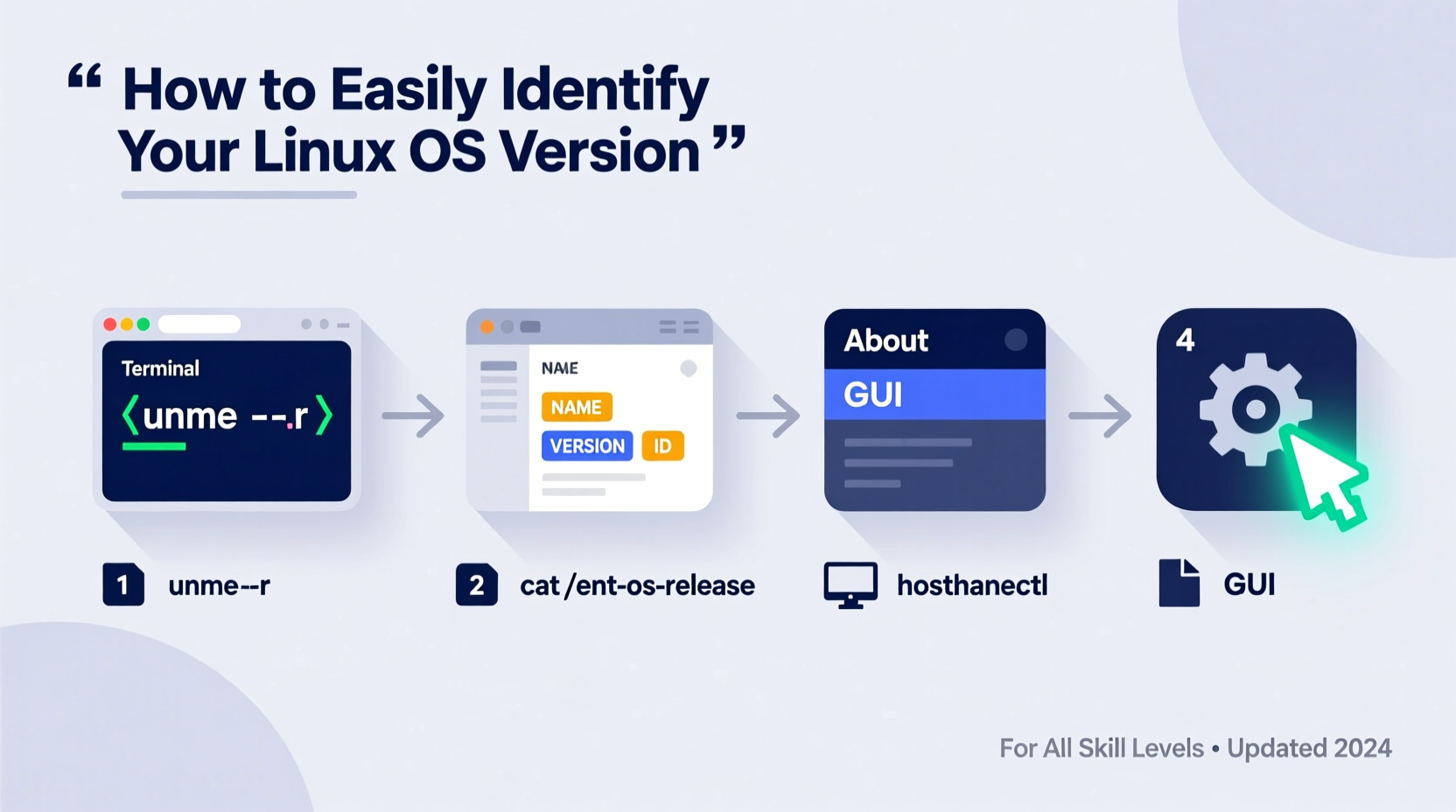
Linux distributions vary widely in package management, kernel versions, and default configurations. Ubuntu 22.04 behaves differently from CentOS 7 or Fedora 39. Installing software designed for Debian on an openSUSE system without verification can lead to dependency errors or broken systems. Similarly, support lifecycles differ: Ubuntu LTS releases are supported for five years, while rolling releases like Arch Linux require continuous updates.
Accurate identification helps when seeking help online. Instead of saying “I’m using Linux,” specifying “I’m on Rocky Linux 9.2 with kernel 5.14” allows experts to provide targeted solutions.
“Knowing your distribution and version is the first diagnostic step in any Linux environment.” — Linus Torvalds, Creator of Linux
Using Terminal Commands to Identify Your OS
The terminal offers the most precise and universally accessible way to determine your Linux version. These commands work across nearly all distributions and desktop environments.
1. /etc/os-release
This standardized file contains metadata about the OS, including name, version, and ID. Use:
cat /etc/os-releaseSample output:
NAME=\"Ubuntu\"
VERSION=\"22.04.3 LTS (Jammy Jellyfish)\"
ID=ubuntu
ID_LIKE=debian
PRETTY_NAME=\"Ubuntu 22.04.3 LTS\"
VERSION_ID=\"22.04\"
HOME_URL=\"https://www.ubuntu.com/\"
Tip: Use
source /etc/os-release && echo $PRETTY_NAME in scripts to dynamically retrieve the OS name.
2. lsb_release -a
Available on most Debian-based and enterprise systems, this command displays LSB (Linux Standard Base) information:
lsb_release -aIf not installed, add it via sudo apt install lsb-core (Debian/Ubuntu) or sudo yum install redhat-lsb-core (RHEL/CentOS).
3. hostnamectl
Part of systemd, this tool shows hostname and OS details:
hostnamectlOutput includes OS, Kernel, Architecture, and Local Hostname.
4. Distribution-Specific Files
Legacy systems may rely on files like:
/etc/issue– Often displayed before login/etc/redhat-release– For RHEL, CentOS, Fedora/etc/debian_version– For Debian systems
Example:
cat /etc/redhat-releaseReturns: CentOS Stream release 9
Graphical Methods for Desktop Users
Not everyone is comfortable with the terminal. Modern desktop environments provide intuitive ways to check system information.
GNOME (Ubuntu, Fedora)
- Click the system menu (top-right corner).
- Select About.
- View OS name, version, and kernel.
KDE Plasma (Kubuntu, openSUSE)
- Open System Settings.
- Navigate to Info Center or Operating System.
- Review detailed system specs.
Xfce, LXQt, and Others
Most lightweight desktops include a system information panel under settings or via right-click menus on the desktop or panel.
| Desktop Environment | How to Access OS Info | Details Provided |
|---|---|---|
| GNOME | Settings → About | OS, Version, Kernel, RAM |
| KDE Plasma | System Settings → Info Center | Full hardware + OS breakdown |
| Xfce | Settings → About Xfce | Basic version only |
| LXQt | LXQt Configuration → Info | Minimal details |
Step-by-Step Guide: How to Confirm Your Linux Version
Follow this universal checklist to accurately identify your OS, regardless of distribution.
- Open a terminal – Ctrl+Alt+T (most desktops) or use the application launcher.
- Run
cat /etc/os-release– This gives the most reliable and standardized output. - If that fails, try
lsb_release -a– Especially useful on Ubuntu and enterprise systems. - Fallback to legacy files – Use
cat /etc/*-releaseorcat /etc/issue. - Check kernel version with
uname -r– Important for driver and module compatibility. - Cross-reference with GUI if available – Ensures consistency between sources.
Common Pitfalls and Misinterpretations
Even experienced users can misread outputs. Here are frequent mistakes:
- Confusing kernel version with OS version –
uname -rreturns the kernel (e.g., 5.15.0-86), not the distro version. - Reading outdated files – Some containers or minimal images lack
/etc/os-release. - Assuming all Debian-based systems are Ubuntu – Linux Mint, Pop!_OS, and Kali are also Debian-based but distinct.
- Ignoring containerization – Running
docker execinto a container may show a different OS than the host.
“In virtualized or containerized environments, always verify whether you’re inspecting the host or guest OS.” — Sarah Thompson, DevOps Engineer at Red Hat
Real-World Example: Troubleshooting Software Installation
Consider this scenario: Maria downloads a database tool advertised for “Linux.” The installer fails with a missing library error. She runs:
cat /etc/os-releaseOutput shows she’s on Alpine Linux 3.18, which uses musl instead of glibc. The software was compiled for glibc-based systems like Ubuntu or CentOS. Armed with this knowledge, she either finds a static binary or uses a compatible container image. Without checking her OS type, she might have wasted hours chasing false leads.
Quick Checklist: Verify Your Linux Version in Under 60 Seconds
Use this actionable checklist for fast identification:
- ✅ Open terminal
- ✅ Run
cat /etc/os-release - ✅ Note
PRETTY_NAMEandVERSION_ID - ✅ Run
uname -rto get kernel version - ✅ If command fails, try
lsb_release -aorhostnamectl - ✅ For GUI users: Check system settings > About
- ✅ Record results for future reference or support requests
Frequently Asked Questions
What’s the difference between OS version and kernel version?
The OS version refers to your Linux distribution (e.g., Ubuntu 20.04, Fedora 38). The kernel version is the core of the operating system (e.g., 5.19.0-50). They are independent—distributions release updates and new kernels separately.
Can I identify my OS without terminal access?
Yes. Most desktop environments display OS information in system settings under “About” or “Details.” Remote servers without GUIs require SSH and command-line tools.
Why does lsb_release say “command not found”?
The lsb-release package isn’t installed by default on minimal or containerized systems. Install it using your package manager: apt install lsb-release (Debian/Ubuntu) or dnf install redhat-lsb-core (Fedora/RHEL).
Conclusion: Take Control of Your Linux Environment
Identifying your Linux OS version is a simple yet critical skill. Whether you're managing a personal laptop or a fleet of servers, accurate system awareness prevents errors, streamlines troubleshooting, and enhances security. With the commands and methods outlined here, you can confidently determine your OS across any distribution or interface. Don’t guess—verify. Empower yourself with knowledge and maintain full control over your computing environment.
💬 Found your version? Share your distribution and desktop setup in the comments—help others learn from real-world examples!