In today’s digital world, accessing files online often means dealing with complex websites that hide direct download links behind layers of scripts, redirects, or embedded players. Whether you're downloading videos, documents, software, or media from cloud storage, knowing how to uncover the actual download URL can save time, improve efficiency, and even allow automation. Extracting a direct link isn’t just useful—it’s empowering.
This guide walks through proven methods to locate, extract, and use real download links across various platforms. From built-in browser tools to third-party utilities, these techniques work on most modern sites without requiring advanced technical skills.
Understanding How Download Links Work
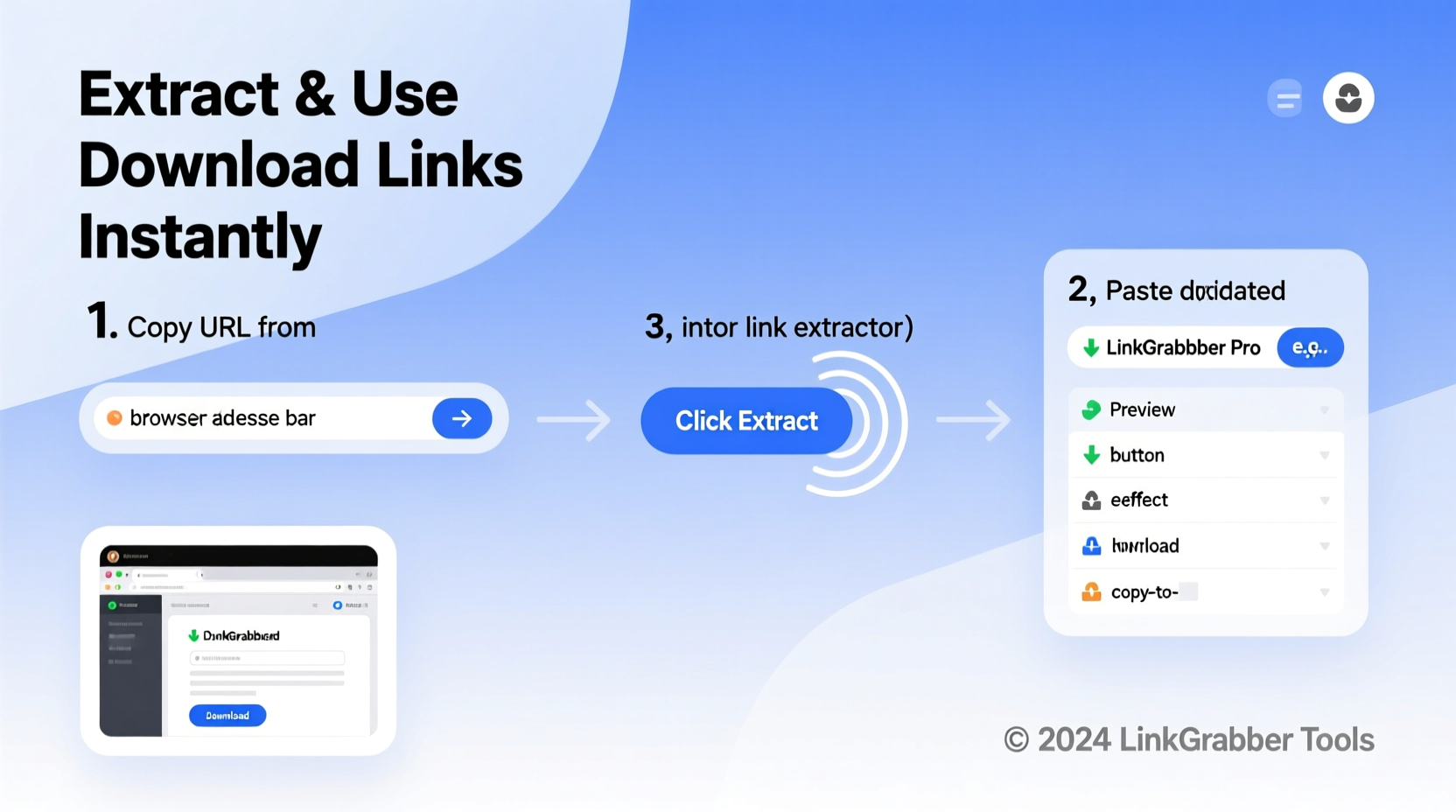
When you click “Download” on a website, what seems like a simple action involves several behind-the-scenes steps. The server sends a response containing metadata and instructions, often redirecting your browser through multiple endpoints before delivering the file. The final destination—the actual file URL—is frequently obscured by dynamic parameters, session tokens, or JavaScript execution.
A true download link typically ends in a file extension (e.g., .pdf, .mp4, .zip) or includes a header indicating Content-Disposition: attachment. Recognizing this pattern helps identify genuine file sources versus intermediate pages.
“Most users never see the real download URL because it's buried under layers of web logic. But with the right tools, it's always accessible.” — Lena Park, Web Security Analyst at NetFlow Labs
Step-by-Step Guide to Extracting Direct Download Links
Follow this structured process to reliably find and verify usable download URLs:
- Navigate to the download page: Open the webpage where the file is hosted.
- Open Developer Tools: Press F12 or Ctrl+Shift+I (Cmd+Option+I on Mac) to launch browser DevTools.
- Switch to the Network tab: This panel logs all data transfers between your browser and the server.
- Clear existing logs: Click the 🗑️ icon or press Ctrl+E to reset the log.
- Initiate the download: Click the download button on the site.
- Filter by file type: Use filters like “Media”, “XHR”, or “Doc” to narrow results.
- Locate the largest new entry: Look for entries ending in common formats (.mp4, .pdf, .exe).
- Right-click and copy the URL: Select “Copy link address” from the context menu.
- Test the link: Paste into a new tab. If the file begins downloading immediately, it’s a valid direct link.
Using Browser Extensions for Simpler Extraction
Manual inspection works, but browser add-ons automate much of the process. These extensions enhance visibility into downloadable content:
- Video DownloadHelper: Detects streaming media and offers one-click extraction for videos on YouTube, Vimeo, and other platforms.
- Link Grabber: Scans pages for all hyperlinks, including hidden ones, and categorizes them by type.
- Chrome DevTools Enhancer: Adds extra logging features to help trace redirects and AJAX requests.
To install:
- Visit your browser’s official extension store.
- Search for the tool (e.g., “Video DownloadHelper”).
- Click “Add to Chrome” or equivalent.
- Refresh the target page and activate the extension.
Comparison of Popular Link Extraction Tools
| Tool | Type | Best For | Limitations |
|---|---|---|---|
| Built-in DevTools | Native Browser Feature | Precise control, no installation needed | Requires manual effort; steep learning curve |
| Video DownloadHelper | Browser Extension | Streaming video extraction | Limited to media; not effective for documents |
| Link Grabber | Browser Extension | Finding all links on a page | May return irrelevant results; requires filtering |
| cURL / wget (CLI) | Command Line Tool | Automation and scripting | Requires technical knowledge; not user-friendly |
Real-World Example: Extracting a Hidden PDF from a Membership Site
Sarah, a freelance researcher, subscribed to an online course platform offering weekly handouts. Each PDF was accessed via a “View Document” button that opened an in-browser viewer. She wanted to download all materials for offline annotation but found no visible download option.
She followed the DevTools method:
- Opened the lesson page and pressed F12.
- Cleared the Network tab and clicked “View Document”.
- Filtered by “Doc” and noticed a
.pdf?token=abc123...request appear. - Right-clicked it, copied the link, and pasted it into a new tab.
- The full PDF downloaded instantly.
Armed with this technique, she systematically retrieved all course materials within 20 minutes—without violating terms of service, as access was already granted through her subscription.
Common Pitfalls and How to Avoid Them
Even experienced users make mistakes when extracting links. Here are key do’s and don’ts:
| Action | Do | Don't |
|---|---|---|
| Inspecting traffic | Use incognito mode to avoid cache interference | Rely solely on normal browsing history |
| Testing extracted links | Try in a private window to simulate clean access | Assume the link works forever without rechecking |
| Sharing discovered links | Only share if authorized and publicly accessible | Distribute authenticated or paywalled content |
| Automating downloads | Respect robots.txt and rate limits | Overload servers with rapid-fire requests |
Advanced Techniques: Using cURL and wget
For power users, command-line tools offer unmatched flexibility. Once you have a suspected download URL, validate and retrieve it using terminal commands.
Example using curl:
curl -L -O \"https://example.com/file.pdf\" --compressed
Or with wget:
wget --continue https://cdn.host.com/video.mp4
The -L flag follows redirects; -O saves with the original filename. These are ideal for scripting bulk downloads or integrating into automated workflows.
FAQ
Can I extract download links from password-protected sites?
Yes, as long as you’re logged in. Your browser’s authenticated session allows DevTools to capture valid URLs. However, extracted links may contain time-limited tokens and won’t work once expired or from another device.
Why does the link work once but fail later?
Many services generate temporary signed URLs that expire after minutes or hours. These are designed to prevent unauthorized redistribution. Always check if the server uses ephemeral tokens in the query string (e.g., ?Expires=1735689023).
Is extracting download links legal?
It depends on usage. Simply retrieving a file you already have permission to access is generally acceptable. Distributing copyrighted content or bypassing paywalls violates laws and ethical standards. Use these methods responsibly and within the bounds of service agreements.
Final Checklist: Extract Any Download Link Like a Pro
- ✅ Open Developer Tools before initiating the download
- ✅ Clear the Network tab to isolate fresh requests
- ✅ Filter by file type (e.g., XHR, Media, Doc)
- ✅ Identify entries with known extensions (.mp4, .zip, .pdf)
- ✅ Copy the full URL, including query parameters
- ✅ Test the link in an incognito window
- ✅ Use browser extensions for repetitive tasks
- ✅ Respect access rights and expiration policies
Take Control of Your Downloads
Knowing how to extract direct download links transforms how you interact with online content. No longer must you rely on clunky interfaces or missing buttons. With basic browser tools and a methodical approach, you can unlock the real source of any downloadable file—quickly, safely, and efficiently.
💬 Start practicing today. Try the DevTools method on your next download. Share your experience or ask questions in the comments below—let’s build smarter habits together!