Creating compelling videos no longer requires expensive software or a steep learning curve. For Mac users, there are several powerful free video editing tools that offer intuitive interfaces, robust features, and seamless integration with macOS. Whether you're a content creator, student, educator, or small business owner, choosing the right free editor can save time and money while delivering polished results. The key is finding a balance between functionality, ease of use, and compatibility with your workflow.
Why Free Video Editing Tools Matter on Mac
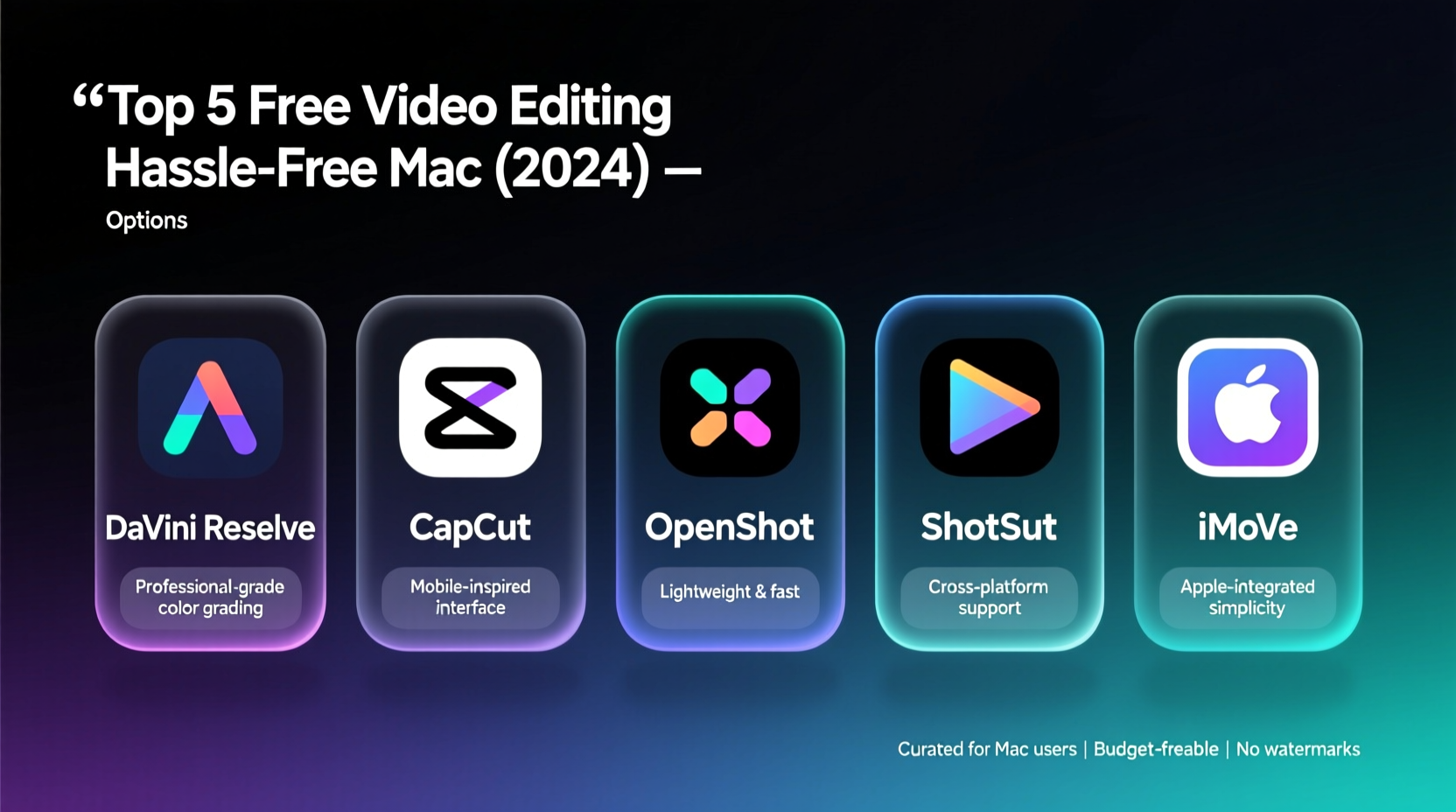
Apple’s ecosystem has long supported creative professionals, but not everyone needs (or can afford) Final Cut Pro X. While it remains a top-tier option, its $299 price tag isn’t accessible to all. Fortunately, macOS supports a wide range of third-party applications that provide essential editing capabilities—cutting, trimming, transitions, audio syncing, color correction, and even basic effects—without charging a cent.
The rise of social media, online courses, and remote collaboration has made video creation a daily necessity. Free editors fill the gap for those who need reliable tools without long-term financial commitment. They’re also ideal for beginners testing the waters before investing in premium software.
“Free doesn’t mean low quality. Many open-source and freemium tools now rival paid platforms in usability and output.” — Jordan Lee, Digital Media Instructor at SF Film School
Top 5 Free Video Editors for Mac: A Detailed Comparison
Below is a curated list of the most effective free video editing solutions available for macOS, each evaluated on interface design, feature set, export quality, system requirements, and user support.
| Software | Interface | Key Features | Export Quality | System Requirements |
|---|---|---|---|---|
| iMovie | Clean, intuitive, native to macOS | 4K support, green screen, audio filters, multi-cam editing | Up to 4K HDR | macOS 12.0+, 4GB RAM |
| DaVinci Resolve (Free) | Professional-grade, modular workspace | Color grading, audio post, visual effects, collaborative tools | Up to 8K | macOS 11+, 16GB RAM recommended |
| Shotcut | Barebones but customizable | Cross-platform, supports 4K, wide format compatibility | Up to 4K | macOS 10.13+, 8GB RAM |
| OpenShot | Simple drag-and-drop layout | Real-time preview, animated titles, keyframe animation | Up to 4K | macOS 10.14+, 8GB RAM |
| Kdenlive | Modular, Linux-inspired UI | Multitrack editing, proxy editing, extensive effects | Up to 4K | macOS 10.15+, 16GB RAM ideal |
iMovie: Apple’s Hidden Gem
Pre-installed on most new Macs, iMovie is often overlooked as “basic,” but it's one of the most capable free editors available. Its tight integration with macOS allows smooth performance even on older machines. Users benefit from drag-and-drop simplicity, AI-powered enhancements like automatic silence removal, and direct sharing to YouTube, TikTok, and Instagram.
It supports external microphones and cameras via USB or HDMI, making it suitable for podcasters and vloggers. With built-in templates for trailers and themes, iMovie helps maintain consistent branding across videos.
Tip: Use iMovie’s \"Keyword Collections\" to tag clips by theme, location, or speaker—this speeds up search during large projects.DaVinci Resolve: Hollywood Power, Free Tier Included
Developed by Blackmagic Design, DaVinci Resolve is used in major film productions for color correction and sound design. The free version includes nearly all features except collaborative multi-user workflows and some advanced noise reduction tools.
Its four workspaces—Edit, Cut, Color, Fairlight (audio), and Fusion (VFX)—make it uniquely comprehensive. While the learning curve is steeper than other options, tutorials are abundant, and the payoff in control over visuals and sound is unmatched in the free tier.
Step-by-Step Guide: Setting Up Your First Project
Getting started with any free editor follows a similar process. Here’s how to begin efficiently:
- Download and Install: Visit the official website or Mac App Store to install your chosen software.
- Create a New Project: Set frame rate (24fps for cinematic, 30fps for web), resolution (1080p standard), and aspect ratio (16:9).
- Import Media: Drag footage, audio, and images into the media library or timeline.
- Edit Timeline: Trim clips, add transitions, adjust volume levels, and insert text overlays.
- Preview and Export: Watch the full sequence, make final tweaks, then export using H.264 for broad compatibility.
For best results, organize files in folders before importing—name them clearly (e.g., “Interview_Audio,” “B-Roll_Park”). This prevents confusion later, especially when managing multiple sources.
Common Pitfalls and How to Avoid Them
- Overloading the timeline: Too many tracks or effects can slow down performance. Use proxy editing (lower-res previews) if your Mac struggles.
- Ignoring audio quality: Poor sound ruins otherwise great videos. Use noise reduction tools and ensure voice levels are balanced against background music.
- Exporting at wrong settings: Always match export specs to your platform (e.g., vertical 9:16 for Instagram Reels).
- Not backing up projects: Save versions regularly and store backups on external drives or cloud storage.
Mini Case Study: From Idea to Viral Clip Using Only Free Tools
Lena Park, a freelance educator based in Portland, wanted to launch a YouTube series explaining climate science simply. With no budget for software, she downloaded DaVinci Resolve and used her iPhone for filming. Over six weeks, she edited weekly 8-minute videos combining screen recordings, voiceovers, and stock footage from public domain libraries.
By leveraging Resolve’s color correction and Fairlight audio mixer, she achieved a clean, professional look. One video explaining ocean acidification gained traction after being shared by an environmental nonprofit. It reached over 250,000 views and led to speaking invitations. All of this was done without spending a dollar on editing tools.
“I thought I needed expensive gear,” Lena said. “But once I learned Resolve’s basics, I realized the software wasn’t the barrier—it was my confidence.”
Checklist: Choosing the Right Free Editor for You
Before committing to a tool, ask yourself these questions:
- ✅ Do I need multi-track editing for voice, music, and sound effects?
- ✅ Is 4K or high-bitrate export important for my audience?
- ✅ Am I comfortable with a steeper learning curve for more power?
- ✅ Will I be working on an older Mac with limited RAM?
- ✅ Do I plan to add subtitles or animated titles regularly?
- ✅ Is cross-platform access useful (e.g., switching between Mac and PC)?
If you prioritize speed and simplicity, iMovie or OpenShot may suffice. If future growth matters, start learning DaVinci Resolve—even its free version prepares you for pro workflows.
Frequently Asked Questions
Can I use free video editors for commercial projects?
Yes, most free editors—including iMovie, DaVinci Resolve, and Shotcut—allow commercial use. Always verify licensing terms, but none require attribution or restrict monetization.
Will these programs run smoothly on an older MacBook Air?
iMovie and OpenShot perform well on machines from 2015 onward with 8GB RAM. DaVinci Resolve and Kdenlive may lag unless you enable proxy editing or reduce playback resolution.
Are there hidden costs or upgrade pressures?
iMovie and Shotcut are completely free. DaVinci Resolve offers a free version alongside a paid Studio edition ($295), but core editing tools remain free. Others may show optional upgrade prompts, but they don’t block functionality.
Final Thoughts: Start Creating Without Limits
The idea that quality video editing requires big budgets is outdated. Today’s free tools empower anyone with a Mac to produce content that looks and sounds professional. From iMovie’s out-of-the-box ease to DaVinci Resolve’s cinematic precision, there’s a solution tailored to every skill level and goal.
What matters most isn’t the software you use—it’s the story you tell. By removing cost as a barrier, these tools democratize creativity. Pick one, spend a few hours exploring its features, and start turning raw footage into something meaningful.
🚀 Ready to edit your first video? Download iMovie or DaVinci Resolve today, import a clip from your phone, and create a 60-second piece. Share it with a friend—you might just surprise yourself.