
Converting physical documents into digital format has become essential in both personal and professional life. Whether you're submitting contracts, archiving receipts, or organizing school notes, scanning multiple pages into a single PDF streamlines access and reduces clutter. The good news: you don’t need expensive equipment or technical expertise. With today’s devices and software, combining multi-page scans into one clean PDF is faster and easier than ever—no matter if you’re using an iPhone, Android phone, Windows laptop, or Mac.
Why Combine Scans Into One PDF?
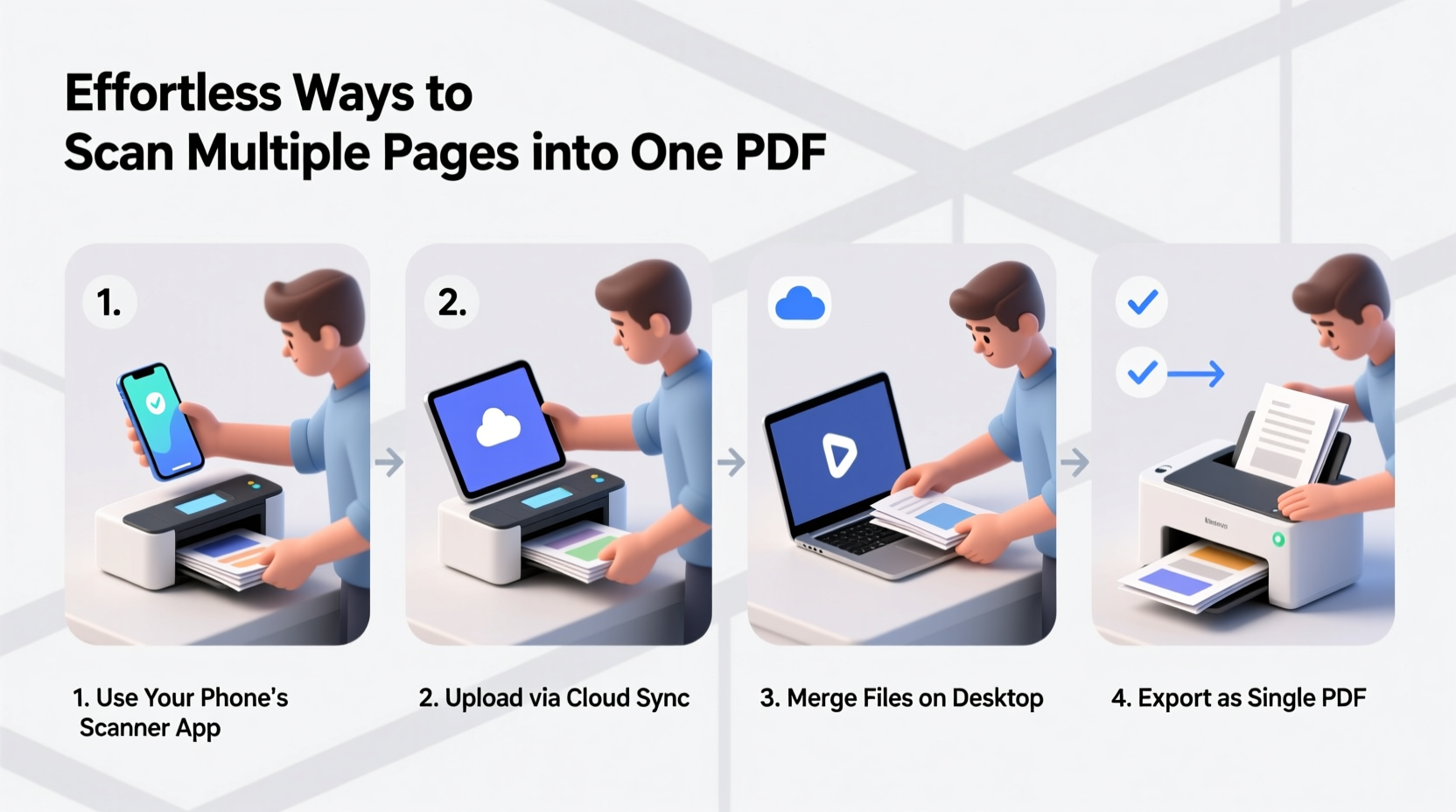
A single, multipage PDF offers several advantages over scattered images or individual files. It’s portable, searchable (with OCR), easy to email, and widely compatible across platforms. Professionals use consolidated PDFs for proposals, students for research binders, and freelancers for invoicing. Most importantly, it eliminates the hassle of managing dozens of separate files.
“Digitizing paper documents isn’t just about convenience—it’s about reclaiming time and reducing cognitive load.” — Dr. Lisa Tran, Digital Workflow Researcher at MIT Media Lab
Smartphone Scanning: Fast and Portable
Modern smartphones come equipped with high-resolution cameras and intelligent scanning apps that rival traditional scanners. These tools automatically detect document edges, enhance contrast, and compile multiple shots into a unified PDF.
Best Mobile Apps for Multi-Page Scans
| App | Platform | Key Feature | Export Format |
|---|---|---|---|
| Adobe Scan | iOS, Android | Auto edge detection, OCR search | Single PDF, editable text |
| Microsoft Lens | iOS, Android | OneDrive integration, whiteboard mode | PNG, PDF, Word |
| Apple Notes (Built-in) | iOS only | No app needed, seamless iCloud sync | PDF within note |
| Google Drive Scanner | Android, iOS via Drive app | Direct cloud saving, Google Workspace ready |
Step-by-Step: Scanning Multiple Pages Using Adobe Scan
- Open Adobe Scan and tap the camera icon.
- Position your first page within the frame; the app detects edges automatically.
- Capture the image. Tap “+” to add another page.
- Repeat until all pages are scanned.
- Tap “Merge” to combine them into one file.
- Tap “Save as PDF” and choose location (device or cloud).
This process takes under two minutes and produces crisp, legible results suitable for legal or business use.
Desktop Solutions: Precision and Control
When dealing with large volumes or sensitive documents, desktop tools offer greater control over quality, naming, and security settings.
Using Built-In Tools on macOS and Windows
Both operating systems include native utilities for scanning directly into PDFs.
- macOS Image Capture: Connect your scanner, open Image Capture, select “PDF” as the output format, and scan each page. All pages are automatically saved into one file unless changed.
- Windows Fax & Scan: Open the app, create a new scan profile set to PDF, and enable “Add to existing file” to build multi-page documents incrementally.
These tools require minimal setup and integrate well with system folders and printers.
Third-Party Software Options
For advanced features like batch processing, OCR indexing, or password protection, consider dedicated software:
- CamScanner Desktop: Offers AI-powered enhancement and cloud syncing.
- Nitro Pro: Ideal for editing scanned PDFs, adding signatures, and optimizing file size.
- VueScan: Supports over 6,000 scanner models with deep customization options.
Real Example: Digitizing a 25-Page Contract
Sarah, a freelance designer based in Portland, recently signed a client agreement requiring submission of her portfolio, contract terms, and tax forms—all totaling 25 pages. Instead of mailing hard copies, she used her iPad and the Microsoft Lens app.
She started by laying out the pages in order on her dining table. Using Lens, she scanned each sheet, reviewing thumbnails to ensure no pages were missed or skewed. After completing the scan, she tapped “Create PDF,” named the file “Client_Onboarding_Pack_Smith.pdf,” and shared it directly from the app via email. Total time: 7 minutes. No additional hardware required.
The client received a clean, organized PDF and replied within hours. Sarah later stored a copy in her encrypted cloud folder for future reference.
Checklist: How to Successfully Combine Multiple Scanned Pages
- Organize original pages in correct sequence.
- Ensure adequate lighting and remove shadows.
- Use a dark surface beneath the document for better edge detection.
- Select a scanning app or software with multi-page support.
- Preview each scan before moving to the next page.
- Review the final PDF for missing or duplicated pages.
- Name the file clearly and store it securely (local drive or encrypted cloud).
- Back up critical documents in more than one location.
Do’s and Don’ts When Creating Multi-Page PDFs
| Do’s | Don’ts |
|---|---|
| Use consistent orientation (portrait/landscape) | Mix orientations without adjusting post-scan |
| Enable auto-crop and color correction | Scan crumpled or folded papers without flattening |
| Test scan one page first to adjust settings | Assume all apps merge scans automatically |
| Leverage OCR for searchable text | Forget to delete failed or blurry scans |
Frequently Asked Questions
Can I scan multiple pages without a physical scanner?
Absolutely. Smartphone apps like Adobe Scan, Microsoft Lens, and Google Drive’s scanner function allow you to capture and merge pages using only your phone’s camera. These tools handle alignment, enhancement, and PDF creation seamlessly.
How do I reorder pages if I scanned them out of sequence?
Most mobile apps display a thumbnail strip where you can drag and rearrange pages. On desktop, use free tools like PDFsam Basic or online editors such as Smallpdf or ILovePDF to reorganize pages after scanning.
Is it safe to scan sensitive documents on my phone?
Yes, provided you use trusted apps and avoid public Wi-Fi during upload. Enable encryption on your device, use strong passwords, and delete temporary files after export. For highly confidential material, consider offline-only scanning modes available in apps like Adobe Scan.
Final Thoughts and Next Steps
Digital organization doesn’t have to be complex. By leveraging tools already in your pocket or on your desk, you can turn stacks of paper into tidy, accessible PDFs in minutes. The key is consistency—choosing a reliable method and sticking with it. Over time, this small habit saves hours, reduces stress, and keeps your information secure and retrievable.
Start today: pick one document you’ve been meaning to digitize, grab your phone or scanner, and follow the steps outlined here. Once you see how fast and simple it is, you’ll wonder why you waited so long.
🚀 Ready to go paper-light? Try scanning your next multi-page document using just your smartphone—and share your experience in the comments below!