
Creating a mobile app may seem like a daunting task, especially if you're starting from zero. But with the right approach, tools, and mindset, anyone can build their first functional app in a matter of weeks. The mobile app market continues to grow, offering opportunities for entrepreneurs, students, and hobbyists alike. Whether you want to solve a personal problem, launch a startup idea, or simply learn a new skill, building an app from scratch is both empowering and educational.
1. Define Your App’s Purpose and Target Audience
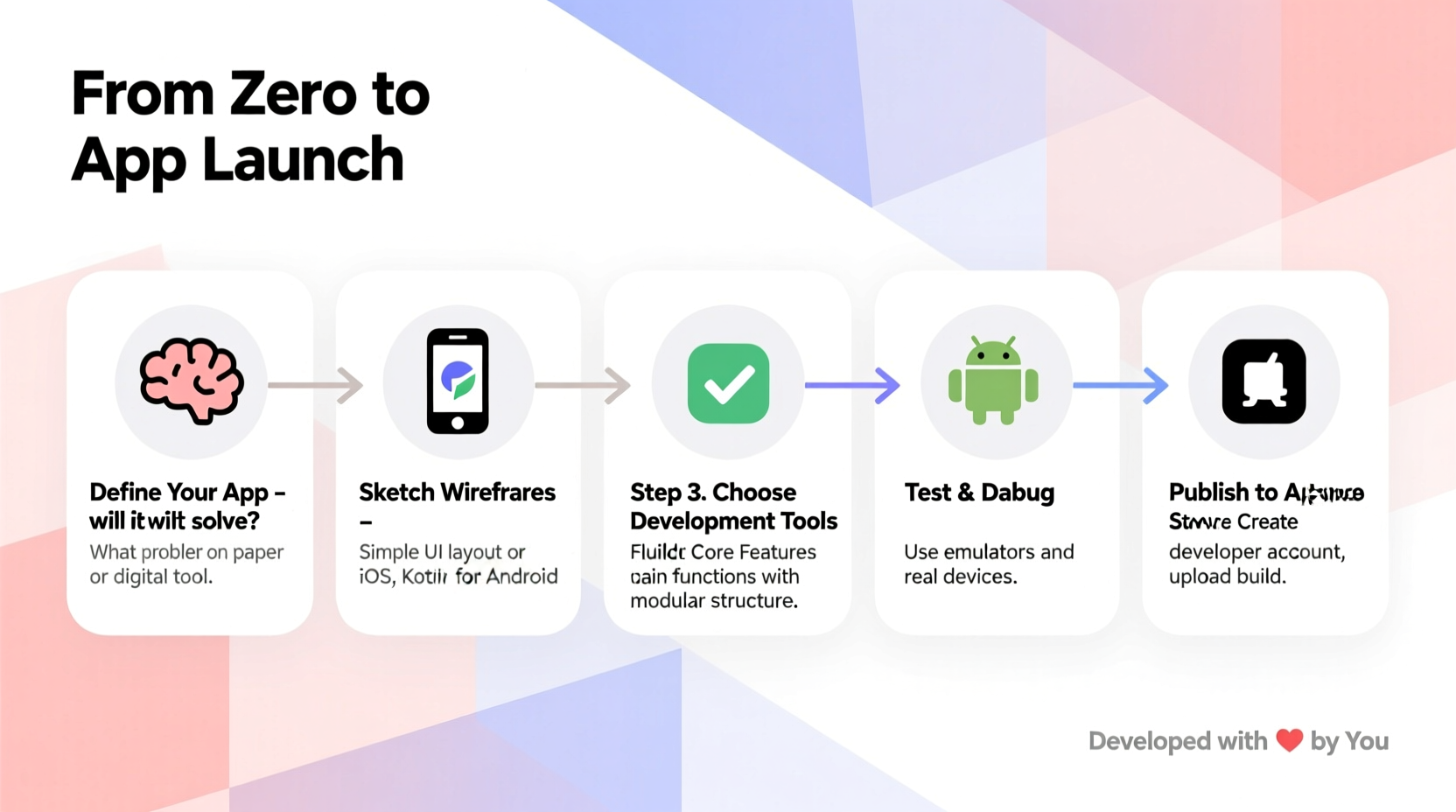
Before writing a single line of code, clarity on your app’s purpose is essential. Ask yourself: What problem does this app solve? Who will use it? A well-defined goal keeps development focused and prevents feature creep.
For example, if you’re creating a habit tracker, your target audience might be productivity enthusiasts aged 18–35 who prefer minimalistic design and daily reminders. This insight shapes everything from user interface decisions to notification logic.
Tip: Write a one-sentence app pitch. If you can’t clearly explain what your app does in 10 seconds, refine your idea.Consider conducting informal surveys or researching similar apps on the App Store and Google Play. Look at user reviews to identify pain points you can improve upon.
2. Choose Your Development Path: Native, Hybrid, or No-Code?
There are three primary routes to building a mobile app. Each has trade-offs in terms of cost, complexity, performance, and time-to-market.
| Approach | Best For | Languages/Tools | Learning Curve |
|---|---|---|---|
| Native (iOS & Android) | High-performance apps, full device access | Swift (iOS), Kotlin (Android) | High |
| Hybrid (Cross-Platform) | Budget-conscious developers, faster deployment | React Native, Flutter | Moderate |
| No-Code Platforms | Beginners, MVPs, non-technical founders | Adalo, Thunkable, Glide | Low |
If you're new to programming, starting with a hybrid framework like React Native offers a balance between accessibility and scalability. It uses JavaScript—one of the most widely used languages—and allows you to deploy to both iOS and Android with a single codebase.
“We’ve seen students with zero coding background ship their first app within six weeks using React Native.” — Dr. Alan Torres, Mobile Development Instructor at TechEd Academy
3. Set Up Your Development Environment
To begin coding, you’ll need the right tools installed. Here’s how to get started with React Native, one of the most beginner-friendly options:
- Install Node.js: Required to run JavaScript tools and package managers.
- Install Expo CLI: Run
npm install -g expo-cliin your terminal to set up the development environment quickly. - Create a New Project: Use
expo init MyFirstAppand choose a template (e.g., “blank” for simplicity). - Run the App: Navigate into the project folder and type
npm start. This launches a development server. - Test on Device: Install the Expo Go app on your smartphone and scan the QR code shown in the browser.
You now have a live development environment where every code change instantly reflects on your phone—a powerful way to learn through immediate feedback.
Tip: Always test on a real device early. Emulators are helpful, but real-world performance varies.4. Design a Simple User Interface
Start small. Your first app doesn’t need advanced animations or complex navigation. Focus on core functionality and usability.
In React Native, interfaces are built using components like View, Text, and Button. For a habit tracker, you might create a screen that displays a list of habits and a button to mark them as complete.
Here’s a minimal example of a component:
import React from 'react';
import { View, Text, Button, StyleSheet } from 'react-native';

export default function App() {
  return (
    <View style={styles.container}>
      <Text>My First App</Text>
      <Button title=\"Mark Habit Complete\" onPress={() => alert('Done!')} />
    </View>
  );
}

const styles = StyleSheet.create({
  container: {
    flex: 1,
    justifyContent: 'center',
    alignItems: 'center',
  }
});
Use tools like Figma or pen-and-paper sketches to plan your layout before coding. Simplicity enhances user experience—especially for first-time users.
5. Add Core Functionality and Test Iteratively
With your UI in place, enhance interactivity. For instance, allow users to add new habits using a text input field and store them temporarily in memory using React state.
Gradually introduce features:
- Add input fields and save data locally using
useState. - Persist data across sessions with
AsyncStorage. - Implement basic navigation using
React Navigation. - Add push notifications for daily reminders (advanced).
Testing should happen continuously. After each new feature, ask someone else to try the app. Observe where they struggle. Fix usability issues immediately.
Mini Case Study: From Idea to Launch in 8 Weeks
Sophie, a college student majoring in psychology, wanted to help her peers manage study breaks. She envisioned a simple app that reminds users to take a five-minute break every 25 minutes—inspired by the Pomodoro Technique.
She started with a no-code tool but found it limiting. After switching to React Native, she spent two weeks learning the basics, then built a prototype with a timer, pause/resume controls, and sound alerts. She tested it with classmates, refined the interface based on feedback, and published it on the Apple App Store using Expo’s build service.
Her app gained 300 downloads in the first month—proof that even modest projects can make an impact when they solve real problems.
Essential Development Checklist
Follow this checklist to stay on track during your app journey:
- ✅ Define a clear app purpose and target audience
- ✅ Choose a development path (no-code, hybrid, or native)
- ✅ Set up your development environment (Node.js, Expo, IDE)
- ✅ Sketch the main screens and user flow
- ✅ Build a minimal prototype with core features
- ✅ Test on real devices and gather feedback
- ✅ Fix bugs and optimize performance
- ✅ Prepare app store assets (icon, screenshots, description)
- ✅ Publish to Google Play or App Store
- ✅ Plan for updates based on user feedback
Frequently Asked Questions
How much does it cost to publish an app?
Google Play charges a one-time $25 registration fee. Apple requires a $99 annual fee for its Developer Program. Both offer extensive distribution and review processes to ensure quality.
Can I build an app without knowing how to code?
Yes. No-code platforms like Thunkable or Adalo let you create functional apps using drag-and-drop interfaces. These are ideal for prototypes or simple tools, though they lack the flexibility of custom-coded apps.
How long does it take to build a basic app?
A simple app with one or two features can take 4–8 weeks for a beginner working part-time. More complex apps with backend services, user accounts, or integrations may require several months.
Final Steps: Launch and Learn
Once your app is ready, prepare your store listing with a compelling description, high-quality screenshots, and a clear privacy policy. Submit it for review—Apple typically takes 24–48 hours, while Google Play is often faster.
After launch, monitor user feedback closely. Many successful apps evolve significantly after their first version. Treat your first app not as a final product, but as a foundation for growth and learning.
🚀 Your first app doesn’t have to be perfect—just functional and meaningful. Start small, stay consistent, and keep building. Share your journey online, connect with other developers, and celebrate every milestone. The next great app could begin with yours.